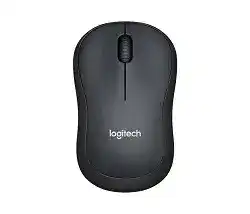
Logitech M220 SILENT Mouse Driver download pages usually refer to the basic system files and Logitech utilities that help the computer work with this quiet wireless mouse. The M220 uses a 2.4 GHz USB receiver, so it does not need Bluetooth pairing. Once the receiver and battery are ready, Windows normally detects the device with its built-in mouse driver.
This compact model suits home desks, laptops, study rooms, and shared work areas where loud clicking feels distracting. It has left and right silent buttons, a scroll wheel, optical tracking, an ambidextrous shape, and a single AA battery. The software mainly helps with recognition, receiver pairing, and stable pointer behavior rather than advanced button programming.
Most problems with this model come from receiver pairing, weak battery contact, USB interference, old Logitech utilities, or scroll wheel dirt. Because the mouse has a simple design, the fix often starts with the receiver and battery before you change software.
Logitech M220 Mouse Windows Driver Download
| Driver Name | Description | Supported OS | File Size | Download |
|---|---|---|---|---|
| Logitech Options for Windows | Customizes mouse buttons, pointer behavior, scrolling, shortcuts, and device settings on Windows computers. | Windows | 202.14 MB |
Logitech M220 Mouse Mac OS Driver Download
| Driver Name | Description | Supported OS | File Size | Download |
|---|---|---|---|---|
| Logitech Options for Mac OS X 10.13 | Provides mouse button customization, scrolling control, shortcut setup, and device adjustment for supported Mac systems. | Mac OS X 10.11.x, Mac OS X 10.12.x, Mac OS X 10.13.x | 122.25 MB | |
| Logitech Options for Mac OS X 10.9 | Enables pointer tuning, button assignments, scrolling preferences, and Logitech mouse settings on older Mac versions. | Mac OS X 10.9.x, Mac OS X 10.10.x, Mac OS X 10.11.x, Mac OS X 10.12.x | 25.56 MB | |
| Logitech Options for Mac OS X 11.0 | Adds device-specific controls for mouse shortcuts, button actions, scroll behavior, and Logitech Options preferences. | Mac OS X 11.0.x | 124.29 MB |
Setting Up the M220 with Its USB Receiver
Start with the receiver that came with the mouse. Plug it into a working USB port, then turn the mouse on and move it on a flat surface. Windows 11, Windows 10, and most recent Windows systems should load a basic HID mouse driver automatically. After that, test the pointer in a browser, folder window, or plain text page.
Use the receiver before looking for Bluetooth
The M220 SILENT uses a 2.4 GHz USB receiver. Do not spend time searching for it in Bluetooth settings unless you own a different Logitech model that clearly lists Bluetooth. If the laptop has no free USB port, use a trusted USB adapter or hub, but test a direct USB port first when the pointer does not move.
If the receiver does not respond, unplug it and try another port. A front USB port or a short USB extension cable often gives a better signal than a rear desktop port. Also keep the receiver away from external drives, USB 3.0 cables, metal desk edges, and crowded hubs.
Install only the software that matches the job
For normal clicking and scrolling, the operating system driver is usually enough. If the mouse arrived unpaired from its receiver, use Logitech’s receiver pairing utility only when it still applies to your system. Follow the pairing screen, switch the mouse off and on when asked, and then test movement before opening other apps.
Avoid installing several Logitech utilities at the same time. Old SetPoint, Options, Options Plus, or gaming software can confuse simple mouse detection when they run together. Remove unused Logitech utilities, restart the computer, reconnect the receiver, and then keep only the package you actually need.
Check the battery before blaming the driver
Open the battery cover and confirm the AA battery follows the marked direction. If the pointer jumps, stops, or works only near the receiver, replace the battery with a fresh one. Then wipe the battery ends and contacts with a dry cloth. Do not use liquid inside the battery bay.
After installing or changing software, restart the computer once. Then reconnect the USB receiver and test the M220 in a simple app before checking games, remote desktop tools, or browser extensions. This separates a real mouse issue from an app-specific setting.
Fixes for Common M220 SILENT Mouse Problems
The issues below focus on common problems that people run into with this mouse and closely related Logitech wireless mice. Each fix stays within the M220 design, so it avoids unsupported Bluetooth, gaming, rechargeable, or extra-button features.
Mouse does not work after plugging in the receiver
First, check the power switch and battery direction. Then plug the receiver into another USB port and wait a short moment for Windows to load the basic mouse driver. If the pointer still does not move, test the receiver directly on the computer instead of a hub.
When the same mouse works on another computer, the first system may have a USB driver or software conflict. Restart it, remove unused Logitech utilities, and reconnect the receiver after Windows has fully loaded. This often clears a stuck detection state.
New M220 does not pair with its receiver
Some units may not respond even though the receiver appears in Windows. In that case, the mouse and receiver may need pairing again. Use the Logitech receiver connection utility when it is suitable for your operating system, then follow the prompt to turn the mouse off and on.
After pairing, test the pointer before removing the receiver. If it works, keep that receiver with the same mouse. A simple 2.4 GHz receiver does not pair with every Logitech device, so replacing a lost receiver needs the right receiver type.
Pointer lags, freezes, or jumps around
Wireless lag often comes from signal noise, not the mouse driver. Move the receiver closer to the mouse and away from USB 3.0 drives, external hard disks, docking stations, and thick metal surfaces. A short USB extension cable can make a weak desktop connection much steadier.
Also replace the AA battery if the lag appears after months of use. Low power can look like a driver fault because the pointer moves for a moment and then stops. After changing the battery, test the mouse on plain paper or a normal desk mat.
Receiver works in one USB port but not another
A bad port, low power hub, or busy docking station can stop the receiver from responding. Plug the receiver into a direct port on the computer first. If a front desktop port works better than a rear port, keep using the front port or add a short extension lead.
If Windows makes a sound but the pointer does not move, open Device Manager only to check whether the USB receiver appears under mouse or HID devices. Do not use random driver files. Remove the stuck device entry, restart, and let Windows detect the receiver again.
Scroll wheel moves the page the wrong way
Dust around the wheel can make scrolling jump up and down. Turn the mouse off, remove the battery, and rotate the wheel several times. Blow gently around the wheel gap or use clean, dry air from a safe distance. Then reinstall the battery and test a long webpage.
If the problem started after changing Logitech software, check whether smooth scrolling or app-specific scrolling changed the wheel behavior. Turn that option off, close the utility, and test again. For this simple model, a basic wheel setting often works better than heavy customization.
Middle click or wheel click stops responding
The wheel click can fail when dirt sits below the wheel area or when the press does not reach the internal switch cleanly. Turn the mouse off and clean around the wheel without forcing tools into the gap. Then click the wheel several times gently and test it in a browser tab.
If cleaning does not help and the wheel still scrolls normally, the middle-click switch may have wear. Software cannot fully repair a worn switch. However, testing the mouse on another computer can confirm whether the issue follows the device or stays with the first system.
Left or right click does not always register
Missed clicks can come from a weak battery, dirty button gap, or worn switch. Replace the AA battery first because it is the easiest fix. Then clean around the button edges with a dry cloth and test normal clicking pressure on desktop icons or a simple webpage.
Also check Windows double-click speed if folders open too fast or too slowly. A setting that feels wrong can look like a hardware fault. Adjust the speed slightly, apply the change, and test again before reinstalling any software.
Mouse double-clicks when you press once
Double-clicking can come from Windows click speed settings or switch wear. Open the mouse settings and move the double-click speed to a comfortable middle range. Then test single clicks in folders and browser tabs. If the problem improves, the setting caused the confusion.
If the M220 still double-clicks on another computer with a fresh battery, the button switch may have aged. In that case, software changes will not last. Use warranty support when the unit is still covered, or replace the mouse if the switch keeps failing.
Mouse works for a while and then sleeps too quickly
The M220 saves battery by sleeping when you stop using it. A short pause before movement returns can feel normal. However, if it sleeps during active use, replace the battery and clean the battery contacts with a dry cloth. Loose contact can cut power for a split second.
On laptops, also check USB power saving. Windows may reduce power to USB devices to save energy. Turn off USB selective suspend for testing, restart the computer, and see whether the receiver stays active during normal work.
Logitech software does not detect the M220
This model does not need advanced customization software for normal use. If a Logitech utility does not list it, remove the utility from the main troubleshooting path and test the mouse with the receiver only. Windows can still handle basic pointing, clicking, and scrolling.
If you installed several Logitech packages while trying to fix the issue, uninstall the ones you do not need. Restart the computer, reconnect the receiver, and let the operating system load its basic mouse driver again. Then use pairing software only when the receiver itself needs pairing.