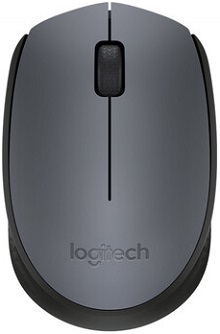
A mouse that powers on but refuses to move the pointer can make the Logitech Wireless Mouse M170 Driver seem like the missing piece, yet this model has two hardware revisions that behave differently with Logitech software. Both versions use a 2.4 GHz USB nano receiver rather than Bluetooth, and Logitech identifies the wireless protocol as non-Unifying. That distinction matters when diagnosing receiver problems or choosing software.
Logitech Wireless Mouse M170 Windows Driver Download
| Driver Name | Description | Supported OS | File Size | Download |
|---|---|---|---|---|
| Logi Options Plus | Customization software for adjusting mouse buttons, pointer behavior, scrolling, shortcuts, gestures, and supported device settings. | Windows 11, Windows 10 32-bit/64-bit | 43.1 MB |
Logitech Wireless Mouse M170 Mac OS Driver Download
| Driver Name | Description | Supported OS | File Size | Download |
|---|---|---|---|---|
| Logi Options Plus | Provides mouse customization controls for buttons, scrolling, pointer behavior, gestures, shortcuts, and device preferences. | macOS 26, macOS 15, macOS 14 | 19.54 MB | |
| Logi Options Plus | Enables supported mouse settings such as button assignments, scrolling behavior, pointer adjustments, and application shortcuts. | macOS 13 | 19 MB | |
| Logi Options Plus | Manages device-specific controls including mouse buttons, pointer response, scrolling options, gestures, and custom shortcuts. | macOS 12.0 | 18.65 MB | |
| Logi Options+ | Offers configuration tools for supported mouse functions, including button customization, pointer settings, scrolling, and gestures. | macOS 11 | 17.51 MB |
Logitech Wireless Mouse M170 Driver When Software Cannot Find the Mouse
Look at the model number printed on the underside before changing software. Logitech lists M-R0060 and MR0099 versions of the M170. They share the same basic wireless design, but their software capabilities differ. Knowing which one is on the desk can save a lot of unnecessary installation work.
M-R0060 and MR0099 do not have identical software controls
The M-R0060 revision supports Logitech software customization. Logitech originally documented button actions, pointer speed, and middle-button gesture assignments for this version. The newer MR0099 revision does not offer the same software customization. If an application opens but provides no configurable controls for an MR0099 unit, that behavior does not automatically indicate a damaged receiver or failed installation.
This difference also explains why two M170 owners can install similar Logitech software and see different results. Before removing applications or searching for another package, check the number on the base. For the compatible revision, the Logitech Wireless Mouse M170 Driver and control software should match the hardware rather than being chosen solely from the M170 name printed on the product.
Do not treat the receiver as a Unifying receiver
The M170 communicates through Logitech’s non-Unifying 2.4 GHz protocol. A Unifying receiver therefore is not an interchangeable replacement simply because it also has a Logitech logo and fits a USB port. Attempts to add the M170 to Unifying software may end with the application finding nothing, even though both the receiver and mouse work normally with their intended hardware.
If the original nano receiver has gone missing, identify the exact mouse revision before buying a replacement. Avoid assuming that any inexpensive Logitech dongle can take its place. Logitech classifies receivers outside the Unifying and Logi Bolt families separately, so replacement compatibility needs to be established for the specific device rather than inferred from the connector shape.
Power Problems Can Look Like a Receiver Failure
The M170 runs from one replaceable AA battery and has a physical power switch. When the pointer disappears completely, start there rather than changing computer software. Turn the mouse off, open the battery compartment, reseat the cell, and make sure its contacts touch firmly. Then switch the unit back on and give the wireless link a moment to respond.
The mouse suddenly stops responding
A battery can still fit correctly while delivering too little power for consistent operation. Trying another known-good AA cell separates a power problem from a USB or wireless problem quickly. If a different cell restores operation, there is little reason to alter the Logitech Wireless Mouse M170 Driver installation or remove system mouse components.
Check the metal battery contacts as well. Dirt or oxidation can interrupt power even when the cell itself tests well. Wipe accessible contact surfaces gently with the battery removed and avoid bending the contacts. If the unit only wakes when the battery is pressed or moved, the fault points toward the battery connection rather than computer configuration.
Power cycling can clear a temporary no-response state
When the receiver remains plugged in but the mouse has stopped responding after sleep or extended inactivity, switch the mouse off briefly and turn it on again. You can also remove and reinsert the receiver. These two actions reset each side of the wireless path without altering applications, button assignments, or operating-system preferences.
If nothing changes, test the receiver in another USB port before blaming the mouse. A port that works with storage devices is useful evidence, but moving the receiver still matters because the M170 needs both USB communication and a usable 2.4 GHz radio path.
Receiver Position, Pointer Movement, and Tracking
Logitech rates the M170 wireless link for up to 10 metres under suitable conditions, but desk layout and nearby electronics can reduce practical range. If pointer movement becomes delayed, uneven, or intermittent, place the nano receiver where the computer chassis and other equipment do not heavily obstruct the path between it and the mouse.
The receiver is detected but the pointer keeps hesitating
Try another USB socket, especially when the problem began after adding a hub, dock, external drive, or another wireless accessory. A short port change is often more informative than reinstalling several packages. Also test from closer range. If movement becomes normal near the receiver, concentrate on receiver position and the surrounding wireless environment.
The M170 uses Logitech Advanced Optical Tracking at 1000 dpi. Tracking therefore depends on the surface under the sensor as well as the radio link. A reflective, transparent, highly polished, or uneven surface can make movement appear erratic even when the receiver connection remains intact. Test the device on an ordinary opaque mouse pad or matte desk surface before changing software.
Pointer speed feels wrong after moving to another computer
Pointer speed can differ noticeably between operating systems or computers because the host system contributes its own pointer preferences. Check the operating system’s mouse speed first. Owners of the M-R0060 revision can also use the supported Logitech control software to adjust pointer speed, while MR0099 owners should not expect the same customization interface.
If speed changes unexpectedly only in one application, compare its behavior with the desktop and another program. A software-specific sensitivity or scrolling preference can create a problem that looks like a hardware fault. When movement is poor everywhere, return to the surface, battery, receiver position, and USB port tests.
Logitech Wireless Mouse M170 Software for Wheel and Click Symptoms
The M170 has left and right controls plus a 2D optical scroll wheel with middle-click functionality. There are no extra side controls to troubleshoot. That keeps diagnosis fairly narrow: erratic scrolling, failed middle-clicks, unwanted double-clicks, and ordinary left or right click failures should be separated from wireless connection problems.
The wheel scrolls backward or jumps in both directions
A wheel that moves a page down and then suddenly sends it upward usually needs a different test from a receiver problem. Try several applications first. If the reversal happens everywhere, inspect the wheel area for dust and debris and rotate the wheel repeatedly while the mouse is powered off. Avoid spraying liquid into the opening.
If scrolling behaves badly in only one program, inspect that program’s scrolling preferences before treating the wheel as defective. When the same irregular movement appears across the operating system and another computer, the evidence shifts toward wear or contamination in the wheel mechanism rather than the Logitech Wireless Mouse M170 Driver.
Middle-click no longer performs its expected action
Pressing the scroll wheel is a supported middle-click on this model. Test it somewhere that normally recognizes a middle button. For an M-R0060 mouse with configurable Logitech software, also check whether the middle control has been assigned another action. The MR0099 revision lacks that software customization, so application and hardware testing carry more weight there.
One click turns into two
Unwanted double-clicks have been observed with M170 units as they age. First compare the left and right controls and test on another computer if one is available. Changing the operating system’s double-click speed may help distinguish an unusually sensitive timing preference from a physical switch that sends multiple signals from one press.
If a single press repeatedly becomes two clicks across different computers, or dragging an item releases unexpectedly, software changes are unlikely to provide a lasting cure. Avoid risky switch repairs or improvised internal modifications. A worn click mechanism is a hardware problem, particularly when every other part of the wireless connection continues to work normally.
When a Download Is Actually Worth Checking
The M170 is unusual because its model number matters more than repeatedly installing mouse utilities. Current product support may not present a separate conventional driver download, while Logitech documents software capability for supported revisions. Use the Logitech Wireless Mouse M170 Driver page to identify the appropriate package, but verify M-R0060 or MR0099 before expecting configurable controls.
For M-R0060, software can provide access to supported pointer and button functions. For MR0099, lack of customization is expected rather than evidence that Windows or macOS failed to recognize the device. Neither revision gains Bluetooth, Unifying compatibility, rechargeable operation, or extra hardware controls through an application.
Separate a computer problem from a worn mouse
A final cross-check can prevent unnecessary downloads. Put in a known-good AA cell, use the original compatible receiver, try another USB port, and test on a plain opaque surface. If possible, connect the receiver to another supported computer. A failure that follows the mouse to a second machine points away from the first computer’s software.
When basic movement works but customization does not, return to the model number instead of repeatedly resetting the wireless connection. When clicks or scrolling fail on multiple machines, consider mechanical wear. When the entire device drops out, concentrate on battery contact, receiver recognition, USB placement, and the non-Unifying receiver relationship. Those distinctions make M170 troubleshooting much faster than treating every symptom as a missing driver.