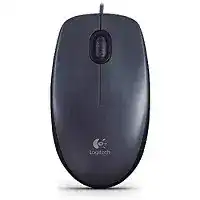
A silent pointer after plugging in the cable can make the Logitech M100 Mouse Driver seem missing, although this model normally relies on the operating system’s standard USB mouse support. The M100 is a corded optical mouse with a USB connection, three controls, and a regular scroll wheel. It has no wireless receiver, batteries, Bluetooth pairing, or programmable side buttons.
Windows, macOS, ChromeOS, and Linux can generally identify the mouse as a standard USB input device. No separate Logitech control application is required for its normal left click, right click, middle click, pointer movement, and vertical scrolling. Download-related troubleshooting should therefore begin with USB detection rather than receiver tools or wireless software.
Logitech M100 Mouse Windows Driver Download
| Driver Name | Description | Supported OS | File Size | Download |
|---|---|---|---|---|
| SetPoint Software 64-bit | Full offline package for configuring mouse buttons, tracking speed, device-specific settings, and status indicators. | Windows 11, Windows 10 64-bit, Windows 8 64-bit, Windows 7 64-bit | 80.45 MB | |
| SetPoint Software 32-bit | Complete offline installer for adjusting mouse controls, pointer tracking, hot-keys, and compatible device preferences. | Windows 11, Windows 10 32-bit, Windows 8 32-bit, Windows 7 32-bit | 78.04 MB | |
| SetPoint Smart Installer | Small web installer that requires an internet connection to download the required SetPoint components during setup. | Windows 11, Windows 10 32-bit/64-bit, Windows 8 32-bit/64-bit, Windows 7 32-bit/64-bit | 4.61 MB |
No response after connecting the cable
Push the USB plug firmly into a port on the computer and watch the optical light beneath the mouse. No light may indicate that the port is not supplying power, the plug is not seated fully, or the cable has an internal break. Try a second direct USB port before changing any operating-system files.
A desktop computer may have several ports connected through different internal controllers. Test one at the front and one at the back when possible. On a laptop, disconnect a docking station or USB adapter and attach the mouse to the machine itself. A direct connection removes extra hardware from the test.
Windows shows an unrecognized USB device
Disconnect the M100, restart Windows, and reconnect it only after the desktop has loaded. This gives the USB controller another chance to create the standard HID record. When the warning returns, open Device Manager and remove only the failed mouse or unknown USB entry, then scan for hardware changes.
A damaged USB-controller installation can affect keyboards, storage devices, and other peripherals as well. Check another simple USB device in the same port. When several products fail there, focus on the computer’s chipset or USB controller rather than repeatedly searching for a Logitech-specific package.
Use the Logitech M100 Mouse Software Only Where It Fits
The Logitech M100 Mouse Driver usually means the native mouse component already included with the operating system. Logitech describes the M100 as a plug-and-play USB model, so advanced utilities made for newer productivity mice add no extra buttons, wireless features, profiles, or adjustable hardware resolution to this device.
A normal installation should create an HID-compliant mouse entry without asking for pairing codes or account access. Do not install Unifying Software, the Bolt app, Logitech Options, Options+, or gaming software for the M100. Those programs target other product families and cannot repair a damaged cable, worn switch, or faulty optical sensor.
The pointer works before login but stops afterward
When the mouse responds on the sign-in screen and then freezes after entering Windows, a background program or corrupted user preference may be taking control. Start Windows in Safe Mode or use a clean startup test. If movement returns, re-enable startup items gradually until the conflicting application becomes clear.
Accessibility utilities, remote-control tools, virtual input programs, and manufacturer touchpad packages can all alter pointer behavior. Remove only software that clearly coincides with the fault. The M100 does not need a permanent Logitech background service for ordinary operation.
The mouse disappeared after a Windows update
Shut down the computer completely instead of choosing a quick restart. Unplug the M100, turn the computer back on, and connect the mouse after Windows settles. This resets the USB controller more fully on systems where Fast Startup preserves an unsuccessful device state between sessions.
If the problem began immediately after an update, run the built-in hardware diagnostics and install the current chipset or USB-controller package from the computer manufacturer. The Logitech M100 Mouse Driver cannot replace motherboard-level USB components. Test the mouse on another computer before rolling back an operating-system update.
macOS detects clicks but movement feels wrong
macOS should operate the M100 without a Logitech application. Review tracking speed, scrolling direction, and double-click speed in the mouse controls before adding software. A setting carried over from another mouse can make the M100 feel unusually slow, overly quick, or reversed even though the USB connection is functioning normally.
Disconnect other pointing devices during the test, including a second mouse, drawing tablet, or unusual USB input adapter. Conflicting utilities can apply acceleration or scrolling changes to every connected pointer. Removing that extra input temporarily shows whether the symptom follows the M100 or the computer configuration.
Trace Pointer Trouble from the Desk to the Cable
Optical movement depends on the surface beneath the sensor, while uninterrupted input depends on the cable and USB plug. These physical details often explain freezing, jumping, or intermittent movement better than software does. The M100 uses visible red optical tracking at a typical 1000 dpi resolution, with no hardware button for changing sensitivity.
The cursor jumps or travels unevenly
Move the mouse onto a plain, opaque pad with a matte finish. Clear glass, polished stone, mirrors, reflective coatings, and highly repetitive patterns can confuse an optical sensor. A different surface is the fastest way to separate tracking trouble from an operating-system problem.
Turn the mouse over and inspect the sensor opening under good light. Remove hair or loose dust with a soft dry brush or short bursts of air. Do not spray fluid into the opening or press against the lens. Residue inside the sensor area can produce erratic movement even when the red light remains visible.
Movement freezes when the cable shifts
Place the pointer on screen and gently change the cable position near the USB plug and where the wire enters the mouse. Do not pull, twist sharply, or force either joint. If the optical light flickers or Windows repeatedly plays its USB disconnect sound, the cable probably has an internal break.
Also inspect the plug for looseness, bent metal, or debris. A damaged cord is a hardware fault, not an installation problem. Continuing to bend the cable into a position that temporarily works can worsen the break and cause unpredictable disconnects during normal use.
The pointer pauses for several seconds
Connect the M100 without a hub, monitor socket, keyboard pass-through port, or docking station. Shared adapters sometimes reset low-speed USB devices when power demand changes. A pause that disappears through a direct port points to the adapter or hub rather than the optical mouse itself.
When the freezing continues, check whether the keyboard or other USB devices pause at the same moment. Several devices stopping together suggests a USB-controller, power-management, or system-load issue. Disable USB power saving only as a diagnostic step, then confirm whether the pauses actually stop.
The cursor speed never feels comfortable
The M100 does not include a DPI-selection button, so pointer speed changes come from the operating system. Adjust the pointer-speed control in small increments and test precise tasks such as selecting text or closing a small window. Extreme acceleration settings can make a basic 1000 dpi mouse feel inconsistent.
Games and design applications may apply their own sensitivity values after Windows settings. Test desktop movement first, then compare the affected program. When only one application feels slow or fast, change its input preference instead of altering the global setting for every program.
Separate Wheel and Click Faults from Driver Problems
The Logitech M100 Mouse Driver passes three standard controls to the computer: left click, right click, and the scroll-wheel middle click. Repeated clicks, missed presses, or backward scrolling often begin inside the mechanical switches or wheel encoder. Testing across several applications reveals whether software or hardware deserves attention.
One click opens files twice
Lower the operating system’s double-click speed and test the button in folders, menus, and a basic drawing program. A difficult timing setting may explain occasional mistakes. However, repeated double-clicks from one physical press across several computers usually indicate wear inside the left-button switch.
Disconnect the mouse and clear loose dust from the gap around the button with gentle air. Avoid pouring contact cleaner through the shell or opening a unit that remains under warranty. Cleaning may help when debris restricts movement, but software cannot restore a switch whose internal contact has become unstable.
Left or right click responds only with extra pressure
Compare both buttons while the mouse rests flat. A click that requires force, works only at one edge, or fails on another computer points toward mechanical damage. Check that the top shell is not visibly warped and that nothing is lodged around the button seam.
Windows can swap the primary and secondary buttons, so confirm that setting before assuming the controls have changed sides. If both functions remain present but occur on opposite buttons, restore the preferred primary-button choice. A completely missed press is different and usually needs hardware replacement.
The wheel scrolls backward or misses notches
Test scrolling in a long webpage and a document. If both applications jump in the opposite direction, disconnect the mouse and brush around the wheel opening while rotating it slowly. Dust and hair can interfere with the encoder, although persistent random movement commonly develops as that internal part wears.
Changing the number of lines per wheel notch may improve scrolling that feels too large or too small. It will not correct reverse pulses, movement without wheel rotation, or frequent missed steps. Those symptoms continuing on a second computer make a wheel-encoder fault more likely.
Middle click does nothing
Press the wheel in an application that has a known middle-button action, such as opening a link in a new browser tab. Some programs ignore middle click or assign it another command, so a single application is not enough for diagnosis. Confirm that ordinary wheel rotation still works separately.
The wheel can scroll normally even when its push switch has failed. Since the M100 has no extra programmable buttons, there is little value in installing customization software to replace that action. Use an operating-system accessibility option temporarily or replace the mouse when middle click is essential.
Decide whether the download can change the result
Use the Logitech M100 Mouse Driver page to identify compatible operating systems and recover normal USB recognition, but judge hardware faults separately. A different computer provides the clearest final test. If the same cable dropouts, false double-clicks, wheel reversals, or tracking jumps follow the mouse, reinstalling Windows components will not solve them.
A working M100 needs only a sound USB connection, a readable surface, and healthy mechanical controls. Keep the sensor opening clear, avoid tight bends near both cable joints, and connect through a direct port when diagnosing interruptions. Those checks match this wired three-button design more closely than receiver pairing or modern Logitech control applications.