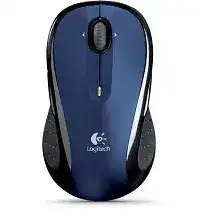
A desktop may detect the USB mini receiver while the pointer stays frozen, and that is where the Logitech LX8 Cordless Laser Mouse Driver becomes more than a simple download name. The LX8 is a cordless laser mouse that works through its own USB mini receiver, not Bluetooth. Its strongest fixes usually involve the receiver, battery contact, SetPoint controls, and the tilt wheel features.
This model uses two AA batteries, a laser sensor, a USB receiver, side buttons, and a tilt wheel with zoom support. Those details matter because the wrong repair path can waste time. Bluetooth menus, Unifying receiver tools, and Bolt pairing screens do not belong to this mouse. The LX8 needs a working receiver path first, then software for extra control.
Many LX8 units still work as basic pointing devices on modern Windows systems, but older Logitech features may not appear until the correct control software is installed. SetPoint is the important Logitech utility for this generation. Use it for programmable buttons, wheel behavior, battery checking where supported, and older mouse control options.
Logitech LX8 Cordless Laser Mouse Windows Driver Download
| Driver Name | Description | Supported OS | File Size | Download |
|---|---|---|---|---|
| SetPoint Software 64-bit | Full SetPoint package for offline setup with mouse button settings, tracking speed, hot-key control, and device-specific options. | Windows 11, Windows 10 64-bit, Windows 8 64-bit, Windows 7 64-bit | 80.45 MB | |
| SetPoint Software 32-bit | Complete 32-bit SetPoint installer for offline use with button customization, pointer settings, battery status, Caps Lock, and Num Lock indicators. | Windows 11, Windows 10 32-bit, Windows 8 32-bit, Windows 7 32-bit | 78.04 MB | |
| SetPoint Smart Installer | Small SetPoint online installer that downloads required components during setup for mouse buttons, tracking behavior, and device settings. | Windows 11, Windows 10 32-bit/64-bit, Windows 8 32-bit/64-bit, Windows 7 32-bit/64-bit | 4.61 MB |
Logitech LX8 Cordless Laser Mouse Mac OS Driver Download
| Driver Name | Description | Supported OS | File Size | Download |
|---|---|---|---|---|
| Logitech Control Center | Mac customization software for Logitech mouse controls, scrolling behavior, button assignments, and device-specific settings. | macOS 10.15, macOS 10.14, macOS 10.13 | 17.73 MB | |
| Logitech Control Center | Control Center release for older Mac systems with mouse button configuration, movement preferences, and Logitech device management. | Mac OS X 10.13, Mac OS X 10.12, Mac OS X 10.11 | 17.15 MB | |
| Logitech Control Center | Legacy Mac software package for adjusting supported Logitech mouse functions and maintaining device-specific control options. | Mac OS X 10.11, Mac OS X 10.10, Mac OS X 10.9, Mac OS X 10.8 | 17.06 MB |
Build the Connection Around the Original Receiver
The LX8 depends on the receiver that came with it. If the receiver is missing, mixed with another Logitech receiver, or replaced by a newer Unifying receiver, the mouse may never pair. A matching-looking receiver is not enough. Older non-Unifying receivers often pair only with the device family they shipped with.
Receiver plugged in but no pointer movement
Start by plugging the mini receiver directly into a working USB port. Avoid a hub for the first test because the mouse needs a steady receiver signal and a port that wakes properly with the computer. After Windows loads the device, turn the mouse off and on, then move it on a plain matte surface.
If the receiver has a connect or reset button, press it first, then press the connect button on the underside of the mouse within a short time. Wait a few seconds before moving the mouse. Pressing both buttons repeatedly without waiting can interrupt the link attempt.
Use the USB extension when the desk blocks the signal
The LX8 was often supplied with a USB extension stand or cable for the receiver. That small accessory can solve problems that look like driver failure. Put the receiver on the desk where it has a clearer path to the mouse, especially if the computer tower sits below the table or behind metal furniture.
The Logitech LX8 Cordless Laser Mouse Driver will not repair a radio path blocked by the desk, case, or nearby USB devices. First move the receiver into open space, then install or reload SetPoint if the pointer works but button or wheel features remain missing.
Wrong receiver after storage or resale
Second-hand LX8 sets often create one specific problem: the mouse and receiver did not originally belong together. The mouse can look clean, the receiver can light up, and the computer can still show a USB input device, but the LX8 will not respond. In that case, software cannot force an incompatible receiver to become the right one.
Check for the exact receiver included with the mouse package or original keyboard-mouse set. Do not assume a modern Logitech receiver will replace it. This model is not a Unifying mouse, so Unifying Software is not the correct recovery tool for the LX8.
SetPoint Controls for Buttons, Tilt Wheel, and Zoom
Basic movement may work before SetPoint appears, but the side buttons and wheel functions need the older Logitech control layer on supported systems. The LX8 has universal forward and back buttons, a tilt wheel, and zoom-style wheel functions. Without the right software, those controls may act plain or not respond inside certain programs.
Forward and back buttons do nothing
Open a browser or document viewer and test the side buttons in a place where back and forward actions make sense. If they still do nothing, install SetPoint for the operating system version you are using. Then open the Logitech mouse settings and check whether the side buttons have been assigned to another command.
Some people think the buttons failed because one app ignores them. Test in more than one program before changing the assignment. If SetPoint lists the mouse correctly, restore the button actions to default and apply the change. Then close the test app and reopen it.
Horizontal scrolling does not work after setup
The tilt wheel can scroll sideways, but only when the application accepts horizontal wheel input. A narrow web page will not prove anything. Test a wide spreadsheet, large photo view, or document that extends beyond the screen width. If vertical scrolling works but side movement fails everywhere, SetPoint likely has not attached the LX8 wheel profile.
Reinstalling the Logitech LX8 Cordless Laser Mouse Driver package may help only after the receiver and basic movement already work. Restart after SetPoint installation, then test wheel tilt again. Avoid installing several Logitech utilities together because older SetPoint-era devices can disappear from the control panel when newer software takes over.
Zoom opens instead of side scrolling
The LX8 wheel features include zoom behavior, so a wrong wheel assignment can make tilting or wheel actions feel strange. Open the Logitech mouse settings and review the wheel command. If the wheel has been set to zoom or application switching, return it to the scrolling behavior you actually want.
Do not judge the wheel from only one program. Some photo viewers, spreadsheet apps, and browsers interpret wheel input differently. The best test is simple: vertical scroll in a long page, horizontal scroll in a wide sheet, then button assignments in a browser window.
Battery and Power Faults That Look Like Driver Trouble
The LX8 uses two AA batteries, and weak power can mimic almost every software issue. The cursor may freeze, the receiver may appear normal, the side buttons may fail, or the mouse may reconnect only after being moved sharply. Replace both batteries as a pair before reinstalling software.
Mouse wakes once and stops again
If the LX8 responds for a few seconds and then cuts out, inspect the battery bay. Remove both AA batteries, check the polarity marks, and look for contact residue. A dry cloth is enough for light dust. Do not scrape the contacts or use liquid while the batteries are installed.
This model can feel heavy with two batteries, and a loose cell can shift when the mouse moves. After closing the battery cover, place the mouse flat on the desk and test slow movement first. Sudden drops during slow movement point more toward power contact than software.
Battery indicator or SetPoint status looks wrong
SetPoint can show battery information for supported Logitech devices, but the reading depends on stable communication. If the status jumps or stays blank, confirm receiver placement and battery condition first. A poor receiver link can make the software show incomplete information even when the mouse still moves.
Do not mix rechargeable and alkaline cells during testing. Use two fresh AA batteries of the same type. If the pointer becomes stable after that change, the previous issue was power related, not a broken driver.
The mouse stays on after the computer shuts down
Older cordless mice do not always power down just because the PC has shut off. Use the power switch when storing the LX8 or leaving it unused overnight. This avoids battery drain and prevents a weak-battery problem from appearing the next morning as a receiver or driver fault.
If the mouse sits in a drawer or bag, switch it off before storage. A pressed button inside a bag can drain the batteries faster than normal desk use. Replace the cells before deep troubleshooting if the mouse has been stored for a long time.
Laser Tracking and Pointer Behavior on Real Desks
The LX8 uses laser tracking, which handles more surfaces than many older optical mice, but it still has limits. Glossy, mirrored, transparent, or uneven surfaces can make the cursor jump. Test on a plain mouse pad before changing software settings.
Pointer jumps on shiny furniture
A laser sensor can misread reflections from polished desks. Move the LX8 to a dull surface and slow the pointer speed in Windows if the movement still feels too quick. This test takes less time than a reinstall and often separates tracking trouble from receiver trouble.
If the cursor moves smoothly on a mouse pad but jumps on the desk, keep the mouse pad. The sensor is working; the surface is the problem. No Logitech download can make a reflective table behave like a proper tracking surface.
Slow movement works but fast movement skips
Fast skipping can come from a weak receiver path, not only the laser sensor. Place the receiver closer with the USB extension and keep it away from crowded cables. Then test quick movement across the same surface. If the skip disappears, the receiver position was the real cause.
If the skip remains on several surfaces and with fresh batteries, lower pointer speed and remove any extreme acceleration setting. A compact cordless mouse can feel twitchy when the system speed slider sits too high.
Make the LX8 Work Like Its Own Hardware Again
The Logitech LX8 Cordless Laser Mouse Driver should match the way this mouse was built: receiver first, SetPoint second, and surface or battery checks before repeat installation. Keep Bluetooth, Bolt, and Unifying fixes out of the repair plan because they target different Logitech hardware.
For a clean LX8 recovery, confirm the original mini receiver, place it where the mouse has a clear signal, install two good AA batteries, and test plain pointer movement. After that, use SetPoint for side buttons, tilt wheel behavior, zoom control, and battery-related information where the software provides it.
When the pointer works but the special controls do not, reload the Logitech LX8 Cordless Laser Mouse Driver software path once, restart, and test each control in the right kind of app. When the pointer itself fails, return to the receiver, batteries, power switch, and tracking surface before blaming the download.