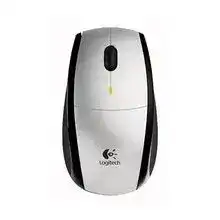
A receiver that appears connected while the pointer remains still usually needs more than another USB reconnect. The Logitech LX5 Cordless Optical Mouse Driver combines the older SetPoint controls with the standard input support already built into Windows. This model communicates through its dedicated cordless receiver rather than Bluetooth, so Bluetooth menus and modern multi-device pairing instructions do not apply.
The original package included the LX5 mouse, its matching cordless receiver, SetPoint software, two AA batteries, and a USB-to-PS/2 adapter. Start by connecting the receiver directly to the computer. Remove any hub, monitor port, keyboard pass-through, or switch from the path while diagnosing a dead connection. Older receiver hardware can behave unpredictably through some modern adapters and docking stations.
Logitech LX5 Cordless Windows Driver Download
| Driver Name | Description | Supported OS | File Size | Download |
|---|---|---|---|---|
| SetPoint Software 64-bit | Full offline package for configuring mouse buttons, tracking speed, hot-keys, battery status, and device-specific settings. | Windows 11, Windows 10 64-bit, Windows 8 64-bit, Windows 7 64-bit | 80.45 MB | |
| SetPoint Software 32-bit | Complete offline installer for adjusting pointer behavior, button assignments, Caps Lock alerts, and Num Lock notifications. | Windows 11, Windows 10 32-bit, Windows 8 32-bit, Windows 7 32-bit | 78.04 MB | |
| SetPoint Smart Installer | Small online installer that downloads required SetPoint components during setup, so an active internet connection is required. | Windows 11, Windows 10 32-bit/64-bit, Windows 8 32-bit/64-bit, Windows 7 32-bit/64-bit | 4.61 MB |
Logitech LX5 Cordless Mac OS Driver Download
| Driver Name | Description | Supported OS | File Size | Download |
|---|---|---|---|---|
| Logitech Control Center | Provides Mac controls for customizing supported mouse buttons, scrolling behavior, pointer response, and device preferences. | macOS 11, macOS 10.15, macOS 10.14, macOS 10.13 | 17.76 MB | |
| Logitech Control Center | Enables button assignments, pointer adjustments, scrolling controls, and application-specific mouse settings on compatible Mac systems. | Mac OS X 10.13, Mac OS X 10.12, Mac OS X 10.11 | 17.15 MB | |
| Logitech Control Center | Supports device-level mouse configuration, including button functions, cursor movement, scrolling options, and general control preferences. | Mac OS X 10.11, Mac OS X 10.10, Mac OS X 10.9, Mac OS X 10.8 | 17.06 MB |
The receiver lights up but the pointer stays still
Turn the mouse off, unplug the receiver, and wait several seconds. Reconnect the receiver before switching the mouse on again. This order gives the computer time to register the USB hardware before the mouse begins transmitting. Watch the battery indicator as the mouse starts. No light or a very weak flash points toward a power problem rather than missing software.
Try another direct USB port when Windows makes no connection sound or shows no new input device. A port on the opposite side of a laptop may use a different internal controller. Desktop owners can compare front and rear connections, although the best choice is whichever port keeps the receiver clear of metal panels, dense cable bundles, and other wireless equipment.
A replacement receiver does not connect
The LX5 predates Logitech Unifying and Logi Bolt products. A receiver carrying either modern logo should not be treated as an automatic replacement. This mouse normally expects compatible cordless hardware from its own product generation. Installing several pairing applications cannot make an electrically incompatible receiver communicate with it.
Keep the receiver that originally came with the mouse whenever possible. When that unit has been lost or damaged, confirm the exact hardware compatibility before obtaining another one. Similar-looking Logitech receivers may use different radio systems. The computer can recognize the USB dongle successfully while the mouse remains completely unable to communicate with it.
Installing Logitech LX5 Cordless Optical Mouse Software on a Newer Computer
SetPoint supplied the extended controls for this model, including wheel behavior and device information. Windows can usually provide ordinary pointer movement, left-click, right-click, and vertical scrolling through its standard mouse support. Install the Logitech LX5 Cordless Optical Mouse Driver package when you need the older device-specific controls or when SetPoint no longer detects the attached hardware correctly.
SetPoint opens without showing the LX5
Connect the receiver before launching the installer. If SetPoint was installed while the receiver remained unplugged, close the program, attach the receiver, and restart Windows. Then reopen the mouse section. A running SetPoint process may keep an incomplete hardware list until the next sign-in, even though Windows has already started moving the pointer.
Remove duplicate SetPoint releases before changing versions. Mixing an old installation, a later upgrade, and leftover startup components can produce an empty control panel or settings that never remain saved. Uninstall the existing package through Windows, restart, and install one suitable release. Avoid adding Logitech Options, Options Plus, Unifying Software, or Bolt software solely for this older LX5.
Windows works without the Logitech control panel
This result is normal when the operating system recognizes the LX5 as a standard human-interface mouse. It does not prove that SetPoint has installed successfully. Check pointer speed, wheel lines, and double-click timing in the Windows mouse controls first. Those system adjustments remain useful even when the legacy Logitech panel cannot run correctly on a newer Windows release.
Do not force an installer through repeated compatibility changes when ordinary movement already works. Older SetPoint packages were written for earlier Windows generations, and every historical control may not remain functional. Use the operating system’s controls for basic behavior. Keep SetPoint only when it loads cleanly and adds a setting that you actually need.
The installer reports an older or conflicting version
Exit SetPoint from the notification area before uninstalling it. Restart after removal rather than installing another copy immediately. The restart clears services and background components that may still hold old files. Run the replacement installer with normal administrator approval, reconnect the receiver if requested, and check the result before adding any other mouse utility.
Logitech LX5 Cordless Optical Mouse Setup for Wheel and Pointer Faults
Vertical scrolling becomes uneven or stops
First test the wheel in more than one program. A page that will not scroll may have lost keyboard or pointer focus, while another window still responds normally. When every program shows the same fault, switch the mouse off and remove loose dust around the wheel with short bursts of air. Confirm that the wheel turns freely without scraping or catching.
Open Windows mouse properties and change the number of lines scrolled per notch. An extreme value can make the wheel appear too fast, delayed, or nearly inactive. SetPoint may also replace the system choice when it starts. Compare the result with SetPoint closed, then reopen it and check whether its wheel option changes the behavior again.
Side-to-side scrolling or zoom does nothing
The LX5 includes a Tilt Wheel Plus Zoom function. Ordinary vertical movement may work through the standard Windows input layer while wheel tilting or zoom commands still depend on compatible Logitech software and the active program. Open SetPoint and inspect the wheel assignment rather than assuming that the receiver has failed.
Test horizontal movement inside a wide spreadsheet or another window that actually contains content beyond its visible width. Many pages have nothing to move sideways, so tilting the wheel appears ineffective. Zoom actions also vary between applications. When the command works in one program but not another, inspect that application’s shortcuts and input behavior before reinstalling anything.
The pointer jumps across the screen
Move the receiver away from crowded USB equipment and large metal objects. A short USB extension cable can place it in a clearer position without changing the mouse hardware. Also compare another desk surface. The Invisible Light optical sensor may struggle on glass, highly reflective finishes, deep glossy patterns, or damaged mouse pads even though it performs normally on plain matte material.
Clean the sensor opening gently with dry air or a soft brush. Do not press tools against the lens. Then reduce pointer speed temporarily and disable enhanced pointer precision in Windows for comparison. These changes help separate erratic sensor readings from acceleration that merely makes small hand movements look exaggerated.
The cursor pauses after the mouse has been idle
The LX5 uses automatic standby to conserve power, so a brief wake delay can occur after inactivity. Move the mouse once and allow a moment before clicking repeatedly. A much longer pause, repeated disconnect sound, or failure to wake until the receiver is reinserted suggests weak batteries, dirty contacts, an unstable USB connection, or deteriorating hardware.
Check the power switch underneath the mouse as well. A switch resting between positions can produce intermittent starts when the body moves. Cycle it fully off and on. If the problem continues, test the receiver in another direct port and use a second computer to determine whether the fault follows the LX5 hardware.
Battery Contacts, Clicking, and Long-Term LX5 Use
The battery indicator appears sooner than expected
Logitech rated this model for up to eight months of battery life under suitable conditions, with automatic standby and additional savings from its power switch. Actual runtime changes with battery quality, usage, storage, and age. The LX5 takes two AA batteries. Replace both together instead of mixing an older cell with a new one.
Inspect the battery compartment when power cuts out during movement. Remove the batteries with the mouse switched off, then wipe dry dust from the compartment and contacts. A contact that has lost spring pressure may disconnect briefly when the mouse is lifted. Do not insert foil, bend parts aggressively, or apply liquid inside the compartment.
Clicks register twice or fail intermittently
Open the Windows double-click test and lower the speed slightly. A setting near the fastest end can make normal clicks seem ignored because the expected timing becomes difficult to match. Test both buttons across several programs. When only one physical button duplicates clicks everywhere, software removal rarely fixes the underlying switch wear.
Disconnecting SetPoint can still provide a useful comparison. Close it and repeat the click test with Windows handling the basic input. If the fault disappears, review the assigned action and remove any unusual command. If the same button continues to double-click on another computer, the internal switch has probably reached the end of dependable service.
The mouse stops working after batteries are changed
Confirm both AA cells follow the polarity marks inside the compartment. Close the battery cover fully, move the power switch to its definite on position, and watch for the indicator. Then reconnect the cordless receiver. Battery replacement does not normally require installing the Logitech LX5 Cordless Optical Mouse Driver again.
A final hardware check should separate power, radio, and sensor faults. New batteries with no indicator suggest a contact or switch problem. An indicator with no receiver response points toward the cordless link. A connected receiver with working clicks but no movement directs attention to the optical sensor and the surface beneath it.
Keeping the older cordless system practical
The LX5 remains simplest when used with its original receiver, two matched AA batteries, a direct USB connection, and one functioning SetPoint installation where the operating system still accepts it. Preserve the receiver because newer Logitech dongles are not interchangeable by appearance alone. Switch the mouse off before long storage periods, and remove its batteries when it will remain unused for months.
For ongoing trouble, test the Logitech LX5 Cordless Optical Mouse Driver separately from the hardware. Basic movement without SetPoint means Windows and the receiver are communicating. Missing tilt or zoom functions point toward legacy software compatibility. Complete failure on multiple computers with known-good batteries usually indicates that the ageing mouse or its dedicated receiver can no longer maintain the cordless link.