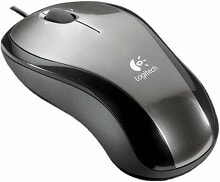
A wired mouse that lights up or appears in Windows but still has odd pointer, wheel, or button behavior does not always need new hardware. The Logitech LX3 Optical Mouse Driver mainly matters when the computer needs the matching Logitech control software rather than ordinary USB mouse recognition. The LX3 is an older corded optical model, so troubleshooting starts with its USB connection, optical tracking, wheel behavior, and legacy software compatibility rather than wireless pairing.
Logitech LX3 Optical Mouse Windows Driver Download
| Driver Name | Description | Supported OS | File Size | Download |
|---|---|---|---|---|
| SetPoint 64-bit Software | Full 64-bit SetPoint package for offline setup, with controls for mouse buttons, tracking speed, and device-specific settings. | Windows 11, Windows 10 64-bit, Windows 8 64-bit, Windows 7 64-bit | 80.45 MB | |
| SetPoint 32-bit Software | Full 32-bit SetPoint installer for offline configuration of mouse button functions, tracking behavior, and supported device preferences. | Windows 10 32-bit, Windows 8 32-bit, Windows 7 32-bit | 78.04 MB | |
| SetPoint Smart Installer | Compact SetPoint installer that requires an internet connection during installation and provides access to mouse settings and device controls. | Windows 11, Windows 10 32-bit/64-bit, Windows 8 32-bit/64-bit, Windows 7 32-bit/64-bit | 4.61 MB |
Logitech LX3 Optical Mouse Mac OS Driver Download
| Driver Name | Description | Supported OS | File Size | Download |
|---|---|---|---|---|
| Logitech Control Center | Mac software for configuring supported Logitech mouse controls and adjusting device-specific behavior. | macOS 11.0, macOS 10.15, macOS 10.14, macOS 10.13 | 17.8 MB | |
| Logitech Control Center | Control Center package for managing compatible mouse functions and device preferences on supported Mac OS X releases. | Mac OS X 10.13, Mac OS X 10.12, Mac OS X 10.11 | 17.15 MB | |
| Logitech Control Center | Legacy Mac software for assigning supported mouse functions and maintaining model-specific control settings. | Mac OS X 10.11, Mac OS X 10.10, Mac OS X 10.9, Mac OS X 10.8 | 17.06 MB |
Logitech LX3 Optical Mouse Driver When Windows Sees the Mouse but Controls Feel Wrong
Basic movement and clicking can work as soon as the LX3 connects to USB because Windows provides standard mouse support. Extra control through Logitech software is a separate matter. This distinction explains why a pointer may move normally even when a Logitech utility does not recognize the model or a wheel function behaves differently from an older configuration.
Microsoft Mouse and Keyboard Center does not detect the LX3
Installing Microsoft’s mouse utility will not add Logitech-specific controls to this model. That program targets Microsoft hardware. If the LX3 already moves the pointer and clicks normally, remove the Microsoft utility from the troubleshooting path and use Windows mouse controls or software intended for the Logitech device instead.
This is especially useful when someone changes software because a button or wheel action is missing. A failed detection message from an unrelated configuration program does not mean the USB mouse itself has failed. Check normal pointer and click operation first, then deal with customization separately.
SetPoint worked before but the current Logitech page shows no download
The LX3 belongs to an older generation that Logitech previously listed with SetPoint support on Windows. Logitech has since discontinued maintenance of SetPoint, and its current LX3 support area no longer provides a product download. That difference matters when an older computer had more configuration choices than a newly installed system.
Do not install receiver utilities, pairing applications, or wireless software for this corded model. The Logitech LX3 Optical Mouse Driver software used with older systems was about mouse configuration, not pairing. On a newer computer, ordinary USB mouse functions may remain available even when the original customization package is no longer maintained.
USB Detection Problems Are Best Isolated at the Port
The pointer never appears after plugging in the mouse
Move the LX3 to another direct USB port before changing Windows software. A front-panel connector, docking station, passive hub, or worn socket can produce a different result from a motherboard USB port. Give Windows a moment to recognize the mouse after moving it because unplugging and reconnecting forces the operating system to enumerate the USB input device again.
If another USB mouse works in every port while the LX3 fails everywhere, test the LX3 on a second computer. The result quickly separates a Windows-side detection problem from a fault in the cable, connector, or mouse electronics. Software installation cannot repair a physical USB connection that fails on multiple computers.
The mouse stops responding after sleep or a restart
Unplug the LX3 once, reconnect it, and check whether input returns. If it does, inspect Windows Device Manager for a USB or Human Interface Device entry that failed to resume normally. Restarting the computer with the mouse attached can also force a fresh detection cycle without changing pointer preferences or installing unrelated applications.
A hub adds another variable, particularly when several USB devices share it. Connect the mouse straight to the computer during diagnosis. If the problem disappears, keep the LX3 on the direct port or investigate the hub rather than treating intermittent USB power or enumeration as a mouse-software fault.
Logitech LX3 Optical Mouse Software and Pointer Movement
Pointer complaints on this model are often easier to diagnose than connection failures because the optical sensor, Windows pointer speed, and desk surface can each be tested separately. Installing the Logitech LX3 Optical Mouse Driver package will not compensate for a surface that the optical sensor cannot read consistently, and software cannot clean dust from the sensor opening.
The cursor moves much farther than expected
An LX3 can feel overly sensitive after moving from an older mouse or after Windows pointer preferences change. Open the operating system’s mouse controls and lower pointer speed in small amounts. Avoid making several changes at once. A modest adjustment followed by normal desktop use gives a clearer result than moving the slider from one extreme to another.
If acceleration makes movement feel inconsistent, check the Windows pointer precision option as part of the comparison. Test the mouse with and without that setting instead of assuming the optical sensor has developed a fault. A predictable cursor that is merely too fast points toward software preferences rather than tracking failure.
The cursor jumps, pauses, or wanders on part of the desk
Change the surface before opening the mouse or reinstalling anything. Optical tracking can react poorly to glass, glossy finishes, reflective patterns, or surfaces that give the sensor little usable detail. A plain mouse pad is a fast comparison. If movement becomes normal there, the original desk surface was the more likely cause.
Look at the sensor opening underneath as well. Hair or dust near the optical path can disturb tracking. Disconnect the mouse and remove loose debris carefully without pushing material farther into the opening. After reconnecting it, compare slow movement across the same section of the mouse pad.
Pointer movement freezes only when the cable is moved
A repeatable loss of movement at one cable position deserves hardware attention rather than another software installation. Keep the connector still and gently change the cable position during a simple pointer test. If Windows repeatedly loses the device at the same point, testing the LX3 on another computer can confirm whether the fault follows the mouse.
Do not confuse that symptom with ordinary cursor hesitation on a difficult surface. A cable or USB fault can interrupt clicks and wheel input at the same moment, while an optical tracking problem may leave button presses working normally even though the pointer fails to move as expected.
Wheel and Click Problems Need a Different Test
Scrolling works in a browser but feels different in another program
Wheel behavior is partly controlled by the application receiving the input. If scrolling works normally in several browsers but behaves differently in a file manager, document, or older program, compare the same wheel movement across applications before altering the mouse configuration. One program’s scrolling behavior is not enough to prove that the wheel has failed.
Windows also provides a system setting for the number of lines moved with each wheel step. Adjust that value if every program scrolls too far or too little. When only one application behaves differently, inspect that program’s own scrolling preferences first.
The middle click needs more pressure than expected
The LX3 wheel can feel noticeably firmer when pressed straight down than the main left and right buttons. That can make middle-click work uncomfortable, particularly in programs where the wheel button is used often. First verify that the press registers consistently rather than judging it by force alone.
If the middle action sometimes becomes a different wheel movement, press near the center of the wheel and avoid pushing sideways while testing. A physical wheel that no longer produces a repeatable center press on another computer points away from Windows configuration and toward wear in the mechanism.
One click sometimes becomes two
Open the Windows mouse properties and compare the double-click speed before assuming the main switch is defective. A setting that is too easy to trigger can make normal use feel like unwanted double-clicking. Adjust it and test several folders or icons with deliberate single and double presses.
If one physical press still creates two clicks across different programs and on another computer, the symptom is more consistent with switch wear. The Logitech LX3 Optical Mouse Driver cannot correct a switch that electrically sends repeated presses. Software changes are useful only when the timing preference is the source of the problem.
Older Mac Software Changes What the LX3 Can Configure
The LX3 also has a legacy software history on macOS. It belonged to the group of older Logitech devices affected when Logitech Control Center support reached the end of its useful compatibility period. That does not automatically mean the mouse loses every function; ordinary pointer, click, and wheel operation can be separate from Logitech-specific customization.
The mouse moves on macOS but old Logitech controls are missing
Do not assume that installing the newest Logitech application will restore every setting that existed with older software. The LX3 is among legacy devices that did not move into full Logitech Options support when Logitech Control Center was retired. Modern macOS may therefore provide basic mouse operation without the former device-specific control panel.
Check the built-in macOS mouse preferences for pointer and scrolling adjustments that the operating system still exposes. If basic USB operation is already present, repeatedly changing Logitech applications is unlikely to restore a control that the newer software no longer supports for this legacy model.
The mouse fails on one Mac but works on another computer
Use another USB port and remove hubs or adapters from the test where possible. A successful test on a second machine establishes that the LX3 can still send normal USB input. From there, concentrate on the first Mac’s port, adapter, operating-system recognition, and mouse preferences rather than replacing a working mouse immediately.
Separate an LX3 Hardware Fault from a Software Fault
The quickest diagnosis comes from watching which inputs fail together. If movement, clicks, and scrolling disappear at the same instant, investigate USB detection, the cable, and the port. If only movement becomes erratic while clicks remain intact, examine the optical surface and sensor. If only one click or wheel action misbehaves, focus on that physical control and its operating-system preference.
A second computer is particularly valuable with an older corded model because there is no wireless link to rebuild. Plug in the LX3 and repeat the exact action that failed on the first machine. Consistent failure on both systems narrows the problem toward the mouse itself, while normal behavior on the second system points back toward software or USB handling on the original computer.
Use the Logitech LX3 Optical Mouse Driver only for software functions that actually belong to this generation of mouse. Keep receiver tools and wireless pairing software out of the diagnosis, and remember that current Logitech support no longer offers an LX3-specific download. For this model, direct USB testing, sensible pointer adjustments, surface checks, and individual wheel or click tests reveal far more than repeatedly changing unrelated software.