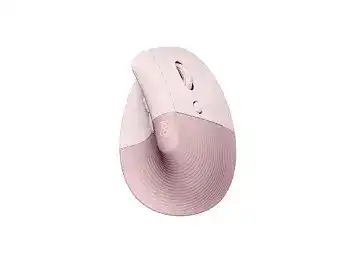
When ordinary movement works but the thumb buttons, cursor-speed control, or application actions remain unavailable, the Logitech LIFT Vertical Ergonomic Mouse Driver gives Logi Options+ access to the programmable features. LIFT uses one AA battery and can connect through Bluetooth Low Energy or a Logi Bolt USB receiver. Its three Easy-Switch channels also mean that a connection failure may come from the selected channel rather than the computer.
Logitech LIFT Vertical Ergonomic Mouse Windows Driver Download
| Driver Name | Description | Supported OS | File Size | Download |
|---|---|---|---|---|
| Logi Options+ Software | Customizes mouse buttons, pointer behavior, scrolling, shortcuts, gestures, and device settings. | Windows 11, Windows 10 32-bit/64-bit | 43.21 MB |
Logitech LIFT Vertical Ergonomic Mouse Mac OS Driver Download
| Driver Name | Description | Supported OS | File Size | Download |
|---|---|---|---|---|
| Logi Options+ Software | Provides button assignments, scrolling controls, gesture actions, shortcuts, and mouse-specific preferences. | macOS 26, macOS 15, macOS 14 | 19.56 MB | |
| Logi Options+ Software | Adjusts pointer movement, programmable buttons, scrolling behavior, gestures, and application shortcuts. | macOS 13 | 19 MB | |
| Logi Options+ Software | Manages mouse controls, cursor preferences, scroll settings, custom actions, and supported device features. | macOS 12 | 18.65 MB | |
| Logi Options+ Software | Enables personalized buttons, pointer adjustments, scrolling options, gestures, and productivity commands. | macOS 11 | 17.51 MB |
Logitech LIFT Vertical Ergonomic Mouse Driver When Logi Options+ Cannot Find It
Start by checking the numbered Easy-Switch light underneath the device. A quick press changes the active channel. If that channel belongs to another computer, the pointer may appear inactive on the current machine and Logi Options+ will not find it. Return to the previously paired channel or choose an unused channel before creating a new connection.
The channel light flashes slowly or not at all
A fast-blinking light indicates pairing mode. Hold the Easy-Switch button for about three seconds until the selected number begins flashing quickly. A short press only changes channels and will not make LIFT discoverable. This distinction fixes many cases where Windows or macOS shows no new Logitech device in the Bluetooth list.
When no channel light appears, open the battery compartment and confirm that the original pull tab has been removed. Check the AA battery orientation and wipe dry debris from the contacts. Switch the mouse off, wait several seconds, and turn it on again before judging the pairing process.
The software displays an inactive mouse
Close Logi Options+ completely, then confirm that the pointer works through the connection you intend to customize. Reopen the application after the connection becomes active. If the device still appears inactive, restart its background service by restarting the computer rather than installing several copies of the utility.
The Logitech LIFT Vertical Ergonomic Mouse Driver should expose pointer speed, SmartWheel behavior, thumb-button assignments, and application profiles. When only movement and ordinary clicking work, the operating system has probably loaded standard mouse support while the Logitech control process has failed to communicate with the active channel.
Logi Options and Logi Options+ conflict
LIFT uses Logi Options+ for advanced customization. Keeping older Logitech Options components running beside it can produce duplicate background processes, missing devices, or assignments that disappear after login. Remove the older package when no other connected Logitech product requires it, restart the computer, and then open the current app again.
Do not erase saved Bluetooth pairings or Bolt connections unless software cleanup fails. The wireless link and the customization layer solve different jobs. Rebuilding both at once makes it harder to identify whether the fault came from pairing, application permissions, or a damaged profile.
Separate Bluetooth Failures from Logi Bolt Problems
LIFT supports both Bluetooth Low Energy and the Logi Bolt receiver, but it does not use a Unifying receiver. A receiver from an older Unifying product cannot pair with this model. Check the symbol on a replacement dongle before spending time on pairing software, because similar-looking Logitech receivers may follow different wireless standards.
Bluetooth says connected but nothing responds
Remove LIFT from the computer’s Bluetooth list and restart Bluetooth before pairing that channel again. Hold the Easy-Switch button until its light flashes rapidly, then add the mouse as a new device. Reconnecting the existing record may preserve a pairing that the operating system lists as active even though it no longer exchanges input correctly.
If another Easy-Switch channel already controls the same computer, delete the abandoned record as well. Several entries with the same product name can make it unclear which channel the system is trying to restore after sleep. Assign one channel per computer whenever possible.
The Logi Bolt receiver is detected without mouse movement
Plug the receiver directly into another USB port and open the Logi Bolt pairing function. Select the desired channel, hold its button for three seconds, and complete the pairing while LIFT remains close to the receiver. A receiver can appear in the operating system without having a valid relationship with the mouse.
USB hubs, displays, docking stations, and tightly packed adapters sometimes introduce a poor radio position. Test a direct computer port during pairing. After the connection works, try the original dock again. If movement becomes uneven only through that dock, keep the receiver in a less crowded USB location or use a short extension cable.
The connection drops after sleep
Switch channels once and return to the original channel. This forces LIFT to look for the saved computer again. If Bluetooth still takes a long time to wake, remove and recreate that pairing, then update the computer’s Bluetooth driver or operating system. On Windows, inspect the Bluetooth adapter’s power-management option when the problem appears only after long idle periods.
The Logitech LIFT Vertical Ergonomic Mouse Driver does not need to change when you move from Bluetooth to Logi Bolt. Logi Options+ can customize either connection. The important part is keeping the chosen Easy-Switch channel paired through only one method at a time.
Correct SmartWheel and Pointer Behaviour Before Remapping Buttons
LIFT has a SmartWheel that changes its scrolling response according to wheel movement. Slow turns give controlled line-by-line navigation, while a faster flick covers longer pages. This behavior can feel like an erratic wheel when the operating system’s scroll value or an application profile uses an extreme setting.
Pages move too far or barely move
Open the computer’s mouse settings and check how many lines the wheel moves per notch. Return that value to a moderate level before adjusting Logi Options+. A setting near either end of the range can make the SmartWheel appear defective even though it sends normal wheel input.
Compare scrolling in a system window, a browser, and a plain document. If only one program behaves badly, inspect its Logi Options+ profile and its own scrolling extensions. Reset that profile rather than changing the global wheel value for every application.
The wheel reverses direction after login
Check both the operating system and Logi Options+ for natural or reversed scrolling controls. Two utilities can apply opposite instructions as background services start. Keep the direction setting in one place and disable the competing adjustment. On macOS, third-party scrolling tools often create this conflict when they launch beside Logitech software.
Scrolling jumps or misses lines
Turn LIFT off and remove loose dust around the wheel with clean, dry compressed air. Rotate the wheel gently while clearing the opening. Do not apply liquid through the wheel gap. Then restore the scroll values to their defaults and compare several applications before deciding that the wheel mechanism has worn out.
A physical problem usually follows the mouse to another computer and remains present with Logi Options+ closed. Software-related jumping often stays with one application, one profile, or one operating-system account. That comparison prevents unnecessary profile rebuilding when the wheel itself needs service.
The cursor-speed button seems ineffective
The button behind the wheel changes pointer sensitivity, and Logi Options+ can customize its action. First restore that button to its cursor-speed function. Press it while moving the pointer across a wide area so the difference becomes clear. A narrow movement test may hide a modest speed change.
Also inspect the operating system’s pointer-speed and acceleration controls. Very low or very high system values can mask the range selected through Logitech software. Adjust one layer at a time, then retest on the desk surface normally used.
Recover Thumb Buttons, Profiles, and macOS Permissions
The back and forward buttons sit beside the thumb rest and can accept other actions through Logi Options+. When they work in one program but fail in another, the cause usually lies in an application-specific profile. Select the affected program inside the utility and compare its assignments with the global configuration.
A thumb button performs the wrong command
Remove the application profile temporarily and test the default back and forward actions. If both buttons return to normal, rebuild that profile rather than resetting every LIFT preference. Profiles copied from an earlier Logitech device may contain actions that do not match the current button layout.
Some programs also reserve their own mouse shortcuts. Test the button in a browser and then in the affected application. A successful browser test confirms that the click reaches the computer and narrows the fault to the program assignment.
macOS allows pointing but blocks custom controls
Open Privacy & Security and grant Logi Options+ access under Accessibility and Input Monitoring. Enable Bluetooth permission when the utility needs to identify LIFT or use multi-computer features. Quit and reopen the application after changing these controls; leaving the existing process open may preserve its earlier restricted state.
If a permission already appears enabled, switch it off, remove the stale entry when macOS permits that action, and allow Logi Options+ to request access again. This can repair cases where reinstalling the application leaves an old permission record attached to a component that no longer exists.
Custom actions disappear after a software update
Open each application profile and confirm that its target program still points to the installed application. Updates sometimes replace an executable or change its location, leaving the old profile disconnected. Add the program again and recreate only the missing actions.
On macOS, install the current Logi Options+ release directly when the app cannot complete its own update or becomes trapped while opening. Keep existing profiles during the repair unless the installer specifically reports damaged data. Deleting all preferences should remain a later step because it removes working assignments along with the broken one.
Match the Vertical Shape with the Right Tracking and Power Checks
The 57-degree vertical body targets small to medium-sized hands. If reaching the thumb buttons twists the wrist or the fingers sit behind the main clicks, software cannot correct the fit. Move the device closer to the keyboard, keep the forearm supported, and hold it without squeezing. The hand should rest against the textured surface rather than hover over it.
The pointer hesitates on one desk surface
Clean the sensor window with a dry, lint-free cloth and test a plain, non-reflective surface. Glass, highly polished desks, and patterned materials may produce inconsistent tracking. Change the surface before raising pointer speed, since a higher value can magnify small sensor interruptions.
When the problem occurs only through the Bolt connection, compare Bluetooth on another Easy-Switch channel. When both wireless methods hesitate on the same surface, focus on the sensor area, battery condition, and surface rather than receiver placement.
The mouse stops responding even with battery life remaining
Replace the AA battery with a known working alkaline cell and check that the compartment cover closes without pressing against it. A battery can show usable voltage while dropping under load. Clean the metal contacts with a dry cloth and make sure they hold the cell firmly.
Power LIFT off before changing the battery, then turn it on with the required channel selected. Long battery life does not guarantee that every cell will remain healthy for the full estimate; temperature, storage age, and usage patterns all affect replacement timing.
Flow will not cross to the second computer
Make each computer work independently first. Pair LIFT to separate Easy-Switch channels, install Logi Options+ on both machines, and confirm that each computer can use the thumb buttons. Then enable Flow while both computers share the same local network. Firewalls, guest Wi-Fi isolation, and corporate network rules can block discovery without affecting ordinary mouse connections.
Near the end of testing, open the Logitech LIFT Vertical Ergonomic Mouse Driver controls and verify the active channel, pointer speed, SmartWheel response, and thumb assignments. Finish with the wireless method that behaves best at that workstation. A deliberate channel arrangement, moderate scroll values, valid macOS permissions, and a well-positioned hand will solve more than repeated software installations.