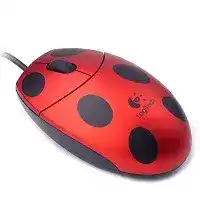
A silent cursor after plugging in the cable does not always mean this small optical mouse has failed. The Logitech Ladybug Mouse Driver works with the operating system’s USB mouse support to handle pointer movement, left and right clicks, and the clickable scroll wheel. This 2004 model uses a wired USB connection, an optical sensor, and three-button operation rather than batteries, Bluetooth, or a wireless receiver. :contentReference[oaicite:0]{index=0}
Its decorative shell may look unusual, but the connection is straightforward. Insert the USB plug directly into the computer and allow the operating system to create a standard HID mouse entry. Current systems often provide ordinary movement and clicking without a separate control application. A legacy download mainly matters when an older Windows installation lacks the expected files or keeps an incomplete hardware record.
Logitech Ladybug Mouse Windows Driver Download
| Driver Name | Description | Supported OS | File Size | Download |
|---|---|---|---|---|
| Logitech MouseWare | Provides mouse configuration controls and device-specific settings for compatible Windows systems. | Windows | 4.07 MB |
Logitech Ladybug Mouse Mac OS Driver Download
| Driver Name | Description | Supported OS | File Size | Download |
|---|---|---|---|---|
| Logitech Control Center | Manages mouse buttons, scrolling behavior, pointer settings, and other device controls on supported Mac systems. | Mac OS X 10.13, Mac OS X 10.12 | 16.63 MB | |
| Logitech Control Center | Adjusts button assignments, tracking response, scrolling preferences, and model-specific mouse functions. | Mac OS X 10.11, Mac OS X 10.10, Mac OS X 10.9, Mac OS X 10.8 | 17.06 MB | |
| Logitech Control Center | Enables configurable mouse controls and preference adjustments across several earlier Mac OS X releases. | Mac OS X 10.9, Mac OS X 10.8, Mac OS X 10.7, Mac OS X 10.6 | 17.73 MB | |
| Logitech Control Center | Adds access to compatible mouse preferences and basic device customization on Mac OS X 10.5.x. | Mac OS X 10.5.x | 18.7 MB |
No sound or cursor movement after connection
Start with another USB port rather than running the installer several times. A worn port, loose front-panel socket, or unpowered hub can leave the mouse without a steady USB connection. Plug it into the computer itself, wait several seconds, and move the device across a plain mouse pad. Check whether the optical light underneath turns on when the computer supplies power.
No sensor light in several known-working ports points toward the cable, plug, or internal circuit. Test the Ladybug on another computer before changing Windows files. If the second machine also shows no light and no hardware response, software cannot restore the connection. The fault lies in the physical USB path or inside the mouse.
Windows shows an unknown USB device
Disconnect the mouse and restart Windows before reconnecting it through a different port. This simple change can force the system to create a new USB relationship instead of returning to a failed detection attempt. Leave other optional USB accessories disconnected during the test, especially when the computer repeatedly plays connection and disconnection sounds.
When the unknown entry remains, open Device Manager and remove only the failed mouse or unknown USB record associated with this connection. Restart the computer, then attach the Ladybug again. Windows should rebuild the standard HID entry. Avoid deleting unrelated keyboard, touchpad, or USB controller records because those devices may share similar names.
The mouse disconnects when the cable moves
A cursor that freezes when the cable bends near the plug or shell usually indicates a broken conductor rather than a driver fault. Hold the cable loosely and test normal movement without pulling it. Repeated connection sounds while the wire changes position confirm an unstable electrical path. Stop using the mouse if the cable insulation has split or exposed internal wires.
Do not tape over damaged conductors and continue using them as a permanent repair. A qualified technician can inspect cable continuity and strain relief, but replacement is usually more practical for a compact legacy mouse. A damaged USB lead can interrupt data or power even while the optical light occasionally remains visible.
Install the Logitech Ladybug Mouse Software Without Legacy Conflicts
Use the Logitech Ladybug Mouse Driver package that matches the operating system listed with the download. Older Logitech installers were created for the Windows releases available around the product’s original period, so a modern system may rely entirely on its built-in HID components. Do not assume that the newest Logitech application covers this early three-button USB model.
Close active programs before launching a compatible legacy installer. Connect the mouse only when the installation instructions request it, then restart Windows after completion. The restart matters because older setup packages may copy files and register services without activating them immediately. Test movement and each click before changing pointer speed or wheel preferences.
The installer says the operating system is unsupported
Check whether the mouse already moves and clicks through standard Windows support. When those basic functions work, an unsupported legacy installer adds little value and may introduce obsolete components. Keep the operating system’s working HID entry instead of forcing a package designed for an earlier Windows generation through compatibility settings.
If the download explicitly includes the installed Windows release, run it with administrator permission and remove an incomplete earlier installation first. Obtain the package from the expected download entry rather than a renamed file from an unknown source. Old utilities commonly trigger security warnings because of their age, but that warning does not justify disabling protection for an unverified installer.
The software installs but cannot identify the model
Basic USB operation and model-specific recognition are separate matters. Windows can treat the Ladybug as a normal three-button mouse even when a Logitech panel does not display its decorative product name. Confirm pointer movement, wheel rotation, and middle-click response first. Missing artwork or a model label in a control panel does not prove that the device lacks a functioning driver.
Remove unrelated modern Logitech control applications if they create duplicate startup entries or repeated detection messages. This mouse has no programmable side controls, wireless pairing mode, or multi-device features that require a current productivity application. Keep only the components needed for normal USB input and any confirmed legacy preferences supplied with the download.
Two mouse entries appear in Device Manager
A laptop touchpad and an external USB mouse often appear under similar HID names, so two entries may be normal. Disconnect the Ladybug and watch which record disappears. Reconnect it and confirm that the same record returns. This method prevents accidental removal of the built-in touchpad or another pointing device.
Duplicate greyed entries can remain after the mouse has used several ports. They usually do not affect operation. Remove one only when Windows continually loads the wrong record, reports an error, or reconnects the mouse under a broken configuration. Restart afterward and use a single working port while testing the rebuilt entry.
Correct Pointer Movement Before Blaming the USB Package
The optical sensor reads changes in the surface beneath the shell. Polished glass, mirrors, glossy designs, and highly reflective desks may give it too little usable detail. The result can look like a delayed driver, with the pointer jumping, pausing, or moving in the wrong direction. A plain fabric or matte mouse pad provides a more useful test.
The cursor jumps across the screen
Turn the mouse over and inspect the sensor opening for hair, lint, or dried dust. Remove loose material with a soft dry brush or gentle air while keeping liquid away from the opening. A single hair crossing the optical path can cause abrupt pointer movement because the sensor reads that moving strand instead of the desk.
Test again on a uniform non-reflective pad. If jumping occurs on one desk but not the pad, no software change is necessary. When the same erratic movement appears on several suitable surfaces and another computer, the optical assembly may have aged or shifted inside the housing.
The pointer feels too fast or too slow
Open the operating system’s mouse settings and adjust pointer speed in small increments. Avoid changing several acceleration and sensitivity options at once, because that makes the result difficult to judge. Use the same desk surface and move the mouse through similar distances after each change. The Ladybug does not need gaming software or selectable hardware DPI modes for this adjustment.
Enhanced pointer precision can feel useful during slow movements but may make distance less predictable during faster motions. Turn it off temporarily when the cursor overshoots icons or stops short despite consistent hand movement. Keep whichever setting produces the most controllable result rather than copying a value intended for a different sensor or screen size.
Movement pauses after the computer wakes
Unplug and reconnect the USB cable after Windows resumes. If that restores movement immediately, the port may not have returned from its power-saving state correctly. Try another direct port and install current chipset or USB controller updates supplied for the computer. A mouse package cannot fully correct a host controller that fails to restore USB input after sleep.
Windows power management may turn off selected USB hubs to save energy. Review that option only when wake failures repeat and other USB devices show similar symptoms. Do not disable every power feature without testing, since the problem may belong to one port, one hub, or an outdated computer driver.
Separate Wheel Trouble from Click Wear
The wheel performs two different jobs: rotation sends vertical scroll input, while pressing it acts as the third button. One function can fail while the other continues normally. Test them separately in several programs before reinstalling the Logitech Ladybug Mouse Driver. An application may ignore middle-click even though the switch and operating-system input remain functional.
Scrolling stops in one application
Try the wheel in a browser, a document, and the operating system’s settings window. Normal scrolling elsewhere means the affected program controls the behavior. Close and reopen that application, check its scrolling preferences, and test a different document. Some windows accept wheel input only when the pointer rests over the active content area.
When scrolling fails everywhere, restart Windows and test the standard HID entry before adding legacy software. Then inspect the wheel opening for loose debris. Rotate the wheel slowly while using a soft brush around its edges. Avoid pouring cleaner into the shell because residue can reach the wheel encoder or the switch underneath.
The page moves in the opposite direction
First check the operating system or application for a reverse-scrolling preference. This setting can change after an update or after another pointing device adds its own configuration. Restore the normal direction and reopen the program. If the wheel alternates direction within a single stroke, the rotary encoder may be dirty or worn.
Software can reverse an entire scroll direction, but it cannot turn unstable encoder pulses into consistent movement. Repeated upward jumps while rolling downward on several computers indicate a hardware problem. Cleaning around the wheel may remove loose dust; persistent reversals usually require internal repair or replacement.
Middle-click does nothing
Use a browser tab or another program with a clear middle-button action. Press the wheel straight down without rotating it. If the click works there, the original application may not assign a command to the third button. Review that program’s shortcuts rather than changing the entire mouse installation.
A wheel that scrolls normally but never produces a middle-click may have a worn switch beneath it. Confirm the symptom on another computer. When both systems ignore the press, reinstalling software is unlikely to change the result. Continued heavy pressure can damage the wheel supports, so replacement is safer than forcing the button.
One click opens files twice
Adjust the Windows double-click speed and test deliberate clicks in a folder. A very slow or unsuitable value can make file opening feel inconsistent, although it rarely creates two electrical signals from one press. Try both main buttons separately because wear often begins on the left switch after years of use.
When a single physical press repeatedly registers twice on another computer, the internal microswitch has deteriorated. The operating system cannot repair that contact. A technician with suitable soldering experience may replace the switch, but the small housing and age of the product often make a replacement mouse the more sensible option.
Use a Direct USB Test as the Final Decision
Connect the Logitech Ladybug Mouse to a known-working USB port on a second computer without installing extra software. Test the optical light, pointer, two main clicks, wheel rotation, and wheel press. This direct comparison separates a Windows configuration problem from cable, sensor, encoder, or switch failure without relying on repeated installation attempts.
Return to the Logitech Ladybug Mouse Driver only when the hardware behaves correctly elsewhere and the listed package matches the target operating system. Keep the cable free from sharp bends, use a matte surface, and remove dry debris before it reaches the sensor or wheel. When the second computer reproduces the same fault, the remaining remedy belongs to the physical mouse rather than its download.