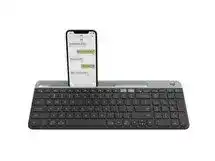
When one computer keeps typing while the second device disappears from an Easy-Switch channel, the Logitech K585 Slim Multi-Device Wireless Keyboard Driver is only part of the recovery. This slim keyboard can connect through Bluetooth or its 2.4 GHz USB receiver, switch between two devices, and expose customizable function-key features through Logi Options+. Pairing state, channel choice, receiver position, and software detection can therefore produce very different symptoms.
Logitech K585 Slim Multi-Device Wireless Keyboard Windows Driver Download
| Driver Name | Description | Supported OS | File Size | Download |
|---|---|---|---|---|
| Logi Options+ Software | Customizes supported keyboard shortcuts, device settings, and other configurable controls through Logi Options+. | Windows 11, Windows 10 32-bit/64-bit | 43.1 MB |
Logitech K585 Slim Multi-Device Wireless Keyboard Mac OS Driver Download
| Driver Name | Description | Supported OS | File Size | Download |
|---|---|---|---|---|
| Logi Options+ Software | Provides customization for keyboard shortcuts, device behavior, and supported Logitech settings on newer macOS releases. | macOS 26, macOS 15, macOS 14 | 19.54 MB | |
| Logi Options+ Software | Enables supported shortcut customization and device-specific keyboard preferences through Logi Options+ on macOS 13. | macOS 13 | 19 MB | |
| Logi Options+ Software | Manages configurable keyboard functions, shortcuts, and supported device settings for systems running macOS 12.0. | macOS 12.0 | 18.65 MB | |
| Logi Options+ Software | Offers access to supported keyboard customization, shortcut assignments, and device preferences on macOS 11. | macOS 11 | 17.51 MB |
Logitech K585 Slim Multi-Device Wireless Keyboard Driver When Easy-Switch Stops Making Sense
The K585 treats its two Easy-Switch positions as separate connection channels. A short press changes the active device, while holding a channel button for about three seconds puts that channel into discovery mode. This difference catches people out. If the light only flashes slowly or the keyboard returns to a previously paired computer, hold the intended Easy-Switch key until its LED starts blinking rapidly, then complete pairing from that device.
The keyboard keeps returning to the other computer
Before pairing again, check which Easy-Switch light is active. It is easy to configure Bluetooth on one channel and then press the channel already assigned to the USB receiver. The included receiver is initially paired with the first Easy-Switch position. If the keyboard suddenly types on the wrong computer after a button press, switch channels once before deleting either connection.
Bluetooth pairing starts but never finishes
A K585 that remains visible in a computer’s Bluetooth list can block a fresh pairing attempt even though it no longer reconnects. Remove the existing K585 entry from the Bluetooth device list, switch the keyboard off and on, then hold the intended Easy-Switch key until the indicator flashes quickly. Start a new pairing request rather than repeatedly selecting an old entry that has already lost its working link.
If the LED becomes steady for several seconds after pairing, the channel has normally accepted the connection. A slowly blinking light instead suggests that the channel is not in discovery mode. Do not rapidly tap the Easy-Switch key while trying to repair Bluetooth; a short press changes channels, while the longer hold starts discovery.
One K585, Two Wireless Paths, and a Receiver That Appears Dead
The K585 can work over Bluetooth or the supplied 2.4 GHz USB receiver, so a failure on one path does not prove that the keyboard itself has failed. This also gives you a useful diagnostic shortcut. If Bluetooth works while the receiver does not, concentrate on the USB side. If the receiver works normally but Bluetooth refuses to reconnect, leave the USB pairing alone and repair only the Bluetooth channel.
The USB receiver no longer produces any typing
Plug the receiver directly into another USB port before changing keyboard software. Avoid a hub, dock, extender, or USB switch during this test because any of those can add another failure point. The receiver normally works on the first Easy-Switch channel, so select that channel as well. A keyboard sitting on the Bluetooth channel will not suddenly follow the receiver just because the dongle is plugged in.
If the receiver needs pairing again, the Logitech K585 Slim Multi-Device Wireless Keyboard Driver environment now centers on Logi Options+. Open the device-adding controls, choose the Unifying-device setup where offered for this keyboard, and place the desired K585 channel into discovery mode. The older standalone Unifying utility is no longer the preferred maintained software path, so installing several generations of Logitech utilities rarely makes receiver recovery clearer.
Typing hesitates only when using the receiver
Receiver position can matter even when the keyboard is only a short distance away. A metal computer case, crowded USB area, or nearby wireless electronics can weaken the path enough to create delayed or missing keystrokes. Try a different direct USB position and keep other wireless hardware away from the dongle while testing. If the behavior immediately improves, the issue was more likely the radio path than the key mechanism.
The receiver seems to be missing from the box
Check the battery compartment before assuming it was lost. Logitech provides a storage position for the K585 USB receiver inside the battery-door area. That slot is useful when the keyboard travels between desks, but it also makes the tiny dongle easy to overlook when the keyboard has previously been used only through Bluetooth.
Function Keys, Shortcuts, and Logi Options+ Behavior
The K585 includes function and media shortcuts, and Logi Options+ can customize supported controls. Trouble here often looks different from a connection failure because normal letters continue working. If typing is fine but a function-row command changes, disappears, or behaves differently after moving between computers, check the keyboard software and the active operating-system shortcut behavior before pairing the device again.
F-keys produce shortcuts instead of normal F1-F12 commands
Function-row behavior can become confusing when an application expects a conventional F-key but the keyboard sends its printed shortcut function instead. Check the function-key preference in Logi Options+ and the Fn-key behavior you are using. Do not reset Bluetooth merely because F2 or another top-row key launches a shortcut. If ordinary typing and Easy-Switch still work, the wireless link has already passed the more useful test.
Options+ does not show the keyboard after it already types
A functioning Bluetooth or receiver connection does not guarantee that the control application will immediately list the device. Close and reopen Logi Options+ after confirming that the operating system can type with the K585. If detection still fails, restart the computer with the keyboard powered on. Removing a working Bluetooth pairing should come later, not as the first reaction to an application-only detection problem.
The Logitech K585 Slim Multi-Device Wireless Keyboard Driver software is most relevant when you need access to supported customization rather than basic character input. Current Logitech guidance points supported devices toward Logi Options+ because several earlier utilities are no longer maintained. Keeping the active customization program current also avoids chasing settings inside an older application that may no longer be the intended control path.
Problems That Appear Only While Moving Between Devices
Multi-device switching creates a few symptoms that a single-computer keyboard never has. The important clue is timing. If a modifier suddenly seems held down, a shortcut acts strangely, or the mouse starts zooming immediately after the K585 leaves one computer for another, reproduce the problem around the Easy-Switch action itself before treating Windows, Bluetooth, or the mouse as separately broken.
Ctrl appears stuck after changing channels
A modifier can remain logically active on the computer you just left if you switch channels while that key is held. The result can look unrelated to the keyboard: scrolling may zoom a page, while clicking may open links differently. Switch the K585 back to that computer, tap and release Ctrl, then change devices again without holding Ctrl, Shift, Alt, or another modifier during the transition.
If function-key preferences require a modifier combination for the way you use Easy-Switch, pay close attention to the order in which you release those keys. Test the change with no other shortcut active. A problem that disappears as soon as the modifier is tapped once is not a reason to erase both wireless connections or rebuild the Options+ installation.
Certain three-key combinations do not register
The K585 is a compact productivity keyboard rather than a gaming model built around extensive simultaneous-key rollover. Some unusual combinations can therefore behave differently from those on a gaming keyboard. If two held keys prevent a third key from registering, first test the exact combination in another program and through both K585 connection methods. A repeatable combination-specific limitation is different from random missed typing across ordinary keys.
This distinction matters for games or software that depends on several simultaneous presses. Changing Bluetooth to the USB receiver will not necessarily alter the keyboard’s key-matrix behavior. If normal individual keys work and only a particular multi-key chord fails every time, a connection reinstall may accomplish nothing. Remap that application’s shortcut to a combination the keyboard registers consistently when possible.
Recovering a K585 That Will Not Stay Paired
Persistent pairing trouble needs a narrower approach than deleting everything at once. Decide which Easy-Switch channel should belong to each device, then repair only the failing side. For Bluetooth, remove the stale operating-system pairing and put that channel back into fast-blinking discovery mode. For the USB receiver, use a direct port and confirm that you are working with the receiver channel before opening the pairing controls.
Easy-Switch light flashes but no device accepts the keyboard
Power-cycle the K585 and start with one computer or mobile device nearby. Put only the intended channel into discovery mode, then complete that connection before setting up the second channel. Trying Bluetooth discovery on several nearby devices at once can make it harder to see which machine actually accepted the keyboard. Once the first channel types normally, move on to the second rather than repeatedly overwriting the same position.
For the final software check, use the Logitech K585 Slim Multi-Device Wireless Keyboard Driver and current Logi Options+ controls only after the underlying Bluetooth or receiver link is working. Basic typing should come first. Custom function behavior comes after that. This order makes a missing channel, stale Bluetooth record, receiver problem, function-key preference, and Options+ detection fault much easier to tell apart.
The most useful test for this model is not a full reinstall but a deliberate switch between its two connection positions. Give each channel one known device, verify typing before customizing shortcuts, and release modifier keys before moving away from a computer. Once those three habits are in place, most K585 connection puzzles become isolated to one channel instead of looking like a failure of the entire keyboard.