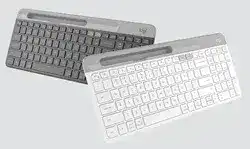
When the K580 suddenly types on the wrong device, refuses a Bluetooth pairing request, or stops responding through its USB receiver, the Logitech K580 Slim Multi-Device Wireless Keyboard Driver software can help restore the connection and device controls. This keyboard supports Bluetooth Low Energy and a Logitech Unifying receiver, two Easy-Switch channels, Logi Options+, a numeric keypad, and operating-system-specific shortcuts. Those features also explain several problems that can look like hardware faults.
Logitech K580 Slim Multi-Device Wireless Keyboard Windows Driver Download
| Driver Name | Description | Supported OS | File Size | Download |
|---|---|---|---|---|
| Logi Options+ | Customizes supported keyboard shortcuts and device settings through the Logi Options+ application. | Windows 11, Windows 10 32-bit/64-bit | 28.79 MB |
Logitech K580 Slim Multi-Device Wireless Keyboard Mac OS Driver Download
| Driver Name | Description | Supported OS | File Size | Download |
|---|---|---|---|---|
| Logi Options+ | Provides keyboard customization, shortcut assignments, and compatible device controls on newer macOS releases. | macOS 13, macOS 12, macOS 11 | 17.51 MB | |
| Logi Options+ | Manages supported keyboard functions and personalized device settings on macOS 10.15. | macOS 10.15 | 16.35 MB |
Logitech K580 Slim Multi-Device Wireless Keyboard Driver When Easy-Switch Stops Working
The two Easy-Switch keys are more than ordinary shortcuts. Each one represents a connection channel. A short press moves typing to the device already assigned to that channel, while holding a channel key for about three seconds puts that channel into pairing mode. Watch its light: rapid blinking means the keyboard is waiting for a new connection.
Channel 1 works but Channel 2 will not connect
Do not repeatedly tap the second Easy-Switch key when you need to pair another computer, phone, or tablet. Hold it until the light begins blinking rapidly, then start Bluetooth pairing on the second device. Once pairing finishes, a brief press on either Easy-Switch key moves typing between the two saved devices.
If the second channel still seems dead, switch the keyboard off and back on before holding that channel again. Low battery power can also make connection behavior erratic. The K580 uses two replaceable AAA batteries, so testing another set is worthwhile when the channel light does not behave normally or the keyboard repeatedly drops out.
Bluetooth pairing keeps returning to an old connection
A previous Bluetooth record can interfere when the K580 needs to pair again with the same computer. Remove or forget the existing Logi K580 Keyboard entry from the computer, tablet, or phone. Power-cycle the keyboard, hold the required Easy-Switch channel for three seconds, and select the keyboard again when it appears in the Bluetooth list.
During a new Bluetooth connection, the screen may display a numerical pairing code. Type that code on the K580 itself and press Enter. Typing the code into another input box or skipping Enter can leave the device listed without completing the usable keyboard connection.
Receiver and Bluetooth Connections Need Different Checks
The K580 can connect through Bluetooth Low Energy or its Logitech Unifying receiver. That gives you another way to isolate a connection fault. If Bluetooth becomes unreliable on one computer, testing the supplied receiver can show whether the keyboard itself is still responding. Likewise, a successful Bluetooth connection can separate a receiver or USB-port problem from a keyboard problem.
The Unifying receiver is plugged in but nothing happens
The original receiver is stored inside the keyboard’s battery compartment and normally provides the simplest USB connection. Plug it directly into a working USB port instead of placing it behind an unreliable hub, docking adapter, or switch. If the computer does not react, try another physical USB port before changing software.
For additional pairing, open Logi Options+ and use its device-addition process for a Unifying device. The Logitech K580 Slim Multi-Device Wireless Keyboard Driver package is most useful here when the receiver is present but the Logitech utility cannot associate the keyboard with the intended Easy-Switch channel.
Do not assume that any small Logitech USB dongle will work. The K580 model that uses Logitech Unifying wireless requires a compatible Unifying receiver. A receiver made for a different Logitech wireless system is not interchangeable simply because it fits the same USB socket.
Typing becomes delayed or keys occasionally fail to register
When the problem appears only through the receiver, test its physical position before changing keyboard preferences. A crowded USB hub, a poor port, or nearby wireless equipment can affect the radio path. Direct connection to the computer and a less obstructed receiver position can remove intermittent delays without changing the keyboard configuration.
Bluetooth trouble deserves a different test. Turn Bluetooth off and back on at the computer, then reconnect the saved channel. If the problem follows Bluetooth but disappears through the Unifying receiver, concentrate on the computer’s Bluetooth connection rather than repeatedly pairing the receiver.
Logitech K580 Software, Function Keys, and the Wrong Keyboard Layout
A K580 may remain fully connected while several keys produce unexpected actions. The top row combines function keys with media and system shortcuts, and the keyboard can adapt to different operating systems. For that reason, a layout mismatch may look like missing keys even though the wireless link is healthy.
F1 to F12 launch shortcuts instead of normal function commands
The K580 top row includes browser, application, search, media, volume, and connection controls. If software expects a standard F-key but the keyboard triggers its shortcut instead, use the Fn key with the required top-row key or adjust the function-key preference in Logi Options+ where that control is available.
Installing the Logitech K580 Slim Multi-Device Wireless Keyboard Driver software is therefore more useful for customization than for basic typing alone. The operating system can recognize ordinary keyboard input without every Logitech feature, while Logi Options+ provides access to supported shortcut and function-key behavior.
Windows keys act like Mac keys or shortcuts have changed
Check the operating-system layout before treating this as a key failure. The standard K580 supports layout switching for Windows and macOS as well as other supported devices. For Windows, hold Fn and P for three seconds. For macOS, hold Fn and O for three seconds. The change affects how modifier and system keys behave.
Some regional or Chrome OS versions use different layout shortcuts, so do not apply a shortcut intended for another K580 edition without checking the legends and configuration of the keyboard in front of you. An incorrect OS mode can alter shortcuts while letters continue typing normally.
The number pad does not enter numbers
Start with Num Lock rather than reinstalling software. If the keypad still behaves strangely in Windows, check whether the accessibility feature called Mouse Keys has taken control of the numeric keypad. Turning Mouse Keys off returns the number keys to normal numeric input in applications that use the standard Windows keyboard layout.
Filter Keys, Sticky Keys, and other accessibility options can also change the response of certain keystrokes. Testing the keypad in more than one program helps separate an application-specific shortcut from a system-wide keyboard setting. A working keypad in one program strongly suggests that the wireless connection itself is not the cause.
Mac Startup, Sleep Wake, and Power Problems
The K580 works after login but not at the Mac startup screen
This particular symptom can happen when the K580 uses Bluetooth Low Energy with a Mac. The Bluetooth connection may not become available early enough during the initial login stage even though the keyboard works after macOS finishes loading. It is different from an ordinary pairing failure because waking an already running Mac may work normally.
If the Mac has a built-in keyboard, use it to enter the password and let Bluetooth reconnect after login. On a desktop Mac, the K580’s USB receiver provides another connection path for the startup screen. Re-pairing Bluetooth over and over will not necessarily change this startup-stage behavior.
The keyboard wakes slowly or stops responding after long use
Power should be checked before removing working pairings. The K580 uses two AAA batteries, and Logitech rates battery life in years under typical conditions, but actual life still depends on use and environment. When response becomes intermittent, install a known-good pair and make sure both batteries sit firmly against their contacts.
After changing batteries, turn the keyboard off and back on, then press the Easy-Switch channel that belongs to the current device. A short delay after switching channels is different from a lost pairing. Enter pairing mode only when the existing channel no longer reconnects.
Restore the Connection Without Rebuilding Everything
When the Logitech K580 Slim Multi-Device Wireless Keyboard Driver setup still appears faulty, isolate one part at a time. Confirm power first, select the intended Easy-Switch channel, and then decide whether you are troubleshooting Bluetooth or the Unifying receiver. Changing both connection methods and several operating-system options at once makes the original fault harder to identify.
For a Bluetooth failure, remove the stale pairing only from the affected device, power-cycle the keyboard, and pair that channel again. For a receiver failure, use a compatible Unifying receiver in a direct USB port and let Logi Options+ handle any required association. This preserves the second Easy-Switch connection instead of needlessly rebuilding both channels.
If typing works but shortcuts, function keys, or the numeric keypad do not, leave the wireless pairing alone. Check the selected OS layout, Fn behavior, Num Lock, and accessibility controls instead. That distinction is especially useful on the K580 because one keyboard can move between two devices whose operating systems interpret the same physical keys differently.