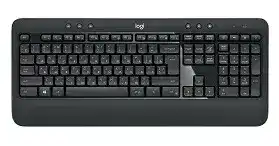
Missed letters, delayed input, or a keyboard that wakes without typing usually point to power or receiver communication rather than a damaged Windows keyboard file. The Logitech K540 Wireless Keyboard Driver gives the computer access to Logitech software for connection recovery and shortcut control. Basic keys may work through Windows HID support, but the Unifying utility becomes important when the keyboard loses its receiver pairing.
The K540 is the full-size keyboard supplied with the MK540 Advanced combination. It uses Logitech Unifying wireless technology through a USB receiver and does not connect through Bluetooth. The layout includes a number pad, media controls, calculator, battery check, computer lock, browser access, programmable function shortcuts, an on/off switch, and separate Caps Lock and battery indicators.
Logitech K540 Wireless Keyboard Windows Driver Download
| Driver Name | Description | Supported OS | File Size | Download |
|---|---|---|---|---|
| Logi Options+ Software | Customizes keyboard shortcuts, device settings, and supported key functions through the newer Logi Options+ interface. | Windows 11, Windows 10 32-bit/64-bit | 24.98 MB | |
| Logitech Options Software | Manages keyboard shortcuts, supported device controls, and application-specific settings on compatible Windows systems. | Windows 10 32-bit/64-bit, Windows 8 32-bit/64-bit, Windows 7 32-bit/64-bit | 151.16 MB |
The keyboard lights briefly but will not type
Check the power switch before opening Windows menus. Turn the keyboard off, wait several seconds, and switch it on again. Press the battery-check key and watch the indicator. A weak or absent light calls for new batteries even when the previous set worked earlier that day. Wireless keyboards can stop transmitting before their indicator becomes completely dark.
Open the battery compartment and confirm that both AA batteries follow the polarity marks. Use a matching pair rather than mixing an older cell with a new one. Dust or residue on the metal contacts can interrupt power during typing, so clean the compartment with a dry cloth. Avoid liquids or sharp tools around the contacts.
Letters arrive late or several appear together
Delayed characters often begin when the receiver sits behind a metal computer case, under a crowded desk, or next to another wireless adapter. Put the Unifying receiver in a different USB port with a clearer path to the keyboard. A short USB extension cable can also bring the receiver out from behind a desktop tower without moving the computer.
Unplug the receiver when lag continues, wait for Windows to remove the USB entry, and reconnect it. This forces the operating system to rebuild the receiver connection. Test several sentences before changing repeat-rate controls. Keyboard repeat speed affects held keys; it rarely explains whole words appearing after a pause.
Restore the K540 Unifying Link Without Bluetooth Menus
The K540 communicates only through its compatible Unifying receiver. It will not appear in the Windows Bluetooth device list, and searching for a Bluetooth button leads nowhere. Look for the orange Unifying symbol on the receiver. A plain Logitech receiver without that mark may use another protocol even when its shape looks almost identical.
The mouse works but the K540 does not
An MK540 mouse can remain connected while the keyboard loses its own pairing record. This does not prove that the keyboard hardware has failed. Open Logitech Unifying Software, choose the option to add a device, and follow the power-cycle request for the keyboard. Type in the confirmation field when the utility detects it, then finish the pairing process.
The Logitech K540 Wireless Keyboard Driver setup should include the utility needed for this receiver generation. Close unrelated Logitech control programs before pairing because several connection tools can make diagnosis confusing. Restart the computer after removing an obsolete utility, reconnect the receiver, and then run only the Unifying pairing program.
A replacement receiver detects nothing
A replacement must support Logitech Unifying technology. Bolt receivers, gaming receivers, and older non-Unifying dongles cannot pair with this keyboard. Confirm the receiver symbol first, then add the K540 through Unifying Software. The receiver can hold several compatible Logitech devices, so replacing the original does not require replacing a working Unifying mouse.
If the pairing screen never finds the keyboard, place it close to the receiver and install known-good batteries. Turn it off before the utility begins searching, then switch it on when prompted. Test the receiver in another USB port when the search expires. A failed port can supply enough power for detection yet lose communication during pairing.
Windows shows an unknown USB device
Move the receiver away from a hub and connect it directly to the computer. Shut Windows down fully rather than using sleep, remove the receiver, start the computer, and insert it after the desktop appears. Windows should load its standard USB and HID components without a separate third-party USB driver.
When every port shows the same unknown-device message, test the receiver on another computer. Successful detection there points to the first computer’s USB controller or Windows installation. Failure on two systems makes receiver damage more likely. Reinstalling keyboard customization software cannot repair a receiver that no computer can enumerate.
Function Keys, Media Buttons, and Shortcut Behaviour
F1 through F12 trigger the wrong command
The upper row carries standard F-key commands and secondary productivity shortcuts. Hold FN while pressing the required F-key to use internet navigation, a new browser tab, window closing, Windows Search, zoom, desktop view, save, print, Windows settings, standby, or the contextual menu. Pressing the key without FN sends the ordinary F1 through F12 command.
If this behaviour appears reversed, check the FN preference in the compatible Logitech customization software. An application update or software reset can change which command acts as the primary one. Do not alter the laptop BIOS for an external K540 until you confirm that the problem follows this keyboard and not the computer’s built-in keys.
Play, mute, volume, or calculator stops responding
Separate hotkeys handle previous track, play or pause, next track, mute, volume down, volume up, calculator, battery check, computer lock, and the default web browser. Test volume and calculator first because Windows handles those commands directly. A media key that works in one player but not another usually reflects the active application rather than the wireless connection.
Check Windows default applications when the browser or calculator key opens an unexpected program. The keyboard sends a system command; Windows chooses the registered application. Changing the default browser may correct the shortcut without editing Logitech software. Restart the target application after changing its defaults, especially when it remained open during the change.
Customized shortcuts return to their original actions
Programmable function shortcuts depend on the Logitech control application and its saved profile. If an update removes the assignment, open the keyboard section and create it again. Select a program that still exists in its original folder. A shortcut aimed at a temporary installer location will stop working after Windows clears that folder.
Confirm that the Logitech application launches with Windows. Basic typing does not prove that the customization service is running because the operating system handles ordinary keystrokes separately. The Logitech K540 Wireless Keyboard Driver can restore the software layer, but the chosen application path must remain valid for each personalized key.
Separate Windows Problems From Keyboard Hardware
Only a few keys fail
One dead letter, number, or modifier key usually needs a different test from a complete connection loss. Open a plain document and press the affected key from several angles. Then connect the keyboard to another computer through its paired receiver. A key that fails on both systems while surrounding keys work points toward debris or wear beneath that key.
Turn the keyboard off before cleaning. Hold it at an angle and use gentle compressed air around the affected area. The spill-resistant design offers limited protection from accidental liquid, but it does not make the keyboard washable. Do not pour cleaner between the keycaps or remove several keys without a repair guide for the exact construction.
Ctrl, Shift, or Alt seems stuck
A modifier can remain logically active after an interrupted wireless transmission. Tap the left and right versions of Ctrl, Shift, Alt, and the Windows key once, then test again. Open the Windows on-screen keyboard to see whether the system believes one of those keys remains pressed. Power-cycling the K540 often clears the state.
Accessibility features can produce a similar result. Repeated Shift presses may enable Sticky Keys, while Filter Keys can ignore brief keystrokes or change how held keys behave. Review the Windows Accessibility keyboard controls when the symptom continues with another physical keyboard. Turn off only the feature causing the change rather than removing the Logitech package.
Caps Lock changes but its indicator does not
The Caps Lock light should follow the keyboard state. Press Caps Lock while watching both the indicator and an on-screen text field. When capitalization changes but the light remains wrong, switch the keyboard off and reconnect the receiver. Re-pairing may restore the status exchange when ordinary typing already works.
If the light stays inactive on another computer after successful pairing, the indicator itself may have failed. That fault does not require a driver reinstall when Caps Lock still changes text correctly. Use the on-screen keyboard indicator as a temporary reference and avoid repeatedly rebuilding a working receiver connection.
The keyboard fails only after sleep
Wake the computer fully before touching the receiver. Then press one ordinary key and wait briefly. If nothing appears, turn the K540 off and back on. Move the receiver to another direct USB port when this happens after every sleep cycle. Some USB controllers resume their attached receiver later than the rest of Windows.
Check the USB power-management setting only after confirming the pattern. In Device Manager, Windows may have permission to turn off a USB hub to save power. Disabling that option for the hub serving the Unifying receiver can stop repeated post-sleep failures, but it may increase power use on a laptop.
Rebuild Software Only After the Wireless Test Passes
Do not begin with repeated installations when the battery indicator remains dark or the Unifying utility cannot detect the keyboard. Prove that the receiver appears normally in Windows, install a matched battery pair, and attempt pairing first. Software customization becomes useful after the keyboard can type a confirmation message inside the pairing utility.
Remove duplicate or abandoned Logitech packages when the keyboard page never loads. Restart Windows, install the compatible Logitech software, and connect the Unifying receiver directly during the first launch. Avoid installing Bluetooth, Bolt, or gaming utilities for this model because none of them provides the K540 wireless link.
Test the Logitech K540 Wireless Keyboard Driver with a broad set of controls instead of checking one letter. Type a paragraph, use the number pad, toggle Caps Lock, adjust volume, open the calculator, and try an FN shortcut. This reveals whether the remaining fault belongs to radio communication, customization software, an application command, or one physical key.
A stable K540 should reconnect after startup without manual pairing. Once it does, leave the receiver in the USB port that gives consistent results and record any personalized function assignments. Battery-check warnings, sudden typing delays, and repeated wake failures provide earlier clues than a complete shutdown, making them worth addressing before the keyboard becomes unresponsive.