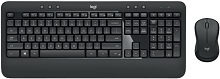
A K540 that lights up but will not type often needs more than another Windows restart. The Logitech K540 Wireless Keyboard Driver software can help with supported key controls and device recognition, while the keyboard itself communicates through Logitech Unifying 2.4 GHz wireless. Because this model does not use Bluetooth, connection problems should be traced through its Unifying receiver, USB path, battery power, and Logitech software rather than through the computer’s Bluetooth menu.
Logitech K540 Wireless Keyboard Windows Driver Download
| Driver Name | Description | Supported OS | File Size | Download |
|---|---|---|---|---|
| Logi Options+ Software | Customizes supported keyboard shortcuts, key functions, and device-specific settings through Logi Options+. | Windows 11, Windows 10 32-bit/64-bit | 43.1 MB |
Logitech K540 Wireless Keyboard Driver When the Keyboard Has Power but No Input
The green power indicator can appear even when the computer receives no keystrokes. Begin by switching the K540 off for several seconds, turning it back on, and checking whether Caps Lock changes its indicator. If neither normal typing nor Caps Lock produces a response, disconnect the Unifying receiver from the computer and reconnect it to a working USB port. Give Windows a moment to detect the hardware again before testing.
The receiver appears in Windows but the K540 stays silent
A visible Logitech receiver entry does not necessarily mean the keyboard still has a working association with it. This becomes especially relevant after changing receivers, moving equipment between computers, or recovering an older K540 whose original pairing is uncertain. The K540 uses Logitech Unifying technology, so use a compatible Unifying receiver and Logitech’s current pairing method to establish the keyboard connection again.
Do not substitute an arbitrary Logitech USB dongle just because it fits the port. Logitech has several receiver families, and receiver compatibility depends on the wireless technology used by the device. The K540 requires its Unifying connection. If pairing never sees the keyboard, verify the receiver type first, then repeat the attempt with the keyboard powered on and close enough for a straightforward test.
Typing returns only after switching the keyboard off and on
Intermittent operation deserves a power check before a software overhaul. The K540 runs on two AA batteries and has its own on/off switch. Remove the batteries, inspect the terminals for dirt or corrosion, and fit known-good cells according to the polarity marks inside the compartment. A brief power light does not prove that marginal batteries or poor contact can sustain normal operation for an entire typing session.
If cycling the switch restores input for only a few minutes, test the keyboard with the receiver in another direct USB port. When the behavior follows the K540 across ports and another computer, Windows becomes a less likely cause. If it works normally elsewhere, return to the original computer and concentrate on its USB connection and software state.
Missed Letters, Repeated Keystrokes, and Delayed Response
A wireless keyboard can remain technically connected while individual presses arrive late, disappear, or appear in a burst. With the K540, that symptom often calls for checking the 2.4 GHz path rather than changing keyboard language or repeat speed immediately. Connect the Unifying receiver directly to the computer while testing and temporarily bypass USB hubs, monitor ports, docking stations, and switching hardware.
Words lose letters during fast typing
When slow typing works but normal typing starts dropping characters, try a different receiver position. A desktop computer case, dense cable area, or nearby wireless and USB equipment can make reception worse. Choose a USB location that gives the receiver a less obstructed path to the keyboard. If that immediately changes the behavior, leave Windows keyboard repeat controls alone until the wireless path remains consistent.
The Logitech K540 Wireless Keyboard Driver package cannot correct poor radio reception by itself. Software becomes more relevant after the receiver maintains a steady connection. This distinction matters because repeatedly removing Logitech applications may temporarily restart devices while leaving the physical cause untouched. Test several paragraphs of continuous typing after moving the receiver so an intermittent fault has time to show itself.
One press sometimes produces two characters
Repeated letters need a different test from missing letters. Open an ordinary text field and press the suspect key deliberately several times. If only one or two physical keys duplicate while the rest of the keyboard behaves normally, clean loose debris around those keys with the keyboard switched off. Do not pour cleaner under the keycaps or start dismantling the board just to diagnose the symptom.
If many unrelated keys repeat, compare the behavior on another computer using the same Unifying receiver. Widespread duplication that disappears on the second system points back toward the first computer’s input configuration or USB path. Duplication that follows the keyboard makes a local key mechanism, power problem, or wireless interruption more plausible.
Function Row and Shortcut Keys Behave Differently Than Expected
The K540 includes a full-size layout with function controls and media shortcuts, so a keyboard can type normally while its upper-row commands seem wrong. That situation should not be treated as total receiver failure. First determine whether ordinary letters, numbers, navigation keys, and the numeric keypad still respond. If they do, focus on the function behavior and Logitech customization software rather than pairing everything again.
F1 through F12 trigger another action
Applications that rely on traditional F-keys can expose a changed function-key preference quickly. Check the K540 in Logi Options+ on Windows and review the supported function-key behavior. Logitech added K540 support to Logi Options+ for Windows, while older installations may still contain Logitech Options. Use the current supported application where possible instead of maintaining multiple utilities that try to manage the same keyboard.
After changing a key preference, close and reopen the program where the shortcut failed. This separates an application that cached an old shortcut state from a keyboard configuration problem. If the standard F-key works in one application but not another, examine that program’s own shortcut assignment before making further changes to the receiver.
Media or calculator shortcuts stop responding
Shortcut failure can occur even while normal typing remains intact. Confirm that Windows still receives ordinary keys, then reopen Logi Options+ and check whether the K540 appears. If the keyboard is missing there as well, reconnect the Unifying receiver and restart the application. If the K540 appears but one shortcut fails only in a certain program, compare it with another program before changing the wireless connection.
Logitech K540 Wireless Keyboard Software Cannot Find the Device
A functioning K540 may sometimes type in Windows even when Logitech’s application does not show its configurable controls. Windows can handle normal keyboard input through its standard input support, while Logitech software supplies the additional device interface. For that reason, an Options+ detection failure and a completely dead keyboard are separate problems and should not trigger the same repair path.
Logi Options+ opens with no K540 listed
Start with the receiver rather than reinstalling the application immediately. Make sure the Unifying receiver remains firmly connected, power-cycle the keyboard, then close and reopen Logi Options+. If detection still fails, restart Windows once with the receiver attached. Only after ordinary typing works and the application still cannot find the K540 does reinstalling or updating Logi Options+ become a sensible software test.
Older Logitech Options installations can also create confusion when moving to current software. K540 support is available in Logi Options+ on Windows, so keeping both applications solely to control the same keyboard usually adds little diagnostic value. Remove an obsolete Logitech customization application if it conflicts with the current one, restart, and then check the K540 again in Logi Options+.
The keyboard stops responding after sleep or a USB change
If the failure starts after waking the computer or after moving the receiver, unplug the receiver for a few seconds and reconnect it before altering the keyboard pairing. Windows may simply need to enumerate the USB receiver again. When this restores typing, check another USB port if the same problem keeps returning after sleep. A port-specific issue can imitate a keyboard failure surprisingly well.
Do not try to solve this with Bluetooth removal, Bluetooth discovery, or Easy-Switch procedures. Those connection methods belong to other Logitech models. The K540 communicates through its Unifying receiver, so keeping troubleshooting tied to that receiver avoids adding unrelated devices and settings to the diagnosis.
Separate a K540 Hardware Fault from a Windows Problem
The fastest way to stop repeating the same fixes is to divide the test between keyboard, receiver, and computer. Use two known-good AA batteries, power the K540 on, connect its compatible Unifying receiver directly to a second computer, and type for several minutes. A fault that follows both keyboard and receiver now has a much narrower set of causes than one that occurs only on the original PC.
If the second computer works normally, return the receiver to the first system and check its USB ports, Logitech application, and Windows input behavior. If the K540 remains unresponsive on both systems, re-pair it with the compatible Unifying receiver once more. Persistent failure after a verified receiver, good batteries, and a second-computer test points away from repeated software installation and toward the keyboard or receiver hardware.
Use the Logitech K540 Wireless Keyboard Driver software after the wireless and power checks establish a working device path. That order keeps function-key customization, application detection, receiver pairing, delayed typing, and complete no-input faults from being mixed together. For this model, the strongest diagnosis comes from knowing whether the failure stays with the K540, stays with the Unifying receiver, or exists only on one computer.