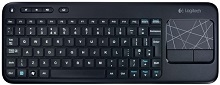
When the touchpad still moves the pointer but typing, scrolling, or media keys behave differently than expected, the Logitech Wireless Touch Keyboard K400r Driver package is only one part of the diagnosis. The K400r combines a keyboard, multi-touch touchpad, left and right mouse controls, and a 2.4 GHz Unifying connection in one unit. Receiver pairing, touch gestures, battery power, and legacy Logitech software can each produce a different symptom.
Logitech Wireless Touch Keyboard K400r Windows Driver Download
| Driver Name | Description | Supported OS | File Size | Download |
|---|---|---|---|---|
| Logi Options Plus | Customization software for configuring device settings, shortcuts, gestures, scrolling behavior, and supported controls. | Windows 11, Windows 10 32-bit/64-bit | 43.1 MB | |
| SetPoint 64-bit | Full 64-bit SetPoint package for offline setup, including hot-key configuration, device-specific settings, battery information, and keyboard status controls. | Windows 11, Windows 10 64-bit, Windows 8 64-bit, Windows 7 64-bit | 80.45 MB | |
| SetPoint 32-bit | Complete 32-bit SetPoint installer for offline use with hot-key assignments, device options, battery status, Caps Lock, and Num Lock information. | Windows 11, Windows 10 32-bit, Windows 8 32-bit, Windows 7 32-bit | 78.04 MB | |
| SetPoint Smart Installer | Small SetPoint installer that downloads the required software components during setup, so an internet connection is required. | Windows 11, Windows 10 32-bit/64-bit, Windows 8 32-bit/64-bit, Windows 7 32-bit/64-bit | 4.61 MB | |
| Logitech Unifying Software | Utility for adding, removing, and managing compatible Logitech devices paired with a Unifying receiver. | Windows 11, Windows 10 32-bit/64-bit | 3.96 MB |
Logitech Wireless Touch Keyboard K400r Driver When Only Part of the Keyboard Works
A K400r can appear partly functional because the keyboard and pointing controls share one wireless device but the computer interprets several types of input from it. If ordinary keys work while touch gestures do not, avoid resetting the wireless link immediately. If neither typing nor pointer movement works, start with power and the Unifying connection instead.
Typing works but the touchpad behaves differently
The built-in touchpad officially handles pointer movement, tap-to-click, drag-and-drop, vertical and horizontal two-finger scrolling, two-finger right-click, and pinch or spread zoom under its original Windows support. These actions depend on both the hardware gesture and how the operating system or active program interprets it. A missing gesture therefore does not always mean that the entire keyboard has lost communication.
Check ordinary pointer movement first. If one-finger movement works, try a normal tap, the separate left and right mouse buttons, and then two-finger scrolling. Testing the functions separately shows whether the fault involves touch recognition, a particular gesture, or the application receiving the gesture. This is more useful than repeatedly pairing a keyboard that already sends pointer input.
Tap-to-click fails while the physical click buttons still work
This symptom has appeared frequently with K400-family touchpads, particularly after operating-system or input-driver changes. The K400r has dedicated left and right mouse controls, so use those as a comparison. If they click normally and the pointer follows your finger, the receiver is already carrying touchpad data and the fault is narrowed to tap interpretation.
Try the touchpad in more than one program before changing Logitech software. A tap failure everywhere points toward the input configuration or touchpad behavior, while a problem limited to one application belongs to that application’s input handling. Do not confuse tap-to-click with a failed physical left button; the K400r provides both methods.
Scrolling and Gesture Problems Need Separate Tests
Two-finger scrolling is a genuine K400r feature, not an extra function borrowed from the newer K400 Plus. Logitech documents both vertical and horizontal two-finger swipes for this model. That makes scrolling worth testing independently from pointer movement, especially when a page refuses to move even though the cursor follows the touchpad normally.
Two-finger vertical scrolling stops working
Place two fingers on the pad with a small gap between them and move them together rather than letting one finger trail far behind the other. Then compare scrolling in a web page, a document, and another scrollable window. If one application ignores the gesture while the others respond, changing the receiver or batteries is unlikely to solve that particular problem.
When two-finger scrolling fails everywhere after a software or system change, check the host input configuration before assuming the touchpad has worn out. The K400r can continue to provide ordinary pointer movement even when a higher-level gesture is interpreted incorrectly. A Logitech Wireless Touch Keyboard K400r Driver or compatible control-software issue can therefore affect gestures without eliminating every touchpad function.
Horizontal scrolling or zoom gives unexpected results
The K400r also supports a two-finger left or right swipe and a pinch or spread gesture. Not every program assigns useful actions to those inputs. A browser, document viewer, image program, and desktop can respond differently, so test the same gesture in another suitable program before treating the result as a keyboard fault.
Older K400r gesture support also included Windows 8 edge actions. On a newer interface, an edge movement may trigger a system action that feels unrelated to what you intended to do on the touchpad. If an unwanted system view appears only when your finger begins near an edge, change the way you start the gesture and compare the result before investigating radio reception.
Repair the Unifying Link Before Replacing the Keyboard
The K400r uses Logitech’s 2.4 GHz Unifying protocol and ships with a USB nano Unifying receiver. It is not a Bluetooth keyboard. Searching for it in a Bluetooth device list will not pair it, and a Bluetooth troubleshooting procedure cannot restore its connection. The receiver must communicate with a compatible K400r through the Unifying link.
The receiver appears in USB but the keyboard does nothing
A receiver can remain visible to the computer even when the keyboard is no longer paired with it. This situation often appears after receivers have been swapped among Logitech products or when a replacement Unifying receiver is introduced. Pair the K400r to the intended compatible Unifying receiver rather than assuming every detected receiver already knows the keyboard.
Logitech originally supplied the Unifying utility for this job. Its current support information classifies the older Unifying software as an unmaintained legacy utility, so software availability depends on the operating system and current Logitech support path. The important hardware point remains unchanged: the K400r needs a compatible Unifying pairing, not Bluetooth or a Logi Bolt receiver.
A USB hub works for other devices but the K400r cuts out
Remove the nano receiver from the hub and plug it directly into a computer USB port as a diagnostic test. Logitech specifically included this step in K400 setup guidance. A hub can work perfectly with storage or charging equipment while still giving a small wireless receiver an inconvenient location or adding another layer to USB detection.
If direct connection fixes intermittent typing, leave the receiver there or try another direct port that gives the keyboard a clearer radio path. The package originally included a USB extender, which can also be useful when the computer case places the receiver behind metal or far below the normal operating position.
Keys repeat, freeze, or respond only at short range
The specified wireless range reaches up to 10 metres under suitable conditions, but the room layout matters. Metal objects between the K400r and its receiver can weaken the radio path. Move such objects when practical and compare performance from closer range. A sharp improvement at a shorter distance points toward receiver placement rather than key-switch failure.
Also try another USB position if the computer sits behind a television, inside a cabinet, or beside several electronic devices. Living-room installations are especially prone to putting the nano receiver in a poor location. Fixing the receiver’s position can restore both typing and touchpad response at once because both travel through the same Unifying connection.
Battery and Function-Key Symptoms Can Mislead Troubleshooting
The K400r takes two replaceable AA alkaline batteries and includes an on/off switch. Logitech originally rated battery life at up to 12 months, but actual runtime varies with use. When keystrokes begin dropping or the entire unit stops responding, battery condition deserves attention even if the previous pair has not reached that age.
No keys or touch controls respond after the keyboard was stored
Switch the K400r off, inspect both AA cells, and confirm that their positive and negative ends match the markings inside the compartment. If their condition is uncertain, test with another pair. Then turn the keyboard back on. Power cycling is particularly useful when the receiver still appears normally at the computer but the keyboard itself seems absent.
If new batteries change nothing, inspect the accessible contacts for dirt and make sure each cell sits firmly in place. Continue with a direct USB-port test only after power has been ruled out. Reinstalling the Logitech Wireless Touch Keyboard K400r Driver cannot correct an open battery contact or a keyboard that never powers its wireless electronics.
F1 through F12 produce media or shortcut actions
The K400r uses multifunction keys, so the upper row does not always behave like a conventional desktop keyboard. People commonly notice this when an application expects an F-key but the keyboard performs its printed shortcut action instead. Try the Fn modifier with the required key before treating the function row as defective.
Logitech listed SetPoint 6.50 as the K400r software support available when the keyboard was released and described the keyboard as programmable. Current Logitech pages classify SetPoint as legacy software that is no longer maintained. For an older Windows installation that already uses the appropriate SetPoint release, configuration may explain altered hotkey behavior; on newer systems, do not install random versions simply to force a function-key change.
Decide Whether the Fault Is Software, Receiver, or Hardware
The fastest way to narrow a K400r problem is to watch which parts fail together. If typing and touchpad movement disappear at the same moment, investigate batteries, power, USB reception, and Unifying pairing. If typing stays normal while one gesture fails, concentrate on touchpad interpretation. If only one physical key misbehaves across computers, the evidence shifts toward the keyboard itself.
One key fails while every other control remains normal
A single dead or repeating key is unlikely to come from a lost Unifying pairing because the receiver does not selectively pair individual keys. Test the key in more than one program and, when practical, on another computer. If the identical key continues to fail while the touchpad and other keys remain normal, reinstalling connection software has little value.
The replacement receiver will not pair
Confirm that the replacement carries the Unifying identity intended for compatible Logitech products. The K400r belongs to that receiver family, while visually similar Logitech USB receivers may use another protocol. A Logi Bolt receiver is also a different system. Receiver shape alone is not enough evidence of compatibility.
Once power, receiver type, and USB detection are established, perform the pairing with the appropriate Logitech method available for the system. Do not spend time looking for a Bluetooth pairing button on the K400r; its documented connection is 2.4 GHz Unifying. A successful pairing should restore keyboard and integrated pointing functions through the same receiver.
Know when software changes have reached their limit
The Logitech Wireless Touch Keyboard K400r Driver and its legacy utilities can matter for programmable functions and receiver management, but software cannot repair every symptom. Physical key failures, persistent touchpad dead areas, damaged battery contacts, or controls that fail identically on another computer point toward hardware. Separating those faults from gesture and pairing problems prevents needless reinstalls and keeps troubleshooting focused on the part that actually stopped working.