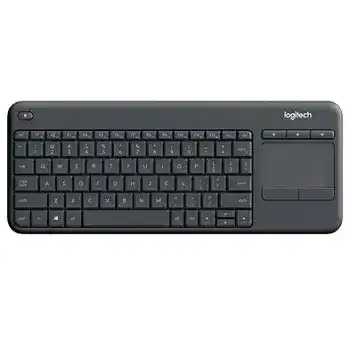
When typing and touchpad movement disappear at the same time, the Logitech K400 Professional Wireless Touch Keyboard Driver is only one part of the recovery. This compact keyboard communicates through a Logitech Unifying USB receiver rather than Bluetooth. The computer normally loads standard keyboard and pointing-device support automatically, while Logitech software adds battery notices, function-key preferences, and receiver management where compatible.
The K400 Professional combines 79 keys, integrated shortcut controls, and a built-in touchpad in one wireless unit. Its plug-and-play design means it can begin working without a separate installation. Software becomes useful when the receiver loses its pairing, Windows detects only part of the device, the touchpad behaves poorly, or the function row no longer performs the expected action.
Logitech K400 Professional Wireless Touch Keyboard Windows Driver Download
| Driver Name | Description | Supported OS | File Size | Download |
|---|---|---|---|---|
| Logi Options+ 64-bit | Customizes supported device settings, shortcuts, pointer behavior, scrolling, and button actions. | Windows 11, Windows 10 64-bit | 43.21 MB | |
| SetPoint 64-bit | Full offline package for configuring hot-keys, device-specific controls, battery status, Caps Lock, and Num Lock indicators. | Windows 11, Windows 10 64-bit, Windows 8 64-bit, Windows 7 64-bit | 80.45 MB | |
| SetPoint 32-bit | Complete offline installer for adjusting hot-keys, tracking options, keyboard status alerts, and model-specific settings. | Windows 11, Windows 10 32-bit, Windows 8 32-bit, Windows 7 32-bit | 78.04 MB | |
| SetPoint Smart Installer | Downloads the required SetPoint components during setup, so an active internet connection is required. | Windows 11, Windows 10 32-bit/64-bit, Windows 8 32-bit/64-bit, Windows 7 32-bit/64-bit | 4.61 MB | |
| Logitech Unifying Software | Pairs compatible Logitech wireless devices with a Unifying receiver and manages connected peripherals. | Windows 11, Windows 10 32-bit/64-bit | 3.96 MB |
The USB receiver appears but nothing responds
Remove the Unifying receiver, switch the keyboard off, and wait several seconds. Insert the receiver into another direct USB port before turning the keyboard on again. A port on the computer usually gives a clearer wireless path than an unpowered hub, television extension lead, docking station, or crowded adapter. Allow the operating system enough time to rebuild both the keyboard and pointing-device entries.
If another Unifying product works through that receiver but the K400 Professional does not, the keyboard may no longer be paired with it. Open a compatible Unifying pairing utility, begin the connection process, and operate the power switch when requested. Keep the keyboard near the receiver during this short pairing stage. Distance matters less after the receiver and keyboard have successfully recognised each other.
A replacement receiver needs pairing first
A spare Logitech receiver does not automatically know this keyboard. Check for the orange Unifying symbol before attempting to pair it. A Logi Bolt receiver and an ordinary non-Unifying nano receiver use different connection systems, even when their shapes look similar. Use a genuine Unifying receiver and add the keyboard through the matching pairing utility rather than waiting for Windows to connect it by itself.
The receiver can hold pairings for several compatible Unifying products. However, deleting and rebuilding a troublesome pairing may work better than repeatedly switching the keyboard off and on. During the process, disconnect unnecessary Logitech receivers so the utility does not select the wrong one. Reconnect other peripherals only after the K400 Professional types and moves the pointer normally.
Logitech K400 Professional software for the keyboard and touchpad
The Logitech K400 Professional Wireless Touch Keyboard Driver does not replace the normal USB input components supplied with the operating system. Windows handles ordinary typing, clicking, and pointer movement through its built-in input framework. Logitech software historically provided extra control over function keys, touchpad behaviour, shortcuts, receiver pairing, and on-screen low-battery warnings.
Older documentation identifies Logitech Options for function-key changes and battery alerts. Some K400-family support material also refers to SetPoint and the Unifying utility. These older programs have reached the end of active maintenance, and the product support page may show no current model-specific download. Do not install several generations of Logitech control software together merely to make plug-and-play typing work.
The utility installs but cannot find the keyboard
First confirm that the keyboard already works through its Unifying receiver. A customization program cannot repair a receiver that Windows has not detected. Remove unused Logitech utilities, restart the computer, and reconnect the receiver before opening the required program again. Also close any second pairing application, since two Logitech tools can compete for access to the same USB receiver.
Corporate security software may prevent an installer from completing or saving device preferences. Run the approved installer from a local folder and allow it through the security prompt. On a managed workplace computer, customization may remain unavailable even though normal keyboard and touchpad input works. In that case, the built-in operating-system controls still cover pointer speed, click timing, and standard keyboard behaviour.
Function keys perform shortcuts instead of F1 to F12
The top row can favour media and shortcut actions, which becomes confusing in spreadsheets, remote sessions, browsers, or business programs that expect standard F-keys. Where the supported Logitech control software recognises the keyboard, change the function-row preference so F1 through F12 act directly. Without that option, hold the Fn key while pressing the required function key.
Test the row in the program where the problem occurs. Some applications capture F-keys for their own commands, while browsers, media players, and remote-desktop tools may interpret the same key differently. A key that works locally but fails inside a remote session usually points to the remote application’s keyboard forwarding mode rather than a fault in the K400 Professional.
Touchpad movement, tapping, and scrolling
The built-in touchpad provides pointer movement and click functions without a separate mouse. It also recognises supported touch gestures. When the pointer moves but tapping or scrolling feels wrong, check the operating system’s touchpad and mouse preferences before changing receiver pairing. Cursor speed, double-click timing, and scrolling behaviour can make a healthy touchpad feel unresponsive.
The pointer moves too slowly across a large screen
Increase pointer speed in the system mouse controls in small amounts. A television or high-resolution display often requires more movement than a desktop monitor, so the default speed may feel unusually low from across the room. Avoid raising acceleration and speed to their maximum values at once. Excessive acceleration makes small selections difficult, especially when navigating menus or entering text on a media computer.
A dry fingertip and a clean pad produce more consistent movement. Wipe the touch surface with a soft, lightly dampened cloth, then dry it before use. Grease, moisture, and dust can interrupt finger tracking. Do not apply cleaner directly to the pad or allow liquid to run around its edges.
Tapping works differently from the physical click buttons
Touchpad tapping and the buttons below the pad reach the computer as related but separate click actions. When tap-to-click creates unwanted selections, reduce tapping sensitivity or disable that gesture through compatible control software. Continue using the physical buttons for deliberate clicks. When only one application ignores taps, test another program before changing the whole system configuration.
Double-click failures often come from timing rather than hardware. Open the operating system’s mouse controls and slow the double-click speed slightly. Then test folders or desktop icons. A very fast threshold may treat two deliberate taps as separate single clicks, while a very slow threshold can turn unrelated taps into an accidental double-click.
Two-finger scrolling is uneven or reversed
Check the program first. Some television interfaces, older applications, remote desktops, and web pages process touchpad scrolling differently. Compare the gesture in a browser, a settings window, and a document. If scrolling works in one place but not another, change the application’s scroll preference rather than reinstalling the Logitech K400 Professional Wireless Touch Keyboard Driver.
Reverse scrolling usually follows the operating system’s natural-scrolling preference. Change that option in the current user account, then close and reopen the affected application. Where Logitech touchpad controls remain available, confirm that their direction does not conflict with the system setting. Two active preferences can make the gesture change direction after a restart or login.
Typing dropouts, delayed input, and wake problems
The keyboard uses Logitech Advanced 2.4 GHz wireless connectivity through its Unifying receiver, with an advertised operating range of up to 10 metres under suitable conditions. Walls, metal furniture, crowded USB equipment, and the position of a television or computer can shorten that distance. Delayed letters and a jumping pointer often indicate a disturbed radio path rather than missing software.
Letters repeat or arrive several seconds late
Place the receiver where the keyboard has a clearer line toward it. A short USB extension can help when the computer sits behind a television, inside a cabinet, or beside other wireless hardware. Keep the receiver away from tightly packed USB devices and external storage cables. Test again at close range; normal behaviour nearby confirms that placement or local interference caused the delay.
Also check the operating system’s repeat delay and repeat rate. A very short delay can produce several copies of a character when a key remains down for a fraction too long. If only one key repeats after changing those controls, inspect the key for debris and press it several times with the keyboard switched off. Avoid removing keycaps unless proper service is required.
The keyboard does not wake after being left idle
The K400 Professional uses auto-sleep to preserve battery power. Press a normal key or touch the pad, then allow a moment for the wireless link to resume. If it remains asleep, move the power switch off and back on. Reconnect the receiver only after trying the power cycle, because repeated USB removal can hide a simpler battery or sleep issue.
USB power management may also suspend the receiver. On Windows, review the power-saving option for the relevant USB hub or receiver entry when the problem appears after every long idle period. Change only the entry connected to the keyboard, then restart and test another sleep cycle. Keep the normal power-saving configuration when the device wakes consistently.
Battery alerts and a dependable media-room connection
The keyboard carries an 18-month battery-life rating, although actual service depends on use, wireless conditions, and battery quality. An on-screen low-battery warning may appear when compatible Logitech software can read the device status. When the warning becomes frequent or both typing and touchpad control weaken together, install a matched set of replacement batteries and inspect the compartment contacts.
Clean dry contacts gently with a soft cloth. Check that each battery sits firmly and follows the polarity marks inside the compartment. If the keyboard starts only when the battery cover is pressed, a contact may not be holding the cell securely. Do not wedge metal into the compartment or bend terminals sharply, since that can damage the housing or create an electrical short.
For a dependable installation, keep the Unifying receiver matched to this keyboard, place it away from heavy USB congestion, and use the power switch when storing the unit. The Logitech K400 Professional Wireless Touch Keyboard Driver package should serve a specific need such as pairing recovery or supported customization; ordinary typing and touchpad use should continue through the operating system’s standard USB input support.
Finish by testing several tasks: type a paragraph, move the pointer across the full display, use both click buttons, scroll a page, and try the function row. This catches partial detection where the keys work but the touchpad does not, or the pointer works while shortcuts fail. Once every input responds, leave the receiver in that proven port instead of changing the connection again.