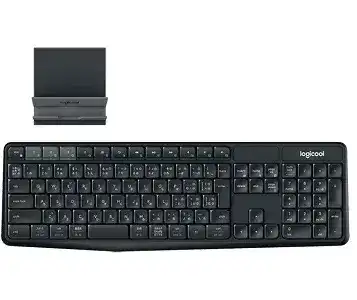
Switching from a computer to a tablet should take one keypress, yet the K375s can remain on the wrong channel, enter the wrong operating-system layout, or disappear from the Bluetooth list. The Logitech K375s Multi Device Wireless Keyboard Driver gives access to device detection, Easy-Switch management, function-key preferences, and receiver connection tools. Normal typing can work without extra software, but recovery becomes easier when the wireless method and selected channel are understood.
Logitech K375s Multi-Device Wireless Keyboard Windows Driver Download
| Driver Name | Description | Supported OS | File Size | Download |
|---|---|---|---|---|
| Logi Options+ 64-bit | Customizes keyboard shortcuts, device settings, and supported key functions through the updated Logi Options+ interface. | Windows 11, Windows 10 64-bit | 43.21 MB | |
| Logitech Options 64-bit | Manages keyboard shortcuts and device-specific settings with the classic Logitech Options software. | Windows 11, Windows 10 64-bit | 245.76 MB |
Logitech K375s Multi-Device Wireless Keyboard Mac OS Driver Download
| Driver Name | Description | Supported OS | File Size | Download |
|---|---|---|---|---|
| Logi Options+ | Adjusts keyboard shortcuts and device preferences on current macOS releases through the latest Options+ package. | macOS 26, macOS 15, macOS 14 | 19.56 MB | |
| Logitech Options | Controls supported keyboard shortcuts and device settings across several recent macOS versions. | macOS 15, macOS 14, macOS 13, macOS 12, macOS 11 | 238.52 MB | |
| Logi Options+ for macOS 13 | Configures keyboard functions, shortcuts, and compatible device preferences on macOS 13. | macOS 13 | 19 MB | |
| Logi Options+ for macOS 12 | Sets keyboard shortcuts and supported device behavior for installations running macOS 12. | macOS 12 | 18.65 MB | |
| Logi Options+ for macOS 11 | Handles compatible keyboard settings and shortcut assignments on systems using macOS 11. | macOS 11 | 17.51 MB |
Logitech K375s Multi Device Wireless Keyboard Driver for Easy-Switch Problems
The three white Easy-Switch keys store separate connections. A short press selects a saved device, while holding a key for about three seconds opens that channel for pairing. The indicator should blink rapidly during discovery. Holding a different channel by mistake can overwrite its previous connection, so choose an unused key before adding another computer, phone, or tablet.
The keyboard remains on channel one
When keys two and three appear unresponsive, press each once rather than holding it. A brief press changes devices; a long press starts pairing. Check whether the small indicator above the chosen number lights. Turn the keyboard off, remove both batteries for a short period, reinstall them, and try the channel keys again if none of the indicators respond.
A saved device may also fail to answer even though the channel changes correctly. Open that device’s Bluetooth panel and remove the old K375s record. Hold the matching Easy-Switch key until its light flashes quickly, then add the keyboard again. Do not erase the other channels unless they also fail.
Pairing mode ends before the device connects
Start the Bluetooth search before holding the Easy-Switch key. This reduces the time between discovery and selection. Choose the K375s as soon as it appears, type the pairing code on the physical keyboard, and press Enter. Entering the code on an on-screen keyboard will not complete the authentication request.
If no code appears, cancel the attempt and delete any incomplete keyboard entry. Turn Bluetooth off and on, reopen the add-device screen, and begin with another channel. Phones and tablets may keep a failed record even when the K375s no longer appears connected, which prevents a new pairing from finishing.
Switching reaches the device but typing does not
Watch the channel indicator after pressing an Easy-Switch key. A steady response followed by silence often means the keyboard reached a stored connection that the host no longer accepts. Re-pair only that channel. When the light keeps blinking slowly or stops without a connection, check Bluetooth status, battery power, and the distance to the selected device.
Correct the Windows, Mac, and Mobile Key Layout
The K375s uses dual-printed keys because one keyboard works across Windows, macOS, ChromeOS, Android, and iOS devices. It normally detects the connected system, but detection can fail after changing channels or moving a connection between computers. The result may look like damaged keys even though the keyboard has simply selected the wrong operating-system mode.
Command and Alt positions feel reversed
Set the keyboard to the required platform manually. Hold Fn and O for about three seconds for the Mac or iOS layout. Hold Fn and P for about three seconds for Windows, Android, or ChromeOS. Use the combination while the affected Easy-Switch channel is active because each connected device may need a different operating-system choice.
This change matters when the grey Command label does nothing, the Windows key acts unexpectedly, or shortcuts use the wrong modifier. Test copy, paste, and application switching after selecting the layout. Changing the computer’s input language will not fix modifier positions when the K375s itself remains in the other platform mode.
Symbols do not match the printed key
First compare the operating system’s keyboard language with the physical K375s edition. An English keyboard paired with a different regional layout can produce another symbol from the same key position. Select the matching language and remove unused layouts that activate through accidental shortcuts. Then sign out or restart the application where the mismatch appeared.
European and international layouts may need the keyboard’s special layout swap after entering Mac mode. Hold Fn and O first, then use Fn and U when the affected layout requires the alternate symbol positions. This combination is intended for specific regional arrangements, so avoid applying it to a standard layout that already types correctly.
The pipe or backslash key fails on a Mac
A pipe-key problem can come from the selected Portuguese Brazilian layout rather than a dead switch. Confirm the exact macOS input source, select the K375s Mac mode, and test the key in a basic document. Where the physical legends and macOS layout still disagree, choose the input source that corresponds to the actual keyboard version instead of remapping unrelated keys.
F1 to F12 trigger shortcuts instead
The top row can operate as media and system controls or as standard function keys. Press Fn with the required key when an application expects F1 through F12. Fn and Esc switches the default behavior on supported configurations. Logi Options+ can also expose the function-key preference when the Logitech K375s Multi Device Wireless Keyboard Driver software detects the keyboard.
Separate Bluetooth Faults from Unifying Receiver Faults
The K375s has dual wireless connectivity. It can pair through Bluetooth Smart or communicate through the included Logitech Unifying receiver. These methods use different recovery paths. A Bluetooth entry cannot repair a lost receiver pairing, while the receiver utility does not remove an obsolete Bluetooth record. Identify which Easy-Switch channel uses each method before changing anything.
The included receiver is not recognized
Connect the Unifying receiver directly to a working USB port and wait for the operating system to identify it. Avoid a monitor port, unpowered hub, or KVM during diagnosis. The included receiver normally arrives paired, but a replacement receiver requires a new pairing through Logi Options+ or a compatible Unifying connection tool.
Check the logo before using another Logitech dongle. The K375s needs a Unifying-compatible receiver for this connection method. A visually similar receiver from another wireless product may not accept it. Once the utility finds the correct receiver, select an Easy-Switch channel, hold that key for pairing, and follow the on-screen connection process.
Bluetooth disconnects after sleep
Remove the K375s from the host’s Bluetooth list and create the connection again on the same channel. On Windows, confirm that the Bluetooth adapter remains enabled after waking. Installing a current adapter driver from the computer manufacturer may correct repeated sleep recovery failures that continue after re-pairing.
Radio conditions also matter. Metal desks, displays, power supplies, wireless speakers, phones, and crowded 2.4 GHz equipment can reduce the usable link. Keep the keyboard away from large metal surfaces and leave some space between it and other electronics. Moving the host or Bluetooth adapter by a small distance can produce a larger improvement than reinstalling Logitech software.
Logi Options+ opens without finding the K375s
Verify that ordinary typing works before troubleshooting the application. If the keyboard types but the control app remains empty, close the software, restart the computer, and reopen it with the intended channel active. Remove an obsolete Logitech Options installation when it conflicts with Logi Options+, but do not delete a working Bluetooth or receiver pairing merely because the application interface failed to load.
Use the Logitech K375s Multi Device Wireless Keyboard Driver package for customization and device management, not as a substitute for a valid wireless link. Logi Options+ added K375s support after the keyboard’s original release. Updating the app may resolve detection failures, while the operating system continues to provide standard keyboard input independently.
Investigate Power Loss and Individual Key Failures
Frequent dropouts continue on every channel
The K375s runs on two AAA batteries and includes auto-sleep behavior. Install two fresh non-rechargeable batteries with matching age and type, then check the polarity marks inside the compartment. Clean dry battery contacts gently when visible residue prevents firm contact. Turn the power switch off and on after closing the cover.
Battery trouble can resemble a channel fault because the indicator may flash and then vanish before pairing finishes. Test one connection at close range after changing the batteries. If Bluetooth and the Unifying receiver both fail in the same way, power or keyboard hardware becomes more likely than a problem with one computer.
Several letters stop responding
Test the affected keys on another Easy-Switch channel and another device. A key that fails everywhere points away from the driver. Shut the keyboard down and clear loose debris with a soft brush or gentle air. Avoid pulling keycaps unless repair documentation for that exact mechanism calls for removal, since the plastic clips can break.
When a power cycle temporarily restores unrelated keys, reconnect the keyboard and test again before changing software. Repeated failure of the same group across multiple hosts suggests an internal contact or membrane problem. Software cannot repair a damaged key matrix, especially when the unaffected keys continue to type normally.
Some multi-key combinations do not register
The K375s is a general-purpose membrane keyboard rather than a gaming model with unrestricted key rollover. Certain large combinations may omit one key even when every key works alone. Confirm each key separately, then reduce the number of simultaneous presses. Changing Bluetooth to the receiver or reinstalling the application will not remove a hardware rollover limit.
Characters repeat after one press
Check whether the key returns freely, then test the keyboard on another connected device. If repetition occurs only on one computer, reduce the keyboard repeat rate in that operating system and close any utility that creates text macros. Repetition across all three channels usually points to debris, a sticking mechanism, weak power, or internal wear rather than an Easy-Switch configuration.
Rebuild Each Channel Around Its Own Device
Treat the three Easy-Switch positions as separate connection records. Keep the receiver-based computer on one channel, place Bluetooth devices on the others, and set the Windows or Mac layout after selecting each host. This prevents a layout correction for one computer from being confused with a pairing failure on another.
After installing the Logitech K375s Multi Device Wireless Keyboard Driver software, verify ordinary typing before changing the function row or other preferences. Then switch through all saved channels and test modifier keys, symbols, the number pad, and F-key behavior. A channel that fails alone needs re-pairing; faults repeated everywhere call for battery, key, or hardware checks.
Once every device responds, avoid holding an Easy-Switch key during normal changes. A short press moves between saved hosts, while a long press prepares that position for a new pairing and can replace the existing record. That distinction prevents many K375s connection problems from returning.