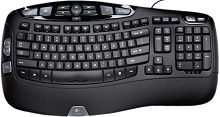
When keystrokes arrive late, repeat by themselves, or stop completely, the Logitech Wireless Keyboard K350 Driver is only one part of the diagnosis. The K350 uses Logitech’s 2.4 GHz Unifying connection and was built around SetPoint for extra key functions, while ordinary typing can work through standard operating-system keyboard support. Power, receiver position, pairing, and wireless conditions often matter more than repeatedly installing software.
Logitech Wireless Keyboard K350 Windows Driver Download
| Driver Name | Description | Supported OS | File Size | Download |
|---|---|---|---|---|
| SetPoint Software 64-bit | Full 64-bit SetPoint package for offline setup, with controls for keyboard hot-keys, device-specific settings, battery status, Caps Lock, and Num Lock indicators. | Windows 11, Windows 10 64-bit, Windows 8 64-bit, Windows 7 64-bit | 80.45 MB | |
| SetPoint Software 32-bit | Complete 32-bit SetPoint installer for offline installation, providing access to hot-key assignments, keyboard-specific options, and status information. | Windows 11, Windows 10 32-bit, Windows 8 32-bit, Windows 7 32-bit | 78.04 MB | |
| SetPoint Smart Installer | Small SetPoint installer that requires an internet connection during installation to obtain the needed components for keyboard settings and hot-key configuration. | Windows 11, Windows 10 32-bit/64-bit, Windows 8 32-bit/64-bit, Windows 7 32-bit/64-bit | 4.61 MB | |
| Logitech Unifying Software | Utility for connecting and managing compatible Logitech Unifying wireless devices through a supported Unifying receiver. | Windows 11, Windows 10 32-bit/64-bit | 3.96 MB |
Logitech Wireless Keyboard K350 Driver When Typing Starts to Lag
The most frustrating K350 fault is not always a completely dead keyboard. Sometimes a sentence pauses for several seconds and then appears all at once. That behavior usually points toward an unstable wireless path rather than a damaged letter key. Begin by changing where the Unifying receiver sits before changing keyboard software or Windows keyboard preferences.
Letters pause and then appear in a burst
Connect the Unifying receiver directly to a USB port rather than through a monitor, dock, switch, or passive hub while testing. A desktop case can also shield the radio path when the receiver sits far behind the computer. The K350 documentation includes a receiver extender for bringing the receiver nearer to the keyboard, which can make a noticeable difference when the desk or computer case blocks the signal.
Other wireless equipment around the receiver can add another variable. Move nearby USB wireless adapters and other radio devices away from the receiver, then type continuously for a few minutes. If the delay disappears after changing receiver position, leave the software alone. The fault came from the connection path, not from a missing keyboard package.
Repeated characters appear while typing
A stuck stream of letters can come from the same intermittent connection that causes delayed input, but first check whether one physical key is involved every time. Press and release that key several times and clear any debris around it. When many different characters repeat only during wireless pauses, concentrate on receiver placement, batteries, and pairing instead of assuming that several switches failed together.
Restore the Unifying Connection Before Changing Key Functions
The K350 belongs to Logitech’s Unifying family, so its receiver is not just an arbitrary 2.4 GHz USB dongle. A replacement needs to be a compatible Unifying receiver, and the keyboard may need to pair with it. The Logitech Wireless Keyboard K350 Driver page can therefore involve both keyboard-control software and the Unifying pairing utility, depending on what has stopped working.
The keyboard has power but no keys respond
Turn the K350 off, wait briefly, and switch it on again. Then reseat the USB receiver and test another direct USB port. If the keyboard still remains silent, re-establish the link with the compatible Unifying pairing software. Follow the pairing prompt and power-cycle the keyboard when requested so the receiver can identify it again.
Do not substitute a receiver from a different Logitech wireless system simply because the plug looks similar. Logitech has produced several receiver families over time. The K350 is specifically a Unifying model, so pairing troubleshooting needs to stay within that system. This matters especially after the original receiver has been lost or mixed with dongles from other keyboards and mice.
A replacement Unifying receiver does not respond immediately
A compatible replacement receiver may still arrive without the K350 linked to it. Plugging it in does not automatically mean the old keyboard and new receiver already know each other. Run the Unifying pairing process, then switch the keyboard off and on when prompted. Once pairing succeeds, test normal letters before changing hotkey or media-key preferences.
K350 Function Keys and Media Controls Behave Differently from Typing
Ordinary letters can work while the programmable or enhanced controls do nothing. That difference is important. The K350 was supplied with Logitech SetPoint support for enabling and customizing additional keyboard functions, so a media-key problem does not automatically mean the receiver has failed. First decide whether the entire keyboard is affected or only the enhanced controls.
Volume, play, pause, or shortcut keys stop responding
Check those controls in more than one program. A media application can ignore a command even while Windows receives it correctly. If ordinary typing works everywhere but several K350 special keys fail across applications, inspect the Logitech software installation. Repairing or reinstalling the matching SetPoint package can restore the software layer used for older programmable keyboard functions.
Logitech has ended active maintenance for several older utilities associated with products such as the K350, so avoid mixing numerous generations of Logitech control software without a reason. Keep the package that actually recognizes the keyboard and provides the controls you need. Installing unrelated current utilities will not necessarily add support to an older model.
F-keys produce shortcuts instead of the expected command
The function row can operate differently depending on how the enhanced key functions are configured. If F1 through F12 no longer perform the action you expect, check the keyboard software rather than assuming those keys are physically defective. SetPoint historically provided control over K350 function-key behavior, letting the user decide how those keys interact with their enhanced commands.
Power Problems Can Look Like Receiver Failure
The keyboard dies after previously working normally
Check the batteries before rebuilding the wireless connection. The K350 uses replaceable AA batteries, and low power can produce intermittent behavior before the keyboard becomes completely unresponsive. Install known-good batteries with the polarity shown inside the battery compartment. Also inspect the metal contacts for dirt or corrosion that could interrupt power when the keyboard moves on the desk.
After changing batteries, switch the keyboard off and back on. If it immediately returns, continue using it before making software changes. If the keyboard has power but still cannot type, then move to receiver-port and Unifying pairing checks. Separating a power fault from a radio fault saves a great deal of unnecessary software work.
It wakes only after switching power off and on
An occasional wake problem can come from the computer’s USB state as well as from the keyboard. If power-cycling the K350 restores typing after the computer resumes from sleep, reconnect the receiver and compare another USB port. Also check whether other USB devices behave strangely after sleep. A broader USB wake problem belongs to the computer rather than the keyboard alone.
When the Logitech Wireless Keyboard K350 Software Is Not the Real Fix
A full software reinstall makes sense when enhanced controls disappear or a pairing tool no longer sees the keyboard, but it adds little when one physical key fails everywhere. Testing the symptom first keeps the repair focused. The Logitech Wireless Keyboard K350 Driver cannot compensate for a worn key mechanism, damaged membrane, contaminated contact area, or unstable battery contact inside the keyboard.
One key works only after a hard press
If every other key works normally and one letter requires extra force, test that key repeatedly in a plain typing field. Receiver trouble normally affects the whole data stream rather than one specific switch. Remove loose debris around the key without pouring cleaner into the keyboard. A fault that remains limited to the same key points toward the keyboard mechanism.
Several keys in one area stop together
A group of neighboring dead keys deserves a different diagnosis from wireless lag. Re-pairing is worth one quick test, but a receiver problem rarely selects one small section of the key matrix while leaving the rest perfect. If the same cluster fails on another computer after successful pairing, hardware damage inside the keyboard becomes much more likely.
The keyboard works on another computer
This result is valuable because it rules out many internal faults at once. Return to the first computer and concentrate on its USB port, receiver placement, operating-system input configuration, and Logitech software. Remove unnecessary duplicate keyboard utilities if several are running together, restart the system, and reconnect the Unifying receiver directly before testing again.
Use the K350 Connection Path to Decide What to Fix
The K350 gives clearer clues when each symptom is matched to the part that handles it. Delayed letters and short freezes point first toward the Unifying radio path, receiver position, or battery condition. A completely dead keyboard calls for power, USB, and pairing checks. Special keys that fail while letters still type normally point more strongly toward the older Logitech control software.
Keep Bluetooth and newer Logi Bolt procedures out of this diagnosis because they belong to different connection systems. The K350 communicates through its Unifying USB receiver. Matching the receiver family matters more than the physical appearance of the dongle, especially when replacing a lost receiver or sorting several Logitech receivers stored together.
Once the Logitech Wireless Keyboard K350 Driver and the appropriate Logitech utility are in place, judge the keyboard by the remaining symptom rather than by the amount of software installed. A nearby Unifying receiver, sound battery contacts, successful pairing, and working enhanced-key configuration cover most software and connection faults. Persistent single-key or key-cluster failures across computers point instead toward aging keyboard hardware.