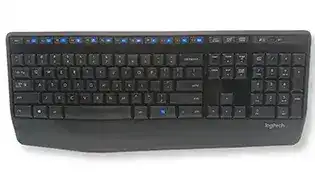
Letters that appear late, missed keystrokes, or a keyboard that suddenly stops responding often point to the wireless path rather than a missing Windows component. The Logitech K345 Standalone Wireless Keyboard Driver side of this model is centered on its original SetPoint software support and the keyboard’s 2.4 GHz connection. The K345 uses two AAA alkaline batteries, an on/off switch, a Caps Lock indicator, and 12 FN keys.
Logitech K345 Standalone Wireless Keyboard Windows Driver Download
| Driver Name | Description | Supported OS | File Size | Download |
|---|---|---|---|---|
| SetPoint 64-bit | Full 64-bit package for offline setup of keyboard hot-keys, battery status, Caps Lock and Num Lock indicators, and device-specific settings. | Windows 11, Windows 10 64-bit, Windows 8 64-bit, Windows 7 64-bit | 80.45 MB | |
| SetPoint 32-bit | Full 32-bit package for offline configuration of keyboard hot-keys, battery information, lock-key status, and supported device controls. | Windows 10 32-bit, Windows 8 32-bit, Windows 7 32-bit | 78.04 MB | |
| SetPoint Smart Installer | Small SetPoint installer that downloads the required components during setup, so an internet connection is required while installing. | Windows 11, Windows 10 32-bit/64-bit, Windows 8 32-bit/64-bit, Windows 7 32-bit/64-bit | 4.61 MB |
Logitech K345 Standalone Wireless Keyboard Driver When Typing Starts to Lag
A delay between pressing a key and seeing the character on screen deserves attention before changing software. The K345 communicates over 2.4 GHz wireless, so receiver position has a direct effect on typing. Plug the USB receiver straight into the computer rather than routing it through a USB hub, KVM switch, or similar intermediary. A direct connection removes an extra point where communication can fail.
Characters arrive late or several appear together
Typing lag can look unusual: nothing appears for a moment, then several characters reach the screen together. Try another USB port and consider the physical path between the keyboard and receiver. A desktop case can partially block the radio signal when the receiver sits behind the tower. A more exposed USB position may give the keyboard a clearer path without changing anything in Windows.
Nearby wireless electronics can also disturb a 2.4 GHz connection. Keep the receiver away from equipment that produces strong radio or electrical activity, particularly when the delay appears only at one desk. The keyboard itself should not rest directly on a large metal surface during testing. If moving either part changes the behavior immediately, the problem was probably environmental rather than a keyboard software failure.
Typing pauses after Windows wakes
If the K345 behaves normally after startup but hesitates after sleep, inspect USB power management. Windows can reduce power to USB hardware while the computer rests. A receiver that does not recover cleanly may leave the keyboard delayed or temporarily silent. Testing another direct USB socket is a quick way to separate a port-specific problem from a broader Windows power issue.
Windows background work can create a similar symptom. System updates or heavy startup activity may temporarily make keyboard input feel delayed even though the wireless link remains intact. Give the computer time to finish that work, then type again. If the lag follows the K345 to another computer, focus instead on its batteries, receiver position, and wireless connection.
Recover the K345 When It Stops Responding
A completely silent keyboard needs a different test from occasional lag. Check the physical on/off switch first, then inspect the two AAA batteries. Long advertised battery life does not rule out an exhausted cell, poor contact, or batteries that have sat unused for a long period. Installing a known-good pair is more informative than judging battery condition from how recently the keyboard was used.
Power looks fine but no keys work
Remove and reseat the batteries if the keyboard remains inactive. While the compartment is open, look for dirt or residue where the cells touch the contacts. The K345 depends on two replaceable AAA alkaline batteries, so either cell can interrupt operation. After reseating them, switch the keyboard off briefly and then back on before testing ordinary letter keys and Caps Lock.
The Caps Lock indicator gives a useful second clue. If Windows receives no typing and the indicator also fails to react, concentrate on power and wireless communication first. If Caps Lock reacts while an application ignores particular keystrokes, the keyboard may still be communicating and the problem may sit with the program, keyboard layout, shortcut assignment, or operating-system state.
A different USB socket changes everything
Receiver problems do not always mean the receiver has failed. One USB port may have unstable power or a driver problem while another works immediately. Move the receiver directly to another computer USB socket and test several normal keys. If that restores operation, leave the receiver on the working port and investigate the computer’s USB or chipset software separately rather than repeatedly changing the keyboard configuration.
Logitech K345 Standalone Wireless Keyboard Software and FN Key Behavior
Logitech listed SetPoint as the software support for the K345 at release, while its current product support page lists no downloadable files specifically for this keyboard. That distinction matters when looking for the Logitech K345 Standalone Wireless Keyboard Driver. Windows can still recognize keyboard input through its normal keyboard support even when the old Logitech utility is not installed.
FN shortcuts behave differently from normal typing
The keyboard has 12 FN keys, so trouble limited to those controls should not immediately be treated as a failed wireless connection. First confirm that ordinary letters, numbers, Enter, and navigation keys respond normally. If standard typing works, the receiver is already passing keyboard input. The next check belongs with the particular FN command, Windows behavior, and any compatible Logitech software already present on that computer.
SetPoint was the software named for this keyboard when it was released, but installing unrelated Logitech utilities simply because they are newer can complicate troubleshooting. Do not assume that every current Logitech application manages the K345. If the machine already has an older working configuration, identify what controls the keyboard before removing or replacing software just to solve one shortcut.
Caps Lock works but a program ignores keys
When the Caps Lock light reacts and typing works in one program but not another, check the application before disturbing the receiver. Close the affected program and test the same keys somewhere else. Shortcut-heavy applications can capture function combinations, while language or keyboard-layout changes in Windows can make punctuation and symbols appear on unexpected keys even though the physical keyboard is functioning normally.
A Missing Receiver Needs the Right Replacement Path
The K345 keyboard hardware is also identified as model Y-R0042 in Logitech specifications and appears as the keyboard component of the MK345 family. That family uses a dedicated USB receiver rather than a Unifying receiver. This is important when the original dongle disappears: a receiver that physically fits a USB port is not automatically compatible with the keyboard.
Do not buy a random Unifying receiver expecting it to pair with this model. The dedicated MK345 receiver cannot be treated as a Unifying device, and receivers from unrelated Logitech models are not interchangeable merely because they use 2.4 GHz wireless. When replacing a lost receiver, verify compatibility with the exact K345 or its corresponding MK345 hardware before spending time on pairing utilities.
The receiver works until it is moved
A keyboard that fails after its receiver moves to another computer or another USB socket may simply have exposed an existing connection problem. Put the dongle directly into a known working USB port, power-cycle the keyboard, and retest. Avoid hubs during this check. If the keyboard returns, introduce other hardware changes one at a time rather than moving the receiver, batteries, software, and USB devices all at once.
If nothing changes, test the K345 with its matching receiver on another computer. This separates a keyboard or receiver fault from Windows-specific USB behavior. A second computer that produces exactly the same missing or delayed input makes further operating-system reinstalls much less useful and points back toward the batteries, keyboard hardware, receiver, or radio link.
When Missed Keystrokes Return After a Few Days
Intermittent faults need a more permanent fix than repeatedly turning the keyboard off and on. Watch where the failure occurs. If missed letters return only when the receiver sits beside another wireless device, behind a metal computer case, or through a hub, change that physical arrangement. The K345’s 2.4 GHz link depends on the radio environment even when the keyboard remains only a short distance from the computer.
Battery life becomes shorter than expected
Logitech rates the K345’s two AAA alkaline batteries for long service, but actual life varies with use and battery condition. Sudden connection failures are still worth testing with another known-good pair. If new batteries repeatedly lose power much faster than expected, verify that the keyboard is not being left switched on unnecessarily during long storage periods and inspect the battery compartment for poor contact.
Keys repeat, miss, or behave unpredictably
Repeated characters can come from more than one place. First test whether the symptom occurs across different applications. Then check the wireless conditions already described and try another computer with the matching receiver. If one physical key repeats or fails everywhere while surrounding keys remain normal, software changes become less convincing and a mechanical keyboard fault becomes more likely.
Windows keyboard repeat controls can also make a held key repeat sooner or faster than expected. That setting differs from a key producing duplicate characters after one ordinary press. Distinguishing those two behaviors prevents unnecessary receiver work. Test with deliberate single taps, then hold the same key and compare what happens before altering the operating system’s repeat rate.
Keep the Wireless Path Predictable
The most useful Logitech K345 Standalone Wireless Keyboard Driver troubleshooting comes from separating software questions from radio and power faults. SetPoint belongs to the model’s original software history, but delayed typing, lost input, and wake problems often respond better to direct USB placement, another USB port, sound AAA batteries, and less radio obstruction than to repeated software installation.
Once typing becomes consistent, leave the working receiver position alone for a while. Keep the matching dedicated receiver with the keyboard, use the power switch when the device goes into storage, and treat a return of missed keystrokes as a reason to check batteries and the 2.4 GHz path first. That approach makes later faults easier to isolate because fewer variables change at the same time.