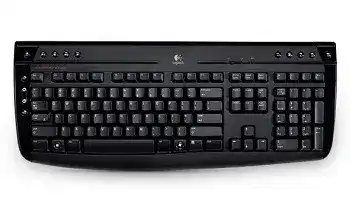
Here you will get the latest Logitech Wireless Keyboard K320 driver and software that support Windows Operating System.
Logitech Wireless Keyboard K320 Windows Driver Download
SetPoint
SetPoint lets you customizes your mouse buttons, keyboard F-keys and hot-keys, control tracking speed, and configure other device-specific settings. It can also notify that you of your device’s battery status, and whether Caps Lock and Num Lock are on.
Smart Installer – Faster setup time, installation starts while components are downloading. Internet connection required during installation. If you’re having trouble with the Smart Installer, try downloading the Full Installer package.
Supported Windows OS: Windows 11 Windows 10 (32-bit ,64-bit) Windows 7 (32-bit ,64-bit) Windows 8 (32-bit ,64-bit)
Logitech Wireless Keyboard K320 SetPoint Smart Installer (4.61 MB)
Logi Wireless Keyboard K320 SetPoint Smart Installer (4.62 MB)
Full Installer – Full-sized download, contains the files for all supported devices. Lets you install offline.
Logitech Wireless Keyboard K320 SetPoint full Installer for windows 32-bit (78.04 MB)
Wireless Keyboard K320 SetPoint full Installer for windows 64-bit (80.45 MB)
Logi Wireless Keyboard K320 SetPoint full Installer for windows 32-bit (80.40 MB)
Wireless Keyboard K320 SetPoint full Installer for windows 64-bit (82.88 MB)
Logitech Firmware Update
This Logitech software upgrades the firmware for the Logitech Wireless Keyboard K320.
Supported Windows OS: Windows 11 Windows 10 (32-bit ,64-bit) Windows 8 (32-bit ,64-bit) Windows 7 (32-bit ,64-bit)
Logitech Wireless Keyboard K320 Firmware Update tool for Windows 32-bit (9.88 MB)
Wireless Keyboard K320 Firmware Update tool for Windows 64-bit (14.79 MB)
Logitech Wireless Keyboard K320 Firmware Update tool for Windows 32-bit (11.24 MB)
Wireless Keyboard K320 Firmware Update tool for Windows 64-bit (11.27 MB)
Logitech Wireless Keyboard K320 Firmware Update tool for Windows 32-bit (9.88 MB)
Logitech K320 Wireless Keyboard Mac OS Driver Download
Supported Mac OS: MacOS 10.15, MacOS 11, MacOS 11.2, MacOS 11.1, MacOS 12.0
Logitech Wireless Keyboard K320 Firmware Update tool for Mac 64-bit (26.48 MB)
Wireless Keyboard K320 Firmware Update tool for Mac (23.78 MB)
Logi Wireless Keyboard K320 Firmware Update tool for Mac (18.67 MB)
The Logitech K320 driver facilitates seamless communication between the keyboard and your computer, enhancing overall user experience. This driver is compatible with various operating systems, including Windows 11, Windows 10, Windows 8, Windows 7, and diverse versions of Mac OS (10.15, 11, and 12.0). Key specifications of the Logitech K320 software include:
- Compatibility: Supports multiple operating systems for versatility.
- Functionality: Ensures reliable performance for standard and multimedia keys.
- Driver Size: Optimized for minimal footprint while ensuring comprehensive functionality.
- Updates: Regular software updates improve features and compatibility.
Utilizing the correct driver maximizes the keyboard’s capabilities, such as customizing key functions and enhancing battery management.
Download Logitech K320 Driver and Software Download Software
With the Logitech K320 driver already saved on your computer, you are ready to proceed with the installation. This software is designed to optimize your keyboard’s performance, ensuring that all functionalities are accessible. Ensure you have noted the installation file’s location, typically found in your Downloads folder or designated installation directory.
How to install Logitech K320 Driver and Software Download Software on Windows and Mac OS?
Installing the Logitech K320 driver is a straightforward process that differs slightly for Windows and Mac OS. Regardless of the operating system you use, follow these steps:
- Locate the downloaded installer file: Check your Downloads folder or the specific directory where you saved the installer.
- Run the installer executable: Double-click the installer file to initiate the setup process.
- Follow the on-screen prompts: Provide necessary permissions and follow the installation wizard until completion.
- Restart the system if prompted: Sometimes, a restart is recommended for the changes to take effect fully.
These steps will prepare your Logitech K320 keyboard for optimal use on your system.
Installing Logitech K320 Driver and Software Download Software on Windows 11, 10…
Here’s how to install the Logitech K320 driver on Windows 11 or Windows 10:
- Locate the downloaded file: Open the Downloads folder or search for the file if you’re unsure.
- Run the installer: Double-click the file to start the installation process.
- Accept the User Agreement: An agreement window will appear; read and accept to proceed.
- Select installation settings: You may be provided with options to customize the installation process, choose according to your needs.
- Final steps: Complete the setup and reboot if required.
Post-installation, ensure your keyboard is properly recognized by checking Device Manager for any alerts.
Installing Logitech K320 Driver and Software Download Software on Mac OS
For users on Mac OS, follow these streamlined steps to install the Logitech K320 driver:
- Locate the installer: Open Finder and navigate to the Downloads folder where you saved the file.
- Run the installer: Double-click on the installer to start the installation.
- Grant necessary permissions: Depending on your security settings, you may need to confirm the installation.
- Follow the installation wizard: Proceed through the setup until completion, adhering to any prompts presented.
- Reboot your Mac: If prompted, restart the computer to enable the driver changes.
This installation process will enhance your keyboard’s functionality and integration with Mac OS systems.
Why choose our website for Logitech K320 Driver and Software Download Drivers Downloads?
This platform should be your go-to destination for obtaining the Logitech K320 driver due to its user-friendly design and comprehensive resources. Key advantages include:
- Comprehensive database: Access a wide selection of drivers, including updates for the K320, all in one place.
- Convenience: Find everything you need for your Logitech peripherals without navigating multiple sites.
- Trustworthiness: Enjoy a secure download environment that prioritizes user safety and privacy.
Using this website ensures efficient access to essential drivers for your Logitech devices.
Uninstalling the Logitech K320 Driver and Software Download Software
If you need to remove the Logitech K320 driver from your system, follow these clear instructions to ensure a complete uninstallation:
- Open Control Panel: Search for Control Panel in the Windows or Mac search bar.
- Navigate to Programs and Features: Find the Logitech K320 entry in the list of installed programs.
- Select and uninstall: Right-click the K320 driver and choose the uninstall option.
- Follow prompts: Complete the uninstallation by adhering to any prompted instructions.
- Restart your computer: Reboot to finalize the uninstallation process.
This procedure will remove all components associated with the Logitech K320 driver from your system.
Conclusion about Logitech K320 Driver and Software Download Driver
Encountering challenges while utilizing the Logitech K320 driver can be frustrating, especially when it impacts your typing experience. Here are some common solutions and resources that can aid in troubleshooting:
- Update Checks: Regularly check for updates to improve compatibility and functionality.
- User Manual: Reference the user manual for specific troubleshooting steps and key features.
- Driver Forums: Engage in discussions and seek assistance from the user community for shared experiences.
Ensuring that your keyboard’s firmware is up to date not only enhances performance but also improves connectivity. Schedule routine checks to maintain optimal operational conditions and to prevent future complications.