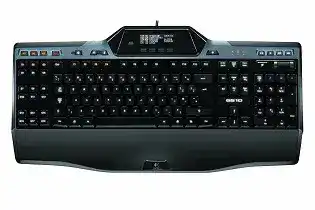
A profile may load while its G-keys, media controls, or GamePanel screen still behave incorrectly. The Logitech Gaming Keyboard G510 Driver adds the software layer needed for programmable commands, LCD applets, custom backlighting, and the keyboard’s integrated USB audio. Windows can handle ordinary typing through its standard keyboard support, but those additional controls depend on compatible Logitech Gaming Software and a steady USB connection.
Logitech Gaming Keyboard G510 Windows Driver Download
| Driver Name | Description | Supported OS | File Size | Download |
|---|---|---|---|---|
| Logitech Gaming Software 64-bit | Full 64-bit package for configuring keyboard profiles, programmable keys, macros, lighting, and game-specific commands during offline setup. | Windows 11, Windows 10 64-bit | 119.96 MB | |
| Logitech Gaming Software 64-bit | Offline 64-bit installer for managing G-key assignments, custom macros, keyboard profiles, and compatible game settings. | Windows 10 64-bit, Windows 8 64-bit, Windows 7 64-bit | 120.04 MB | |
| Logitech Gaming Software 32-bit | Complete 32-bit setup for assigning programmable keys, recording macros, adjusting lighting, and saving application profiles. | Windows 10 32-bit, Windows 8 32-bit, Windows 7 32-bit | 109.04 MB |
Logitech Gaming Keyboard G510 Mac OS Driver Download
| Driver Name | Description | Supported OS | File Size | Download |
|---|---|---|---|---|
| Logitech Gaming Software | Mac software for setting keyboard commands, creating game profiles, programming G-keys, and controlling supported lighting functions. | macOS 10.15, macOS 10.14, macOS 10.13, macOS 10.12 | 204.99 MB | |
| Logitech Gaming Software | Legacy Mac package for editing programmable key assignments, building macros, and maintaining separate profiles for games and applications. | Mac OS X 10.11, Mac OS X 10.10, Mac OS X 10.9, Mac OS X 10.8 | 180.47 MB |
Logitech Gaming Keyboard G510 Driver After a Windows Update Breaks Macros
The G510 often continues typing after an operating-system update even when its programmed commands stop running. This split behaviour can make the hardware look partly defective. Windows still sees the regular keyboard interface, while Logitech Gaming Software may have lost access to the component that sends recorded keystrokes, controls the display, and responds to profile changes.
G-keys open programs but will not send keystrokes
First create a temporary profile and assign one G-key to a single letter. Select M1 before testing, because M1, M2, and M3 hold different command banks. When a simple command fails but an executable assignment works, the problem is usually within the macro playback service rather than the physical G-key. Restart Logitech Gaming Software and test again before rebuilding existing profiles.
Windows can also block a macro when the target game runs with administrator rights but the Logitech program runs normally. Both programs need the same permission level for simulated keystrokes to reach the game. Remove unnecessary administrator mode from the game when possible. For a trusted application that genuinely requires elevation, start Logitech Gaming Software with matching rights.
Imported profiles appear but remain inactive
An imported profile may still point to the executable location used on the previous computer. Open its properties and browse to the current game or application file. Launchers, updates, and store installations can place executables in different folders. Once the correct file is associated, leave profile switching automatic and confirm that the expected M-key colour appears when the application opens.
A persistent profile can override every automatic association. Check whether one profile has been locked as persistent before assuming that profile detection has failed. Disable that option, close the target program, and reopen it. The Logitech Gaming Keyboard G510 Driver software should then change to the profile linked with the active executable rather than retaining one command layout everywhere.
Quick Macro records the wrong timing
The MR key records the keys and delays entered during a session. Long pauses therefore become part of the macro and can make playback appear frozen. Record the command again at a deliberate pace, then inspect it in the macro editor. Remove accidental pauses and release events, but retain short delays where the target program needs time to recognise separate actions.
Fast sequences can fail for the opposite reason. A game may ignore a command when several key events arrive almost together. Add a modest delay between the affected presses instead of slowing the entire macro. Test each edit inside the intended application, since a sequence that works in a document window may behave differently in a game.
The GamePanel Screen Has Power but Shows the Wrong Applet
The G510 carries a monochrome GamePanel LCD with an application button and four context buttons beneath the display. The screen may show a clock, performance information, media details, or data supplied by compatible applications. A lit panel proves that the keyboard receives power, but it does not confirm that the LCD service and enabled applets are operating normally.
The display stays on the Logitech logo
Exit Logitech Gaming Software from the Windows notification area rather than merely closing its main window. Start it again and wait for the keyboard image or profile screen to appear. If the logo remains, disconnect the G510 for several seconds, reconnect it to a direct computer port, and reopen the software after Windows finishes detecting both of its USB components.
A damaged installation can leave the standard keys active while the LCD service never starts. Export profiles that still matter, uninstall Logitech Gaming Software, and restart Windows. Install the compatible 32-bit or 64-bit package for the operating system, then attach the keyboard without using a hub. Add saved profiles only after the LCD changes from its startup display.
The applet-change button does nothing
Open the LCD configuration inside Logitech Gaming Software and check which applets are enabled. The application button has nothing to cycle through when only one display item remains active. Enable another built-in applet, apply the change, and press the button again. If the four context buttons respond but the application button never does, test after a full USB reconnection.
Third-party LCD programs can hold the screen on one page or leave unusable names after their main application has been removed. Disable the suspect entry and restart the Logitech software. Update or remove its related application if the screen begins working normally. Do not delete every profile merely to clear one faulty GamePanel extension.
The clock or system monitor freezes after sleep
Sleep and hibernation can resume the standard keyboard interface without waking the LCD process. Restart Logitech Gaming Software first. When this happens after nearly every wake cycle, open Windows power management for the USB hub used by the G510 and stop Windows from switching off that hub solely to save power. Test one sleep cycle before changing other USB entries.
Moving the cable to another direct port can also avoid a controller that resumes poorly. Keep the keyboard on that port after the software recognises it, because repeated port changes make Windows enumerate its keyboard and audio interfaces again. The Logitech Gaming Keyboard G510 Driver may need a restart after each move before all GamePanel functions return.
Headset Jacks Change How Windows Sees the G510
The keyboard includes separate 3.5 mm headphone and microphone sockets with its own USB audio function. Connecting an analog headset activates that audio interface and briefly restarts the keyboard. This behaviour affects more than sound. A running game may lose input, media keys may follow another playback device, or Windows may change the default microphone without an obvious warning.
The keyboard pauses when a headset is inserted
A short interruption while connecting or removing a headset is expected because the G510 changes between its keyboard-only and keyboard-with-audio USB states. Attach the headset before opening a game, voice client, or recording program. That gives each application a chance to select the final audio device instead of holding the device that existed before the keyboard restarted.
A pause that continues for much longer points to a USB detection problem. Try a different computer port and remove unnecessary hubs or extensions. Also disconnect another nonessential USB audio device during the test. Once the keyboard returns promptly, reconnect the remaining devices individually to identify whether one controller or audio endpoint creates the conflict.
Headphones work but the microphone remains silent
Push both plugs fully into their matching sockets and check the microphone-mute button near the audio connections. Then open Windows sound input controls and choose the G510 audio device as the microphone for the application. Selecting it as the Windows default is not always enough, because communication programs can retain a separate input choice from an earlier session.
Test microphone level without a game running. If Windows receives input but the voice application does not, reselect the device inside that application and restart it. When no input reaches Windows, connect the headset directly to the computer. That comparison separates an application selection issue from a headset plug, cable, or keyboard audio-port fault.
The volume roller and media keys stop responding
Media controls can follow whichever playback device or application currently owns multimedia commands. Set the intended output device, close the media player, and reopen it. When a headset uses the keyboard sockets, choose the G510 audio output. When speakers connect directly to the computer, unplug the keyboard headset and select the speaker device before testing the roller again.
After a Windows update, media controls may fail alongside G-key keystroke macros even though ordinary typing remains normal. Restart the Logitech software service and reconnect the keyboard. If neither action restores them, reinstall the compatible software package after exporting profiles. Avoid substituting G HUB unless it explicitly detects this legacy model and exposes its required functions.
Key Response, Backlighting, and USB Behaviour
The Windows key looks completely dead
Inspect the physical game-mode switch near the top of the keyboard. Game mode disables the Windows keys to prevent an accidental press from opening the desktop during play. Move the switch back to desktop mode and test both Windows keys. No software repair will override that hardware switch while it remains in the gaming position.
Several ordinary keys miss presses or repeat characters
Test the affected keys before Logitech Gaming Software starts. If they still repeat or miss input, the problem is unlikely to come from a macro profile. Disconnect the keyboard, turn it upside down, and use gentle compressed air around the affected area. Avoid pouring cleaner into the key openings or pulling multiple keycaps without a clear need.
Next, connect the G510 to another computer and type in a plain document. Repeated characters on both systems suggest wear, contamination, cable damage, or an internal keyboard fault. A problem limited to one computer points instead to its USB controller, accessibility options, key-repeat configuration, or background software that intercepts keystrokes.
The illumination returns with another colour
Backlight colours can belong to individual M-key modes and application profiles. Press M1, M2, and M3 while watching the lighting. An unexpected colour may simply identify another mode rather than a lost preference. Open the active profile, select the desired colour for that mode, save it, and exit Logitech Gaming Software normally so it can write the change.
If every colour resets after rebooting, create a temporary profile and save a visibly different choice. Restart the software and check whether the test survives. Success indicates damage in the original profile, so rebuild that profile instead of replacing the whole installation. Failure across all profiles suggests a permissions or configuration-file problem within Logitech Gaming Software.
Windows repeatedly plays USB disconnect sounds
Plug the keyboard into a different direct port and gently position the cable where it enters the keyboard and USB plug. A disconnect triggered by small cable movement points toward physical wear. When movement has no effect, disable USB power saving for the relevant hub and remove other high-demand devices from the same external hub or docking station.
The integrated audio function makes this test more useful with the headset unplugged. If disconnections stop, examine the headset plugs, audio selection, and USB load. If they continue with only the keyboard attached, compare its behaviour on another computer. Persistent resets across systems usually need hardware attention rather than another software reinstall.
Rebuild Profiles Only After Every G510 Function Returns
Begin recovery with the keyboard connected directly and no headset attached. Confirm typing, the GamePanel application button, one M-mode, a single G-key command, media playback, and backlighting in that order. Add the analog headset afterward and select the G510 audio endpoints. This sequence shows exactly which interface fails instead of mixing macro, LCD, and sound symptoms together.
Keep exported profiles separate until the new installation proves stable. An old profile or LCD extension can reintroduce the same fault as soon as it is imported. Add one profile, open its linked application, and check its G-key commands before adding the next. Near the end of this process, the Logitech Gaming Keyboard G510 Driver should control macros, display applets, lighting, media keys, and integrated audio without disrupting ordinary typing.