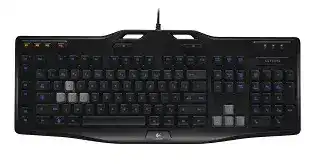
A G-key that records a command but does nothing in a game usually points to the software profile rather than a failed key. The Logitech Gaming Keyboard G105 Driver works with Logitech Gaming Software to manage six programmable G-keys, three M-key modes, quick macros, blue backlighting, and application-specific assignments. Normal typing may still work when this software layer has stopped loading.
Logitech Gaming Keyboard G105 Windows Driver Download
| Driver Name | Description | Supported OS | File Size | Download |
|---|---|---|---|---|
| Logitech Gaming Software 64-bit | Full 64-bit software package for configuring keyboard profiles, programmable G-keys, macros, and game-specific commands. | Windows 11, Windows 10 64-bit | 119.96 MB | |
| Logitech Gaming Software 32-bit | Complete 32-bit installer for assigning G-key functions, recording macros, and managing custom keyboard profiles. | Windows 10 32-bit, Windows 8 32-bit, Windows 7 32-bit | 109.04 MB |
Logitech Gaming Keyboard G105 Mac OS Driver Download
| Driver Name | Description | Supported OS | File Size | Download |
|---|---|---|---|---|
| Logitech Gaming Software for macOS | Provides keyboard profile management, programmable command assignments, and macro configuration on supported macOS releases. | macOS 10.15, macOS 10.14, macOS 10.13, macOS 10.12 | 204.99 MB | |
| Logitech Gaming Software for Mac OS X | Supports custom G-key actions, application-specific profiles, and recorded keyboard sequences on earlier Mac OS X systems. | Mac OS X 10.11, Mac OS X 10.10, Mac OS X 10.9, Mac OS X 10.8 | 180.47 MB |
Logitech Gaming Keyboard G105 Driver When G-Keys Stop Responding
The G105 connects through a wired USB cable, and Windows can operate its standard keys without the full Logitech package. The extra controls need Logitech Gaming Software. When the program cannot see the keyboard, connect the cable to a direct USB port, close the utility, and open it again. Avoid a monitor socket, passive hub, or dock while checking detection.
A programmed G-key does nothing
Begin with a plain assignment such as one letter or a familiar shortcut. Select the active profile, choose M1, and assign that command to G1. This small test separates a software problem from an error inside a long macro. When the simple command works, rebuild the original sequence and check each delay, modifier, and release action.
The target program may ignore commands when it runs with higher privileges than Logitech Gaming Software. Compare how both applications start. A game launched as administrator may reject macro input from a normally launched utility. Run both at the same privilege level, then test the G-key again before changing the profile.
M1, M2, and M3 recall different commands
Each of the six G-keys can hold one assignment under M1, another under M2, and a third under M3. This provides up to 18 functions in one game profile, but it also causes confusion when the wrong M-key remains active. Press the intended mode key before editing or testing a command, and watch which mode indicator lights.
A profile can appear empty because Logitech Gaming Software opened a different M-key bank. Check all three banks before recreating lost commands. Give each mode a clear purpose, such as movement, communication, or application shortcuts. That arrangement makes accidental mode changes easier to notice while playing.
Quick Macro records the wrong sequence
For an onboard quick recording, press MR, press the chosen G-key, enter the keystrokes, and press MR again. If the result includes unwanted letters, repeat the recording slowly and avoid touching unrelated controls. Quick recording captures the entered sequence; it does not correct an accidental keypress or decide which delay a game needs.
Timing-sensitive commands are easier to repair inside Logitech Gaming Software. Open the recorded macro and inspect the order of key-down and key-up events. A modifier such as Ctrl, Shift, or Alt must remain active until the paired key has registered. Add a modest delay only where the application misses part of the combination.
Profiles That Refuse to Follow the Active Game
The Logitech Gaming Keyboard G105 Driver can load different G-key assignments for individual programs. Automatic switching depends on the executable path stored in each profile. A game update, launcher change, or move to another folder can break that link while leaving the profile itself intact.
The default profile opens instead of the game profile
Open the profile properties and compare the assigned executable with the file that currently launches the game. Select the main game executable rather than a shortcut on the desktop. Some titles start through a launcher and then open another process, so the profile may need the executable that remains active during play.
Do not mark every profile as persistent. A persistent selection overrides normal application detection and can make the keyboard use one command set everywhere. Turn persistence off, launch the game, and check whether its profile becomes active. Use a persistent profile only when one layout must stay in place across several programs.
Assignments disappear after reinstalling the software
Export valuable profiles before removing Logitech Gaming Software. A full uninstall may clear local configuration data, including macros that took considerable time to build. After reinstalling, confirm that the G105 appears in the utility before importing anything. Restore one profile first and test it rather than importing the entire collection at once.
If an imported profile behaves strangely, create a new blank profile and add one assignment manually. A clean profile that works points to damaged configuration data in the imported file. Rebuild only the affected layout instead of repeatedly removing the software or replacing every saved profile.
G-keys work on the desktop but fail in one game
Some games accept ordinary keyboard input but block complex or rapidly repeated macro sequences. Test a single supported keystroke first. When that works, shorten the original command and remove unnecessary repetitions. The keyboard software can send the sequence, but the game still decides which inputs it accepts and how quickly it processes them.
Caps Lock, Num Lock, chat windows, overlays, and alternative control modes can change how a title interprets the same shortcut. Close overlays temporarily and test outside text-entry fields. Also check the game’s own key bindings for conflicts. Two actions assigned to the same key can make a working macro appear inconsistent.
Game Mode, Backlight, and Media Shortcuts
The G105 has dedicated controls that can look like software faults when they are activated accidentally. Its Game Mode button changes the behavior of Windows-related keys, while the brightness control cycles the blue illumination through three fixed levels. Media commands use Fn together with function keys rather than separate playback buttons.
The Windows key suddenly stops working
Look at the joystick-shaped Game Mode button above the F5 and F6 area. When its indicator is lit, the keyboard disables the Windows and context-menu keys so an accidental press does not interrupt a game. Press the button once to leave Game Mode. The indicator should go dark, and the Windows key should respond again.
Changing Windows keyboard settings or reinstalling the Logitech Gaming Keyboard G105 Driver will not restore those keys while Game Mode remains active. Test the physical mode button first. If its light changes but the Windows key still fails, try both Windows keys in a text-free desktop shortcut before investigating operating-system controls.
The blue lighting is dark or too dim
Press the brightness button repeatedly. The G105 rotates between off, half brightness, and full brightness, so one press may only move it to the next level. The keyboard does not provide per-key RGB effects or a broad color editor. The standard model uses blue illumination with fixed intensity choices.
When the keys work but no lighting level appears, reconnect the USB cable through another direct port. Backlighting needs stable USB power even though ordinary key input may continue under a marginal connection. Test the keyboard before Windows signs in as well. Lighting that never appears on another computer may indicate a hardware fault rather than missing software.
Volume and playback shortcuts do not respond
The media functions share the F6 through F12 keys. Hold Fn while pressing F6 for mute, F7 for volume down, F8 for volume up, F9 for play or pause, F10 for stop, F11 for previous or rewind, and F12 for next or fast forward. Pressing the function key alone sends its normal F-key command.
If these combinations work in one player but not another, check whether the application accepts global media commands. Close other media programs that may capture the same shortcuts. A browser tab, background music player, or overlay can take control first. Restart the intended player after closing those competing applications.
USB Detection and Unusual Key Output
A completely unresponsive G105 requires a different approach from failed macros. Disconnect the cable, shut down the computer, and attach the keyboard to another direct USB port after restarting. This forces Windows to enumerate the wired device again without relying on the previous port record.
Windows detects the keyboard only after reconnecting it
USB power management can leave an older wired keyboard unavailable after sleep or hibernation. Test a normal restart, then compare it with a sleep-and-wake cycle. When the problem occurs only after sleep, open the relevant USB hub properties in Device Manager and prevent Windows from switching off that hub solely to save power.
Change one power option at a time. Disabling every USB power feature can affect other equipment and makes diagnosis harder. Keep the G105 on the port that behaves consistently, especially if a front port or hub loses power during sleep while a motherboard port remains active.
One key repeats, adds another character, or triggers a modifier
First check the output outside the affected game. Open a plain typing field and press the suspect key several times without holding any modifiers. Correct output there points to a profile, macro, language-layout, or application problem. Strange characters across several programs suggest debris, liquid residue, membrane damage, or an electrical fault inside the keyboard.
Remove the affected keycap only when it lifts safely and you understand how its stabilizer is fitted. Use dry air around the switch area and avoid pouring cleaner into the keyboard. If pressing one letter consistently creates another unrelated key or modifier on a second computer, software replacement is unlikely to solve it.
The keyboard works in Windows but not before startup
Some firmware screens do not initialize every USB port or gaming keyboard interface in the same way as Windows. Move the G105 to a direct USB 2.0 port when available, restart, and enter the firmware screen again. Enable legacy USB keyboard support only when the computer firmware provides that option.
Do not judge Logitech Gaming Software by this test because it cannot run before the operating system starts. The pre-boot check concerns motherboard USB support. Once Windows loads, the Logitech utility takes over profiles, macros, and the programmable controls.
Rebuild Only What the G105 Actually Uses
Keep the recovery focused on this model: a direct wired USB connection, Logitech Gaming Software, six G-keys, three M-key banks, the MR control, Game Mode, fixed blue backlight levels, and Fn-based media shortcuts. G HUB or unrelated Logitech utilities may install successfully without offering the legacy controls expected by the G105.
After installing the Logitech Gaming Keyboard G105 Driver package, confirm ordinary typing, switch Game Mode off, cycle the backlight, and create one temporary G-key command. Next, test all three M-key banks and one media shortcut. Import saved profiles only after those functions work, because a damaged profile can hide an otherwise successful software repair.