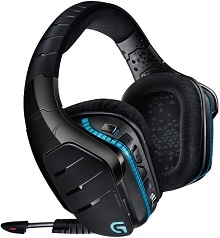
When the headset powers up but Windows, Logitech software, or the USB adapter does not behave as expected, the Logitech G933 Driver is only one part of the diagnosis. The G933 is a wireless gaming headset built around its USB Wireless Mix Adapter, rechargeable battery, boom microphone, programmable controls, RGB lighting, and optional 3.5mm connection. Connection mode matters because several headset features disappear when the wireless electronics are turned off.
Logitech G933 Windows Driver Download
| Driver Name | Description | Supported OS | File Size | Download |
|---|---|---|---|---|
| Logitech Gaming Software 64-bit | Full 64-bit Logitech Gaming Software package for configuring compatible G933 headset settings on supported Windows systems. | Windows 11, Windows 10 64-bit | 119.96 MB | |
| Logitech G HUB | G HUB software for managing G933 gaming headset features, profiles, audio controls, and supported device settings. | Windows 11, Windows 10 32-bit/64-bit | 67.08 MB |
Logitech G933 Mac OS Driver Download
| Driver Name | Description | Supported OS | File Size | Download |
|---|---|---|---|---|
| Logitech G HUB | Current G HUB package for configuring compatible G933 audio settings and gaming profiles on recent macOS releases. | macOS 26, macOS 15, macOS 14 | 12.43 MB | |
| Logitech G HUB | G HUB installer intended for G933 configuration across the macOS 12 through macOS 15 release range. | macOS 15, macOS 14, macOS 13, macOS 12 | 6.24 MB | |
| Logitech G HUB | Dedicated G HUB release for adjusting supported G933 headset functions and profiles on macOS 13. | macOS 13 | 10.43 MB | |
| Logitech G HUB | G HUB software package for controlling compatible G933 gaming and audio options on macOS 11. | macOS 11 | 5.02 MB | |
| Logitech G HUB | Logitech G HUB release for managing G933 headset preferences and supported profiles on macOS 10.15. | macOS 10.15 | 5.04 MB | |
| Logitech G HUB | Earlier G HUB installer for G933 headset configuration and compatible gaming controls on macOS 10.14. | macOS 10.14 | 5.17 MB |
Logitech G933 Driver When the Wireless Adapter Stops Responding
The USB Wireless Mix Adapter normally connects to the G933 automatically after you switch the headset to Wireless On. If the adapter appears on the computer but the headset stays silent, first change the USB connection rather than immediately removing software. Connect the adapter directly to a working computer port and avoid a USB hub while testing. A clearer wireless path between the adapter and headset can also reduce intermittent audio.
Headset and adapter have lost pairing
A blinking adapter light or a headset that no longer reconnects can point to lost pairing. Plug the Wireless Mix Adapter into a powered USB port, then press its recessed reset control with a pin until the adapter LED starts blinking. Turn the G933 on and hold the microphone mute button for about 15 seconds. The headset lighting changes during pairing and returns to its normal lighting pattern after the link completes.
This procedure is particularly useful after replacing the adapter or when an existing adapter suddenly stops linking with the headset. Once pairing finishes, restart the audio application and check the G933 output again. The Logitech G933 Driver and control software cannot restore a wireless link if the headset and adapter themselves remain unpaired.
Logitech software sees no active G933
The USB adapter is important for software detection and the headset’s full PC feature set. A 3.5mm connection can carry audio, but it does not provide the same access to wireless functions, surround processing, lighting control, programmable headset buttons, or the volume wheel when the headset operates passively. For troubleshooting software detection, connect the Wireless Mix Adapter and switch the headset to Wireless On before opening the Logitech utility.
Logitech originally specified Logitech Gaming Software 8.74.80 or later for full G933 functionality on a PC, while later support material also refers to G HUB for several G933 controls. If the control program stops seeing the headset after an update, close the Logitech application fully, power-cycle the G933, reconnect the adapter, and reopen the program. Restart Windows if its audio system still holds the previous headset state.
Microphone Mute Problems and Audio That Disappears
The folding boom microphone can produce a different kind of failure. Audio playback may remain normal while voice input disappears after muting the microphone, moving the boom, changing applications, or reconnecting wirelessly. Before treating this as a broken microphone, check the red mute indication, lower the boom completely, and confirm that the program you are using has not muted its own microphone input.
Mic appears active but Windows receives no voice
Open the Windows sound input controls and make sure the G933 microphone is the selected communication input. Check its level as well; an extremely low recording level can look like complete microphone failure. Logitech’s troubleshooting guidance suggests a microphone level of at least 50 percent, with a higher level useful during testing. Close and reopen LGS or G HUB if mute status inside the software no longer matches the physical boom position.
The Logitech G933 Driver should also be checked when Windows lists several old or inactive audio inputs. Select the actual G933 microphone inside the voice or game application rather than relying only on the operating system default. A program can keep using another microphone even after Windows has switched the headset to its default communication device.
Microphone crackles when the boom moves
Crackling while raising or lowering the boom deserves a separate test. Turn the headset off and back on, restart the Logitech software, and check the microphone again without repeatedly moving the boom. Then test the headset on another computer or compatible connection. If the noise changes directly with boom movement and remains after software, pairing, and computer tests, the fault may be inside the headset rather than in Windows.
Do not assume every microphone crackle needs a firmware reinstall. Wireless noise, low battery charge, an unstable adapter link, and microphone hardware can produce similar symptoms. Isolating those possibilities first saves time and shows whether the fault follows the headset to another system.
G933 Software Checks for Static, Missing Channels, and Reboots
Static in one ear, brief dropouts, unexpected beeps, or audio that changes when the power control moves can come from more than one source. Charge the battery before deeper testing and temporarily disconnect nearby sources of strong wireless interference. Plug the Wireless Mix Adapter into another direct USB port and keep a reasonably clear path between it and the headset while checking whether the noise changes.
Sound is missing from one side
Start with Windows volume rather than surround or equalizer adjustments. Set the G933 as the playback device, raise the headset volume, and confirm that the application itself is not muted. Then connect the included 3.5mm cable to a known working source and test passive audio with Wireless Off. This comparison can separate a wireless or software problem from an audio fault that remains in both connection modes.
If both sides work through the analog cable but wireless audio remains uneven, return your attention to the adapter connection, pairing state, software, and headset firmware. If the same channel stays silent through different sources and different operating modes, repeated software reinstalls are unlikely to solve it.
Static changes when the power switch moves
The G933 has a documented symptom in which sound quality changes while operating the power control. Begin with the external checks: reconnect the Wireless Mix Adapter directly to the computer, avoid a hub during diagnosis, and test the headset in Wireless Off mode through the 3.5mm cable. You can also check noise removal and sidetone in the Logitech software while the microphone boom is lowered.
A useful comparison is whether the static exists only in powered wireless operation or also through passive analog audio. If the analog path sounds normal, wireless communication, powered processing, or the headset electronics remain stronger suspects. Avoid dismantling the power control as a first response; the connection and software tests provide safer evidence without disturbing small internal parts.
Headset repeatedly switches off and returns
Unexpected restarts can resemble a receiver problem because audio disappears and then returns several seconds later. Test the G933 after charging it, reconnect the wireless adapter, and compare wireless operation with a 3.5mm connection. A hardware reset is also appropriate when ordinary power cycling changes nothing. Testing on another computer can show whether the restart follows the headset rather than the first PC.
Recovering a G933 That Will Not Power On or Complete Firmware Setup
A completely unresponsive headset needs a different approach from ordinary audio troubleshooting. Connect the G933 to USB power first. Remove the left magnetic side plate on the microphone side to reach the hardware reset switch. Press the recessed reset switch with a pin for two seconds, release it, and repeat that two-second press twice. Afterward, leave the headset on USB power and try starting it again.
Firmware update does not start normally
Firmware recovery was part of Logitech’s official G933 troubleshooting when a headset would not charge, start, or communicate correctly. If you use the legacy firmware procedure, connect both the headset and its Wireless Mix Adapter to the computer by USB and disconnect other headsets during the process. Do not interrupt an update once it has actually started, since the headset and adapter need to finish with matching firmware communication.
If the device already works and the only problem is an application-specific microphone or sound setting, a firmware procedure should not be the first action. Check the audio device, application input, adapter pairing, battery charge, and USB connection first. Firmware recovery makes more sense after the headset stops communicating normally or after ordinary recovery steps fail.
Charging and low-battery symptoms
Low charge can cause more than short battery life. It can accompany static, failed wireless operation, or a headset that appears unable to stay active. Connect the charging cable and allow the battery to gain some charge before testing audio again. Logitech’s G933 audio troubleshooting specifically calls for the battery to have at least a small usable charge before several wireless faults are judged.
The headset can still pass analog audio in Wireless Off mode without the powered functions that depend on its battery. That makes the 3.5mm cable useful for diagnosis, but it is not an equivalent replacement for wireless operation. Surround sound, powered controls, lighting functions, and several headset controls depend on Wireless On operation and the USB adapter path.
Use the Wireless and 3.5mm Modes to Pinpoint the Fault
The fastest way to narrow a stubborn G933 problem is to compare its two operating modes instead of changing many things at once. Wireless On activates the powered headset features and the USB Wireless Mix Adapter connection. Wireless Off provides passive listening through the 3.5mm input, but functions such as the volume wheel, programmable headset controls, surround processing, and lighting customization are unavailable in that passive state.
If passive audio works while wireless audio fails, investigate adapter pairing, USB placement, battery charge, Logitech software, and firmware. If both modes show the same channel loss or physical microphone symptom, the evidence moves away from the computer. This comparison also prevents unnecessary Logitech G933 Driver reinstalls when the failure remains present without the PC software path.
For a stable PC configuration, keep the Wireless Mix Adapter paired, use a direct USB connection during troubleshooting, confirm the G933 as the intended playback and recording device, and test microphone mute behavior before changing advanced audio options. Those checks cover the parts of the headset that most often separate a software problem from pairing, power, wireless, or hardware trouble.