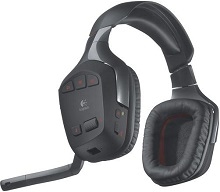
Brief audio dropouts followed by a reconnect beep are one of the problems that can make this older wireless headset difficult to diagnose. The Logitech Wireless Gaming Headset G930 Driver works with Logitech Gaming Software to expose functions such as Dolby Headphone surround sound and the headset controls, while the USB wireless receiver carries the audio connection. Detection, radio interference, Windows audio routing, charging, and aging hardware can each produce different symptoms.
Logitech Wireless Gaming Headset G930 Windows Driver Download
| Driver Name | Description | Supported OS | File Size | Download |
|---|---|---|---|---|
| Logitech Gaming Software 64-bit | Full 64-bit Logitech Gaming Software package for configuring supported G930 headset features and gaming device settings. | Windows 11, Windows 10 64-bit | 119.96 MB |
Logitech Wireless Gaming Headset G930 Driver for Repeated Disconnects
The G930 communicates through its dedicated USB wireless receiver rather than Bluetooth. When sound disappears for several seconds and then returns with a beep, first separate a radio problem from a software problem. Connect the receiver directly to another USB port and keep it away from crowded USB hubs or large metal objects. Then use the headset long enough to see whether the dropouts change in frequency.
Audio cuts out while Wi-Fi is busy
Wireless congestion deserves special attention with this headset. The G930 operates in the 2.4 GHz range, where routers and other wireless equipment may also create traffic. If disconnects become worse near a router or during heavy wireless activity, change the router’s 2.4 GHz channel or use 5 GHz Wi-Fi for compatible network devices. Repositioning the G930 receiver can also change the radio path enough to stop frequent reconnects.
The receiver lights up but the headset stays disconnected
A powered receiver does not necessarily mean that its wireless link with the headset is intact. Power-cycle the G930 first. If the two parts still fail to communicate, use the receiver’s recessed connection control and the headset reset procedure to restore their link. Do not substitute a Unifying or Bolt receiver; the G930 uses its own headset receiver system rather than Logitech’s mouse and keyboard receiver families.
If reconnecting succeeds but the problem soon returns, test another direct USB port before changing more software. A failing port, unstable hub, or radio congestion can imitate a pairing fault. Testing the headset and its receiver on another computer is especially useful because a failure that follows both pieces points away from the original Windows installation.
Surround Sound Can Fail Even When Stereo Audio Works
The G930 was built around Dolby Headphone 7.1 surround processing, and Logitech Gaming Software has historically provided the related headset controls. A game may therefore produce ordinary stereo sound while the headset itself remains fully connected. The Logitech Wireless Gaming Headset G930 Driver and LGS configuration deserve attention when Windows no longer presents the expected surround capability.
Dolby surround disappears after a software change
Check the physical surround switch on the headset before rebuilding anything. Then open the Windows playback configuration and confirm that the G930 is the active output device. Logitech Gaming Software also provides a surround test on versions that recognize the headset. If individual virtual channels work in that test but not inside one game, inspect the game’s speaker or surround output choice instead of reinstalling everything immediately.
Some G930 installations become confused after different Logitech Gaming Software versions or repeated USB-port changes create stale headset records. When LGS no longer detects surround capability correctly, disconnect the receiver, remove the old G930 audio entries and uninstall the problematic LGS installation. Restart Windows before reconnecting the receiver. Let Windows detect the headset again, then install the appropriate LGS release only if its added controls are needed.
Logitech Gaming Software cannot see the headset
Do not assume a missing LGS picture means the receiver has failed. Check Windows Sound and Device Manager first. If Windows cannot see G930 playback and recording devices either, concentrate on the USB receiver and port. If Windows audio works but LGS alone cannot identify the headset, the Logitech software installation becomes the stronger suspect.
A clean reinstall can help when LGS files became damaged during an upgrade. Close the software, disconnect the receiver, remove LGS through Windows, restart, and then install the intended version before reconnecting the G930 when appropriate. Avoid mixing several generations of Logitech gaming control software merely to make this legacy headset appear; overlapping audio components can make diagnosis harder.
Microphone Faults Do Not Always Come from the Wireless Link
The microphone is present but nobody can hear you
The G930 includes a noise-canceling boom microphone, so Windows should expose a separate recording device for it. Open the recording or input controls and make sure the G930 microphone is the selected source rather than a webcam, monitor microphone, or another headset. Watch the input meter while speaking. Movement on the meter shows that the headset is reaching Windows even if a game or chat program remains silent.
If Windows receives the voice but one program does not, choose the G930 inside that application’s microphone controls. Also inspect its mute and input-level options. Communication programs sometimes remember an older audio device after USB hardware changes, so changing the Windows default alone may not redirect an already running application.
Mute state does not clear as expected
When the microphone remains unavailable after an ordinary mute operation, first check its state in Windows recording properties. Disable and re-enable the G930 recording device if the input appears stuck, then restart the affected voice application. Power-cycling the headset can also reinitialize the wireless audio endpoints without changing the entire driver installation.
If microphone failures always arrive at the same moment as headphone dropouts, treat both symptoms as one wireless or USB connection problem. If playback remains perfect while only the microphone fails, examine the recording selection, mute state, boom mechanism, and application input configuration instead. That distinction prevents unnecessary changes to working playback settings.
Charging and Unexpected Power-Off Problems Need a Different Diagnosis
The headset does not appear to charge
The G930 contains a rechargeable battery and charges through its wired charging connection. During a charging fault, try another known-working USB charging port and inspect the charging connector for looseness or debris. A reset using the recessed headset reset control can recover some cases where the charging indication or power state becomes stuck. Give the headset time to charge before judging the result.
An older battery may show a full indication yet provide only a short wireless session. Compare operation while charging with operation after disconnecting the cable. If the headset immediately shuts down off cable after a long charge from a known-good USB source, battery deterioration or an internal charging fault becomes more plausible than a Logitech Wireless Gaming Headset G930 Driver error.
Charging stops when the cable moves
A connection that changes when the charging plug is touched points toward the physical charging socket, cable, or internal connector rather than LGS. Try another suitable cable without forcing the socket. If a slight movement repeatedly starts and stops charging, avoid bending or wedging the connector into position. Software cannot correct an intermittent electrical contact.
The G930 powers off during an active session
Logitech Gaming Software releases specifically addressed G930 automatic shutoff behavior, including a case where the headset did not handle its inactivity timer correctly. If the unit shuts down at a predictable interval even while you expect it to remain active, compare the installed LGS version with the software intended for the headset and check whether Windows is actually sending an active audio stream to the G930.
Do not confuse that timer symptom with a depleted battery. A low battery usually changes with charging, while a software-related inactivity pattern tends to repeat at a similar interval. Random shutdowns accompanied by receiver disconnects point in another direction again, especially if moving the USB receiver or changing the wireless environment alters the behavior.
G930 Controls, Volume, and Wireless Audio After Installation
The programmable G-keys stop doing anything
The headset has three programmable G-keys, and their customized actions depend on Logitech Gaming Software rather than Windows audio alone. If sound and microphone functions work but the G-keys lose their assignments, open LGS and confirm that it detects the G930 before recreating commands. A headset that appears only as a generic audio endpoint will not necessarily retain Logitech-specific control functions.
Test a simple media action before assigning a command tied to one particular game or communication program. If the simple command works, the headset control and LGS link are functioning and the original application assignment needs attention. If none of the G-keys respond inside LGS, solve software detection first rather than rebuilding every profile.
Volume changes in Windows but sound still comes from speakers
The receiver may be active while Windows continues routing playback to another audio output. Select the G930 as the intended playback device, then reopen programs that were already running. Some games capture an audio endpoint when they launch and do not follow a later Windows output change. Restarting that program can be enough to move its sound into the headset.
The Logitech Wireless Gaming Headset G930 Driver is most useful when matched to the symptom instead of treated as a cure for every fault. LGS matters for the headset’s surround processing and programmable controls, Windows controls playback and recording routing, the dedicated receiver carries the wireless link, and the charging hardware keeps the rechargeable battery usable. Sorting the failure into one of those areas usually reveals whether software, radio conditions, USB hardware, or an aging headset component needs attention.