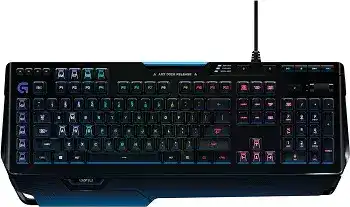
When ordinary keys work but macros, RGB effects, or profile switching disappear, the Logitech G910 Orion Spark RGB Mechanical Gaming Keyboard Driver restores access to the controls that standard USB keyboard support cannot manage. This wired gaming keyboard uses Logitech Gaming Software for its nine programmable G-keys, three M-key profile banks, per-key lighting, macro recording, game mode, and supported game integrations.
Logitech G910 Orion Spark RGB Mechanical Gaming Keyboard Windows Driver Download
| Driver Name | Description | Supported OS | File Size | Download |
|---|---|---|---|---|
| Logitech G HUB 64-bit | Customizes keyboard lighting, programmable keys, macros, profiles, and device-specific gaming settings. | Windows 11, Windows 10 64-bit | 67.08 MB | |
| Logitech Gaming Software 64-bit | Manages RGB illumination, G-key assignments, command macros, game profiles, and compatible gaming-device controls. | Windows 11, Windows 10 64-bit | 119.96 MB |
Logitech G910 Orion Spark RGB Mechanical Gaming Keyboard Mac OS Driver Download
| Driver Name | Description | Supported OS | File Size | Download |
|---|---|---|---|---|
| Logitech G HUB | Configures compatible keyboard lighting effects, key commands, macros, profiles, and application-based assignments. | macOS 26, macOS 15, macOS 14 | 11.36 MB | |
| Logitech G HUB | Controls RGB patterns, programmable keyboard functions, game profiles, and supported Logitech gaming-device preferences. | macOS 13 | 10.43 MB | |
| Logitech G HUB | Adjusts lighting zones, custom key actions, stored profiles, and software-linked controls for compatible gaming hardware. | macOS 11 | 5.02 MB | |
| Logitech G HUB | Provides keyboard illumination settings, macro creation, command mapping, and profile management on supported Mac systems. | macOS 10.15 | 5.04 MB | |
| Logitech Gaming Software | Sets up G-keys, RGB lighting, macros, game detection, and individual profiles through the earlier gaming control suite. | macOS 10.15, macOS 10.14, macOS 10.13, macOS 10.12 | 204.99 MB |
Logitech G910 Orion Spark RGB Mechanical Gaming Keyboard Driver When Profiles Will Not Load
The G910 can type immediately after Windows detects its USB connection, yet that does not prove Logitech Gaming Software has loaded the active profile. A missing software profile usually leaves the G-keys inactive, returns the lighting to a default pattern, and makes the M1, M2, and M3 banks appear identical. Open the gaming utility and confirm that it displays the exact keyboard rather than an empty home screen.
Automatic game profiles open the wrong configuration
Logitech Gaming Software links profiles to executable files. A game update, new launcher, or changed installation folder can leave the old profile attached to a path that no longer runs. Open the profile properties and browse to the current game executable. Add the launcher only when the commands must work there as well. Then start the game after the software is already running.
Some titles launch a second executable after their menu or anti-cheat screen. The desktop profile may remain active because the utility never sees the main game process. Check Task Manager while the game runs, identify the actual executable, and attach it to the intended profile. A persistent profile can also override automatic switching, so disable persistence while testing detection.
M1, M2, and M3 appear to store the same commands
The three M-keys create separate command banks, giving each G-key more than one assignment. Select the required M-bank before editing or recording a command. Watch its indicator while testing. When every bank triggers the same action, remove duplicate assignments from the profile and save each command again under the intended M-key rather than copying the entire configuration blindly.
On-keyboard macro recording stops too early
For quick recording, press MR, choose a G-key, enter the keystrokes, and press MR again. If the recording captures only part of the sequence, slow down the input and avoid opening protected applications during the process. Complex delays, repeated actions, text blocks, and program launches are easier to build inside Logitech Gaming Software, where each event can be inspected before saving.
Repair G-Key and Game Mode Behaviour
The Logitech G910 Orion Spark RGB Mechanical Gaming Keyboard Driver package also provides the virtual input components used by advanced assignments. A G-key may appear correctly programmed in the utility but produce nothing inside a game when the virtual keyboard component fails, the game runs with higher privileges, or another profile takes control at launch.
Macros work on the desktop but fail inside a game
First test the command in an ordinary text window. When it works there but not in the game, run Logitech Gaming Software with the same permission level as the game. A program started as administrator may reject simulated input from software running with normal privileges. Close both applications, launch the gaming utility appropriately, and then reopen the title.
Games with anti-cheat systems may block certain automated sequences even when the keyboard and software work correctly. Test a simple single-key assignment before rebuilding a long macro. Commands that launch files, repeat continuously, or reproduce timed actions may face restrictions that do not affect normal keyboard shortcuts.
Windows-key commands no longer trigger
Check the game mode key before changing the macro. Game mode disables the Windows and Menu keys to prevent an accidental return to the desktop. Its indicator remains lit while the block is active. Turn game mode off and test the command again. When Windows-key assignments still fail, reinstall the Logitech virtual keyboard component through a repair installation of the gaming software.
Game mode blocks more keys than expected
Logitech Gaming Software can change which keys game mode disables. Open the game mode configuration and inspect the highlighted keys. Restore the default selection when letters, function keys, or navigation controls became blocked accidentally. Test outside the game afterward, because the physical game mode button keeps using the stored software configuration even when a different application has focus.
Restore Per-Key RGB Lighting and Indicators
Lighting problems often come from a profile, integration, or firmware state rather than failed LEDs. The G910 offers per-key RGB control through Logitech Gaming Software, along with fixed colours, zone layouts, breathing effects, colour cycles, and animated patterns. Start with a plain static colour across the keyboard. That separates hardware response from a complicated animation or game-driven effect.
Lighting changes as soon as a game or chat app opens
A supported integration can temporarily take control of the keyboard illumination. Game events and notification effects may cover the profile’s normal colours, then release control when the event ends. Disable the integration in the application or the Logitech software when the changes are unwanted. Also check for more than one program controlling lighting, since competing effects can produce flicker or repeated profile changes.
Discord integration in compatible Logitech Gaming Software versions can display notification effects over the current lighting layout. Disable that integration separately if colours change only during messages, voice activity, or calls. Editing the keyboard’s base profile will not stop an external integration from placing another effect above it.
Several keys remain dark in every profile
Set all keys to bright white or another single colour, increase the lighting level, and close active game integrations. If the same keys stay dark across every effect, reconnect the keyboard to a different direct USB port and test once more. A colour channel can fail separately, so compare red, green, and blue layouts before deciding that an entire key light has stopped working.
Caps Lock, Num Lock, or Scroll Lock shows the wrong state
An official G910 firmware update addressed cases where lock indicators did not match the actual keyboard state. Install the update only for the exact Orion Spark model and keep the keyboard attached directly throughout the process. Close programs that may interrupt USB access. After completion, restart the computer and test each lock key without loading a custom lighting integration.
Deal With Double Letters, Missed Input, and Romer-G Key Chatter
Repeated letters are among the most disruptive G910 complaints. One press may enter two or three characters, while another press produces nothing. Before blaming the Logitech G910 Orion Spark RGB Mechanical Gaming Keyboard Driver, determine whether the fault follows one physical switch or affects many unrelated keys at the same time.
Only one or two keys double-type
A local problem usually points to debris or wear around a Romer-G switch. Disconnect the keyboard and clear loose dust with gentle compressed air while holding the board at an angle. Press the affected key repeatedly after reconnecting it. Avoid pouring liquid into the switch or using aggressive household cleaners, since residue can worsen contact behaviour and damage surrounding plastic.
Windows repeat controls do not create two characters from a quick tap, but they can exaggerate a key that remains electrically active for too long. Increase the repeat delay temporarily and type several paragraphs. If duplicate letters continue from brief presses on the same switch, software adjustments are unlikely to provide a lasting repair.
Many keys begin repeating after a software change
When several distant keys fail at once, close Logitech Gaming Software and test plain typing. Remove any recently imported macro profile that sends text or repeated key events. Then reconnect the keyboard and restart Windows. If typing returns to normal with the utility closed, repair the installation and create a new empty profile instead of restoring the suspect configuration immediately.
A keycap feels loose or sits at an angle
The shaped Orion Spark keycaps attach to Romer-G stems and can become unstable if an internal mounting point breaks. Do not force a tilted cap back into position. Compare it with a nearby key and inspect it only after disconnecting the keyboard. A damaged cap or stem needs a matching replacement part; software cannot correct uneven travel or a key that no longer returns cleanly.
USB Detection, Media Controls, and ARX Problems
The keyboard vanishes after startup or sleep
Connect the G910 directly to a computer USB port rather than a passive hub, monitor socket, or unreliable extension. The original setup guidance specifically recommends avoiding hubs when the keyboard does not work. Try another port, shut down fully, and start again. When Windows repeatedly removes the device after sleep, disable USB power saving for the affected hub in Device Manager and retest wake behaviour.
Do not begin by removing every keyboard entry from Device Manager. First check whether the G910 appears in Logitech Gaming Software and whether its lighting button still responds. A working backlight with no keystrokes suggests a different failure from a completely unpowered keyboard. Direct-port testing gives a clearer result before software removal.
Volume roller or media buttons respond in only some programs
The dedicated media controls send standard multimedia commands, but an application can ignore them or capture them differently. Test volume in the Windows sound panel and test play or pause in another media program. Close browser tabs, overlays, and players that may compete for the command. When every application ignores the controls, reconnect the keyboard and repair its HID entries through a normal restart.
The ARX display does not connect
The built-in phone dock is a holder; it does not provide a wired data link or charge the phone. ARX Control depends on the companion mobile app and the computer-side Logitech Gaming Software communicating across the local network. Keep the phone and computer on the same network, allow the Logitech component through the firewall, and disable guest-network isolation that prevents devices from seeing each other.
Restart the mobile app after the computer utility is fully open. If discovery still fails, close VPN software temporarily and verify that private-network access is allowed. ARX can show supported game data and system information, but it does not control the keyboard through the dock itself.
Separate a Software Fault From a Worn Keyboard
Finish diagnosis with a blank profile, one static lighting colour, game mode turned off, and the G910 connected directly. Test ordinary typing first, then one G-key, one media control, and each M-bank. This sequence exposes whether the failure belongs to a switch, USB connection, profile, integration, or virtual input component without changing all of them at once.
The Logitech G910 Orion Spark RGB Mechanical Gaming Keyboard Driver remains relevant for macros, lighting, profiles, game mode configuration, and ARX features, but standard keystrokes should still register through normal USB keyboard support. Persistent chatter from the same key across another computer points toward switch wear. Failures that move with a saved profile or disappear when the gaming utility closes point back to software.