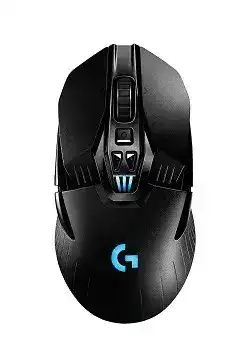
If the pointer works but profiles, lighting, DPI controls, or programmable buttons remain unavailable, the Logitech G903 LIGHTSPEED Wired/Wireless Gaming mouse Driver gives G HUB access to the full device. This model can operate through its LIGHTSPEED USB receiver or the supplied charging and data cable, so software detection problems often need a different fix from basic pointer failures.
Connect the receiver directly to the computer before opening G HUB. Avoid an unpowered hub while testing. If G HUB still shows no device, attach the mouse with its Micro-USB data cable and leave the receiver connected. This lets the software inspect both parts of the wireless connection and may expose a firmware update that was not visible in wireless mode.
Logitech G903 LIGHTSPEED Wired/Wireless Gaming Mouse Windows Driver Download
| Driver Name | Description | Supported OS | File Size | Download |
|---|---|---|---|---|
| Logitech G HUB | Customizes mouse buttons, pointer behavior, sensitivity, lighting, profiles, macros, and other gaming device settings. | Windows 11, Windows 10 32-bit/64-bit | 67.08 MB | |
| Logitech Gaming Software 64-bit | Provides a full 64-bit package for configuring mouse assignments, DPI levels, lighting effects, macros, and stored gaming profiles. | Windows 11, Windows 10 64-bit | 119.96 MB | |
| Onboard Memory Manager | Manages profiles, button assignments, and sensitivity settings saved directly to the mouse onboard memory. | Windows 11, Windows 10 32-bit/64-bit | 12.45 MB |
Logitech G903 LIGHTSPEED Wired/Wireless Gaming Mouse Mac OS Driver Download
| Driver Name | Description | Supported OS | File Size | Download |
|---|---|---|---|---|
| Logitech G HUB | Controls programmable buttons, pointer sensitivity, scrolling behavior, shortcuts, lighting, and gaming profiles on recent macOS releases. | macOS 26, macOS 15, macOS 14 | 11.36 MB | |
| Logitech G HUB | Configures mouse sensitivity, button functions, lighting synchronization, macros, and application-specific profiles on macOS 13. | macOS 13 | 10.43 MB | |
| Logitech G HUB | Adjusts pointer response, programmable controls, RGB effects, shortcuts, and game profiles for systems running macOS 11. | macOS 11 | 5.02 MB | |
| Logitech G HUB | Enables button remapping, DPI adjustment, scrolling preferences, lighting control, and device-specific gaming settings on macOS 10.15. | macOS 10.15 | 5.04 MB | |
| Logitech Gaming Software | Offers legacy mouse configuration for DPI stages, programmable commands, lighting options, macros, and game-specific control profiles. | macOS 10.15, macOS 10.14, macOS 10.13, macOS 10.12 | 204.99 MB |
The mouse works, but G HUB stays on loading
Close G HUB completely, including its background processes, and then reopen it with the G903 already switched on. A stalled background service can leave the application at its loading screen even though Windows has accepted the mouse as a standard input device. Restarting Windows also clears a service that failed during an earlier G HUB update.
When the problem returns after every launch, remove G HUB through Windows Apps, restart the computer, and install the current package again. Do not import an old profile immediately. First confirm that the home screen shows the G903, its battery state, and its active connection. Add custom profiles only after basic detection remains consistent.
Wireless mode disappears after a firmware update
A firmware update can complete for the mouse while the receiver remains on an older revision. Connect the mouse by cable, plug in its LIGHTSPEED receiver, and reopen G HUB. Keep both attached until all offered updates finish. Do not disconnect either component while the utility is updating or restarting the device.
If the receiver appears as unpaired, open the Device Pairing Tool from G HUB settings. Select the receiver, choose the mouse option, and follow the power-cycle instruction shown by the utility. The Logitech G903 LIGHTSPEED Wired/Wireless Gaming mouse Driver package does not make every LIGHTSPEED receiver interchangeable, so use the receiver supplied for this model or a confirmed compatible replacement.
Recover the LIGHTSPEED Link Before Changing Game Profiles
Pointer movement stops only in wireless mode
Switch to the data cable first. If wired operation responds normally, the sensor, primary clicks, and USB input path are probably still functioning. Reconnect the receiver through the supplied extension adapter and place it near the mouse pad. This arrangement shortens the wireless path and moves the receiver away from crowded ports behind the computer.
Wireless pauses can also appear beside USB 3 devices, external drives, routers, or metal desk frames. Try another direct USB port and separate the receiver from other high-traffic wireless equipment. Keep the extension cable relaxed rather than coiled around power leads. A different position often fixes intermittent movement without changing DPI, polling, or Windows pointer speed.
The receiver is detected but will not pair
Leave only the intended G903 receiver connected during pairing. Extra Logitech gaming receivers can make it difficult to identify which unit the tool has selected. Turn the mouse off, start the pairing process, and switch it on only when G HUB requests that action. Connecting the charging cable during this stage may prevent the utility from testing the intended wireless link.
Pairing failure on two computers usually points to the receiver, firmware, or mouse hardware rather than a Windows setting. Test the original cable as well because some Micro-USB leads provide power without carrying data. A charge-only cable can make the battery indicator react while G HUB receives no wired device information.
Lag starts after the computer wakes
Power-cycle the mouse after Windows resumes, then unplug and reconnect the receiver if movement remains delayed. The USB controller may restore the receiver before all wireless services are ready. In Windows power settings, prevent aggressive USB suspension during testing. Change one setting at a time so you can distinguish a wake problem from interference or an application profile.
G903 Profiles, DPI Stages, and Onboard Memory
The G903 provides onboard profile storage, programmable controls, adjustable DPI, and a selectable report rate. G HUB software mode can switch profiles when games start, while onboard mode uses settings written directly to the mouse. Confusion between these modes explains many cases where assignments work on the desktop but change as soon as G HUB closes.
Install the Logitech G903 LIGHTSPEED Wired/Wireless Gaming mouse Driver and open the device page before editing a game profile. Check whether onboard memory mode is active. When it is disabled, G HUB manages assignments through software profiles. When it is enabled, select an onboard slot and write the intended profile to that slot rather than merely editing the desktop profile.
DPI changes without pressing the expected button
Inspect every active profile for DPI Shift, DPI Up, and DPI Down assignments. The G903 supports removable controls on both sides, so an unused or accidentally fitted button may still carry a DPI command. Remove unwanted DPI stages from the profile or replace the assignment with a command that cannot alter pointer sensitivity during play.
Game-specific profile switching can create the same symptom. G HUB may activate one sensitivity for the desktop and another when an executable gains focus. Lock the DPI setting across profiles when you want one value everywhere. Test again after disabling automatic profile changes, rather than compensating with Windows pointer speed.
Assignments vanish when G HUB closes
Software-managed actions depend on G HUB running. To retain simpler button commands without the background application, enable onboard memory and save a compatible profile to the mouse. Complex macros or application-specific actions may still require software mode. Confirm the result by closing G HUB and testing each stored command before relying on the profile in another computer.
Onboard Memory Manager can provide a lighter Windows interface for supported onboard adjustments. Do not edit the same slot in two utilities at once. Finish the profile in one application, close it, power-cycle the mouse, and then verify that the stored DPI and button assignments survived.
Clicks, Removable Side Controls, and the Hyper-Fast Wheel
One click sometimes registers twice
Begin with a click test outside games and lower the Windows double-click speed slightly. If one physical press still produces two separate actions across several programs and another computer, profile software is unlikely to be responsible. Remove any macro assigned to that control and test with onboard memory disabled before deciding that the switch itself has developed a fault.
Dust around a button can also interfere with its return. Switch the mouse off and use short bursts of clean compressed air around the affected gap. Do not pour liquid into the shell or use a lubricant. Persistent double activation on a primary switch usually needs warranty service or qualified hardware repair rather than repeated software installation.
Left or right side buttons do nothing
The ambidextrous G903 accepts removable side buttons and covers on both sides. Make sure the physical button is installed rather than a flat cover. In G HUB, select the active profile and assign a simple keyboard command to the control. This separates a physical button problem from an application that ignores browser-style forward or back commands.
When a command works on the desktop but not inside a game, check the game profile and its control bindings. Some titles also run with elevated permissions. In that case, G HUB may need matching permission to deliver software-managed actions. Avoid assigning the same command in both G HUB and the game because duplicate processing can produce unexpected results.
The wheel scrolls in the wrong direction or misses a step
First press the wheel-mode button and test both ratcheted and free-spinning operation. The G903 uses a hyper-fast wheel with left and right tilt input, so the feel and travel differ between its two mechanical modes. An unlocked wheel can move from a light touch, while the ratcheted position gives clearer individual steps.
If direction changes fail only during wireless use, compare the same page in wired mode. A clean wired result points back to the wireless path, receiver placement, or firmware synchronization. If both modes skip, clear debris around the wheel with compressed air and test without custom scroll assignments. Reversed scrolling in only one program normally comes from that program or the operating system, not the wheel hardware.
Charging, POWERPLAY, and Battery Readings
The mouse charges but remains unavailable as a wired device
Use a Micro-USB cable that supports data as well as charging. Push the connector fully into the front port and connect the USB end directly to the computer. The G903 can continue working in wired mode while its internal battery charges. A battery symbol alone does not prove that the cable is carrying input data.
A full cable charge can take about two hours. If the percentage never rises, test another data-capable cable and USB port, then inspect the charging socket for lint without inserting metal tools. Update firmware while the connection remains stable. Rapid discharge with lighting active may improve after reducing brightness or disabling unused effects.
POWERPLAY shows a connection but does not maintain charge
Check that the POWERCORE module sits correctly in the mouse and that the charging surface receives power through its own cable. Remove other wireless charging accessories during the test. G HUB should identify the POWERPLAY system and the G903 separately. Update both when firmware is offered, then restart the application before checking the charge state again.
POWERPLAY generally maintains the battery rather than forcing it quickly to 100 percent. A level that moves within a controlled range does not automatically indicate failure. Continuous decline, no charging symbol, or repeated disconnects require a cable test, another USB port, and reseating the module. Confirm ordinary cable charging before treating the charging surface as the only suspect.
Finish With a Profile That Survives Both Cable and Wireless Play
Use the Logitech G903 LIGHTSPEED Wired/Wireless Gaming mouse Driver to complete one final test in each operating mode. Verify pointer response, primary clicks, wheel tilt, side controls, DPI, lighting, and the chosen onboard slot while connected by cable. Then disconnect the cable and repeat the same checks through the original LIGHTSPEED receiver.
When wired operation succeeds but wireless operation fails, concentrate on pairing, receiver firmware, port position, and nearby interference. When both modes show the same click or wheel fault, remove custom assignments and test another computer. That split keeps software, radio, charging, and physical control problems from being mixed into one unnecessary reinstall cycle.