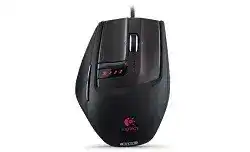
When Windows moves the pointer but ignores saved sensitivities, application profiles, or programmable controls, the Logitech G9 Laser Mouse Driver restores access to the model’s original SetPoint configuration panel. The G9 is a wired USB gaming mouse with a laser sensor, onboard memory, adjustable DPI, profile LEDs, interchangeable grips, a weight cartridge, and a dual-mode scroll wheel.
Windows normally recognizes the core buttons and pointer without extra software. That basic connection does not expose the five onboard profiles or the advanced assignments created for this model. SetPoint writes those choices into the mouse, which means a stored profile can continue working after the utility closes or when the G9 moves to another computer.
Logitech G9 Laser Mouse Windows Driver Download
| Driver Name | Description | Supported OS | File Size | Download |
|---|---|---|---|---|
| Logitech Gaming Software 64-bit | Provides a full 64-bit package for configuring mouse buttons, pointer tracking, profiles, sensitivity levels, and device-specific gaming settings. | Windows 11, Windows 10 64-bit | 119.96 MB | |
| Logitech Gaming Software 64-bit | Installs the complete 64-bit gaming suite for managing programmable controls, DPI adjustments, onboard profiles, and mouse performance options offline. | Windows 10 64-bit, Windows 8 64-bit, Windows 7 64-bit | 120.04 MB | |
| Logitech Gaming Software 32-bit | Includes the full 32-bit setup for assigning mouse commands, changing tracking speed, creating game profiles, and controlling supported hardware features. | Windows 10 32-bit, Windows 8 32-bit, Windows 7 32-bit | 109.04 MB |
Logitech G9 Laser Mouse Mac OS Driver Download
| Driver Name | Description | Supported OS | File Size | Download |
|---|---|---|---|---|
| Logitech Gaming Software | Enables compatible mouse customization, profile management, sensitivity control, programmable commands, and other gaming-device settings on supported macOS releases. | macOS 10.15, macOS 10.14, macOS 10.13, macOS 10.12 | 204.99 MB | |
| Logitech Gaming Software | Supports button assignments, game profiles, pointer sensitivity changes, and hardware configuration for the G9 mouse on earlier Mac OS X systems. | Mac OS X 10.11, Mac OS X 10.10, Mac OS X 10.9, Mac OS X 10.8 | 202.81 MB |
SetPoint installs without showing the G9 controls
Remove unrelated Logitech control packages before installing the G9 edition of SetPoint. Several generations of Logitech software can coexist poorly, especially when a newer package claims the device but offers no configuration page for it. Restart Windows after removal, connect the G9 directly, and install the legacy package with the mouse already present.
Open SetPoint from its notification-area icon rather than a generic Windows mouse panel. The correct page should expose profile management, sensitivity stages, button assignments, LED colors, report rate, and onboard storage. A panel containing only ordinary pointer and wheel options usually means Windows loaded standard HID control while the G9-specific extension did not start.
The configuration tab disappears on a newer Windows installation
This is an older model, so its original utility may not integrate cleanly with every modern Windows release. Run the installer with administrator rights and try the Windows compatibility troubleshooter when the package exits early. Connect the mouse to a native USB port during installation. A dock or hub can complicate detection while the legacy installer scans attached hardware.
If SetPoint opens but application detection fails, launch it with the same permission level as the game. Software running without elevated permission may not follow an executable that Windows launched as administrator. Manual profile switching remains useful when automatic detection cannot follow a modern launcher, protected game, or application installed through a storefront.
Build G9 Profiles That Stay Inside the Mouse
The Logitech G9 Laser Mouse Driver can store up to five profiles in onboard memory. Each profile may carry its own sensitivity stages, button functions, report rate, and LED color. The mouse can then recall those values without depending on SetPoint for every session. This distinction matters when settings appear correct in the utility but vanish after it closes.
A game keeps loading the desktop profile
Check the executable linked to the profile. A launcher and the actual game often use different files, so SetPoint may watch the launcher while play continues in another process. Link the profile to the executable that remains active during gameplay. When detection still changes late or inconsistently, select the required profile manually before opening the game.
Application detection also changes what the LEDs display. With automatic detection active, the lights can indicate sensitivity rather than the profile identity expected by the user. Assign clearly separated DPI stages and distinct profile colors, then confirm which display mode SetPoint currently uses before assuming that the wrong profile has loaded.
Stored assignments disappear on another computer
Edit the onboard profile rather than a software-only application entry. After changing controls, use the SetPoint command that saves or applies the profile to internal memory. Wait for that operation to finish before disconnecting the USB cable. A profile merely listed in the utility may still depend on the local Windows installation until it has been written to the mouse.
Test the stored result by closing SetPoint completely. Cycle through profiles with the button on the underside and inspect the LED response. DPI and standard button commands should remain available. Some complicated macros may behave differently outside the software environment, so use straightforward keystrokes for profiles intended to travel between computers.
The DPI rocker changes sensitivity too easily
The plus and minus control behind the primary buttons can move through several sensitivity stages. Remove values you never use instead of leaving five closely spaced choices. Two or three distinct stages reduce accidental changes and make the LED indication easier to read. Save the trimmed set separately for each profile that needs a different sensitivity range.
Do not counter an accidental DPI change by repeatedly altering Windows pointer speed. That creates two layers of adjustment and makes game movement difficult to reproduce. Return Windows acceleration and speed to the values you normally use, then tune the G9 stages inside SetPoint. Keep one familiar sensitivity in every profile as a quick reference.
Wheel Modes, Side Commands, and Click Failures
The wheel races through a page or feels unusually loose
Turn the mouse over and press the mechanical wheel-mode switch. The G9 offers a ratcheted mode for defined scroll steps and a free-spinning mode for long documents. Free movement is intentional when the mechanism is unlocked. Switching back to ratcheted operation usually fixes pages that continue moving after a light wheel flick.
If the wheel stops too quickly in free-spin mode or catches in both positions, software is unlikely to be the cause. Switch off the computer and clear loose debris around the wheel with short bursts of clean compressed air. Avoid oil, household cleaner, or liquid poured through the opening because these can damage the wheel surface and internal encoder.
Scrolling reverses, jumps, or misses several steps
Compare the result in two unrelated programs. When only one browser, spreadsheet, or game reacts incorrectly, reset that application’s scrolling or key binding before changing SetPoint. A wheel that skips everywhere may have a worn encoder, particularly on a G9 that has been in service for many years.
Change the SetPoint wheel assignment back to its standard scrolling function and test both mechanical modes. Also try the mouse on another computer without importing profiles. Repeated jumps on both systems indicate physical wear rather than a damaged Windows preference. Safe external cleaning may help debris-related faults, but encoder replacement requires skilled repair.
The middle click needs excessive pressure
The G9 wheel click has a firmer feel than its left and right buttons, and the wheel’s tilt actions can trigger when pressure lands off-center. Press straight down near the middle of the wheel. In SetPoint, assign a simple middle-button command while testing so a macro or application-specific action does not hide the physical input.
If tilt registers but the center press never appears, test another profile and another computer. A missing click in every environment points toward the wheel switch. Do not force the wheel with increasing pressure, as this can strain the axle or tilt mechanism. Continue using a different programmable control for middle click until the hardware receives proper service.
A single press becomes two clicks
First return the affected button to its default assignment and check the Windows double-click speed. Test slow single presses, click-and-hold actions, and drag operations. If a dragged file releases before the finger lifts, the switch may no longer maintain electrical contact. This symptom commonly becomes more noticeable during sustained fire or object dragging.
Profile changes cannot repair a worn primary switch. Confirm the fault on a second computer and with SetPoint closed. Intermittent double activation across both systems calls for switch replacement by someone familiar with soldered mouse components, or replacement of the device. Avoid unofficial software filters that merely suppress legitimate rapid clicks.
Thumb buttons move forward or backward twice
Set each side control to one function only. A browser may process a native Back command while SetPoint also sends a keyboard shortcut, producing two navigation movements from one press. Choose either the standard browser action or a keystroke assignment, not both. Restart the browser after changing the profile because some programs retain the earlier mapping until relaunch.
When a thumb button works in one grip but not the other, remove the interchangeable shell and reinstall it evenly. The grip carries the physical surfaces used to press the side controls, so poor seating can alter their travel. Inspect for dirt or damage around the mounting points without bending tabs or forcing the shell into place.
USB Cable, Laser Tracking, and Physical Tuning
The G9 disconnects when the cable moves
Plug the mouse into another direct USB port and gently reposition the cable near the front strain relief. A Windows disconnect sound or brief loss of the LEDs during movement suggests cable wear rather than a profile fault. Check the braided exterior for sharp bends, flattened sections, or exposed material, especially where the lead enters the body.
Test outside a hub and avoid stretching the cable across the desk edge. If the interruption follows cable movement on another computer, stop using the mouse until the lead receives qualified repair. Repeated power loss can corrupt a profile-writing operation and may eventually leave the device unavailable even when the cable returns to its earlier position.
The pointer shakes or stops on part of the desk
Clean the laser opening with dry air and inspect the surface beneath it. The G9 laser sensor may react poorly to clear glass, glossy patterns, or highly reflective material. Test on a plain, opaque mouse pad before changing sensitivity. A better surface often corrects inconsistent movement that appears only in certain areas of the desk.
Lower the DPI temporarily and return the report rate to a moderate value while diagnosing the problem. Extremely fast movement can make small surface defects more visible. Disable Windows pointer acceleration only when consistent physical travel is needed, then retest in a blank drawing window. Movement that breaks on every surface and computer suggests sensor or cable damage.
The weight cartridge will not release cleanly
Remove the outer grip before working with the spring-loaded weight tray. Press the release control and draw the cartridge out without twisting it. The G9 accepts four weights at a time from the supplied set, with a maximum added load of 28 grams. Uneven placement changes balance but should not prevent the tray from seating.
Do not force a cartridge that sits above the opening. Remove it, verify that each weight lies flat, and check that no debris blocks the track. Test the mouse without added weights when unexplained scraping or poor glide begins. Excess mass may make worn feet more noticeable, although it does not change sensor sensitivity or the selected DPI value.
One grip feels loose or interferes with a button
Detach the Precision or Wide Load grip and inspect its clips before fitting it again. Align the front edge first, then press the shell into place with even pressure. A grip installed at an angle can creak, shift under the palm, or reduce the travel of a side control. Never glue the shell to the mouse body.
Clean contact areas with a dry cloth only. Strong alcohol can damage soft-touch coatings on older grips, while excess liquid may reach the internal electronics. If one shell has warped or its clips have broken, use the better-fitting grip rather than trying to compensate with tape near moving controls.
Preserve a Working G9 Configuration on Modern Hardware
Once the Logitech G9 Laser Mouse Driver recognizes the device, create the profiles that genuinely serve a purpose and write them to onboard memory. Keep a note of each profile’s DPI stages, LED color, report rate, and assignments. That record makes recovery easier if a future Windows update removes the legacy SetPoint panel.
Use manual profile selection when modern application detection becomes unreliable, and keep the G9 on a direct USB connection during profile changes. A separate test of the wheel, primary switches, thumb controls, cable, and laser sensor will show whether a fault belongs to software or aging hardware. This approach protects the mouse’s strongest feature: portable settings that remain usable without constant background control software.