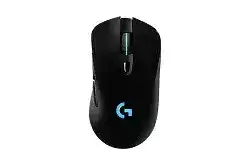
When wireless movement still works but profiles, lighting, or sensitivity controls disappear, the Logitech G703 LIGHTSPEED Wireless Gaming Mouse Driver gives G HUB access to the mouse again. This model uses a LIGHTSPEED USB receiver, rechargeable battery, programmable controls, onboard profiles, adjustable DPI, and LIGHTSYNC lighting. It can also operate through its charging and data cable while you diagnose a wireless fault.
Windows normally provides basic click and pointer operation without an extra package. G HUB becomes necessary when you need to change DPI stages, report rate, lighting, button assignments, battery information, or onboard memory. Install the current gaming software rather than mixing several generations of Logitech utilities on one computer.
Logitech G703 LIGHTSPEED Wireless Gaming Mouse Windows Driver Download
| Driver Name | Description | Supported OS | File Size | Download |
|---|---|---|---|---|
| Logitech G HUB Software | Customizes mouse buttons, pointer behavior, scrolling, shortcuts, sensitivity settings, lighting, and device profiles. | Windows 11, Windows 10 32-bit/64-bit | 67.08 MB | |
| Onboard Memory Manager | Manages profiles and button assignments stored directly in the mouse’s onboard memory without running G HUB. | Windows 11, Windows 10 32-bit/64-bit | 12.45 MB |
Logitech G703 LIGHTSPEED Wireless Gaming Mouse Mac OS Driver Download
| Driver Name | Description | Supported OS | File Size | Download |
|---|---|---|---|---|
| Logitech G HUB Software | Configures mouse buttons, pointer sensitivity, scrolling, shortcuts, lighting effects, and gaming profiles on newer Mac systems. | macOS 26, macOS 15, macOS 14 | 11.36 MB | |
| Logitech G HUB Software | Provides device customization, sensitivity control, programmable assignments, lighting management, and saved profile options. | macOS 13 | 10.43 MB | |
| Logitech G HUB Software | Adjusts pointer response, button functions, scrolling preferences, shortcuts, and supported gaming mouse settings. | macOS 11 | 5.02 MB | |
| Logitech G HUB Software | Enables button remapping, pointer tuning, lighting changes, application profiles, and other device-specific controls. | macOS 10.15 | 5.04 MB |
G HUB shows the G703 as inactive
An inactive status often appears when G HUB sees the receiver but loses communication with the mouse. Turn the mouse off, close G HUB completely, reconnect the receiver, and then power the mouse on. Launch G HUB only after Windows finishes identifying the receiver. This sequence can restore detection without removing every mouse item from Device Manager.
If the status remains unchanged, connect the G703 with its charging cable. A wired connection separates a software problem from a failed wireless link. Open the device page in G HUB and check for a firmware update. After the update completes, disconnect the cable and test LIGHTSPEED mode again.
The software opens but stays on its loading screen
A damaged G HUB installation may leave its interface spinning while background components fail to start. Exit every G HUB process through Task Manager, restart Windows, and open the program with administrator permission. When that does not work, uninstall G HUB, restart the computer, and install a newly downloaded copy instead of reusing an older installer.
Keep saved profile folders only when you know they are healthy. A broken configuration can return immediately after reinstallation. Starting with default profiles is often more useful than importing every previous assignment before confirming that the mouse appears normally.
Duplicate G703 or LIGHTSPEED entries appear in Windows
Repeated receiver changes, software updates, and interrupted installations can leave several device records. Disconnect the charging cable and receiver before removing inactive or warning-marked Logitech entries from Device Manager. Restart Windows, attach only the LIGHTSPEED receiver, and let the operating system rebuild the active records. Avoid deleting unrelated keyboard or touchpad devices.
Restore the LIGHTSPEED Link Before Changing Game Profiles
The receiver included with this gaming mouse is not a Bluetooth, Unifying, or Logi Bolt device. Those pairing programs do not provide the right recovery path. Use the device-pairing function in G HUB when the original receiver no longer communicates with the mouse or after a software update breaks the connection.
The mouse works only while the cable is attached
First charge it through a known working USB port. Then confirm that the power switch underneath the mouse is on. If wired movement works but wireless movement does not, open the G HUB pairing tool with the LIGHTSPEED receiver connected. Select the matching G703 entry and follow the power-cycle request shown by the utility.
The Logitech G703 LIGHTSPEED Wireless Gaming Mouse Driver should identify the receiver and the wired mouse during this process. Do not select a similarly named gaming model merely because it appears in the list. Pairing against the wrong product entry can leave the receiver detected by Windows while the pointer remains motionless.
Receiver disconnects during play
Place the receiver through the supplied USB adapter and extension cable rather than hiding it behind a metal computer case. Logitech’s setup guidance positions the receiver near the mouse and away from busy 2.4 GHz equipment. Wi-Fi routers, wireless headsets, external drives, and crowded USB areas can make a healthy receiver appear unstable.
Connect the adapter directly to the computer for testing. Remove USB hubs, docking stations, monitor ports, and long third-party extensions until the connection remains steady. Once the fault disappears, reconnect other equipment one item at a time. This reveals whether the dropouts follow a particular port or accessory.
Pointer stutters only in wireless mode
Compare wired and wireless operation at the same DPI and report rate. Perfect movement through the cable points toward receiver location or radio noise rather than the HERO sensor. Bring the receiver onto the desk, separate it from other wireless transmitters, and try another direct USB port.
A very high report rate can also expose a busy or poorly behaving USB controller. Lower the report rate temporarily in G HUB and retest the affected game. This is a diagnostic change, not a permanent requirement. Restore the preferred value after you locate the port, background process, or receiver-position problem.
Logitech G703 Software for DPI, Profiles, Lighting, and Buttons
G HUB controls the G703’s programmable buttons, DPI stages, report rate, LIGHTSYNC zones, and profile behavior. The mouse also provides onboard memory, which is useful when you move it between computers or want stored controls without leaving the full application running.
DPI changes unexpectedly after a game starts
G HUB may switch from the desktop profile to a game-specific profile when it detects an executable. The new profile can carry different DPI stages or button commands. Open the active game profile and compare it with the desktop profile. Lock persistent settings only when you want identical behavior across every application.
The button behind the wheel can cycle through configured DPI values. An accidental press may feel like sensor failure because movement becomes suddenly fast or slow. Remove unused stages or assign a narrower range so one press cannot jump to an unsuitable sensitivity.
Settings disappear when G HUB closes
Software profiles depend on G HUB running, while onboard profiles remain inside the mouse. Enable onboard memory mode and write the required profile into a hardware slot. Confirm the stored DPI, report rate, and button actions after closing G HUB. Some advanced software-controlled actions may not behave like simple onboard commands.
Use Onboard Memory Manager only for supported hardware-profile work, not as a second full profile system running beside G HUB. Editing the same onboard slots through different utilities can create confusing results. Reset the hardware profile to default before rebuilding it when wheel or button assignments vanish.
Side buttons no longer perform back and forward actions
The G703 includes thumb buttons that can accept different commands. Check their assignments in the currently active profile, because a game profile may replace normal browser navigation with keyboard shortcuts. Assign standard back and forward functions, save the profile, and test both buttons in more than one application.
If neither button reacts outside G HUB, close the software and test their basic stored assignments. A button that fails on another computer and under a default profile may have a physical fault. Do not hide that result by stacking macros or adding several commands to the same control.
LIGHTSYNC lighting resets or consumes more battery
Lighting behavior can change when G HUB switches profiles or when onboard mode uses a different stored effect. Choose the intended logo and wheel lighting under the active profile, then decide whether the setting belongs in software or onboard memory. Turning lighting down or off also extends time between charges.
Charging, Battery Readings, and Cable-Mode Problems
The G703 contains a rechargeable battery and accepts power through its front charging and data port. The cable can keep the mouse usable while charging, so a blank battery reading or failed wireless session does not always mean the internal battery has failed.
G HUB shows an old battery percentage
The displayed level may stop updating even though charging continues. Disconnect and reconnect the cable, power-cycle the mouse, and reopen G HUB after a few seconds. Check the charging light behavior as well as the percentage. Repair or reinstall G HUB only when the value remains frozen across several charging sessions.
The Logitech G703 LIGHTSPEED Wireless Gaming Mouse Driver may refresh the reading after the device reconnects through USB. Charge from a computer port before testing third-party adapters. Some low-power hubs or sleeping laptop ports stop supplying enough power even though the cable remains attached.
The mouse does not appear to charge
Inspect the connector for lint and make sure the plug reaches the port fully. Test another compatible data-and-charging cable and a different powered USB port. Leave the mouse connected long enough to recover from a deeply discharged state before judging the battery. A cable that powers another device may still fit poorly in the recessed G703 port.
Do not open the mouse or remove its internal battery as an early troubleshooting step. Internal battery work can damage the device and affect warranty coverage. When several cables and direct USB ports produce no charging response, test the mouse on another computer and pursue hardware service if the result stays the same.
Wireless operation stops soon after unplugging
Charge the mouse fully, disable bright lighting for the test, and observe how long it operates. A normal battery reading followed by immediate shutdown can indicate a power or battery fault. A mouse that stays on but loses pointer movement instead needs receiver pairing and wireless-path checks rather than further charging attempts.
Clicks and Scrolling That Software Cannot Correct
Some G703 complaints involve reverse scrolling, missed wheel movement, middle-click failure, or one press registering twice. Begin with default assignments and another computer. This removes game bindings, macros, operating-system click timing, and damaged software profiles from the test.
The wheel scrolls in the opposite direction
Turn the mouse off and remove loose dust around the wheel with gentle compressed air. Rotate the wheel during cleaning without forcing it sideways. Then test a plain webpage with G HUB closed. If reverse steps continue through both wired and wireless modes on another computer, the wheel encoder likely needs hardware service rather than another profile.
One click becomes two clicks
Reset the affected button to its standard primary or secondary click command. In Windows, review the double-click speed and test the folder icon response. A software assignment that sends two actions can mimic a switch fault, but repeated double clicks under default settings and on another system point toward the physical switch.
Avoid unofficial scripts that suppress fast clicks. They can hide symptoms, delay legitimate input, and create problems in games. When the mouse remains under warranty, document the repeated input with a simple click test and use the service route instead of opening the shell.
The wheel click or a programmed command works only in some games
Check which profile G HUB activates for the game and whether the title runs with elevated permission. A normal application may not deliver simulated commands into a program running as administrator. Run both at compatible permission levels, or store a simple supported assignment in onboard memory and test again.
Rebuild the G703 Around One Verified Connection
Use the original LIGHTSPEED receiver, place it near the mouse through the supplied adapter, and confirm wireless movement before importing profiles. Add DPI stages, lighting, button commands, and onboard slots gradually. This order keeps a receiver fault from being mistaken for a damaged game profile.
Near the end of recovery, the Logitech G703 LIGHTSPEED Wireless Gaming Mouse Driver should show one active device, a sensible battery value, and the profile you expect. Test the cable, receiver, wheel, main clicks, thumb buttons, and DPI control separately. When a symptom follows the mouse across computers and both connection modes, software changes have reached their useful limit.