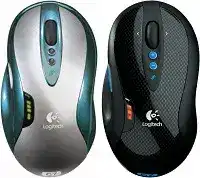
On-the-fly sensitivity may still work while Windows ignores the remaining control assignments. The Logitech G7 Laser Mouse Driver restores the SetPoint interface used for sensitivity levels, wheel actions, button commands, and battery information. This cordless gaming model communicates through its dedicated 2.4 GHz USB receiver and uses removable lithium-ion battery packs, so Bluetooth, Unifying, and Logi Bolt instructions do not belong here.
Windows often loads the G7 as a standard input device without extra software. That gives you ordinary movement and clicks, but it may leave sensitivity choices, wheel tilting, and custom commands unavailable. SetPoint was the matching Logitech package for this generation. Newer control programs should not be installed merely because they carry the Logitech name.
Logitech G7 Laser Windows Driver Download
| Driver Name | Description | Supported OS | File Size | Download |
|---|---|---|---|---|
| SetPoint Software 64-bit | Full offline package for configuring mouse buttons, tracking speed, device settings, and battery status on 64-bit Windows systems. | Windows 64-bit | 68.13 MB | |
| SetPoint Software 32-bit | Complete offline installer for adjusting hot-keys, pointer tracking, mouse controls, and device-specific options on 32-bit Windows computers. | Windows 32-bit | 65.59 MB | |
| Logitech Connection Utility | Reconnects the mouse with its compatible Logitech receiver when the original wireless pairing no longer works correctly. | Windows 10 32-bit/64-bit, Windows 8 32-bit/64-bit, Windows 7 32-bit/64-bit | 1.06 MB | |
| Legacy Connection Utility | Restores receiver communication for older Windows installations that need the earlier Logitech wireless connection tool. | Windows Vista, Windows XP | 2.08 MB |
SetPoint opens but shows no gaming mouse
Attach the G7 receiver before starting SetPoint. Close the program completely if it was already running, unplug the receiver, reconnect it to a direct USB port, and restart Windows. SetPoint can retain an incomplete hardware scan until its background process reloads. Check whether the mouse appears after the restart rather than launching several installers over the existing package.
Remove conflicting Logitech control programs when the G7 works in Windows but remains absent from SetPoint. Several generations of mouse software can compete for the same controls or startup components. Keep the package intended for the G7, restart once after uninstalling the others, and then test each assignment before adding another utility.
Custom assignments return to their defaults
Make one change in SetPoint, apply it, close the panel, and reopen it. When the change disappears immediately, SetPoint may lack permission to update its configuration or another mouse program may overwrite the assignment during sign-in. Run the installed Logitech panel normally after approving its installer, and avoid leaving two customization programs active together.
Application-specific commands can also look forgotten when the active game runs with different permissions from SetPoint. Compare the button in a normal desktop program first. When it works there but not inside one game, launch both programs at the same permission level and inspect the game’s own control bindings for a duplicate action.
Sensitivity Switching Without Unwanted Cursor Surprises
The G7 carries hardware controls for changing sensor resolution while you play. SetPoint expands the available choices and lets you decide which sensitivity stages remain active. Install the Logitech G7 Laser Mouse Driver before judging a missing stage, because Windows pointer speed and the mouse’s resolution controls affect movement in different ways.
The sensitivity buttons appear to do nothing
Press a sensitivity control while watching the indicator on the mouse. A changing indicator with no obvious cursor difference usually means the selected stages sit too close together. Open SetPoint and spread the enabled values farther apart. Test one low, one middle, and one high stage before creating a longer sequence that becomes difficult to distinguish.
Some games read raw mouse input and reduce the visible effect of Windows pointer adjustments. That does not prevent the G7 sensor resolution from changing, but the game’s sensitivity value can hide the difference. Compare the stages on the desktop, then return to the game and lower its internal sensitivity before testing again.
The pointer becomes extremely fast after installation
SetPoint may restore a sensitivity value that differs from the Windows configuration used before installation. Begin with a moderate sensor stage, then return Windows pointer speed near its middle position. Avoid changing sensor resolution, Windows speed, acceleration, and in-game sensitivity at the same time. Adjusting one layer at a time makes the source of the sudden jump clear.
Enhanced pointer precision can produce extra acceleration during quick movement. Some players prefer it disabled, while others rely on it for desktop work. Compare both states instead of treating either choice as a universal fix. Games with raw input may ignore this Windows option entirely.
Movement feels different after waking the mouse
A brief delay can occur as the cordless link resumes after inactivity. Move the G7 once, allow the receiver to regain communication, and then check the selected sensitivity indicator. Repeated pauses during active movement are not ordinary sleep behaviour. They point more strongly toward battery condition, receiver placement, an unstable USB connection, or wireless interference.
Battery Swaps, Charging Base Faults, and Sudden Power Loss
The G7 avoids a permanently attached charging cable by using removable rechargeable lithium-ion packs. One battery powers the mouse while the spare charges in the station. This arrangement makes a rapid swap possible, but ageing cells, dirty contacts, and a poorly connected charging base can produce similar symptoms.
A battery stays red or never finishes charging
Remove the pack and insert it again with its contacts aligned firmly inside the charging slot. Make sure the charging station receives power through its USB connection. A computer may stop supplying power to certain ports during sleep or shutdown, leaving the pack at the same level even though it remained in the base for hours.
Compare both original packs in the same slot. When one charges and the other does not, the failing pack has probably lost capacity or developed a contact problem. When neither responds, inspect the station connection and try another powered USB port. Do not assume that reinstalling SetPoint will repair a charger that receives no electrical power.
The newly inserted pack lasts only a short time
Rechargeable cells lose capacity with age, even when they have spent long periods unused. The G7’s high-performance wireless operation also draws more power than a basic office mouse. Swap the two packs and compare their runtime under similar use. A large difference identifies the weaker battery more accurately than the software gauge alone.
Check that the pack slides fully into the compartment and remains seated when the mouse moves quickly. Dust or residue on the exposed contacts can interrupt power for a moment. Switch the mouse off, remove the pack, and wipe the accessible contact surfaces with a clean, dry cloth. Avoid liquids and metal tools around the battery terminals.
The mouse shuts off during a fast movement
A loose battery pack can briefly separate from its contacts when the G7 changes direction sharply. Reinsert the pack and confirm that its retaining mechanism holds it securely. Test ordinary desktop movement before returning to a game. If the power indicator cuts out whenever the body receives a small bump, the problem sits in the power path rather than SetPoint.
Use the second pack for comparison. A shutdown that follows one particular battery suggests worn pack contacts or an ageing cell. Failure with both packs directs attention toward the compartment, power switch, or internal hardware. Opening the mouse is not a sensible software fix and may damage irreplaceable parts.
Dropouts, Receiver Range, and Laser Tracking Problems
The cursor freezes for a second during games
Place the receiver where it has a clear path to the mouse. The G7 charging station can position the small USB receiver away from the computer case rather than leaving it hidden behind a metal tower. Keep the station clear of dense cable bundles, wireless adapters, and external drives that may add electrical noise near the cordless link.
Try another direct USB port when freezes occur together with Windows connection sounds. A loose port or unstable hub can repeatedly remove and rediscover the receiver. Use the supplied station connection or a suitable extension arrangement to improve placement, but bypass unpowered hubs while identifying the fault.
Tracking becomes rough on part of the desk
The laser sensor needs a surface that returns a consistent pattern. Glass, mirrored finishes, glossy coatings, and strongly reflective areas can cause jumps or dead zones. Compare a plain mouse pad before changing software values. A surface problem often follows a precise area of the desk, whereas radio trouble appears regardless of where the sensor sits.
Turn the G7 off before cleaning the sensor opening with dry air or a soft brush. Remove loose hair and dust without touching the lens. Then restore a moderate sensitivity stage and test slow horizontal lines. Excessive resolution can make tiny surface irregularities look like a serious tracking defect.
The receiver works only after it is reconnected
Disable USB power saving for the affected hub only when Windows repeatedly powers down the receiver during use or sleep recovery. Open the relevant USB hub properties in Device Manager and compare behaviour after changing its power-management option. Do not alter every USB controller at once, because broad changes make the result difficult to trace.
A full shutdown can also clear a receiver that survives ordinary restarts in a bad state. Turn off the computer, disconnect the station briefly, reconnect it, and start again. If the G7 fails on several computers while another USB device works in the same ports, suspect the dedicated receiver or its cable path.
A different Logitech receiver cannot find the G7
This model does not use Unifying or Logi Bolt technology. Similar size and branding do not make later receivers compatible. Retain the original G7 mini receiver and charging station as a matched system. Pairing applications made for newer product families cannot convert an unrelated dongle into a replacement for this cordless link.
When the original receiver has been lost, verify an exact G7-compatible part rather than buying by appearance. Windows may recognize an incompatible Logitech dongle as valid USB hardware, yet the mouse will never communicate through it. That result indicates a radio-system mismatch, not a missing Windows input file.
Wheel Tilting, Button Commands, and Click Behaviour
The wheel scrolls but will not tilt sideways
Vertical scrolling can operate through normal Windows mouse support while horizontal commands still rely on SetPoint and the active application. Open a document or spreadsheet that genuinely extends beyond the visible window. Tilting the wheel has no visible result when the program contains nothing to move horizontally.
Review the wheel assignment in SetPoint and apply a standard horizontal-scroll action for testing. Some games do not accept tilt commands as separate controls, while desktop programs do. A command that works in one application but not another usually needs an application binding rather than another receiver connection.
The thumb control performs the wrong action
SetPoint can assign the side control to navigation, a keystroke, or another supported command. Restore a simple action first and test it in an application that recognizes that command. Complex macros or shortcuts can fail when the target game reserves the same key or launches with different permissions.
The original G7 layout differs from newer gaming mice with rows of programmable side controls. Do not apply profiles made for another Logitech model. Build a small profile around the controls that SetPoint actually displays for this device, then confirm each command individually.
One click becomes two
Lower the Windows double-click speed slightly and repeat the folder test. A value set too fast can make normal timing appear inconsistent, although it does not usually create duplicate clicks from a single press. Close SetPoint temporarily and compare the same button again to rule out an unusual assignment.
Persistent duplication on more than one computer usually points toward wear inside the button switch. Blow loose dust from around the button edge and test again, but avoid dismantling or bending switch components. Software replacement cannot restore a mechanical contact that has become unstable after years of use.
The scroll wheel no longer registers a press
Confirm that the centre action appears in SetPoint and has not been replaced by another command. Test it in several desktop programs because some games reserve or ignore middle-click. If wheel rotation and tilting work but pressing the wheel never registers anywhere, the physical wheel switch may have worn out.
Balancing Legacy Software With a Modern Windows Installation
The Logitech G7 Laser Mouse Driver belongs to an older SetPoint generation, while current Windows releases already contain general USB mouse support. Use the operating system layer for basic movement when SetPoint will not run cleanly. Legacy customization is worthwhile only when it adds working sensitivity stages, wheel commands, button assignments, or battery information without destabilizing the connection.
After installation, judge each part separately. A moving pointer proves that Windows sees the receiver and receives input. Working hardware sensitivity controls show that the mouse itself can change resolution. Missing custom commands point toward SetPoint, while complete dropouts usually lead back to battery power, receiver placement, USB behaviour, or ageing hardware.
Keep the two rechargeable packs identified so you can compare their runtime, and leave the original receiver anchored in a safe location. The G7 depends on those model-specific accessories more than on repeated software installation. A sound battery, a powered charging station, and a clear 2.4 GHz path solve faults that no control-panel change can reach.