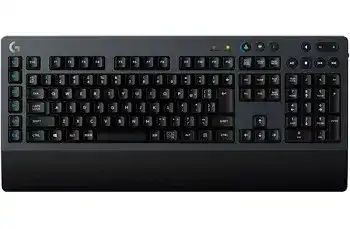
Repeated letters, missed keystrokes, and inactive G-keys can make this mechanical keyboard feel unreliable even when its wireless connection still appears normal. The Logitech G613 Wireless Mechanical Gaming Keyboard Driver gives Windows access to Logitech gaming controls, LIGHTSPEED detection, programmable commands, and device status. The keyboard also supports Bluetooth, but its software features differ between the two connection modes.
Logitech G613 Wireless Mechanical Gaming Keyboard Windows Driver Download
| Driver Name | Description | Supported OS | File Size | Download |
|---|---|---|---|---|
| Logitech G HUB 64-bit | Manages G613 key assignments, macros, game profiles, lighting-compatible devices, and other gaming settings. | Windows 11, Windows 10 64-bit | 67.08 MB | |
| Logitech Gaming Software 64-bit | Provides a full Windows package for configuring keyboard commands, programmable keys, profiles, and device-specific gaming controls. | Windows 11, Windows 10 64-bit | 119.96 MB |
Logitech G613 Wireless Mechanical Gaming Keyboard Mac OS Driver Download
| Driver Name | Description | Supported OS | File Size | Download |
|---|---|---|---|---|
| Logitech G HUB | Configures G613 programmable controls, application profiles, macros, shortcuts, and connected Logitech gaming devices on newer Macs. | macOS 26, macOS 15, macOS 14 | 11.36 MB | |
| Logitech G HUB | Handles keyboard assignments, game-based profiles, macro commands, and compatible gaming hardware settings in macOS 13. | macOS 13 | 10.43 MB | |
| Logitech G HUB | Supports custom key functions, profile switching, command sequences, and device management for G613 setups running macOS 11. | macOS 11 | 5.02 MB | |
| Logitech G HUB | Controls programmable keyboard actions, stored profiles, shortcuts, and gaming-device preferences on macOS 10.15. | macOS 10.15 | 5.04 MB | |
| Logitech Gaming Software | Offers legacy Mac configuration for G-key commands, keyboard macros, application profiles, and supported Logitech gaming equipment. | macOS 10.15, macOS 10.14, macOS 10.13, macOS 10.12 | 204.99 MB |
Logitech G613 Wireless Mechanical Gaming Keyboard Driver for Double Typing and Key Chatter
One of the most troublesome G613 faults occurs when a single press produces two or three characters. The problem may begin with heavily used keys such as letters, Backspace, Space, or Enter, then spread to other switches. Before changing software, type slowly in a plain text window and note whether the same physical keys repeat each time.
Rule out power and wireless interruptions first
Install two known-good AA batteries and check that both contacts sit firmly against the battery ends. A brief voltage drop can interrupt a keystroke and create behavior that resembles switch chatter. Turn the keyboard off, wait about ten seconds, and restart it. Then connect through LIGHTSPEED and test again without changing any assignments in G HUB.
Move the LIGHTSPEED receiver away from crowded USB equipment during the test. The included extension cable can place it beyond a desktop case, docking station, external drive, or other 2.4 GHz hardware. Try a direct USB port as well. If repeated characters disappear after repositioning the dongle, the switches were probably not the original cause.
Check Windows repeat controls without hiding a bad switch
Windows can make a held key repeat sooner than expected. Open Keyboard Properties and lengthen the repeat delay while reducing the repeat rate slightly. This may correct rapid repetition caused by an aggressive operating-system setting. It will not cure a switch that sends two separate inputs from one press, so return the controls to a comfortable level after testing.
Use a keyboard test page or a local text document and tap the affected key once at a time. When every tap regularly creates duplicate input on multiple computers, the fault points more strongly toward the mechanical switch. Software filters can suppress fast duplicates, but they may also interfere with games, deliberate double presses, and rhythm-sensitive commands.
Clean around an affected Romer-G key
Switch the keyboard off before cleaning. Remove loose crumbs and dust around the troublesome key with gentle compressed air or a soft brush. Press the key several times from different edges after cleaning, then restore power and test it. Avoid pouring liquid, oil, or general household cleaner into the switch because residue may worsen the electrical contact.
If only one or two keys continue chattering after battery, receiver, and software tests, reinstalling the driver package is unlikely to repair them. Test the G613 on another computer with no custom profile loaded. The same duplicate input there indicates a hardware-level key problem that may require professional repair or keyboard replacement.
Switching Between LIGHTSPEED and Bluetooth Without Losing Control
The G613 can connect through its dedicated LIGHTSPEED USB receiver or through Bluetooth. Pressing the wireless buttons near the top of the keyboard changes the active path. This is useful for moving between two devices, but it can also explain why G HUB suddenly stops showing the keyboard or why programmed G-keys no longer perform their assigned commands.
G HUB cannot find the keyboard in Bluetooth mode
Use the LIGHTSPEED receiver when you need G HUB assignments and gaming-device detection. Bluetooth provides normal keyboard input, but Logitech gaming software may not expose the G613 controls through that connection. Press the LIGHTSPEED button, confirm its indicator reacts, and allow several seconds for the keyboard to return to the receiver link.
The Logitech G613 Wireless Mechanical Gaming Keyboard Driver should detect the device after Windows recognizes the LIGHTSPEED receiver. If G HUB still shows no keyboard, close the application completely, reconnect the receiver, and reopen it. A computer restart may restore the Logitech background service when the receiver works for typing but the control screen remains empty.
Bluetooth pairing starts but never completes
Hold the Bluetooth button for about two seconds until its indicator flashes quickly. Open the device’s Bluetooth menu, select the G613, and enter the displayed pairing code on the keyboard when requested. Press Enter after typing the code. A brief press may only switch to an existing Bluetooth connection rather than opening discovery mode.
Remove an old G613 entry when the device appears in the Bluetooth list but refuses to reconnect. Restart Bluetooth on the computer, place the keyboard in discovery mode again, and create a new pairing. Keep it close to the host during this process. Afterward, verify ordinary typing before installing or changing any Logitech software.
The keyboard keeps returning to the wrong device
Check which connection indicator lights after pressing a key. The G613 remembers its Bluetooth relationship separately from the LIGHTSPEED receiver, so a nearby paired computer or mobile device may accept the Bluetooth connection while the intended PC waits on the USB link. Press the required connection button once and pause before typing again.
Do not try to pair the LIGHTSPEED receiver through the standard Bluetooth screen. It uses its own wireless connection. When the original receiver loses its relationship with the keyboard, open the Device Pairing Tool from G HUB and follow the power-cycle instructions. A Unifying receiver cannot replace the G613 LIGHTSPEED dongle.
G-Keys, Macros, and Media Commands That Stop Responding
Six programmable G-keys sit along the left edge of the G613. G HUB can assign shortcuts, commands, and macros to these keys while the keyboard uses LIGHTSPEED. Problems often begin after an application update, a damaged profile, or a switch to Bluetooth. Regular typing may remain unaffected, which makes the failure look like a key defect.
A macro works only while G HUB is open
Keep G HUB running when the command depends on its active profile. The G613 does not provide the same independent onboard-profile behavior found on some other gaming keyboards, so closing the software can stop advanced assignments. Enable G HUB at Windows startup and confirm that its background processes remain active after signing in.
Open the Assignments page and drag a simple command onto one G-key for testing. Use an uncomplicated shortcut such as opening Calculator rather than a long timed sequence. If that works, rebuild the failed macro instead of restoring every old command at once. Profiles imported from an older G HUB installation may carry broken actions or application paths.
G-keys type the wrong command or repeat a macro
Delete the assignment from the affected G-key, save the profile, and test the unassigned key. Then create the macro again with clear press-and-release events. Recorded commands can contain an accidental repeated key, a missing release, or delays that make the action continue after the physical key has returned.
Check whether G HUB has switched to another application profile. A game-specific profile may assign a completely different action from the desktop profile. Lock the required profile temporarily while diagnosing the problem. Once the command behaves correctly, restore automatic profile switching and open each affected application to confirm its own assignments.
Media keys control the wrong application
Play, pause, stop, track navigation, mute, and volume controls are built into the G613. Volume keys usually act at system level, while playback commands depend on whichever program currently handles media input. Browsers, music players, and communication apps can compete for those commands, leaving Play/Pause inactive or sending it to an unexpected window.
Close background media programs and test one player at a time. In Chromium-based browsers, media-key handling may take control even when the active music service runs elsewhere. Disable the browser’s hardware media-key feature for a test, restart the browser, and check the keyboard again. Reinstalling G HUB should come later because application capture often causes this particular symptom.
Wake Failures, Random Disconnects, and Battery Readings
The keyboard does not wake after sitting idle
Press an ordinary key once and wait briefly before typing a password or command. Wireless keyboards enter a low-power state, and the first input may wake the connection rather than reach the active program. When the G613 remains inactive, press its current connection button, then switch it off and on without repeatedly changing between Bluetooth and LIGHTSPEED.
Windows power management can also suspend the USB path used by the receiver. Connect the dongle directly during diagnosis and disable USB selective suspension temporarily if disconnects occur only after long idle periods. Also check the USB hub properties in Device Manager and prevent Windows from turning off the relevant hub solely to save power.
Battery warnings appear soon after replacement
The keyboard runs on two AA batteries and includes a battery-status indicator. Confirm that both cells are new, matched, and installed in the marked direction. Mixing an older battery with a new one can produce an early warning. Clean dry contact surfaces gently and make sure the battery door does not prevent either cell from seating fully.
G HUB may need a short period to refresh the displayed level after replacement. Restart the keyboard and reopen the software if the value remains unchanged. Battery life varies with usage, wireless conditions, and battery quality, so the advertised maximum should not be treated as an exact replacement date for every desk.
Connection drops only during games
First test the same keys on the Windows desktop. If the keyboard stays connected outside the game, examine the active G HUB profile, macro timing, and in-game input bindings. Disable custom assignments for one session. A command loop or conflicting game shortcut can look like a wireless dropout while the LIGHTSPEED link continues operating.
For genuine disconnects, use the receiver extension cable and place the dongle away from the computer case. Remove unnecessary nearby wireless transmitters for comparison. The Logitech G613 Wireless Mechanical Gaming Keyboard Driver cannot compensate for a blocked radio path, unstable USB hub, depleted batteries, or a failing receiver.
Match the Repair to the Symptom
Keep LIGHTSPEED active for G HUB detection, G-key assignments, and the lowest-latency computer connection. Use Bluetooth when standard keyboard input on another compatible device matters more than gaming software controls. Treat duplicate letters separately from pairing trouble: a receiver problem usually affects many inputs, while persistent chatter often follows the same physical switches.
Before replacing anything, test two matched AA batteries, one direct USB port, a newly created G HUB profile, and another computer. Re-pair the LIGHTSPEED link only when the receiver no longer recognizes the keyboard. Rebuild macros only when normal keys remain accurate. These checks reveal whether the fault belongs to power, wireless communication, software, or the Romer-G key mechanism.