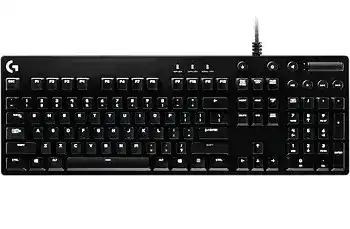
If the keyboard lights up but Windows, Logitech software, or custom function assignments behave differently than expected, the Logitech G610 Orion Red Backlit Mechanical Keyboard Driver is mainly useful for restoring software control over this wired gaming keyboard. The G610 Orion Red uses Cherry MX Red mechanical switches, white per-key backlighting, dedicated media controls, a volume roller, Game Mode, and programmable F1-F12 functions. Its computer connection is wired USB rather than Bluetooth or a wireless receiver.
Logitech G610 Orion Red Backlit Mechanical Keyboard Windows Driver Download
| Driver Name | Description | Supported OS | File Size | Download |
|---|---|---|---|---|
| Logitech Gaming Software 64-bit | Full 64-bit Logitech Gaming Software package for configuring supported G610 keyboard functions and gaming settings. | Windows 11, Windows 10 64-bit | 119.96 MB | |
| Logitech G HUB | Provides Logitech G HUB software for managing keyboard assignments, lighting, profiles, and other supported device settings. | Windows 11, Windows 10 32-bit/64-bit | 67.08 MB |
Logitech G610 Orion Red Backlit Mechanical Keyboard Mac OS Driver Download
| Driver Name | Description | Supported OS | File Size | Download |
|---|---|---|---|---|
| Logitech G HUB | Installs G HUB for compatible newer macOS releases to control supported keyboard lighting, assignments, and profiles. | macOS 26, macOS 15, macOS 14 | 11.36 MB | |
| Logitech G HUB | Supplies the G HUB application for macOS 13 with access to compatible G610 customization and profile controls. | macOS 13 | 10.43 MB | |
| Logitech G HUB | Provides the macOS 11 version of G HUB for supported keyboard configuration, lighting adjustments, and command assignments. | macOS 11 | 5.02 MB | |
| Logitech Gaming Software | Legacy Logitech Gaming Software package for configuring compatible G610 keyboard features on the listed macOS versions. | macOS 10.15, macOS 10.14, macOS 10.13, macOS 10.12 | 204.99 MB | |
| Logitech G HUB | Offers the G HUB release intended for macOS 10.15 to manage supported Logitech gaming keyboard settings and profiles. | macOS 10.15 | 5.04 MB |
Logitech G610 Orion Red Backlit Mechanical Keyboard Driver When Software Loses the Keyboard
The G610 can type through standard USB keyboard support even when its Logitech controls are missing. That difference matters during troubleshooting. If letters, numbers, and ordinary function keys work but lighting profiles or programmed F-key actions disappear, first treat it as a software-recognition problem rather than a dead keyboard. Unplug the board, close the Logitech utility, reconnect it directly to another computer USB port, and then reopen the software.
Keyboard works but the Logitech utility cannot see it
A software update or damaged application installation can leave the keyboard working normally while the control program shows no G610. Restart Windows with the keyboard attached and check whether it appears as a USB keyboard before changing anything else. If Windows does not detect it either, move the cable to another direct USB port. Avoid diagnosing Logitech software while the keyboard itself is missing from the operating system.
The Logitech G610 Orion Red Backlit Mechanical Keyboard Driver package may include software intended to expose features that normal Windows keyboard support does not configure. The G610 originally used Logitech Gaming Software for its lighting, Game Mode choices, profiles, and F1-F12 assignments. G HUB has also supported the G610, but running multiple Logitech gaming utilities at the same time can make troubleshooting harder. Use one control program at a time when checking detection.
Detection changes through a hub or KVM switch
If the G610 behaves normally when attached directly to the PC but acts differently through a USB hub or KVM, test without the intermediate hardware. Gaming keyboards can expose more than a plain typing interface because media controls and software configuration also travel over USB. A direct-port test quickly separates a Logitech configuration problem from a USB switching or hub compatibility problem without changing profiles that were already working.
Backlighting That Waves, Changes Pattern, or Refuses a Saved Look
The G610 Orion Red does not have multicolor RGB lighting. Its keys use bright white illumination, and Logitech software can change brightness and create effects such as breathing or moving patterns. This distinction prevents a common mistake: installing another package or searching for color controls will not turn the G610 Red into an RGB keyboard. Concentrate on white-light brightness, effects, and per-key illumination instead.
The wave effect returns after startup
A moving light pattern at startup does not automatically mean the LEDs are failing. The keyboard can show an onboard/default lighting behavior before its software profile takes control. Open the Logitech utility after Windows has finished loading and select the intended fixed or customized lighting behavior. If the preferred effect appears only after the program starts, check that the gaming software itself launches normally with Windows.
For software-controlled lighting, the Logitech G610 Orion Red Backlit Mechanical Keyboard Driver and its associated control utility need to recognize the keyboard throughout the session. Closing the application, changing profiles, or switching to a configuration that does not contain the same illumination choice can make the board appear to have forgotten a setting. Confirm which profile is active before rebuilding the lighting configuration from scratch.
Unexpected lighting shortcuts appear while typing
If ordinary key presses suddenly trigger waves or other lighting reactions, inspect the dedicated brightness control as well as the software profile. A brightness button that remains mechanically pressed can combine with other keys and produce lighting commands instead of the expected input. Press and release the lighting control several times and make sure it returns normally. Then reconnect the keyboard and test typing before changing application files.
When only one or several LEDs stop illuminating while the corresponding keys continue to type, software becomes a less likely cause. Set a simple fixed brightness level so every key should be lit. If the same physical key stays dark through several effects and after reconnecting the keyboard, the fault may sit with that LED or its hardware path rather than a profile option.
Logitech G610 Orion Red Software for F1-F12 Macros and Game Mode
Logitech designed the G610 so its F1-F12 row can receive custom functions through gaming software. These assignments are separate from the keys’ ordinary F1-F12 behavior. That means an F-key can still perform its normal Windows function even when a programmed macro has stopped launching. When this happens after a software update, check the active application profile and assignment page before assuming the switch itself has failed.
F-key assignments disappear after an update
Software revisions have sometimes changed how older Logitech keyboards expose programmable function keys. If a previously working F1-F12 command disappears, open the keyboard page and confirm that the assignment still exists in the profile currently selected for that game or program. Creating a small temporary assignment on one F-key is a useful test. If that works, rebuild the affected profile rather than altering all twelve keys at once.
If an older Logitech Gaming Software configuration worked and a newer G HUB installation changed those assignments, avoid keeping both programs active simply to recover one macro. Remove the conflicting configuration path, restart Windows, and test the keyboard with the chosen utility alone. Save or export valuable profiles before removing software when that option is available, because reinstalling a control program may not preserve every custom command.
The Windows key suddenly stops working
Check Game Mode before repairing anything. The G610 includes a Game Mode control, and its default purpose includes disabling the Windows key so an accidental press does not interrupt a game. Logitech software can also control which keys Game Mode turns off. If the Windows key types normally after Game Mode is disabled, the keyboard is behaving as configured rather than showing a driver failure.
Media keys work while normal typing fails
The dedicated play, pause, mute, skip, and volume controls provide a useful clue when troubleshooting unusual input. If those controls react while large parts of the main keyboard stop responding, reconnect the G610 and test it before launching profile software. Also check that no lighting or Game Mode control appears physically stuck. A persistent problem on another USB port and another computer points away from a Windows profile problem.
Double Letters, Missed Keystrokes, and Cherry MX Red Switch Checks
Repeated letters are different from the operating system’s normal key-repeat feature. A mechanical switch that sends two inputs from one press is often described as key chatter. The G610 Orion Red uses Cherry MX Red switches, so first identify whether the problem follows one physical key. Type slowly in an ordinary text field. If the same letter repeatedly doubles while neighboring keys remain normal, focus on that individual switch area.
One key enters characters twice
Disconnect the keyboard before cleaning. Remove loose debris around the affected keycap with suitable compressed air rather than flooding the switch with liquid. Reconnect the board and test again. Changing Windows repeat speed can alter how a held key repeats, but it does not repair a mechanical switch that sends two separate electrical inputs from a single tap. Persistent chatter may require hardware service.
Do not start by replacing software if the defect remains on a second computer with Logitech applications absent. That test is valuable because it removes profiles, gaming utilities, and most Windows-specific configuration from the equation. When the exact same physical key doubles or misses presses on another system, the switch or keyboard hardware becomes the stronger suspect.
A key sometimes does nothing
A missed press can have the same local causes as chatter: dirt around the switch, mechanical wear, or an intermittent switch contact. Check several applications and compare the affected key with nearby keys. If an entire group stops together, reconnect the USB cable and test another port before treating several switches as simultaneous failures. If only one key remains intermittent everywhere, software reinstallation is unlikely to solve it.
Separating USB, Software, and Switch Faults
The fastest way to diagnose this model is to decide which layer has failed. No typing or lighting at all points first toward USB detection. Normal typing with missing custom lighting or F-key commands points toward Logitech software or profiles. A disabled Windows key can simply be Game Mode. One Cherry MX Red key that repeatedly doubles or misses presses after a second-computer test points much more strongly toward hardware.
Use the Logitech G610 Orion Red Backlit Mechanical Keyboard Driver when software control is the missing part, particularly for lighting behavior, profiles, Game Mode configuration, and programmable F1-F12 functions. Do not expect a software package to add wireless features or RGB color because the G610 Orion Red is a wired USB keyboard with white backlighting. Matching the fix to the symptom prevents a working keyboard from being repeatedly reconfigured for a mechanical or USB fault.
Before changing a long-standing configuration, test the board with a direct USB connection, a simple lighting profile, and ordinary typing. Then add custom F-key commands and game profiles back only after the base functions behave normally. That order makes strange lighting, lost assignments, USB detection, and individual switch problems much easier to separate without erasing useful settings unnecessarily.