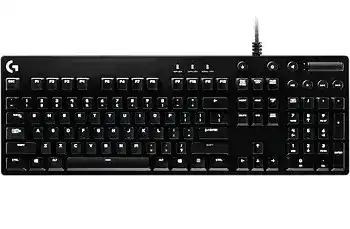
A keyboard that types normally but loses custom F-key commands, lighting profiles, or Game Mode behavior is usually dealing with software control rather than a basic USB failure. The Logitech G610 Orion Brown Backlit Mechanical Keyboard Driver uses Logitech Gaming Software support for its programmable F1-F12 keys, white backlighting, and game profiles. The G610 Orion Brown itself is a corded USB 2.0 keyboard with Cherry MX Brown mechanical switches, dedicated media controls, a mute button, volume wheel, and Game Mode control.
Logitech G610 Orion Brown Backlit Mechanical Keyboard Windows Driver Download
| Driver Name | Description | Supported OS | File Size | Download |
|---|---|---|---|---|
| Logitech Gaming Software 64-bit | Full 64-bit gaming software package for configuring keyboard commands, macros, profiles, lighting, and device-specific settings. | Windows 11, Windows 10 64-bit | 119.96 MB | |
| Logitech G HUB | Gaming software for managing keyboard assignments, game profiles, lighting effects, macros, and supported device settings. | Windows 11, Windows 10 32-bit/64-bit | 67.08 MB |
Logitech G610 Mechanical Keyboard Mac OS Driver Download
| Driver Name | Description | Supported OS | File Size | Download |
|---|---|---|---|---|
| Logitech G HUB | Current Mac gaming software package for adjusting keyboard assignments, lighting effects, macros, profiles, and compatible device controls. | macOS 26, macOS 15, macOS 14 | 11.36 MB | |
| Logitech G HUB | Mac gaming configuration software for setting keyboard commands, lighting, application profiles, and programmable functions. | macOS 13 | 10.43 MB | |
| Logitech G HUB | Device management package for customizing supported keyboard controls, game profiles, macros, and lighting on macOS 11. | macOS 11 | 5.02 MB | |
| Logitech G HUB | Mac software for configuring compatible gaming keyboard functions, including assignments, profiles, macros, and lighting preferences. | macOS 10.15 | 5.04 MB | |
| Logitech Gaming Software | Legacy gaming software for creating keyboard profiles, assigning commands and macros, and controlling supported lighting features. | macOS 10.15, macOS 10.14, macOS 10.13, macOS 10.12 | 204.99 MB |
Logitech G610 Orion Brown Backlit Mechanical Keyboard Driver When LGS Cannot See the Keyboard
Start with the USB connection when Logitech Gaming Software opens without showing the G610. This model uses a fixed 1.8-metre USB cable and does not depend on Bluetooth or a wireless receiver. Connect it directly to a computer USB port during diagnosis. A hub, monitor port, dock, or other intermediary adds another place where detection can fail even while some ordinary keystrokes continue to work.
The keyboard types but Logitech controls are missing
Windows can handle normal keyboard input without exposing every G610 feature through Logitech Gaming Software. That explains why letters and numbers may work while LGS does not offer function-key assignments or lighting configuration. Close LGS, reconnect the keyboard, and open the software again. If the device still fails to appear, test another direct USB port before treating the installation itself as damaged.
The G610 Orion Brown originally supported Logitech Gaming Software, with Windows 7, Windows 8, Windows 8.1, and Windows 10 listed at release. This older software history matters on a newer computer. Do not assume that installing an unrelated Logitech utility will provide the same keyboard controls. The Logitech G610 Orion Brown Backlit Mechanical Keyboard Driver package should match the software intended for this gaming keyboard.
Detection changes after a cold boot
A G610 that occasionally triggers a keyboard-detection warning during startup deserves a port test before any deeper changes. Shut the computer down, move the keyboard to another motherboard USB port, and boot again. If a restart makes the warning disappear but the next cold start brings it back, check the computer’s USB initialization and BIOS behavior as well as Windows rather than repeatedly altering LGS profiles.
Game Mode Can Make Working Keys Look Dead
The Windows key suddenly doing nothing during a game is often intentional on this model. Pressing the G610’s Game Mode button disables the Windows and Menu keys, and its indicator lights while the mode remains active. Toggle Game Mode off before troubleshooting those keys as hardware failures. This quick check can save a lengthy reinstall when the keyboard is behaving exactly as configured.
More than the Windows key stops responding
Logitech Gaming Software can disable additional keys while Game Mode is active. If several specific keys work on the desktop but fail after a game profile becomes active, inspect that profile’s Game Mode configuration. Keys shown as disabled need to be enabled again for that profile. The problem can therefore follow one game while every key behaves normally elsewhere.
F1 through F12 create another source of confusion because the G610 uses standard function-key behavior until custom commands are assigned. LGS can turn those keys into keystrokes, multi-key sequences, shortcuts, media commands, or other supported actions. When an F-key starts launching the wrong action, return that assignment to its generic function instead of assuming the Cherry MX switch has failed.
A macro works in one game but not another
G610 function-key assignments can follow individual game profiles. A command created under one profile will not necessarily appear when another profile becomes active. Check which profile LGS selected when the game launched. If the command works from the default profile but disappears in a particular title, correct that game’s assignment rather than recreating the command across the entire keyboard.
White Backlighting Has Its Own Controls
The Orion Brown uses single-colour white illumination, not RGB lighting. A dark keyboard therefore does not automatically mean an LED or USB failure. Press the dedicated Backlight button above the Pause key first. Logitech Gaming Software can then control brightness and effects when the keyboard is detected. Keeping this distinction clear avoids chasing colour or RGB options that this model never had.
Lighting changes when a game opens
Per-profile backlighting can make the G610 look as though it has forgotten a preferred brightness level. LGS normally applies the default lighting configuration, but it can also store different lighting behavior for individual game profiles. If the keys become dim, animate differently, or change brightness only when one title runs, inspect that profile before changing the keyboard’s general lighting configuration.
The software offers several white-light effects for the G610, including fixed brightness, breathing, star, light cycle, light wave, and key-press behavior. It can also divide keys into brightness zones or set keys individually. A strange pattern may therefore come from an active effect rather than failing LEDs. Select a fixed setting when testing whether illumination itself works consistently.
Only one or two keys stay dark
A single unlit key needs a different test from the entire board going dark. Set a simple fixed lighting mode and raise brightness so every key should illuminate. If one position remains dark while that key still types normally, software becomes less likely to explain the fault. If multiple keys change together with the active profile, revisit the lighting configuration before blaming individual LEDs.
Repeated Letters and Cherry MX Brown Key Problems
Double characters, missed letters, and a key that responds only from certain angles are not solved by changing a lighting profile. The G610 Orion Brown uses individual Cherry MX Brown mechanical switches. First determine whether the fault belongs to one physical key or affects the keyboard more broadly. Type the same letter repeatedly in several programs and compare it with nearby keys.
One key produces two characters
A single press that regularly creates two letters can point toward switch chatter, debris, or wear when it follows that same physical key across applications and computers. Unplug the keyboard and clear loose dust around the affected key with suitable compressed air. Avoid flooding the switch with liquid cleaners. Reconnect the board and retest deliberate single presses before changing Windows repeat controls.
Keyboard repeat settings matter only when a held key repeats too quickly. They do not explain a mechanical key that registers twice from one brief tap. Separating those symptoms prevents wasted software work. If one Cherry MX Brown key continues to double-register on another computer while all surrounding keys behave correctly, the evidence points more strongly toward the switch or keyboard hardware.
Several keys fail at once
When many unrelated keys stop at the same time, return to USB detection and Game Mode before assuming several switches failed together. Reconnect the G610 directly, turn Game Mode off, close any active profile, and try the affected keys outside the game. A group failure that disappears with a profile change has a very different cause from one stubborn physical key that fails everywhere.
The Logitech G610 Orion Brown Backlit Mechanical Keyboard Driver also matters here because LGS can deliberately change function-key commands and Game Mode restrictions. It cannot repair a worn mechanical switch. Testing the keyboard on another computer is useful once software assignments and USB connection have been ruled out, especially when the fault stays attached to one key.
Media Keys and Volume Wheel Need Separate Testing
The G610 has dedicated media controls, a mute button, and a volume wheel, so audio-control trouble does not necessarily affect typing. If play, pause, or track controls stop responding, first confirm that the target media application accepts standard keyboard media commands. Then try another application. A control that works in one player but not another points toward application handling rather than a dead keyboard.
The volume wheel jumps or moves the wrong way
An aging volume wheel can become erratic even while every key remains normal. If a small upward movement sometimes lowers volume, jumps several levels, or responds only intermittently, clear loose dust from the gaps around the wheel with short, controlled bursts of compressed air while the keyboard is unplugged. Rotate the wheel through its range afterward and test it again before considering any invasive repair.
Do not dismantle the keyboard merely because an audio application shows unusual volume behavior. Check Windows volume with the wheel first, then compare another program. If the operating-system volume indicator itself jumps in the opposite direction or changes unpredictably, the wheel is a stronger suspect. If Windows responds normally, the application may be interpreting media input differently.
Mute works while playback controls do not
This mixed result shows why media controls should be tested individually. Mute and volume may work at the operating-system level while a player ignores previous, next, play, or pause commands. Close the player, reopen it, and test with another media application. There is little value in reinstalling the entire keyboard package if Windows already receives the controls correctly.
Separate Configuration Faults From Hardware Faults
A useful G610 diagnosis comes from noticing which layer fails. Loss of profile commands or unusual Game Mode behavior belongs with Logitech Gaming Software. A dark board may only need the Backlight control or a different lighting profile. Intermittent detection calls for another direct USB port. A single Cherry MX Brown switch that doubles on multiple computers deserves hardware attention rather than another profile reset.
Use the Logitech G610 Orion Brown Backlit Mechanical Keyboard Driver for the features it actually manages: function-key assignments, game profiles, Game Mode configuration, and the keyboard’s white illumination controls. Keep USB testing, mechanical-switch symptoms, and media-wheel behavior separate. That makes the next failure easier to identify because one lighting change or game profile will not be mistaken for a fault in the entire keyboard.