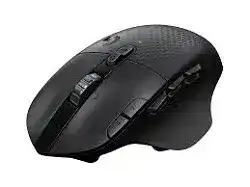
A flashing connection light, missing thumb commands, or a device that appears only in Bluetooth mode can make the Logitech G604 LIGHTSPEED Wireless Gaming Mouse Driver seem broken. The G604 has two separate wireless paths: its LIGHTSPEED USB receiver and Bluetooth. It also uses G HUB for programmable controls, DPI stages, profiles, report rate, and onboard memory.
The connection button beneath the wheel changes between LIGHTSPEED and Bluetooth. A brief press switches modes, while holding it prepares Bluetooth pairing. Watch the indicator before changing software. A blue light relates to Bluetooth, while a cyan light identifies LIGHTSPEED. Choosing the unintended mode often explains why the receiver or computer appears unable to find the mouse.
Logitech G604 LIGHTSPEED Wireless Gaming Mouse Windows Driver Download
| Driver Name | Description | Supported OS | File Size | Download |
|---|---|---|---|---|
| Logitech G HUB | Customizes mouse buttons, pointer behavior, scrolling, shortcuts, profiles, and device settings for the Logitech G604. | Windows 11, Windows 10 32-bit/64-bit | 67.08 MB | |
| Onboard Memory Manager | Manages profiles and button assignments stored directly in the mouse onboard memory without running G HUB. | Windows 11, Windows 10 32-bit/64-bit | 12.45 MB |
Logitech G604 LIGHTSPEED Wireless Gaming Mouse Mac OS Driver Download
| Driver Name | Description | Supported OS | File Size | Download |
|---|---|---|---|---|
| Logitech G HUB | Adjusts programmable buttons, pointer response, scrolling behavior, shortcuts, and gaming profiles on newer Mac systems. | macOS 26, macOS 15, macOS 14 | 11.36 MB | |
| Logitech G HUB | Provides button remapping, sensitivity controls, application profiles, and other mouse configuration options for macOS 13. | macOS 13 | 10.43 MB | |
| Logitech G HUB | Controls mouse assignments, pointer settings, scrolling preferences, shortcuts, and saved profiles on macOS 11. | macOS 11 | 5.02 MB | |
| Logitech G HUB | Configures programmable controls, tracking preferences, profile switching, and device-specific settings on macOS 10.15. | macOS 10.15 | 5.04 MB |
LIGHTSPEED works, but Bluetooth does not appear
Switch to Bluetooth, then hold the connection button for about five seconds until the indicator flashes blue quickly. Remove any old G604 entry from the computer’s Bluetooth list before adding it again. Select the G604 when it appears and allow the operating system to finish creating its input devices before opening G HUB.
A short press will not begin a new Bluetooth pairing session. It only changes the active connection. When the indicator flashes slowly or immediately returns to another color, hold the button again and keep the mouse close to the computer during discovery.
Bluetooth reconnects after restart but G HUB calls the mouse inactive
Basic Bluetooth movement can return before G HUB refreshes its device page. Fully exit G HUB, including its background icon, and launch it again after the pointer starts moving. If the status fails after every sleep cycle, remove the Bluetooth pairing, restart the computer, and create a new pairing rather than repeatedly resetting the application database.
Bluetooth provides a lower report rate than LIGHTSPEED. Use it for ordinary desktop control or longer battery operation. Switch to the USB receiver when a game needs the faster wireless response and the full gaming configuration available through G HUB.
The USB receiver no longer controls the mouse
Press the connection button briefly and confirm the cyan LIGHTSPEED indication. Attach the receiver directly to another USB port and wait for Windows to identify it. Do not try Unifying Software or the Logi Bolt app; the G604 receiver belongs to the LIGHTSPEED gaming system.
When the receiver appears but the pointer remains still, open the Device Pairing Tool from G HUB settings. Select the detected LIGHTSPEED receiver and follow the power-cycle instructions. Use the receiver made for a compatible Logitech gaming mouse rather than assuming that any small Logitech dongle can pair with the G604.
Six Thumb Buttons That Lose Their Game Commands
The G604 provides six thumb buttons, two extra controls beside the left button, a wheel click, wheel tilt commands, and programmable primary controls. That large command set depends heavily on the active G HUB profile. A profile-switching fault can leave normal movement untouched while several gaming actions disappear together.
Side assignments work on the desktop but not inside a game
Open G HUB while the game is running and check which profile has become active. The software may remain on the desktop profile, select a different executable, or switch to a game profile with empty assignments. Choose the intended profile manually first. If the buttons return, repair the application path or enable a persistent profile for that title.
Some games do not accept generic mouse-button numbers beyond the usual back and forward inputs. Assign a keyboard key to the required thumb control, then test that key in a text field before opening the game. When the character appears outside the game but not inside it, review the game’s bindings and permission level instead of reinstalling the mouse package.
Only the default forward and back actions respond
This symptom often points to a damaged G HUB configuration rather than six failed switches. Reset one affected button to its default action, save it, and then assign a simple letter or number. If custom commands still fail, restart G HUB and create a new profile instead of editing the troublesome one further.
A complete reinstall may be necessary when no custom assignment works in any profile. Remove G HUB, restart Windows, and install a current copy. Rebuild one test profile before importing saved settings. Restoring the same damaged configuration immediately can bring back the fault.
Commands vanish when G HUB closes
Software-managed profiles need G HUB running. Onboard memory stores a smaller hardware profile inside the mouse for use without the full application. Enable onboard mode, choose a memory slot, and write the required DPI and straightforward button commands to it. Close G HUB afterward and test every stored control.
The Logitech G604 LIGHTSPEED Wireless Gaming Mouse Driver can manage both application profiles and onboard slots, but they do not operate in the same way. Complex macros, automatic game detection, and some software actions may require G HUB. Use onboard mode for portable, predictable commands rather than expecting every software feature to transfer.
One thumb button enters the wrong number
Inspect the assignment itself before blaming the switch. A macro may contain both key-down and repeated-key actions, or the wrong profile may assign a neighboring number. Replace the macro with a direct keystroke and test it outside the game. Then check whether the game reserves that key for another command.
Wheel Movement, Tilt Inputs, and Accidental Middle Clicks
The metal wheel has ratcheted and free-spinning modes. The mechanical wheel-mode button changes between them; G HUB does not adjust the amount of resistance in free-spin mode. The wheel can also tilt left and right, so a sideways movement may trigger an assigned command even when the user intended only to scroll.
Pages continue moving after the finger leaves the wheel
Press the wheel-mode button and use the ratcheted position for controlled browsing. Free-spin mode carries momentum and may continue turning after a quick flick. This is expected mechanical behavior, not a pointer setting. Choose ratcheted mode for menus, weapon lists, and documents where each notch matters.
If a stationary wheel sends alternating up and down steps, test it in both modes and on another computer. Blow loose dust away with compressed air while rotating the wheel gently. Continued reverse movement under default software indicates a wheel encoder problem that G HUB cannot calibrate.
Scrolling presses the middle button
Clear the middle-click assignment temporarily and test ordinary vertical movement. If unwanted presses continue, remove dirt around the wheel and avoid pushing downward while scrolling. The G604 wheel also has left and right tilt movement, so keep the finger centered when checking whether the fault comes from the middle switch or a tilt command.
A wheel that clicks with extremely light contact under a default profile may have a mechanical problem. Test the mouse on a second computer before seeking service. Software cannot change the physical force required to press the wheel.
Wheel tilt moves only one step
Horizontal tilt usually sends a repeated or assigned action according to the active profile and application. Confirm that left and right tilt have the intended commands in G HUB. Some programs respond to one horizontal-scroll event at a time, while others repeat it when the wheel remains tilted.
Assign a simple left-arrow or right-arrow key briefly. If the key repeats but horizontal scrolling does not, the original program is handling the wheel event differently. Restore the preferred assignment or use keyboard commands that the application accepts consistently.
G HUB Detection, Battery Warnings, and Pointer Pauses
The G604 runs from one removable AA battery. It can deliver much longer operation in Bluetooth mode than through LIGHTSPEED, while gaming response is lower over Bluetooth. Battery condition, contact pressure, receiver position, and connection mode can therefore produce similar symptoms even though their fixes differ.
The device appears as a keyboard in Windows
Several Windows HID entries can belong to one gaming mouse because programmable controls may present keyboard-style commands. Do not remove entries merely because one says keyboard. Confirm that pointer movement, G HUB detection, and thumb assignments work first. Delete only inactive or warning-marked entries after disconnecting unrelated input devices.
When G HUB cannot identify the mouse, connect the LIGHTSPEED receiver directly, restart Windows, and let the HID records rebuild. Reconnect through Bluetooth separately if required. Mixing both diagnosis paths at once makes it difficult to tell which entry belongs to the active connection.
G HUB remains on its logo or never loads the device page
Close every G HUB component through Task Manager, then start the application again. If it still stalls, restart the computer before reinstalling. A fresh installation should come after a restart so locked services and update files do not survive the removal.
Install only G HUB for full G604 configuration. Older Logitech Gaming Software does not provide normal support for this model. Onboard Memory Manager may handle stored hardware profiles, but it does not replace G HUB for automatic application profiles and broader command editing.
The pointer pauses in LIGHTSPEED mode
Use the supplied receiver extension arrangement to place the receiver on the desk near the mouse. Metal cases, docking stations, USB hubs, wireless headsets, and crowded high-speed USB equipment can disturb the radio path. Test a direct port with other nearby wireless devices temporarily turned off.
Lower the report rate in G HUB for a short comparison. If pauses disappear, test another USB controller or reduce background load before deciding on a permanent value. When Bluetooth stays stable but LIGHTSPEED stutters, concentrate on the receiver and USB environment rather than the HERO sensor or desk surface.
A new AA battery shows low power
Remove the battery and inspect both contacts for dirt or poor contact. Insert it according to the markings inside the compartment and close the cover fully. Test another known-good AA cell before trusting a warning from G HUB. Rechargeable AA batteries may begin at a lower voltage than fresh alkaline or lithium cells, which can affect the displayed estimate.
The indicator flashes red when the battery becomes low. If the mouse powers off during movement, switch modes and watch whether the failure follows both Bluetooth and LIGHTSPEED. A shutdown in both modes suggests battery or contact trouble. A failure limited to LIGHTSPEED points back to the receiver path.
DPI changes without pressing the intended control
The two buttons beside the left mouse button can change DPI when their default assignments remain active. Check the indicator color after an unexpected speed change, then review every configured DPI stage. Remove values you never use or reassign one control so accidental presses cannot move through a wide sensitivity range.
Game profiles may also load another DPI value automatically. Select a persistent profile temporarily and retest. When the speed remains constant, inspect the game profile rather than changing Windows pointer acceleration or sensor-related options.
Use Each Wireless Mode for the Job It Handles Best
Finish the Logitech G604 LIGHTSPEED Wireless Gaming Mouse Driver setup with two separate tests. Verify Bluetooth pairing and wake behavior first, then switch to LIGHTSPEED and check receiver response, G HUB detection, report rate, and game profiles. Keeping the tests separate exposes whether a failure belongs to Windows Bluetooth, the USB receiver, or the profile system.
Store a modest onboard profile with dependable DPI and button commands before building elaborate game macros. Keep ratcheted wheel mode for controlled scrolling and reserve free-spin for long pages. When clicks, tilt movement, or wheel steps fail across both wireless modes and another computer, further software changes are unlikely to repair the mechanical input.