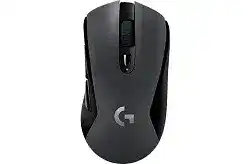
Bluetooth can move the pointer while hiding the gaming controls that many owners expect to see. The Logitech G603 LIGHTSPEED Wireless Gaming Mouse Driver reaches the full device only through its LIGHTSPEED USB connection. This distinction matters when software cannot display the mouse, DPI changes do not save, or the side buttons keep their default actions.
The G603 has two separate wireless paths. LIGHTSPEED uses the supplied USB receiver and provides the performance features needed by Logitech gaming software. Bluetooth offers a convenient connection for another computer, tablet, or phone, but the control software does not detect the mouse in that mode. Reinstalling the application will not change this limitation.
Logitech G603 LIGHTSPEED Wireless Gaming Mouse Windows Driver Download
| Driver Name | Description | Supported OS | File Size | Download |
|---|---|---|---|---|
| Logitech G HUB | Configures button assignments, sensitivity levels, lighting profiles, macros, and other supported gaming mouse settings. | Windows 11, Windows 10 32-bit/64-bit | 67.08 MB | |
| Logitech Gaming Software 64-bit | Provides a full 64-bit package for offline setup of profiles, programmable controls, DPI levels, and gaming commands. | Windows 11, Windows 10 64-bit | 119.96 MB | |
| Onboard Memory Manager | Edits profiles stored in the mouse memory without requiring the complete Logitech G HUB installation. | Windows 11, Windows 10 32-bit/64-bit | 12.45 MB |
Logitech G603 LIGHTSPEED Wireless Gaming Mouse Mac OS Driver Download
| Driver Name | Description | Supported OS | File Size | Download |
|---|---|---|---|---|
| Logitech G HUB | Manages mouse profiles, programmable buttons, sensitivity settings, macros, and supported game-specific configurations. | macOS 26, macOS 15, macOS 14 | 11.36 MB | |
| Logitech G HUB | Adjusts pointer performance, button functions, application profiles, and other compatible gaming mouse preferences. | macOS 13 | 10.43 MB | |
| Logitech G HUB | Supports profile creation, DPI configuration, command assignments, and device-specific settings on compatible Mac systems. | macOS 11 | 5.02 MB | |
| Logitech G HUB | Enables customization of sensitivity stages, mouse controls, macros, and saved gaming profiles. | macOS 10.15 | 5.04 MB | |
| Logitech Gaming Software | Offers legacy configuration tools for programmable controls, tracking sensitivity, profiles, and gaming commands. | macOS 10.15, macOS 10.14, macOS 10.13, macOS 10.12 | 204.99 MB |
Software opens without showing the G603
Look at the LED color and press the Easy-Switch button underneath the mouse. A blue indication points to Bluetooth, while a white indication belongs to the LIGHTSPEED link. Insert the original receiver, switch back to that connection, and restart the Logitech application. The device should then appear with its DPI, report-rate, assignment, and onboard-memory options.
If the mouse already uses LIGHTSPEED, connect the receiver directly to a USB port during diagnosis. Close every Logitech background process before reopening G HUB. Windows may still move the pointer through standard HID support even when a damaged application service cannot identify the model. A computer restart often restores that service after an incomplete update.
G HUB and Logitech Gaming Software conflict
The G603 originally supported Logitech Gaming Software and later gained support through G HUB. Running both control packages can create competing profiles, duplicate virtual input entries, or inconsistent detection. Choose one application for configuration. Remove the other, restart Windows, and confirm that the remaining program recognizes the receiver before importing any saved profile.
Use G HUB on a current system unless an older operating environment specifically depends on Logitech Gaming Software. Do not copy a profile made for another gaming mouse. Begin with the default G603 configuration, change one control, and verify it. This small test shows whether the application can write settings before a complicated game profile hides the underlying problem.
Two Wireless Modes That Behave Differently
Bluetooth pairing appears, then fails
Move the bottom switch to LO before starting Bluetooth pairing. Hold the Easy-Switch button for about three seconds until the blue light begins flashing. Remove any old G603 record from the computer’s Bluetooth list, turn Bluetooth off and back on, and add the mouse again. An old pairing key can leave the name visible while every new connection attempt fails.
When the device does not appear at all, place it close to the computer and temporarily disconnect other Bluetooth accessories. Confirm that at least one AA cell has firm contact. Pair it with another compatible device to separate a mouse problem from a computer radio problem. The Logitech G603 LIGHTSPEED Wireless Gaming Mouse Driver is not required for ordinary Bluetooth movement.
Easy-Switch changes modes but the pointer remains still
Each wireless mode keeps its own connection. Pressing Easy-Switch does not pair a new receiver or create a new Bluetooth record automatically. In LIGHTSPEED mode, the original receiver must be present and paired. In Bluetooth mode, the selected computer must already contain a valid G603 pairing. Return to the working mode before repairing the failed side.
The LIGHTSPEED receiver has no external connect button. When it loses its pairing, use the device-pairing function offered by compatible Logitech gaming software. Disconnect other Logitech gaming receivers during this process so the utility does not target the wrong unit. Turn the mouse off and on only when the pairing screen requests it.
Movement pauses after switching back from Bluetooth
Wait a moment after changing modes because the mouse must leave one radio link and establish the other. If LIGHTSPEED does not recover, remove and reconnect its receiver, then press Easy-Switch twice to cycle away and return. Restarting the mouse through the bottom power switch can also clear a radio state that remained stuck after sleep.
Bluetooth runs at a fixed 125 Hz report rate and works only in LO mode. LIGHTSPEED can use HI performance mode at up to 1000 Hz. The difference can make Bluetooth feel slower even when nothing is broken. Use LIGHTSPEED for fast games and reserve Bluetooth for ordinary navigation or a secondary device.
HI, LO, Batteries, and Unexpected Performance Changes
The pointer suddenly feels heavy or delayed
Check the three-position switch beneath the shell before changing sensitivity. HI activates performance mode, while LO favors endurance and uses a fixed 125 Hz rate. A mouse left in LO can feel less immediate during quick movement. Slide it to HI for LIGHTSPEED gaming, then confirm the active report rate inside the Logitech software.
DPI and report rate affect different parts of movement. DPI changes cursor distance, while report rate changes how often the mouse communicates with the computer. Raising DPI cannot repair a low polling setting. Start with a familiar DPI value, select the intended rate, and test without Windows pointer acceleration before adjusting a game’s sensitivity.
One battery works, but two create strange power behavior
The G603 can run with one or two AA batteries, and a single cell may sit in either slot. Both installed cells must face the marked direction and make firm contact. Remove mixed brands, different charge levels, or a combination of alkaline and lithium cells. Uneven batteries can produce misleading remaining-power estimates or cause shutdowns under heavier demand.
Inspect the terminals for dirt or a flattened contact. Wipe dry residue with a clean cloth and reseat the cell. Do not scrape the terminal with a metal object. Replace both batteries together when using two. The magnetic top cover should settle flat because pressure from a poorly seated cover can shift a loose battery during rapid movement.
Battery life drops far sooner than expected
HI performance mode consumes more power than LO endurance mode. The advertised long endurance period assumes lower-power use rather than continuous 1000 Hz gaming. Switch to LO when response speed does not matter and turn the device off during long storage. Also check whether the mouse repeatedly wakes inside a bag because movement can prevent normal idle behavior.
The Logitech G603 LIGHTSPEED Wireless Gaming Mouse Driver can display battery status while the mouse uses its USB receiver, but the percentage remains an estimate. Replace batteries when movement, wake behavior, or connection stability changes even if the displayed value looks adequate. Testing one known-good AA cell is often clearer than comparing two partly discharged cells.
Profiles, Receiver Position, and Physical Control Faults
Saved DPI returns to another value after restart
The G603 contains one onboard hardware profile. A software-managed game profile may override it whenever G HUB starts or an application gains focus. Decide which behavior you need. Write a simple configuration to onboard memory for use without background software, or leave software mode active when each game needs separate assignments.
Remove unwanted DPI stages so the cycling button cannot land on an unfamiliar value. Then save the intended stage to the active profile. Close the application and test again. If the value changes only after launching a game, inspect that game’s profile rather than repeatedly rewriting the desktop configuration.
Forward and back buttons stop working in one program
The G603 has seven controls, including forward, back, and DPI cycling. Assign the affected side control to a plain keyboard key for a quick comparison. When that key works, the physical switch is responding and the original command is being ignored by the program. Edit the application profile or its own shortcut bindings instead of replacing the software package.
Programs running with administrator rights may reject commands from a control application running at normal permission. Open both at the same permission level during testing. Also disable duplicate assignments inside the game. One press routed through both G HUB and the game can trigger twice or cancel an action that expects a single input.
LIGHTSPEED stutters near the computer
Use the receiver extension cable and position the receiver within roughly 20 centimetres of the mouse. Keep the receiver and mouse more than two metres from a wireless router or another strong 2.4 GHz transmitter where possible. This arrangement follows the intended high-performance layout and avoids the crowded radio environment found behind many desktop towers.
External drives, USB 3 hubs, wireless headsets, and metal furniture can disturb the path even when the receiver looks close. Test another USB port and disconnect nearby accessories briefly. Do not alter DPI while diagnosing a radio interruption. If the pointer becomes steady after moving the receiver, preserve that placement and reconnect accessories one at a time.
Scrolling reverses or skips lines
Check the wheel in several programs before changing its assignment. Reverse movement in only one application usually comes from that application’s scroll preference. Skipping in every program may come from debris around the encoder. Switch the mouse off and clear the wheel gap with short bursts of compressed air while rotating the wheel gently.
Remove custom wheel commands and test the default profile. If scrolling fails only through LIGHTSPEED, compare Bluetooth mode to determine whether the fault follows the wireless connection. Identical skipping in both modes and on another computer points more strongly toward the wheel mechanism than the Logitech software.
A single press produces a double-click
Return the primary buttons to their default assignments and test outside games. Adjust the operating system’s double-click speed only when two deliberate clicks are not being recognized correctly. It cannot repair a switch that produces two electrical presses from one physical action. Compare both wireless modes and another computer before judging the result.
Clear dust around the affected button with compressed air while the mouse is off. Avoid moisture, lubricant, forceful clicking, or opening the shell during warranty coverage. Persistent duplicate clicks, broken drag selection, or releases while holding a button usually indicate switch wear and call for warranty service or qualified repair.
Match the Connection to the Workload
Use LIGHTSPEED in HI mode when low-latency response, adjustable report rate, profile editing, and onboard-memory access matter. Choose LO when extending battery runtime takes priority. Bluetooth is useful for a second device or ordinary pointer control, but it will not expose the G603 to the gaming control application.
Before replacing hardware, test the original receiver near the mouse, one known-good AA battery, the default onboard profile, and a second computer. The Logitech G603 LIGHTSPEED Wireless Gaming Mouse Driver should then be checked through LIGHTSPEED rather than Bluetooth. These comparisons reveal whether the failure belongs to software, radio pairing, power, or a physical control.