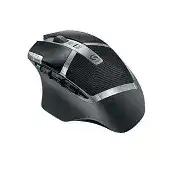
Six thumb controls that suddenly return to their default actions usually point to a profile or software problem rather than a failed wireless link. The Logitech G602 Wireless Gaming Mouse Driver provides access to button assignments, sensitivity levels, report behaviour, and the single hardware memory profile. Without the matching gaming utility, Windows may recognise the device while leaving most programmable functions unavailable.
The G602 communicates through its dedicated 2.4 GHz gaming receiver. It does not use Bluetooth, a Unifying receiver, or a Bolt receiver. The mouse also has eleven programmable controls, adjustable sensitivity from 250 to 2500 DPI, two operating modes, and space for two AA batteries. Those details matter because advice written for newer Logitech gaming models often sends owners toward incompatible pairing tools or software.
Logitech G602 Wireless Gaming Mouse Windows Driver Download
| Driver Name | Description | Supported OS | File Size | Download |
|---|---|---|---|---|
| Logitech Gaming Software 64-bit | Full 64-bit package for configuring mouse buttons, sensitivity levels, profiles, macros, and device-specific gaming settings offline. | Windows 11, Windows 10 64-bit | 119.96 MB | |
| Logitech Gaming Software 64-bit | Complete 64-bit offline installer for managing programmable controls, tracking sensitivity, game profiles, and battery information. | Windows 10 64-bit, Windows 8 64-bit, Windows 7 64-bit | 120.04 MB | |
| Logitech Gaming Software 32-bit | Full 32-bit offline setup for assigning mouse commands, adjusting pointer response, creating profiles, and checking device status. | Windows 10 32-bit, Windows 8 32-bit, Windows 7 32-bit | 109.04 MB | |
| Logitech Connection Utility | Repairs the wireless connection by pairing the mouse again with its compatible Logitech USB receiver. | Windows 10 32-bit/64-bit, Windows 8 32-bit/64-bit, Windows 7 32-bit/64-bit, Windows Vista | 2.08 MB |
Logitech G602 Wireless Gaming Mouse Mac OS Driver Download
| Driver Name | Description | Supported OS | File Size | Download |
|---|---|---|---|---|
| Logitech Gaming Software | Customizes programmable mouse controls, tracking sensitivity, gaming profiles, macros, and other device settings on compatible Mac systems. | macOS 10.15, macOS 10.14, macOS 10.13, macOS 10.12 | 204.99 MB | |
| Logitech Gaming Software | Provides button assignments, pointer adjustments, profile management, and configurable commands for the G602 on older Mac OS X releases. | Mac OS X 10.11, Mac OS X 10.10, Mac OS X 10.9, Mac OS X 10.8 | 201.98 MB |
Only the primary buttons work after a Windows change
Windows can load ordinary pointer support before Logitech Gaming Software finishes identifying the receiver. In that state, left-click, right-click, and scrolling may work while the six side controls remain inactive. Disconnect the receiver, restart Windows, plug the receiver into a direct USB port, and open Logitech Gaming Software after device detection completes.
Check whether the program displays the actual G602 rather than a blank device area. When it still says no gaming device is connected, close every Logitech background process and reopen the software with the receiver attached. A full reinstall makes sense only after a port change and restart fail, since repeating the installer does not repair a poor receiver connection.
Commands change when a game opens
Automatic profile switching can replace the desktop assignments as soon as Logitech Gaming Software recognises a game executable. Open the profile associated with that game and inspect each thumb control. The unexpected command may belong to the application profile rather than the default configuration.
Use one persistent profile when you want identical controls in every program. This prevents automatic detection from loading another button layout during play. For game-specific commands, keep profile switching enabled but make sure the selected executable matches the current game launcher and not an outdated path left by an earlier installation.
Onboard commands disappear on another computer
The G602 stores one hardware profile, but software-controlled profiles remain on the original computer. Switch Logitech Gaming Software to onboard memory mode, choose the required DPI stages and button actions, then write that arrangement to the mouse. Test it with the gaming program closed before moving the receiver to another machine.
Not every complex command transfers neatly into hardware memory. Long macros and application-aware actions may require software mode. When a control works while Logitech Gaming Software runs but fails after it closes, replace the command with a simpler keystroke or keep the computer-based profile active.
Restore the Receiver Link Before Changing Sensitivity
A frozen cursor can tempt owners to reset every DPI value, although the wireless path often deserves attention first. The Logitech G602 Wireless Gaming Mouse Driver cannot communicate with the device when the dedicated receiver loses pairing or Windows repeatedly suspends its USB port. Establish reliable detection before editing profiles.
The utility asks you to wake or switch on the mouse
Move the power switch off, wait several seconds, and switch it on again with the receiver already connected. Confirm that at least one AA battery has a firm contact. The G602 can operate from one battery, so testing each battery position separately can reveal a weak cell or poor contact without introducing another variable.
If the warning remains, place the receiver in a different USB port and keep it away from a docking station, monitor hub, or KVM switch. Test a direct USB 2.0 connection when one is available. Some USB 3.x equipment produces radio noise near 2.4 GHz receivers, particularly when the dongle sits beside another active device.
A replacement receiver does not connect automatically
The similar appearance of Logitech receivers does not make them interchangeable. The G602 requires a compatible gaming receiver, and Unifying or Bolt pairing programs cannot create the link. Use the Logitech Connection Utility associated with this generation when a suitable replacement receiver needs pairing.
Run the utility with only the intended receiver attached. Follow its request to power-cycle the mouse, then wait for movement before closing the program. Pairing may fail when another Logitech receiver remains connected because the utility can select the wrong USB device.
The pointer pauses after several minutes of inactivity
Start by waking the mouse with movement rather than repeatedly pressing a side control. When the pause continues after wake-up, open Windows power management for USB hubs and test with selective suspension disabled. A port that enters a low-power state can temporarily lose communication with the receiver.
Changing the receiver to another port often provides a quicker diagnosis. When the delay vanishes there but later returns, inspect the computer’s USB power plan and chipset drivers. When the same pause occurs on a second computer, focus instead on battery contact, receiver placement, or the mouse hardware.
Use Performance and Endurance Modes for Different Workloads
The switch on top of the G602 changes between Performance mode and Endurance mode. Performance mode prioritises faster response for games, while Endurance mode reduces power use for longer battery operation. Treat this physical mode control separately from DPI. A sensitivity change does not switch the wireless operating mode.
The mouse feels less responsive even at the usual DPI
Check the blue or green mode indicator before altering the sensitivity stages. The mouse may have moved into Endurance mode while keeping the same cursor speed. Return it to Performance mode for fast-paced play, then test movement again with the original DPI value.
Also inspect the report setting in Logitech Gaming Software. Raising sensitivity cannot compensate for an unsuitable response configuration, and it may make aiming feel erratic. Change one value at a time, play briefly, and retain the last usable setting rather than rewriting every stored level together.
Battery life falls much sooner than expected
Two cells add operating time, but the mouse can run from one AA battery when lower weight matters. Poor results may come from mixed battery ages, weak rechargeable cells, dirty terminals, or leaving Performance mode active for ordinary desktop work. Install matching batteries with similar charge levels and wipe dry residue from accessible contacts.
Switch to Endurance mode outside gaming sessions. Turn the mouse off during long storage periods, especially when the receiver remains attached to a powered computer. If one battery drains much faster than the other, test each slot independently to distinguish a weak cell from inconsistent contact pressure.
The battery indicator changes after reinstalling software
Software estimates can take time to settle after batteries are replaced or the receiver reconnects. Power-cycle the mouse, reopen Logitech Gaming Software, and use it normally before judging the reading. Removing and reinserting batteries repeatedly may reset the estimate without addressing the actual runtime.
Use operating time as the stronger test. When the device runs normally for many sessions despite an unusual indicator, the estimate may be delayed. Rapid shutdowns with newly tested batteries point toward contacts, battery quality, or internal power trouble rather than a profile file.
Separate Tracking Faults from DPI and Wireless Interruptions
The G602 uses an adjustable gaming sensor, but surface condition still affects movement. Before replacing software, clean loose dust from the sensor opening and test on an ordinary opaque mouse pad. Glass, glossy material, strong patterns, and reflective desks can produce uneven tracking that resembles receiver lag.
The cursor moves slowly at the highest physical movement speed
Open the active profile and confirm which DPI stage the mouse selected. A thumb or top button may have shifted to a lower stage during play. Remove unused stages or assign DPI cycling to a control that is harder to press accidentally.
Windows pointer speed and acceleration can further change the feel. Return the operating-system slider to a known position, test the game with acceleration disabled where appropriate, and then adjust DPI inside Logitech Gaming Software. Altering both layers at once makes it difficult to identify the setting responsible.
Fast swipes produce gaps or sudden jumps
Bring the receiver closer through a short extension cable when possible. Keep it in clear view of the mouse rather than behind a metal tower. Then test the same swipe on a plain mouse pad with nearby wireless dongles temporarily removed.
Lower the reporting demand briefly and close overlays or monitoring tools that may be stalling input. If movement breaks at the same physical point on several computers and surfaces, the sensor or internal connection may need service. A driver reinstall will not repair repeatable hardware loss.
Movement becomes uneven only when Logitech software runs
A damaged profile or background process can interfere with input even though the receiver remains connected. Create a new profile with default assignments and moderate DPI, then test without importing older macros. Close duplicate Logitech utilities so that two programs do not attempt to manage the same receiver.
The G602 belongs to the Logitech Gaming Software generation. Installing Options+, SetPoint, or a newer utility does not add functions that its original control package lacks. Remove unrelated mouse-management programs only when they actively conflict; other Logitech software may still be necessary for separate devices.
Clicks and Wheel Input That Software Cannot Correct
Button chatter, a dead middle click, and irregular wheel movement appear frequently after long use. Software checks can rule out assignments and connection faults, but they cannot restore a worn mechanical switch. The Logitech G602 Wireless Gaming Mouse Driver should therefore be tested with default controls before deciding whether the fault belongs to the hardware.
One left press opens an item twice
Return the primary button to a standard click assignment and remove any rapid-click macro. Adjust the Windows double-click speed to a middle value, then test the mouse on another computer without Logitech Gaming Software. Repeated double activation across both systems usually indicates switch chatter rather than an operating-system preference.
Try another direct USB port because an unstable link can create confusing input symptoms. When only the left button misbehaves while pointer movement and every other control remain steady, connection trouble becomes less likely. Avoid unofficial scripts that suppress fast clicks, since they can delay legitimate game input.
The middle button clicks but no action occurs
Inspect the wheel-button assignment in the active profile first. Assign a basic middle click and test it in more than one program, because applications may reserve or ignore that input. A command that fails only in one program belongs to that application’s control scheme.
When the physical press feels inconsistent, clear loose debris around the wheel with gentle air while the mouse is switched off. Do not pour cleaner through the opening. A middle switch that remains unresponsive on another computer may require professional replacement or retirement of the device.
Scrolling reverses direction or misses steps
Test several documents before changing software. Irregular movement everywhere can come from debris around the wheel encoder or worn internal parts. Short bursts of gentle air may clear loose dust, but opening the housing risks damaging clips, feet, and internal wiring.
If scrolling works in desktop applications but fails inside one game, review that game’s wheel bindings and the active Logitech profile. Restore the wheel to its standard scroll command before assigning another action. This distinguishes application configuration from a failing encoder.
Keep a Recovery Profile for an Older Gaming Mouse
Save the final thumb-button layout, DPI stages, and operating choices before replacing or upgrading Logitech Gaming Software. Write the essential controls into the single onboard profile and keep a separate record of game-specific macros. That record makes the Logitech G602 Wireless Gaming Mouse Driver easier to restore after a Windows reinstall or profile corruption.
Finish by testing the exact conditions that previously failed: wake the mouse after inactivity, launch a game that changes profiles, press every side control, switch between Performance and Endurance modes, and scroll through a long page. These checks preserve the G602’s useful programmable layout without hiding a weak receiver, worn switch, or unstable battery contact behind repeated software changes.