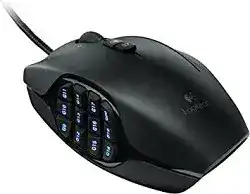
When the thumb panel enters numbers, repeats commands, or does nothing inside a game, the Logitech G600 MMO Gaming mouse Driver restores access to its twelve side keys, G-Shift layer, profiles, and onboard memory. Windows can move the pointer through its standard USB input service, yet the MMO controls still need Logitech gaming software and a profile that matches the active application.
Logitech G600 MMO Gaming Mouse Windows Driver Download
| Driver Name | Description | Supported OS | File Size | Download |
|---|---|---|---|---|
| Logitech Gaming Software 64-bit | Full 64-bit package for configuring G600 buttons, pointer behavior, profiles, macros, lighting, and game-specific commands offline. | Windows 11, Windows 10 64-bit | 119.96 MB | |
| Logitech G HUB | Customizes mouse buttons, DPI levels, scrolling behavior, lighting effects, macros, and application profiles for the G600. | Windows 11, Windows 10 32-bit/64-bit | 67.08 MB |
Logitech G600 MMO Gaming Mouse Mac OS Driver Download
| Driver Name | Description | Supported OS | File Size | Download |
|---|---|---|---|---|
| Logitech G HUB | Provides button assignments, pointer adjustments, scrolling controls, shortcuts, macros, lighting settings, and device profiles on current macOS releases. | macOS 26, macOS 15, macOS 14 | 11.36 MB | |
| Logitech G HUB | Manages programmable controls, sensitivity levels, application shortcuts, lighting effects, and saved G600 configurations on macOS 13. | macOS 13 | 10.43 MB | |
| Logitech G HUB | Adjusts mouse button functions, pointer response, scrolling preferences, gestures, macros, and game profiles for systems running macOS 11. | macOS 11 | 5.02 MB | |
| Logitech G HUB | Supports G600 button remapping, DPI control, scrolling adjustments, shortcuts, lighting customization, and profile management on macOS 10.15. | macOS 10.15 | 5.04 MB | |
| Logitech Gaming Software | Configures programmable thumb buttons, sensitivity stages, macros, lighting, onboard profiles, and game commands on supported Mac systems. | macOS 10.15, macOS 10.14, macOS 10.13, macOS 10.12 | 204.99 MB |
Thumb buttons type numbers instead of game commands
The G600 ships with default assignments that may send number-row or numeric-keypad input. A game can interpret those commands differently from a browser or desktop program. Open G HUB, select the active profile, and assign the required keyboard keys to G9 through G20. Save the changes before returning to the game.
Check the game’s own key bindings as well. A side key assigned to “1” in G HUB cannot trigger an ability bound only to another command. Test several buttons in a text field to see what each one sends. This quickly separates a profile mistake from a thumb switch that produces no input at all.
The entire G9 to G20 panel becomes inactive
Connect the G600 directly to another USB port and wait for Windows to load it again. Bypass a keyboard pass-through port, monitor hub, docking station, or unpowered adapter during this test. The pointer may continue working through a weak or unstable connection even while rapid side-button commands fail.
If every thumb key works on another computer, repair the local software rather than changing all twelve assignments. Close G HUB fully, restart Windows, and reopen the application after reconnecting the mouse. When detection still fails, reinstall G HUB and create one temporary profile with simple single-key commands before restoring complex macros.
One side key works only when pressed hard
Move the same command to a nearby thumb button. When the replacement works every time, the profile and game binding are functioning. Switch off the computer, unplug the mouse, and clear loose debris around the affected key with clean compressed air. Avoid liquids because the close button grid gives moisture an easy route into the shell.
A key that misses presses on several computers usually has a physical switch problem. Software cannot correct inconsistent electrical contact. Keep the test assignment simple and remove repeating macros before seeking warranty support or qualified repair, since a complicated command can make a working switch appear unreliable.
Separate G-Shift Problems from Profile Switching
The ring-finger button is not another normal right-click control by default. It activates G-Shift, which can give the other programmable buttons a second set of assignments while held. Many confusing command changes come from editing the normal layer while the game is actually receiving the G-Shift layer, or from replacing G-Shift with another function accidentally.
Commands change while the third top button is held
Open the assignments screen and inspect both the standard view and the G-Shift view. Set a clearly different test command on one thumb key in each layer. Press the key normally, then hold the ring-finger control and press it again. Two different results confirm that G-Shift is operating as intended.
When you do not need a second command layer, replace the G-Shift assignment with another permitted action. Do this deliberately rather than clearing random thumb bindings. The Logitech G600 MMO Gaming mouse Driver software can expose many commands at once, so editing the wrong layer may leave the original assignment untouched and create the impression that changes are not saving.
G-Shift stays active after releasing the button
First remove any toggle-style macro or repeated command assigned to the ring-finger control. Restore that button to its default G-Shift function and test it in a newly created profile. A damaged imported profile can retain an unexpected command sequence even when the visible assignment looks ordinary.
If the shifted layer remains active, close G HUB and test an onboard profile. Then reverse the test by disabling onboard memory and using software mode. This comparison reveals which profile source is holding the altered layer. Reset only the affected profile before considering a full software reinstall.
The mouse changes layout when a game opens
G HUB can activate profiles according to the foreground application. Confirm that the game executable is attached to the intended profile, especially when a launcher starts one file and the actual game runs from another. Lock a profile temporarily to check whether automatic switching causes the unexpected layout.
Some games update through a launcher and move or rename their executable. G HUB may then remain on the desktop profile. Add the current executable again and test the profile indicator before rebuilding every assignment. Run the game and G HUB at comparable permission levels when commands work on the desktop but not inside the game.
Logitech G600 MMO Gaming mouse Software and Onboard Memory Conflicts
Saved commands vanish after G HUB closes
Software profiles depend on G HUB running in the background. Onboard profiles reside in the mouse and continue working on another computer, but they do not support every advanced software macro. Decide which mode you need before editing. A command built in software mode does not automatically become part of an onboard slot.
Enable onboard memory from the device settings, choose the intended slot, and copy a compatible profile into it. Close G HUB and test the buttons again. When a macro disappears but ordinary keystrokes remain, the macro likely requires software mode rather than indicating a failed memory chip.
Onboard settings remain active after memory mode is disabled
Older G HUB versions have produced G600 profile-state problems, including cases where an onboard profile continued influencing the mouse after onboard mode was turned off. Update G HUB, restart the computer, and toggle onboard memory on and off once more. Then select the software profile you want to use.
When the old layout remains, restore the onboard slots to their defaults before rebuilding them. Do not alternate repeatedly between G HUB and another memory utility during the same editing session. Finish the reset in one program, close it, disconnect the mouse briefly, and verify the active layer after reconnection.
Macros work on the desktop but fail in a game
Replace the macro temporarily with a single keyboard key. If the simple assignment works, the USB connection and side switch are fine. The game may reject timed sequences, block simulated input, or require a different delay between actions. Rebuild the macro with fewer events and moderate pauses rather than copying a long recording unchanged.
Onboard memory also places limits on certain macro types. Test the same command with onboard mode disabled and G HUB open. A macro that works only in software mode should stay in an application profile. Do not attempt to bypass a game’s input restrictions with unofficial scripts or patched software.
G HUB shows the G600 as inactive or not connected
Unplug the mouse, close all G HUB processes, and reconnect it to a direct USB port before restarting the program. Windows may still provide pointer movement while the Logitech service has lost its communication session. A full computer restart often restores that service more effectively than opening and closing the interface several times.
For a persistent detection failure, remove G HUB through Windows Apps and restart before installing the current release. Keep the Logitech G600 MMO Gaming mouse Driver installation simple at first. Confirm device recognition with default assignments, then import or recreate profiles after the mouse remains visible across two launches.
Cursor, Wheel, and Click Faults Outside the Thumb Panel
The pointer freezes or jumps during fast movement
Move the G600 to an even, non-reflective mouse pad and clean the sensor opening with dry air. Glossy desks, glass, dust, and patterned surfaces can disturb tracking. Return acceleration and sensitivity options to ordinary values while testing, because a very high DPI level can make small surface errors look like large jumps.
Connect the cable without an extension and keep it away from sharp desk edges. The G600 is a wired USB mouse, so receiver placement, wireless pairing, batteries, and Bluetooth changes do not apply. If movement fails when the cable bends near the mouse or plug, test another computer without repeatedly flexing the damaged area.
The scroll wheel moves in the opposite direction
Test several pages with custom assignments disabled. Direction changes in only one program usually come from that program’s scrolling preference. When scrolling jumps both upward and downward across different applications, unplug the mouse and clear dust around the wheel with short bursts of compressed air.
The wheel also provides left and right tilt input. Check that tilt assignments have not been replaced with vertical scrolling or repeated wheel commands. Restore the wheel controls to default in a temporary profile. Persistent direction reversals after cleaning and profile reset suggest encoder wear rather than a missing software package.
Middle-click or wheel tilt does not register
Assign an ordinary keyboard character to the wheel click, left tilt, and right tilt one at a time. Test each control in a text field. This method avoids applications that reserve middle-click for camera movement, auto-scroll, tab closing, or another built-in function.
When the temporary character appears, return to the target program and inspect its shortcuts. When no assignment works anywhere, reset the profile and test the mouse on another USB port. A single failed wheel direction with the other two working usually indicates a control-specific hardware fault.
Single presses create double clicks
Remove macros from the affected primary button and test ordinary clicking in several programs. Adjust the Windows double-click speed to rule out a timing preference, but do not expect that setting to repair a switch that generates two distinct presses. Compare the result with G HUB closed and with a default onboard profile.
Unplug the mouse and use dry compressed air around the button gap. If dragging releases unexpectedly or one press still creates two actions on another computer, the switch likely needs professional replacement. Reinstalling the Logitech software repeatedly will not repair worn internal contacts.
Rebuild the Twelve-Key Layout Around Thumb Position
The G600’s side panel divides twelve controls into two shaped groups, making position and muscle memory as important as the commands themselves. Start with four frequently used actions near the thumb’s natural resting point. Add the remaining bindings in small groups instead of loading every ability, macro, and profile change at once.
Use one lighting color for the normal layer and another for the G-Shift layer when visual separation helps. Keep profile-switching commands away from keys pressed repeatedly during combat. An accidental profile change can resemble a complete button failure because every thumb assignment may change at the same moment.
After installing the Logitech G600 MMO Gaming mouse Driver, verify the standard layer, G-Shift layer, game profile, and onboard slot separately. Test the cable, pointer, wheel, primary clicks, and each side key before importing older configurations. This order reveals whether a problem belongs to the physical control, the active layer, the application profile, or the stored memory layout.