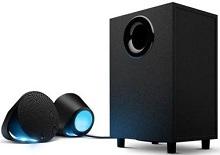
When the speakers appear in Windows but produce no sound, the problem may sit with the USB audio path, G HUB, firmware, or the selected output rather than the amplifier itself. The Logitech G560 Gaming Speaker Driver works with this 2.1 LIGHTSYNC system over its USB connection, while the speakers also provide Bluetooth and 3.5 mm audio inputs. Knowing which connection has failed makes troubleshooting much faster.
Logitech G560 Gaming Speaker Windows Driver Download
| Driver Name | Description | Supported OS | File Size | Download |
|---|---|---|---|---|
| Logitech G HUB Software | Provides control for G560 speaker lighting, audio settings, game profiles, and other supported Logitech G device features. | Windows 11, Windows 10 32-bit/64-bit | 67.75 MB | |
| Logitech Gaming Software 64-bit | Full 64-bit software package for configuring supported Logitech gaming hardware, including device profiles and programmable gaming settings. | Windows 11, Windows 10 64-bit | 119.96 MB |
Logitech G560 Gaming Speaker Mac OS Driver Download
| Driver Name | Description | Supported OS | File Size | Download |
|---|---|---|---|---|
| Logitech G HUB Software | Supports G560 lighting effects, audio configuration, profiles, and compatible Logitech G hardware settings on current macOS releases. | macOS 26, macOS 15, macOS 14 | 12.43 MB | |
| Logitech G HUB Software | Enables configuration of speaker illumination, sound-related preferences, and supported gaming profiles on macOS 13. | macOS 13 | 10.43 MB | |
| Logitech G HUB Software | Manages compatible G560 customization features and Logitech G device profiles for systems running macOS 11. | macOS 11 | 5.02 MB | |
| Logitech G HUB Software | Provides access to supported speaker lighting, audio controls, and Logitech G configuration options on macOS 10.15. | macOS 10.15 | 5.04 MB | |
| Logitech Gaming Software | Legacy gaming software package for configuring compatible Logitech gaming devices and profiles across the listed Mac releases. | macOS 10.15, macOS 10.14, macOS 10.13, macOS 10.12 | 204.99 MB |
Logitech G560 Gaming Speaker Driver When USB Audio Goes Silent
USB is the connection to check first when Windows or G HUB stops handling the G560 normally. The speakers can still light up even when the computer has lost the USB audio device. That split behaviour often makes the problem look stranger than it is: power reaches the system, but Windows no longer has a working digital audio path to it.
Windows shows the G560 but no sound comes out
Open the Windows sound output controls and confirm that the G560 is the active playback device. This matters after Windows updates, graphics-driver changes, headset use, or monitor changes because another digital output may take priority. Play audio while watching the Windows volume meter. If the meter moves beside the G560 but the speakers remain silent, continue with the USB and driver checks rather than changing application volume repeatedly.
Disconnect the USB cable, switch the speakers off, and restart the computer. After Windows finishes loading, power the speakers back on and reconnect them directly to another USB port. Avoid a hub while diagnosing the problem. If Bluetooth or the 3.5 mm input still produces sound, the speaker hardware can play audio and the fault is more likely confined to the computer’s USB route.
An Unknown USB Device replaces the speaker name
A failed enumeration may leave the G560 missing from the playback list and show an unknown USB device instead. Try another USB port and, when possible, another known-good USB cable of the required type. Then inspect Device Manager. Remove only the failed G560 or unknown USB entry, restart Windows, and reconnect the system so Windows can build the audio device information again.
If every computer gives the same USB recognition error while Bluetooth continues to work, reinstalling software on the first PC will not explain the whole problem. That pattern points toward the G560 USB connection, cable, or internal USB interface. Testing a second machine is therefore much more useful than running several unrelated driver installers.
G HUB Detection, Firmware, and LIGHTSYNC Problems
LIGHTSYNC is one of the features that separates the G560 from an ordinary desktop speaker system. G HUB controls its lighting and related device options when the speakers communicate through USB. Bluetooth audio alone does not give G HUB the same control path. Connect the speakers by USB when you need the software to recognize and configure the G560.
G HUB says the speakers are disconnected
First confirm that Windows itself can see the G560 through USB. If Windows has no valid USB audio device, repairing G HUB alone rarely changes anything. When Windows detects the speakers but G HUB does not, close G HUB completely, power-cycle the speaker system, reconnect USB, and start the application again. A restart after a G HUB update can also clear a stalled device service.
If detection disappeared immediately after a damaged or incomplete G HUB update, use the application’s repair or reinstall option before making deeper changes. Keep one current Logitech control application for the G560 rather than running overlapping generations of Logitech gaming software unless another older peripheral genuinely requires them. Software conflicts can leave audio working while LIGHTSYNC controls fail to load correctly.
LIGHTSYNC changes itself or stops following the chosen effect
The lighting can return to a different effect after G HUB crashes, restarts, or loses communication with the speakers. Reopen the G560 page in G HUB and reapply the desired LIGHTSYNC effect after confirming the USB connection is steady. If the lights change at the same moment that audio cuts out, treat the event as a device or software reconnection problem rather than two unrelated faults.
Screen-based and audio-reactive effects depend more heavily on software staying active than a simple fixed lighting choice. When an effect becomes erratic, test a basic static or cycling effect first. If that remains stable, the LEDs themselves are probably functioning and attention can shift to G HUB, the selected effect, or the software session.
Sound disappears after a G HUB or firmware update
A number of G560 failures begin immediately after software or firmware changes: the speakers remain powered, G HUB may still open, yet USB audio disappears or the system reconnects repeatedly. Do not interrupt a firmware update once it has begun. After completion, restart the computer and the speaker system before deciding that the update failed.
If the trouble started at that exact point, verify the current G560 firmware through the official Logitech software rather than installing firmware files from unofficial sources. The Logitech G560 Gaming Speaker Driver and firmware serve different roles, so replacing the Windows audio device repeatedly may not correct a firmware-level problem. Confirm USB detection first, then deal with G HUB or firmware.
Audio Cuts Out, Restarts, or Changes Volume Unexpectedly
The speakers disconnect for a few seconds and return
Brief audio losses followed by the LIGHTSYNC pattern restarting usually indicate that the G560 or its USB software path has reset. Change the USB port and remove hubs from the test. Also close G HUB temporarily and play audio for a while. If the interruptions stop only when G HUB is closed, the application or its interaction with the device deserves attention before blaming the speakers or the audio source.
When the cutout occurs over USB but Bluetooth playback remains steady, keep the tests separated. USB problems involve Windows, G HUB, the cable, and the computer’s USB controller. Bluetooth introduces a different connection path. Comparing the two inputs is useful because the G560 officially supports both, but a successful Bluetooth test does not repair the digital USB link.
Volume or bass behaviour changes after firmware installation
Firmware revisions can alter the way a powered speaker system behaves, so a sudden change in output level immediately after an update should not be treated like ordinary Windows volume adjustment. Reset the Windows output volume to a moderate level, check the G560 controls in G HUB, and test familiar audio before making large equalizer changes. This gives you a neutral reference point.
Also check per-application volume in Windows. A game may be quiet while a browser or music player remains loud because Windows can retain different application levels. If every source changes in the same way, then investigate the speaker configuration or recent firmware change. If only one program differs, leave the system-wide G560 controls alone and correct that application instead.
Audio works until the computer sleeps or wakes
Sleep and resume can leave a USB audio device present but unusable. When the G560 falls silent after wake, switch briefly to another Windows output and then select the speakers again. If that does not restore sound, reconnect USB or power-cycle the speakers. A repeatable wake-only failure points more toward USB power management and device reinitialization than toward damaged speaker drivers.
Bluetooth and 3.5 mm Inputs Can Isolate the Fault
The G560 accepts USB, Bluetooth, and 3.5 mm audio, so its alternate inputs are useful diagnostic tools as well as normal connection choices. They should not be mixed together while testing. Pick one source, verify it, then move to the next. This makes it much easier to tell whether the failure belongs to Windows USB audio, Bluetooth pairing, the source device, or the speaker system.
Bluetooth pairs but the computer still uses another output
A successful Bluetooth pairing does not automatically guarantee that Windows has switched playback to the G560. Open the sound output menu and select the Bluetooth speaker connection explicitly. If an old G560 Bluetooth entry behaves badly, remove that pairing, activate Bluetooth pairing on the speakers again, and create a new connection. Keep the USB test separate until Bluetooth playback works on its own.
Do not expect G HUB to configure the G560 solely because Bluetooth audio works. For software recognition and LIGHTSYNC control, use the USB connection. This distinction explains a common situation in which music plays normally through Bluetooth while G HUB continues to show no G560 device.
Bluetooth audio cuts out while USB is stable
If USB playback stays steady but Bluetooth drops, concentrate on the wireless source rather than reinstalling the Logitech G560 Gaming Speaker Driver. Remove and pair the speaker again, reduce the distance between the source and speakers during testing, and check whether another phone or computer behaves the same way. A problem limited to one Bluetooth source usually belongs on that source side.
The 3.5 mm input works when USB does not
Analog playback is one of the quickest ways to separate speaker amplification from USB software trouble. Connect a known working source to the 3.5 mm input and play audio. If both satellite speakers and the subwoofer work normally there, the core audio hardware is functioning. Return to the USB cable, Windows playback selection, USB device detection, G HUB, or firmware rather than adjusting the analog source.
Restore the G560 Around the Connection That Actually Failed
The most useful reset is not a large reinstall of everything on the computer. Match the repair to the symptom. No USB device calls for port, cable, Device Manager, and second-computer tests. Audio without LIGHTSYNC control calls for the USB-to-G-HUB path. Bluetooth-only trouble calls for removing and recreating the wireless pairing. A working 3.5 mm input gives another sign that the amplifier and speakers can still reproduce sound.
Use the Logitech G560 Gaming Speaker Driver together with current Logitech software when USB control is required, but keep firmware, G HUB, Windows audio selection, and physical connections as separate layers during diagnosis. The G560 has enough connection choices to narrow most faults without guesswork: compare USB with Bluetooth and analog input, note exactly where sound returns, and repair that path instead of changing every part of the system at once.