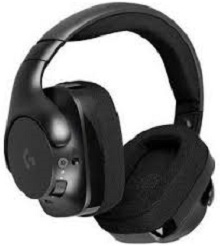
When the headset appears in Windows but audio, microphone input, or the wireless link behaves differently from one session to the next, the Logitech G533 Wireless Gaming Headset Driver becomes part of a wider check involving the USB wireless adapter, Logitech gaming software, and the headset itself. The G533 uses its own 2.4 GHz USB adapter, a rechargeable battery, a foldable boom microphone, a volume wheel, and programmable controls. It is not a Bluetooth headset, so Bluetooth pairing menus will not repair a lost G533 connection.
Logitech G533 Wireless Gaming Headset Windows Driver Download
| Driver Name | Description | Supported OS | File Size | Download |
|---|---|---|---|---|
| Logitech Gaming Software 64-bit | Full 64-bit Logitech Gaming Software package for configuring supported G533 headset gaming features and device settings. | Windows 11, Windows 10 64-bit | 119.96 MB | |
| Logitech G HUB | G HUB software for managing Logitech G533 headset settings and supported gaming-device customization. | Windows 11, Windows 10 32-bit/64-bit | 67.75 MB |
Logitech G533 Wireless Gaming Headset Mac OS Driver Download
| Driver Name | Description | Supported OS | File Size | Download |
|---|---|---|---|---|
| Logitech G HUB | Current G HUB software package for configuring compatible Logitech G533 headset functions on newer macOS releases. | macOS 26, macOS 15, macOS 14 | 12.43 MB | |
| G HUB Installer | G HUB installer package intended for Logitech gaming-device setup across the listed Mac system versions. | Mac 15, Mac 14, Mac 13, Mac 12 | 6.18 MB | |
| Logitech G HUB | G HUB release for managing G533 headset preferences and supported Logitech gaming hardware on macOS 13. | macOS 13 | 10.43 MB | |
| Logitech G HUB | G HUB software build for setting up compatible Logitech G gaming equipment on macOS 11. | macOS 11 | 5.02 MB | |
| Logitech G HUB | G HUB package for controlling supported G533 gaming-headset settings on macOS 10.15. | macOS 10.15 | 5.04 MB | |
| Logitech Gaming Software | Legacy Logitech Gaming Software package for supported G533 headset configuration on older macOS releases. | macOS 10.15, macOS 10.14, macOS 10.13, macOS 10.12 | 204.99 MB | |
| G HUB Installer | Compact G HUB installer for starting Logitech gaming software installation on Mac 10.14. | Mac 10.14 | 5.17 MB |
Logitech G533 Wireless Gaming Headset Driver When the USB Adapter Loses the Headset
A flashing adapter light or a headset that powers up without producing audio usually deserves attention before any sound settings are changed. Connect the G533 adapter directly to the computer rather than through a USB hub, dock, extender, or switch. Try another USB port as well. A port change can restore both audio and microphone operation when the adapter has stopped communicating correctly with Windows.
Headset connects and disconnects after power-on
The G533 and its wireless adapter can be paired again when they no longer establish a steady link. Connect the adapter to the computer, then use a small pin or paperclip to press the recessed reset control on the adapter until its indicator enters pairing mode. The light should begin flashing rapidly rather than continuing its normal slow disconnected pattern.
Connect the headset to USB power during the recovery attempt and turn it on. The G533 also has a hardware reset control in the left ear-cup assembly. Pressing that recessed control for about two seconds, then repeating the press, can clear a state where the headset repeatedly beeps, drops its connection, or never completes pairing with its adapter.
Wireless audio cuts out even though pairing still works
The adapter communicates over 2.4 GHz and Logitech specifies a wireless range of up to 15 metres under suitable conditions. Real desks can shorten that considerably. If audio breaks up only when the adapter sits behind a large computer case, beside other wireless equipment, or on a crowded hub, relocate it to a less obstructed USB position and test again from a shorter distance.
If the headset stays connected on another computer with the same adapter, the original PC becomes the stronger suspect. If the interruptions follow the headset and adapter to the second machine, reinstalling audio applications on the first PC is unlikely to solve the underlying fault.
Microphone Problems After Muting or Lowering the Boom
The G533 includes a directional boom microphone with hardware noise reduction. Raising and lowering the boom participates in normal microphone use, while the headset also provides microphone mute control and a red mute indicator. When voice chat suddenly stops hearing you, check these physical controls before assuming that the microphone capsule has failed.
The microphone works until it is muted once
One troublesome symptom is a microphone that works at startup, stops after the boom is raised or mute is activated, and does not resume when the boom comes down. Turn the headset off and back on first. If that restores input temporarily, restart Logitech gaming software and then check whether the problem returns after another mute cycle.
Some voice applications can also lose their active input after the G533 changes microphone state. Open the application’s voice settings and reselect the G533 microphone, or briefly start and stop its built-in microphone test. That is more useful than changing playback settings when game audio remains normal and only voice transmission has disappeared.
Windows shows the microphone but records nothing
Check the Windows recording-device selection and make the G533 microphone the intended input for the program you are using. Also inspect the microphone level rather than relying only on the headset volume wheel; that wheel changes listening volume and does not substitute for the recording level. A microphone level that was reduced in Windows can make an otherwise working boom appear completely silent.
If Windows still shows no input, unplug the wireless adapter and place it in another direct USB port. G533 microphone failures have been resolved simply by changing the adapter port. A second computer test is useful here too because it separates Windows audio configuration from a headset, adapter, or microphone hardware problem.
Audio Exists but Games or Apps Use the Wrong Output
The Logitech G533 Wireless Gaming Headset Driver can be present while Windows continues sending sound to speakers, a monitor, or another USB audio device. Check the Windows playback device and choose the G533 as the output you actually want. Also check the default communications device because Windows can treat general audio and voice communication as separate destinations.
Games, chat clients, and meeting applications may keep their own saved device choice. If Windows test audio reaches the G533 but one program remains silent, open that program’s audio menu rather than reinstalling the headset package. Select the G533 explicitly for output and its microphone for input, then restart the program if it was already running before the receiver became active.
Surround sound behaves differently from ordinary stereo
The G533 supports surround and stereo operation through its wireless USB connection. Logitech originally provided the headset with Logitech Gaming Software, including DTS Headphone:X surround functionality on Windows. Surround processing therefore depends on the gaming software and platform rather than the headset simply appearing as a generic stereo output.
If a game produces distorted, missing, or strangely positioned sound only with surround processing enabled, compare it with normal stereo output. A title that behaves correctly in stereo but fails with surround points toward the software processing path or the game’s audio implementation. This test avoids confusing a surround-specific fault with a failing speaker driver.
G533 Software Detection, Volume Wheel, and Control Problems
Logitech originally listed Logitech Gaming Software as the G533 software platform, while later troubleshooting also uses Logitech G HUB for device detection and firmware checks. Avoid running multiple Logitech gaming packages solely in the hope that one will repair every symptom. When the headset works in Windows but fails to appear in the control application, concentrate first on USB detection and the application installation.
G HUB stays on connecting or cannot see the headset
Disconnect the USB adapter for several seconds, reconnect it directly to another computer port, and reopen G HUB. If the headset still does not appear, restart the PC before changing anything else. Windows needs to recognize the USB audio hardware before G HUB can manage it, so an application reinstall cannot compensate for an adapter that the operating system never detects.
When Windows recognizes the G533 but G HUB remains stuck on a connecting state, reinstalling G HUB becomes more reasonable. Close its running components before reinstalling so an old background process does not survive the change. Afterward, reconnect the adapter and allow Windows to finish detecting it before opening the application.
The volume wheel moves but the level does not change correctly
The G533 has a physical volume roller on the headset. If turning it produces no useful change, first watch the Windows volume indicator while moving the wheel. A changing system level means Windows is receiving the control command, which shifts attention toward the application or its own mixer. No response at all suggests a control, software, or device-detection issue.
Also compare the wheel with ordinary Windows volume controls. If keyboard or on-screen volume adjustments work while the G533 roller remains inconsistent across several applications, restarting the Logitech software and headset is worth trying. A wheel that continues failing on another computer after pairing has been confirmed is less likely to be fixed by repeated driver installation.
Charging and Battery Readings That Do Not Match Reality
The G533 uses an accessible rechargeable lithium-polymer battery rated at 1100 mAh. Logitech lists roughly 2.5 hours for a full charge while the headset is not in use and up to 15 hours of playback at 50 percent volume under its test conditions. Battery age, listening level, and wireless conditions can reduce real operating time.
The headset says it is charged but dies when the cable is removed
A high software percentage does not prove that an aging battery can actually deliver power. Charge the headset while it is switched off, then disconnect the cable and test it. If the G533 immediately shuts down even after several hours of charging, try another suitable USB charging cable and another power source before treating the reported percentage as accurate.
If different cables and computers produce the same result, the battery itself becomes a stronger possibility because the G533 battery is a rechargeable component rather than a permanently wired power source. A unit that works normally while powered by USB yet switches off as soon as external power disappears needs battery-focused diagnosis more than another audio-driver reinstall.
Charging stops or the percentage never changes
The headset status light uses orange during charging, while other colors indicate connection and battery conditions. If charging never starts, inspect the cable connection and test another known-working cable. Connect directly to a computer or another suitable USB source instead of leaving an extender or hub in the charging path.
When software shows an implausible battery value, power-cycle the headset after charging and check again. Re-pairing the wireless adapter and performing the G533 hardware reset are also reasonable when charging information appears alongside connection failures. If the physical battery still empties rapidly regardless of what the software reports, trust actual runtime over the displayed percentage.
Separate a Software Fault From a G533 Hardware Fault
The Logitech G533 Wireless Gaming Headset Driver should be reconsidered when Windows no longer recognizes the USB audio hardware, when G HUB cannot identify an otherwise connected headset, or when software processing such as surround sound stops behaving normally. It should not become the default explanation for every microphone, charging, or wireless symptom.
A useful comparison is to keep the same G533 headset and adapter together and move them to another computer. Test playback, microphone input, the volume roller, mute behavior, and wireless operation without changing several variables at once. If the complete symptom follows the hardware, Windows configuration on the first PC becomes much less likely.
For repeated disconnects, return to adapter pairing, direct USB placement, battery charge, and the hardware reset. For microphone loss after mute, check the boom state, recording-device choice, and the voice application’s selected input. For a headset that survives only while a USB charging cable supplies power, investigate charging and battery condition. These separate paths make G533 faults easier to isolate than treating them all as one software problem.