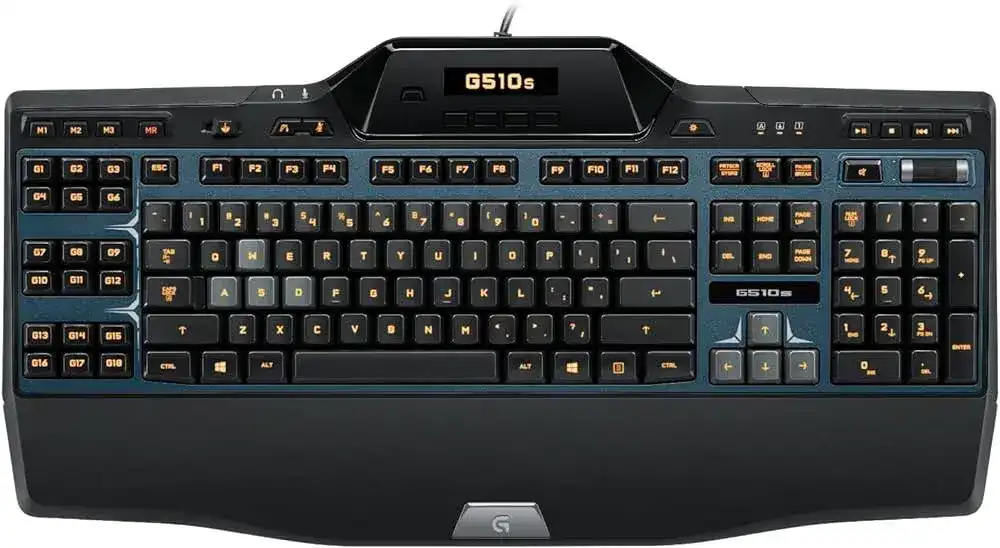
When normal typing works but the LCD, programmable keys, profiles, or lighting controls do not, the Logitech G510s Gaming Keyboard Driver restores access to the features handled through Logitech Gaming Software. This wired USB keyboard can operate as a standard input device without the full package, yet its 18 G-keys, three mode banks, monochrome LCD, selectable backlighting, and application profiles depend on compatible Logitech software.
Logitech G510s Gaming Keyboard Windows Driver Download
| Driver Name | Description | Supported OS | File Size | Download |
|---|---|---|---|---|
| Logitech Gaming Software 64-bit | Full 64-bit package for configuring keyboard profiles, programmable G-keys, macros, backlighting, and game-specific settings offline. | Windows 11, Windows 10 64-bit | 119.96 MB | |
| Logitech Gaming Software 32-bit | Complete 32-bit installer for managing custom commands, keyboard hot-keys, profiles, lighting controls, and device-specific functions without an internet download. | Windows 10 32-bit, Windows 8 32-bit, Windows 7 32-bit | 109.04 MB |
Logitech G510s Gaming Keyboard Mac OS Driver Download
| Driver Name | Description | Supported OS | File Size | Download |
|---|---|---|---|---|
| Logitech Gaming Software for macOS | Provides keyboard profile management, programmable key assignments, macro controls, and lighting customization on supported macOS releases. | macOS 10.15, macOS 10.14, macOS 10.13, macOS 10.12 | 204.99 MB | |
| Logitech Gaming Software for Mac OS X | Supports custom G-key commands, application profiles, macro creation, and keyboard illumination settings on compatible Mac OS X systems. | Mac OS X 10.11, Mac OS X 10.10, Mac OS X 10.9, Mac OS X 10.8 | 201.98 MB |
Logitech G510s Gaming Keyboard Driver When Advanced Controls Disappear
The G510s uses a direct USB connection, so Windows may recognize its ordinary keys immediately after it is plugged in. That initial response does not prove that the complete software layer is running. Check Logitech Gaming Software when the G-keys produce no commands, the LCD remains on its default screen, or the M1, M2, and M3 modes no longer recall their assigned profiles.
Logitech Gaming Software cannot detect the keyboard
Connect the keyboard directly to a computer USB port before opening the installer. A hub, monitor port, docking station, or long extension cable can interfere with detection during installation. Try another direct port if the software opens without showing the G510s. After changing ports, close Logitech Gaming Software completely and start it again so the program performs a new hardware scan.
If Windows lists the keyboard but the Logitech program still misses it, remove the existing Logitech Gaming Software installation, restart the computer, and install the compatible package again. Avoid running G HUB and several old Logitech control programs for the same legacy keyboard at once. The G510s was built around Logitech Gaming Software, and another utility may not provide its LCD and macro controls.
The keyboard stops responding after a Windows update
A major operating-system update can keep the standard keyboard interface while breaking the older Logitech service that controls profiles and display functions. Unplug the G510s, restart Windows, and reconnect it only after the desktop has loaded. Then open the Logitech software and confirm that the keyboard appears before importing profiles or changing lighting.
Use the Logitech G510s Gaming Keyboard Driver package that matches the computer architecture. A 64-bit Windows installation needs the 64-bit release. Installing an unsuitable edition may leave the ordinary keys active while the background service, macro editor, or LCD components fail to start.
G-Key Profiles, Macro Recording, and Mode Problems
The keyboard provides 18 programmable G-keys and three mode keys, creating as many as 54 assignments within one profile. Those controls can store keystrokes, text commands, delays, and multi-action macros through Logitech Gaming Software. Problems usually come from the wrong active profile, an application path that has changed, or a persistent profile overriding automatic switching.
G-keys run the wrong command
Look at the active M-key before editing every assignment. M1, M2, and M3 hold separate command sets, so a macro saved under M2 will not appear when M1 is active. Press the intended mode key, open the matching profile, and test one simple keystroke on a G-key. Once that works, rebuild longer macros gradually instead of pasting a complicated sequence immediately.
Application profiles also depend on the executable file linked inside Logitech Gaming Software. A game update may move or rename that executable, leaving the keyboard on its default profile. Edit the profile association and select the program’s current executable. Use a persistent profile only when you want one command layout to remain active across every application.
Quick macros record but do not play correctly
The MR key can record commands without opening the full editor, but timing-sensitive shortcuts may need adjustment in the software. Extra delays can make a sequence feel slow, while missing delays can cause a game or program to ignore part of it. Open the recorded command, inspect each event, and add only enough spacing for the target application to recognize the sequence.
Some programs reject simulated input when they run with higher permissions than Logitech Gaming Software. Start both programs at the same permission level. Do not automatically run every application as an administrator; instead, remove unnecessary elevated access or launch the Logitech utility with matching rights only when the trusted program requires it.
The Windows key suddenly does nothing
Check the joystick-shaped Game Mode switch above the function-key area. Sliding it to the right disables the Windows and menu keys so an accidental press does not interrupt a game. Move the switch left when you need normal desktop shortcuts. Reinstalling software will not restore these keys while Game Mode remains physically enabled.
Logitech G510s Software for LCD and Backlight Recovery
The monochrome LCD can display supported applets, profile information, performance data, and other compatible content. The selectable-color backlight is also managed through the Logitech software, although the brightness button above F12 can turn illumination on or off. When both features return to their defaults, inspect the background software before treating the keyboard as damaged.
The LCD remains on the G510s logo
A logo that never changes often means the keyboard has power but the LCD service or its applets did not start. Exit Logitech Gaming Software from the notification area, wait a few seconds, and launch it again. If the problem began after sleep or hibernation, reconnecting the USB cable can force the keyboard and display service to initialize together.
Repeated sleep-related failures may improve after disabling USB power saving for the port used by the keyboard. In Windows power management, prevent the system from turning off the relevant USB hub solely to save energy. Change only the port associated with the G510s, then test another sleep-and-wake cycle before altering more power options.
LCD applets will not change or old entries remain
Use the application button beside the LCD to cycle through enabled applets, then use the four selection buttons for the functions shown on the display. When the application button stops changing screens, restart Logitech Gaming Software and check which LCD programs are enabled. A damaged or outdated third-party applet can hold the display on one page even though the selection buttons still respond.
Old applet names may remain after the program that created them has been updated or removed. Disable the unwanted applet from the Logitech LCD configuration first. If the entry belongs to another application, close Logitech Gaming Software and remove or update that application’s LCD component. Preserve exported keyboard profiles before performing a full software reinstall.
The backlight color resets or turns off
Press the dedicated brightness control once to rule out an accidental backlight toggle. If illumination returns with the default color after every restart, open the active profile and save the preferred color there. Application-specific profiles can use different colors, so an unexpected change may simply indicate that the keyboard switched to another program profile.
When no color setting remains saved, confirm that Logitech Gaming Software can write its configuration files and exits normally. Forced shutdowns and profile corruption can discard recent changes. Create a temporary profile, select a clearly different color, close the utility normally, and reopen it. If the test profile survives, rebuild the damaged profile rather than reinstalling everything.
Audio Ports, Media Keys, and USB Interruptions
The G510s contains an integrated audio converter with separate 3.5 mm connections for headphones and a microphone. It also carries media buttons, a volume roller, system mute, headset mute, and microphone mute controls. Plugging an audio device into the keyboard changes its USB identity while the internal sound hardware starts, which explains several symptoms that resemble a driver crash.
The keyboard pauses after connecting a headset
A brief interruption of roughly several seconds is normal when a headset is plugged into or removed from the keyboard. The G510s restarts while activating or deactivating its integrated audio device. Avoid changing the headset connection during a game, recording, or media session because the running application may not detect the new audio path after the keyboard returns.
When a game loses sound after this restart, close and reopen the game rather than repeatedly disconnecting the keyboard. The application may have retained the previous output device. Relaunching it forces a fresh audio-device check while leaving the Logitech G510s Gaming Keyboard Driver and keyboard profile service running.
Headphones or microphone produce no sound
Insert both analog plugs fully into the matching ports near the keyboard cable. The computer may not present the G510s as an audio device until something is attached. Open the operating system sound controls and select G510s Gaming Keyboard as the output device for the headphones and as the input device for the microphone.
The headset and microphone mute buttons below the audio ports affect devices connected through those ports. They do not necessarily mute audio hardware connected directly to the computer. Check these buttons, the system mute key, and the volume roller separately before changing sound drivers or replacing the headset.
Media keys control the headset instead of computer speakers
With no headset attached to the keyboard, the media controls behave like standard keyboard media keys. After a headset is connected, some operating systems direct the controls to the G510s audio device instead. Disconnect the headset from the keyboard when you want the roller and media buttons to control speakers connected elsewhere.
For the most predictable result, choose one audio route before opening a game or media player. Either use the keyboard’s analog ports and make the G510s the active sound device, or connect the headset to the computer and leave the keyboard audio ports empty. Switching between those routes during playback can leave volume commands attached to the previous device.
Restore the Keyboard Without Losing Every Profile
Export valuable profiles before removing Logitech Gaming Software or deleting configuration data. A complete reinstall can repair missing services, failed LCD components, and detection faults, but it can also remove carefully built G-key commands. Save the profiles, disconnect the keyboard, uninstall the software, restart Windows, install the compatible release, and reconnect the G510s when the installer or finished desktop is ready.
After installation, verify ordinary typing first, then check the LCD, one G-key, the M-mode buttons, backlighting, media controls, and audio ports separately. Testing one feature at a time makes the source of a remaining fault much clearer. The Logitech G510s Gaming Keyboard Driver should expose the keyboard inside Logitech Gaming Software before imported profiles and third-party LCD applets are added again.