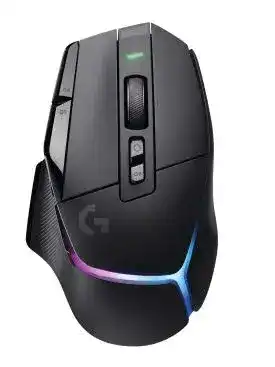
A game profile that changes DPI, lighting, or button actions at the wrong moment can make the Logitech G502 X PLUS Wireless RGB Gaming Mouse Driver seem less predictable than the hardware itself. G HUB controls the HERO 25K sensor, LIGHTSYNC array, programmable inputs, onboard profiles, and LIGHTSPEED connection, while the mouse also works during USB-C charging and supports the POWERPLAY wireless charging system.
Logitech G502 X PLUS Wireless RGB Gaming Mouse Windows Driver Download
| Driver Name | Description | Supported OS | File Size | Download |
|---|---|---|---|---|
| Logitech G HUB | Gaming software for configuring mouse buttons, DPI levels, LIGHTSYNC RGB effects, profiles, macros, and other device settings. | Windows 11, Windows 10 32-bit/64-bit | 67.08 MB |
Logitech G502 X PLUS Wireless RGB Gaming Mouse Mac OS Driver Download
| Driver Name | Description | Supported OS | File Size | Download |
|---|---|---|---|---|
| Logitech G HUB | Current Mac package for assigning controls, adjusting sensitivity, managing LIGHTSYNC illumination, and creating game-specific profiles. | macOS 26, macOS 15, macOS 14 | 11.36 MB | |
| Logitech G HUB | macOS 13 release for customizing programmable buttons, DPI presets, RGB lighting zones, macros, and onboard profiles. | macOS 13 | 10.43 MB | |
| Logitech G HUB | macOS 11 package for controlling pointer sensitivity, button commands, lighting effects, application profiles, and mouse preferences. | macOS 11 | 5.02 MB | |
| Logitech G HUB | macOS 10.15 installer for setting DPI stages, remapping controls, programming macros, synchronizing RGB effects, and saving profiles. | macOS 10.15 | 5.04 MB |
Logitech G502 X PLUS Wireless RGB Gaming Mouse Driver When Profiles Keep Changing
G HUB can switch profiles when it detects a game or application. That behaviour is useful until the software links the wrong executable, returns to the desktop profile during a loading screen, or applies a different DPI after an update. Open the active profile name in G HUB before changing anything. Editing the desktop profile will not repair a game profile that overrides it as soon as the game starts.
Button assignments disappear after a game launches
Select the affected game in G HUB and inspect its assignments instead of rebuilding the desktop layout. A locked profile can apply one arrangement everywhere, while automatic switching gives each detected program its own controls. Use persistent profile mode when you want one layout across all games. Leave automatic switching enabled only when separate layouts serve a real purpose.
Some games run through a launcher and start from another executable. G HUB may detect the launcher but miss the actual game process, or the reverse. Add the game manually when the expected profile never becomes active. Test a harmless command on one programmable control, enter the game, and watch the profile name to confirm that switching occurs at the right time.
Onboard memory does not match the software profile
Onboard Memory Mode uses settings stored in the mouse and stops depending on live profile processing from G HUB. Copy the intended profile into an onboard slot before enabling that mode. Changes made later in the normal software view do not automatically rewrite the stored slot, which explains why an older DPI level or assignment returns on another computer.
Macros and complex software actions may not behave identically from onboard memory because the mouse cannot reproduce every command that G HUB performs in the background. Store straightforward button presses, DPI choices, and basic assignments for portable use. Switch back to software mode when an action depends on an application, a sequence, or active G HUB processing.
G HUB shows the mouse as inactive or unavailable
Connect the charging cable directly and reopen G HUB. If the device appears over USB but remains unavailable through LIGHTSPEED, the problem sits with the receiver path or pairing rather than the sensor and buttons. Close G HUB fully, end its remaining background processes, restart Windows, and launch it again before removing profiles or resetting the mouse.
The Logitech G502 X PLUS Wireless RGB Gaming Mouse Driver may also stop loading after an incomplete G HUB update. Install the current release over the existing copy first. When that changes nothing, remove G HUB, restart the computer, and install it again. Save or note important assignments beforehand because a full removal may clear local profiles.
Restore LIGHTSPEED Detection Without Losing Every Setting
The receiver appears in Windows but the pointer does not move
Open the device-pairing tool from G HUB settings and select the G502 X PLUS as the target model. Keep only the receiver being paired attached during this process. A second Logitech gaming receiver can make selection unclear, especially when several devices sit beside each other on a desktop. Turn the mouse off and on when the pairing screen requests it.
Use the supplied receiver adapter and charging cable to place the LIGHTSPEED receiver nearer the mouse when the computer sits under a desk. This adapter is not required for every system, but it shortens the wireless path and moves the receiver away from metal cases and crowded port areas. Do not substitute a receiver from another model unless G HUB identifies it as compatible and offers pairing.
Wireless movement freezes for a moment
Test a direct motherboard port before blaming the HERO sensor. USB hubs, display docks, KVM switches, and extension hardware can briefly interrupt receiver traffic or power. A nearby high-speed storage drive may also create radio noise around a USB 3 port. Separate the receiver from that equipment and compare several minutes of movement in the same game.
Windows power management can suspend a USB hub after inactivity. In Device Manager, open the properties for the relevant USB hub and review its power-management option. Prevent Windows from turning off that hub when the mouse disconnects after sleep but works again after unplugging the receiver. Change only the hub linked to the problem rather than disabling power saving across every USB controller.
The mouse works by cable but not through LIGHTSPEED
Cable operation proves that the computer can communicate with the mouse, but it does not confirm receiver pairing. Run the G HUB pairing tool while the cable keeps the pointer usable, then follow the prompt to return to wireless mode. If the receiver never appears in G HUB or Windows on more than one direct port, test it on another computer before replacing software again.
Inspect the receiver and adapter for a loose fit. A receiver that repeatedly reconnects when touched may have a damaged plug or worn adapter. Pairing cannot repair a physical connection that drops whenever the cable moves. Use the receiver directly in a USB port to separate adapter trouble from a failed dongle.
G502 X PLUS Software for DPI, Wheel, and Gaming Controls
DPI changes during play without warning
The movable DPI-shift control sits where the thumb can press it during a fast grip change. G HUB can assign a temporary DPI shift, a fixed DPI cycle, another command, or no action to that input. Disable the assignment for a few sessions when sensitivity drops only during tense movement. The supplied control can also be reversed or replaced with its cover when its position does not suit your hand.
Remove unused sensitivity stages from the DPI panel. Keeping several nearly identical levels makes an accidental cycle difficult to notice, while widely separated values produce a sudden jump. Set a small group of deliberate stages and choose one default. The Logitech G502 X PLUS Wireless RGB Gaming Mouse Driver should retain that selection in the appropriate game profile or onboard slot.
Free-spin scrolling continues past the intended line
The wheel can switch between ratcheted and free-spin movement. Free-spin mode carries momentum, so a light movement may travel farther than expected in menus, documents, or weapon lists. Press the wheel-mode control to restore stepped scrolling before adjusting Windows line settings. Software cannot make a freely spinning wheel behave exactly like its ratcheted mode.
When one scroll direction stops registering in both modes, turn the mouse off and clear loose dust around the wheel with dry compressed air. Test the wheel on another computer without custom assignments. Failure in one application points toward that program or profile; failure everywhere, including G HUB assignment detection, suggests a wheel hardware problem.
Middle click or a side control performs the wrong command
Open the active G HUB profile and click the physical control in the assignment view. Replace the command with a basic mouse action for testing. Browser navigation, game commands, macros, and keyboard shortcuts can all occupy the same programmable input, so the visible label in one profile may not describe what another profile runs.
Check for application-level remapping as well. A game can bind a side control separately after G HUB converts it into a keyboard key. Clear one layer before changing the other, or the input may trigger two actions. Test the control in the Windows desktop profile, then inside the affected game profile, rather than assuming a faulty LIGHTFORCE switch.
Lighting and Power Behaviour That Looks Like a Fault
RGB turns off under the hand
The eight-zone LIGHTSYNC array uses active play detection to reduce power use. Lighting can dim while the mouse senses active play and return when movement stops, depending on the chosen effect and power behaviour. Open the LIGHTSYNC page in G HUB before treating the change as a failed LED. Select a static effect temporarily to check the full array.
Lighting synchronization also depends on compatible effects. Two Logitech G products may offer LIGHTSYNC but process certain animations differently. G HUB shows which devices can join a synchronized effect. When a custom animation will not sync, use a shared effect such as Color Wave or Color Cycle, or configure the G502 X PLUS separately.
Battery drains much faster with lighting enabled
LIGHTSYNC has a large effect on runtime. Logitech rates the mouse for up to 130 hours with RGB off and about 37 hours when RGB remains continuously illuminated. A bright, always-on effect can therefore produce a sharp difference without indicating a bad battery. Lower the brightness, use active play detection, or switch lighting off when longer wireless sessions matter more than appearance.
Check the battery percentage inside G HUB after charging rather than judging it only from the lighting. Connect USB-C directly when the level does not rise through a hub. The mouse remains usable while charging. POWERPLAY can maintain power during use, but the compatible charging system requires its POWERCORE module to sit correctly in the mouse.
Charging percentage stops or reports an odd value
Turn the mouse off, connect the cable, and allow it to charge before reopening G HUB. Try another powered USB port and a known working data-and-charge cable when the percentage never changes. A front panel or unpowered hub may provide inconsistent current. Charging that works on a direct port points to the earlier port or adapter, not the battery.
Clicks sound sharper than an older G502
LIGHTFORCE hybrid optical-mechanical switches have a crisp mechanical response, and their sound can seem louder or more metallic than older G502 switches. Software cannot soften that normal switch tone. Compare the left and right controls for consistent registration rather than judging them only by pitch, since the shell and finger position can make each side sound slightly different.
A real double input needs a different test. Assign the control to an ordinary click, disable macros, leave onboard memory, and try it on another computer. When duplicate presses follow the same physical control across systems and profiles, contact hardware support. When they vanish outside one profile, rebuild that assignment instead of altering Windows click speed to hide a gaming-control problem.
Finish with the connection mode and profile you actually plan to use. Pair the LIGHTSPEED receiver, copy only proven assignments into onboard memory, retain a small DPI set, and choose an RGB effect that matches the desired battery life. The Logitech G502 X PLUS Wireless RGB Gaming Mouse Driver then manages the specialised controls without leaving old game profiles to override them unexpectedly.