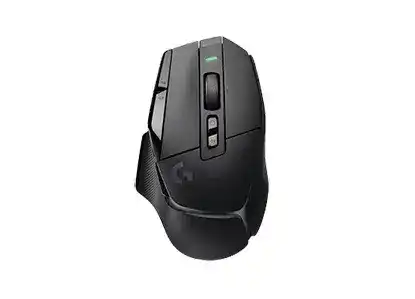
A sudden DPI jump, missing button command, or receiver that appears unpaired can make this gaming mouse feel unpredictable even while its basic clicks still work. The Logitech G502 X LIGHTSPEED Gaming Mouse Driver uses Logitech G HUB to manage its HERO 25K sensor, 13 programmable controls, onboard profiles, LIGHTSPEED connection, adjustable DPI-Shift control, and rechargeable battery.
Logitech G502 X LIGHTSPEED Gaming Mouse Windows Driver Download
| Driver Name | Description | Supported OS | File Size | Download |
|---|---|---|---|---|
| Logitech G HUB | Gaming software for configuring mouse buttons, DPI levels, onboard profiles, lighting, macros, and device settings. | Windows 11, Windows 10 32-bit/64-bit | 67.08 MB |
Logitech G502 X LIGHTSPEED Gaming Mouse Mac OS Driver Download
| Driver Name | Description | Supported OS | File Size | Download |
|---|---|---|---|---|
| Logitech G HUB | Current Mac package for adjusting button assignments, sensitivity stages, profiles, macros, lighting, and gaming mouse preferences. | macOS 26, macOS 15, macOS 14 | 11.36 MB | |
| Logitech G HUB | Mac software release for managing DPI settings, programmable controls, game profiles, onboard memory, and compatible lighting effects. | macOS 13 | 10.43 MB | |
| Logitech G HUB | Compatibility package for setting pointer sensitivity, remapping mouse controls, creating macros, and maintaining application profiles. | macOS 11 | 5.02 MB | |
| Logitech G HUB | Legacy Mac installer for controlling sensitivity, button functions, profile switching, macro commands, and supported device options. | macOS 10.15 | 5.04 MB |
Logitech G502 X LIGHTSPEED Gaming Mouse Driver When G HUB Loses the Device
Windows can load standard pointer support while G HUB continues to show the mouse as inactive, disconnected, or absent. This usually points to the application, its background services, receiver communication, or device firmware rather than a missing Windows mouse driver. Begin with the current G HUB release instead of Logitech Gaming Software, Options+, SetPoint, or a Unifying utility.
G HUB opens but shows no mouse
Connect the LIGHTSPEED receiver directly to the computer and close G HUB completely. Restart Windows, power the mouse off for several seconds, and switch it on after the desktop loads. Then reopen G HUB. Recent G HUB releases have corrected device-identification faults that could hide supported hardware, so updating the application should come before a full reinstall.
When the program remains stuck on its loading screen, end its launcher, agent, and updater processes through Task Manager before reopening it. A damaged installation may need removal followed by a restart and a fresh installation. Keep the receiver attached during the new detection pass, but disconnect other unused Logitech receivers that could make identification less clear.
The mouse appears inactive after a G HUB update
An application update can finish before the receiver and mouse resume communication. Turn the mouse off, unplug the receiver, reopen G HUB, and reconnect the receiver to another direct USB port. Switch the mouse on only after Windows recognizes the USB device. This order gives G HUB a new hardware detection event instead of leaving it tied to a failed session.
Check the device and receiver firmware inside G HUB when an update prompt appears. Complete both parts before changing profiles or button commands. Interrupting a receiver update, moving the dongle through a USB switch, or letting a laptop sleep during the process can leave the wireless link unavailable until the receiver and mouse pair again.
The replacement receiver will not connect
The G502 X LIGHTSPEED uses a compatible LIGHTSPEED receiver, not a Bluetooth, Unifying, or Logi Bolt connection. Open G HUB, enter its settings area, and use the Device Pairing Tool. Select the detected receiver, choose the matching mouse when it appears, and follow the power-cycle request shown by the utility.
G HUB filters the pairing list according to receiver compatibility. A dongle from an unrelated Logitech product may fit the USB port yet never offer this mouse as a pairing choice. Use the original receiver or a confirmed compatible replacement. Update firmware first when the pairing tool asks, because an older receiver revision can block the process.
Stop Wireless Dropouts Before Changing Game Profiles
Brief freezes often look like sensor trouble, but the wireless path deserves attention first. The package includes an extension adapter so the receiver can sit closer to the mouse instead of remaining behind a metal desktop case. Place it on the desk with a clear path to the mouse and keep it away from external drives, crowded hubs, and other high-traffic USB equipment.
Pointer freezes and then catches up
Try the receiver through the supplied extension adapter and connect the cable to a computer USB port. A hub built into a monitor or keyboard may work for ordinary accessories but introduce interruptions at a gaming report rate. Test several minutes in the same game after changing receiver position rather than judging the result from desktop movement alone.
Windows power management can also suspend a USB hub during play or after the display sleeps. In Device Manager, open the properties for USB hubs and clear the option that lets Windows turn them off to save power. On systems that still disconnect, disable USB selective suspend in the active power plan and update the motherboard chipset package.
The cursor skips only on one desk surface
The HERO 25K optical sensor performs best on an even, non-reflective surface. Wipe the sensor opening with a clean, dry cloth and test a gaming mouse pad. Glass, glossy patterns, dust, and deep scratches can produce uneven tracking that software cannot repair. Avoid pushing anything into the sensor opening or applying cleaning liquid directly to it.
Check G HUB for an extreme DPI value before deciding that the sensor has failed. A small hand movement becomes a large cursor jump at the top of the mouse’s 100 to 25,600 DPI range. Set one moderate stage temporarily, remove unused stages, and repeat the surface test with Windows pointer acceleration unchanged.
Connection fails after sleep or startup
Move the power switch underneath the mouse to off, wait briefly, and turn it back on. If that restores movement every time, inspect USB power-saving behaviour rather than repeatedly pairing the receiver. A desktop rear port may lose power during sleep, while another motherboard port remains active. Laptop docks can show the same difference between ports.
Charge the mouse when its front status light or G HUB battery reading shows a low level. A nearly empty battery may produce symptoms that resemble receiver instability. Test again while the charging cable is attached, then allow enough time for the internal battery to recover before returning to wireless play.
Logitech G502 X LIGHTSPEED Software for Profiles, DPI, and Commands
The mouse has 11 physical buttons and 13 programmable controls when wheel tilt is counted. G HUB can assign keys, media actions, macros, DPI functions, and G-Shift commands. It also separates software-controlled profiles from the five onboard memory slots. Confusing those two modes explains many cases where assignments work in G HUB but vanish after the application closes.
DPI changes without warning
The removable DPI-Shift button sits near the thumb and can trigger a temporary sensitivity value when pressed. Reverse the button for a different reach or replace it with the included blank cover when your grip activates it accidentally. In G HUB, you can also give that control another function or remove the DPI-Shift assignment.
Unexpected speed changes may come from several saved DPI stages rather than the shift button. Delete stages you never use and keep only the values needed for normal play. Check both the base profile and each game profile, since an application switch can load a different stage even though the mouse itself has not lost calibration.
A game keeps using the desktop profile
Automatic switching depends on the executable linked to the profile. Some games start through a launcher and then open a different executable for the actual match. Add the game process rather than relying only on the launcher detected during installation. Keep the game running while checking Task Manager when its executable name is unclear.
Persistent Profile prevents automatic switching, so turn that option off when every title loads the same assignments. Also confirm that G HUB continues running in the background. Onboard mode behaves differently: it uses the profile stored in the mouse and does not follow software profiles as applications open and close.
Commands disappear after G HUB closes
Create the assignments in software mode first, then enable onboard memory and copy the finished profile into one of the mouse’s five slots. Simply turning onboard mode on does not transfer every current command automatically. Select the target slot, write the profile to it, and test after fully exiting G HUB.
Some complex actions depend on G HUB and may not behave identically from onboard memory. Keep essential key presses, DPI levels, wheel commands, and straightforward macros in the hardware profile. Use software mode when a command relies on application detection or a G HUB feature that the mouse cannot process alone.
A remapped button still performs its old action
Look for two assignments applied through different layers. The normal control and its G-Shift layer can hold separate commands, while a game may also bind the physical button directly. Clear the unwanted G HUB assignment, verify the G-Shift state, and remove duplicate bindings from the game before creating the command again.
Test the button with a simple keyboard command outside the game. When it works there, the game may block the chosen shortcut, run with higher permissions, or use another profile. Run G HUB with matching permissions and attach the correct executable instead of rebuilding the same macro several times.
Wheel Modes, Tilt Commands, and Charging Behaviour
The wheel feels loose or scrolls too quickly
The wheel has ratcheted and hyper-fast modes. Press the mechanical mode button behind the wheel to switch between notched scrolling and free spin. G HUB does not repair an accidentally released wheel because the change comes from the mouse mechanism itself. Use ratcheted mode for controlled weapon or menu movement and free spin for long pages.
If scrolling reverses, jumps, or misses steps in both modes, blow dry compressed air around the wheel opening while the mouse is powered off. Test vertical scrolling in more than one application. Faults that follow the wheel across computers and remain after cleaning are more likely mechanical than profile-related.
Wheel tilt does nothing
Left and right wheel tilt count as programmable controls. Open the current profile in G HUB and inspect both tilt assignments. Horizontal scrolling also depends on the application; assigning a clear keyboard shortcut provides a better test than using a program that ignores horizontal wheel input.
When tilt works on the desktop but not in a game, bind the desired action inside G HUB and link that profile to the game executable. Check for a conflicting in-game command. A title may read the tilt as a generic button, ignore horizontal scrolling, or reserve that input for another action.
Clicks sound different from an older G502
The LIGHTFORCE primary switches combine optical actuation with mechanical feedback, so their sound and feel can differ from earlier G502 models. A sharper click alone does not indicate a faulty driver. Investigate only when one button fails, activates twice, remains held, or behaves differently across several programs and computers.
For repeated clicks, remove macros from that button and test the default assignment in onboard mode. Check the operating system’s double-click speed for desktop files, but remember that this control does not repair a switch that sends two physical inputs. Consistent duplicate input on another computer calls for warranty or hardware service.
The battery reading looks wrong or charging stalls
Connect the USB-C charging cable directly and leave G HUB open long enough to refresh the percentage. Change the cable or USB port when the status never rises. The mouse can continue operating during charging, so movement alone does not confirm that the battery is accepting power.
This non-PLUS model has no LIGHTSYNC RGB panel, even though its shape closely resembles the G502 X PLUS. A missing lighting page in G HUB is therefore normal and does not signal an incomplete Logitech G502 X LIGHTSPEED Gaming Mouse Driver installation. Finish by saving the intended DPI stages and commands to onboard memory, then verify the receiver link and wheel mode without relying on lighting as a profile indicator.