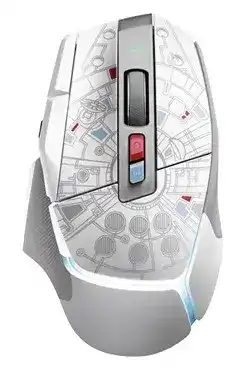
A mouse that keeps changing DPI, loses its LIGHTSYNC pattern, or vanishes from G HUB can make the themed hardware look unreliable even when the sensor still tracks normally. The Logitech G502 X Plus Millennium Falcon Edition Driver package centers on Logitech G HUB because this edition uses the same G502 X Plus control system for LIGHTSPEED wireless operation, programmable controls, onboard profiles, HERO 25K sensor adjustments, LIGHTSYNC RGB, and firmware management.
Logitech G502 X Plus Millennium Falcon Edition Windows Driver Download
| Driver Name | Description | Supported OS | File Size | Download |
|---|---|---|---|---|
| Logitech G HUB | Gaming software for configuring mouse buttons, sensitivity settings, lighting, profiles, and other device-specific controls. | Windows 11, Windows 10 32-bit/64-bit | 39.66 MB |
Logitech G502 X Plus Millennium Falcon Edition Mac OS Driver Download
| Driver Name | Description | Supported OS | File Size | Download |
|---|---|---|---|---|
| Logitech G HUB | Gaming configuration software for adjusting programmable controls, pointer settings, lighting effects, and compatible mouse profiles. | macOS 13, macOS 12, macOS 11.2, macOS 11.1, macOS 11, macOS 10.15, macOS 10.14, macOS 10.13, macOS 10.12 | 5.02 MB |
Logitech G502 X Plus Millennium Falcon Edition Driver When G HUB Loses the Mouse
The Millennium Falcon Edition is functionally based on the G502 X Plus, with LIGHTSPEED wireless, a rechargeable battery, USB-C charging, onboard memory, and Logitech G HUB support. If pointer movement works but G HUB shows no mouse, do not assume the receiver has failed. The software and the basic USB mouse connection can behave differently.
G HUB does not detect the mouse after it wakes
The mouse can enter sleep mode while the computer remains active. When that happens, G HUB may not place it on the product screen immediately. Move the mouse or click one of its buttons and give the application a moment to refresh. If it appears after activity, no new receiver pairing is normally required.
If the product still stays missing, connect the USB-C cable directly to the computer and open G HUB again. Avoid a monitor hub, docking station, or USB switch during this test. A direct cable connection gives you a useful way to separate a software-detection problem from a LIGHTSPEED receiver problem.
G HUB freezes on its loading animation
A spinning G HUB logo points to the application rather than the HERO sensor. Close G HUB completely, including its updater and agent processes, then start the application again. When the installation itself has become damaged, reinstall the current G HUB package rather than changing DPI values or repeatedly pairing the receiver.
The Logitech G502 X Plus Millennium Falcon Edition Driver software also provides firmware checks. Once G HUB can see the device, open its settings page and look for an available update. Keep the mouse powered and connected during that process. Interrupting a firmware update creates a different problem from ordinary software detection.
Profiles, DPI, and Buttons Can Change Without a Hardware Fault
This model has a HERO 25K sensor with sensitivity from 100 to 25,600 DPI, plus onboard memory for profiles. G HUB can manage as many as five onboard profiles. That flexibility also creates situations where the pointer suddenly feels too fast, a DPI button seems unpredictable, or a control performs a command that belongs to another profile.
DPI jumps between values unexpectedly
Open the sensitivity page in G HUB and check every DPI stage assigned to the current profile. A button mapped to DPI Up, DPI Down, DPI Cycle, or DPI Shift can change sensitivity during a game without opening the software. Remove stages you never use or assign one preferred value when accidental switching causes more trouble than it solves.
The removable and reversible DPI-Shift control is a specific G502 X feature. If the button sits where your thumb hits it by accident, reverse its orientation or use the supplied cover instead. That physical change may solve repeated DPI shifts more neatly than changing a long list of game profiles.
A saved profile disappears after changing memory mode
Onboard Memory Mode and normal G HUB software mode do not behave identically. The mouse starts with built-in profiles, while G HUB can expand the available onboard profile count. Installing or changing G HUB settings can therefore alter which assignments you see. Check the active profile before assuming your button configuration has been erased.
For a configuration that must travel with the mouse, copy the intended profile into onboard memory and verify it with G HUB no longer controlling the device in software mode. If you prefer automatic game-specific assignments, keep software mode active instead. Mixing the two approaches often causes more confusion than either method on its own.
Side controls work in one game but not another
The G502 X Plus has 11 physical buttons and 13 programmable controls when the wheel tilt functions are included. A game may ignore a custom command that works on the desktop if its own input system does not accept that keystroke or macro. Assign a plain keyboard key temporarily and test it before rebuilding the whole profile.
Check the application profile shown at the top of G HUB as well. Automatic profile switching can load different assignments as focus moves between a game, launcher, browser, and desktop. Locking a persistent profile for testing can quickly reveal whether profile switching, rather than the button itself, causes the inconsistent action.
Logitech G502 X Plus Millennium Falcon Edition Software for RGB and Charging Behavior
The special edition adds Millennium Falcon graphics and themed lighting while retaining the G502 X Plus eight-zone LIGHTSYNC RGB system. Lighting problems can therefore come from G HUB profiles, power behavior, onboard memory, or another lighting controller on the computer. The decorative design does not require a separate Star Wars-specific hardware driver.
LIGHTSYNC returns to another effect after inactivity
First confirm which lighting profile G HUB applies while the mouse is active. Software-controlled effects depend on G HUB remaining available, while onboard behavior can take over when that software control stops. If the mouse changes appearance only after sleep or when G HUB closes, compare the software lighting configuration with the profile stored in onboard memory.
Windows lighting control can also compete with G HUB on supported Windows systems. If LIGHTSYNC selections change as soon as Windows takes control of compatible RGB hardware, disable the competing lighting control for the mouse and let one application manage the zones. Two controllers trying to set the same LEDs can make a saved effect appear unreliable.
The light keeps breathing green at full charge
A breathing green indicator does not always mean the battery still needs more time. The G502 X Plus can continue that animation even when G HUB already reports a full charge. If the battery percentage shows full, unplug the USB-C cable. The charging animation should stop after the cable comes out.
The battery will not charge normally
Connect the charging cable straight to a computer USB port or another suitable power source. Bypass hubs, USB switches, and extensions while diagnosing the fault. If charging still fails, test another compatible USB cable and another power source. G HUB should also be checked for a firmware update once the device appears correctly.
The Logitech G502 X Plus Millennium Falcon Edition Driver configuration can report battery condition, but software cannot repair a cable that carries data poorly or a USB port that supplies unstable power. Testing the cable and power path first prevents repeated application reinstallations from hiding a straightforward charging problem.
Wheel Movement and LIGHTSPEED Dropouts Need Separate Tests
Scrolling reverses, skips, or moves too easily
The G502 X Plus uses a dual-mode wheel. The button behind it changes between a ratcheted feel and free-spinning hyper-fast scrolling. Free-spin mode can react to small wheel movement much more readily, so switch back to ratcheted mode before deciding that the encoder is faulty. This is particularly useful in games where a tiny scroll event changes weapons or inventory slots.
When scrolling remains erratic in ratcheted mode, clear loose dust around the wheel with safe compressed air or a dry cotton swab. Make sure the wheel turns freely, then test another application and another surface. G HUB also provides access to firmware and DPI controls that are worth checking before treating irregular movement as a mechanical failure.
The pointer cuts out only in wireless mode
The Millennium Falcon Edition uses LIGHTSPEED wireless through its USB receiver, not Bluetooth. Place the supplied receiver where the computer can maintain a short, unobstructed radio path. The included extension adapter can position the receiver away from a crowded computer case when the existing USB location produces intermittent movement.
For diagnosis, connect the receiver directly to a computer USB port and remove unnecessary hubs from the path. Try another port as well. If the mouse behaves normally over the USB-C cable but drops out only through LIGHTSPEED, concentrate on receiver placement, receiver pairing, the USB connection, and nearby radio congestion rather than sensor sensitivity.
The mouse reconnects to its original receiver during a shared-receiver setup
LIGHTSPEED 2 supports compatible two-device pairing arrangements with certain Logitech gaming keyboards. During that setup, the G502 X Plus can reconnect to its original receiver because that remains its primary stored wireless connection. Disconnect the original mouse receiver while creating the shared pairing, then leave it unplugged while both devices use the combined receiver configuration.
Use the Device Pairing Tool inside G HUB when the receiver association genuinely needs repair. Pairing software is different from ordinary profile configuration, so do not remove a working receiver relationship merely because a DPI value or RGB effect looks wrong. Those problems belong in the device configuration pages instead.
Match the Symptom to the Part of the Mouse That Controls It
With this edition, the fastest diagnosis usually comes from separating G HUB behavior from physical controls and wireless operation. A profile that changes DPI points toward software or onboard memory. A free-spinning wheel that sends unwanted scroll events calls for the wheel-mode button first. A full battery with a green breathing LED may only need the charging cable removed.
If the pointer itself disappears, compare LIGHTSPEED operation with a direct USB-C connection. If only RGB, DPI stages, or programmable commands behave incorrectly, keep the receiver pairing intact and inspect the active G HUB profile. The Logitech G502 X Plus Millennium Falcon Edition Driver software is most useful when it manages the feature that is actually failing rather than becoming the first fix for every symptom.
The Millennium Falcon styling changes the appearance, lighting theme, and collector character of the mouse, but its core controls remain those of the G502 X Plus platform. Treating it that way keeps troubleshooting focused: HERO 25K sensitivity in the DPI page, assignments in the active profile, lighting in LIGHTSYNC, charging through USB-C, and wireless recovery through the LIGHTSPEED receiver and G HUB pairing tools.