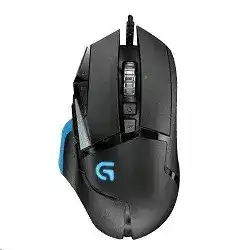
A free-spinning wheel, sudden sensitivity jump, or lost button command can make this wired mouse feel unpredictable even when the pointer still moves. The Logitech G502 Proteus Spectrum RGB Tunable Gaming Mouse Driver provides access to DPI stages, programmable controls, RGB lighting, surface tuning, report rate, and onboard profile storage. Windows supplies ordinary pointer functions, but it cannot manage the model’s full gaming layout by itself.
The Proteus Spectrum connects through a fixed USB cable and uses the PMW3366 optical sensor. Its hardware includes 11 programmable controls, a DPI Shift button, adjustable weights, a dual-mode wheel, horizontal wheel clicks, onboard memory, and RGB illumination. Logitech Gaming Software was the original control package for this generation, while compatible G HUB releases may also recognize it.
Logitech G502 Proteus Spectrum RGB Tunable Gaming Mouse Windows Driver Download
| Driver Name | Description | Supported OS | File Size | Download |
|---|---|---|---|---|
| Logitech Gaming Software 64-bit | Full 64-bit package for configuring mouse buttons, DPI levels, lighting, profiles, macros, and game-specific settings. | Windows 11, Windows 10 64-bit | 119.96 MB | |
| Logitech G HUB | Manages button assignments, pointer sensitivity, RGB lighting, macros, profiles, and other device-specific gaming controls. | Windows 11, Windows 10 32-bit/64-bit | 67.08 MB | |
| Onboard Memory Manager | Edits profiles, button commands, DPI stages, and polling settings stored directly in the mouse onboard memory. | Windows 11, Windows 10 32-bit/64-bit | 12.45 MB |
Logitech G502 Proteus Spectrum RGB Tunable Gaming Mouse Mac OS Driver Download
| Driver Name | Description | Supported OS | File Size | Download |
|---|---|---|---|---|
| Logitech G HUB | Customizes mouse buttons, pointer behavior, sensitivity levels, scrolling functions, shortcuts, lighting, and device profiles. | macOS 26, macOS 15, macOS 14 | 11.36 MB | |
| Logitech G HUB for macOS 13 | Provides profile switching, programmable controls, DPI adjustment, macro creation, and RGB configuration on supported Mac systems. | macOS 13 | 10.43 MB | |
| Logitech G HUB for macOS 11 | Controls button mappings, tracking sensitivity, lighting effects, game profiles, and other compatible mouse settings. | macOS 11 | 5.02 MB | |
| Logitech G HUB for macOS 10.15 | Supports programmable commands, pointer tuning, scrolling preferences, shortcuts, lighting controls, and saved device configurations. | macOS 10.15 | 5.04 MB | |
| Logitech Gaming Software | Configures programmable buttons, DPI modes, macros, lighting, and application-specific profiles through the legacy gaming interface. | macOS 10.15, macOS 10.14, macOS 10.13, macOS 10.12 | 204.99 MB |
The wheel keeps spinning after a small movement
The button directly behind the wheel changes between ratcheted and free-spin operation. Press it once before changing software options. Free-spin mode removes most resistance, so the metal wheel may continue moving after a quick flick or a sharp lift of the mouse. Ratcheted mode suits weapon selection, document movement, and games where every wheel step must remain separate.
If the wheel still moves by itself while ratcheted, place the mouse on a steady desk and watch whether physical movement triggers unwanted scrolling. Dust around the wheel, side-to-side play, or a worn wheel mechanism can create phantom input. Blow short bursts of compressed air around the opening without forcing the wheel sideways.
Scrolling briefly reverses direction
Reverse steps usually appear as one upward movement during downward scrolling, or the opposite. Close the Logitech software and test a long webpage with the default wheel assignment. Reconnect the mouse to another USB port and repeat the test. Persistent reverse movement on another computer points away from a profile error and toward debris or wear inside the wheel encoder.
Do not apply random smooth-scrolling tools as an early fix. They can change how applications display movement without correcting the original signal. Start with ratcheted mode, normal Windows scrolling, and a direct USB connection so the result remains easy to judge.
Horizontal wheel clicks do nothing
The G502 wheel can tilt left and right, but games and programs do not always assign an action to those inputs. Open the active Logitech profile and check both wheel-tilt commands. Set them to horizontal scrolling, keystrokes, or another supported action, then test them in software that accepts the chosen command.
A game-specific profile may override the desktop assignment as soon as the game launches. Watch which profile becomes active before assuming the wheel switches have failed. When neither tilt direction registers under a default profile on another computer, the problem is probably physical rather than a missing command.
Why Sensitivity Changes Without Warning
The Proteus Spectrum can store several DPI stages between 200 and 12,000 DPI. Buttons beside the primary left click move through those stages, while the thumb-operated DPI Shift control can temporarily apply another value. An unintended press can therefore change aiming speed instantly without any Windows notification.
DPI rises or falls during normal use
Open the current profile and remove sensitivity stages you never use. Keeping two or three sensible values reduces the chance of landing on an extreme speed. You can also reassign the DPI up and down buttons when accidental presses happen frequently. Save the change to the intended software profile or onboard slot, not both without checking which mode is active.
The Logitech G502 Proteus Spectrum RGB Tunable Gaming Mouse Driver should show the configured stages and their indicator behavior. If the values return after every restart, the mouse may be loading an onboard profile instead of the desktop configuration. Disable onboard mode temporarily, correct the software profile, and then write the finished version back to memory.
DPI Shift remains active after releasing the button
DPI Shift normally applies its assigned sensitivity only while the control remains pressed. Check whether that button has been changed to a different command, macro, or DPI-cycle action. Restore its default function and test again. A physically sticking thumb button may continue sending input even after your finger moves away.
Clean around the button with dry compressed air and avoid liquid cleaners near the gap. Test the button through a plain profile with no macros. When the command remains held across different computers, software changes will not repair the switch mechanism.
A game loads different aiming settings
Automatic game detection can switch profiles when Logitech Gaming Software or G HUB recognizes an executable. That profile may contain another report rate, DPI range, button layout, or lighting state. Open the profile attached to the game and compare it with the desktop configuration rather than editing only the default profile.
Some launchers start one executable and then hand control to another. Add the actual game executable when the expected profile never activates. Conversely, remove an incorrect executable association when the mouse changes behavior while a launcher, editor, or background utility is open.
Fixing Software Detection and Stored Commands
A wired G502 that moves normally but appears missing from Logitech software usually has a control-package problem rather than a failed USB connection. Ordinary HID operation proves that Windows sees basic input, but the gaming utility still needs access to the model-specific interface used for profiles, lighting, and programmable controls.
Logitech Gaming Software cannot find the mouse
Disconnect the mouse, close every Logitech process, and restart Windows. Attach the cable directly to a computer USB port instead of a hub, keyboard pass-through socket, monitor, or dock. Launch the software after Windows finishes loading the device. Trying a second direct port can also bypass a damaged or overloaded USB controller path.
If detection remains absent, remove the current Logitech package and restart before reinstalling it. Avoid running Logitech Gaming Software and G HUB together while diagnosing the fault. Both applications may try to manage the same supported device, leaving profiles unavailable or causing one program to display the mouse as disconnected.
G HUB displays the wrong G502 image or incomplete controls
Several products share the G502 name, but they do not share the same sensor, connection type, or feature set. The Proteus Spectrum is a wired PMW3366 model, not the HERO, LIGHTSPEED, or G502 X version. Use controls that appear for the detected hardware and never install firmware intended for another G502 generation.
When G HUB offers only partial access, Logitech Gaming Software may provide the more appropriate legacy controls for surface tuning and older onboard profiles. Use one application at a time. Export or record important commands before switching packages because profile formats may not transfer cleanly.
Onboard assignments vanish after changing computers
Software profiles stay on the original computer unless you export them, while onboard profiles travel inside the mouse. Select onboard memory mode, choose the intended slot, and write supported DPI, button, report-rate, and lighting choices to it. Disconnect the software afterward and verify that the stored controls still work.
Complex macros and application-linked actions may require the control program to remain open. Replace them with simpler keystrokes when you need a portable hardware profile. The Logitech G502 Proteus Spectrum RGB Tunable Gaming Mouse Driver can manage both profile types, but switching between them without checking the active mode often creates the impression that settings were erased.
Macros work on the desktop but fail inside a game
First confirm that the game profile actually loads. Then compare application permissions. Logitech software running normally may fail to send programmed keystrokes into a game launched with administrator privileges. Run both at the same permission level and test a single key assignment before rebuilding a long macro.
Some games block automated sequences or treat them differently from direct hardware input. Respect the game’s control and anti-cheat rules. Standard single-key commands, media controls, and ordinary button assignments make better diagnostic choices than rapid repeating actions.
Tracking, USB Dropouts, and Surface Tuning
The optical sensor can track accurately across many gaming surfaces, but the Proteus Spectrum also includes surface tuning in its original software. A poor calibration, reflective desk, dirty sensor opening, or interrupted USB connection can produce symptoms that resemble a damaged driver.
The pointer jumps after surface tuning
Return the surface setting to its default before creating another calibration. Clean the sensor window with dry air and place the mouse on a plain, opaque pad. During tuning, move it at the speed and pattern requested by the software. Lifting it repeatedly or crossing different materials can produce an unsuitable result.
Do not tune on glass, glossy artwork, or a desk with changing reflections. Test default tracking first. Surface calibration should refine performance for a particular pad, not become a required response to every pointer problem.
The mouse disconnects when the cable moves
Plug the G502 into another direct USB port and gently move only the cable near the plug and the point where it enters the mouse. A Windows disconnect sound or frozen pointer that follows cable movement suggests physical cable wear. Software reinstallation cannot repair an intermittent conductor or damaged strain-relief area.
Remove extensions and USB switches during this test. Check the connector for looseness, bent metal, or debris. When the fault follows the mouse to another computer, arrange hardware repair or replacement rather than repeatedly removing device records.
Movement feels delayed at a high report rate
The mouse supports adjustable USB report rates, but an older computer, crowded hub, or unstable USB controller may behave poorly at the highest value. Lower the rate temporarily and compare movement in the same game. If the problem disappears, reconnect directly to another motherboard port before choosing a permanent setting.
Frame drops can also feel like mouse delay. Test pointer response on the Windows desktop and in another game before blaming the sensor. Keep the same DPI during each comparison so several changes do not hide the real cause.
RGB, Weight Balance, and Click Faults
The Proteus Spectrum added RGB lighting to the earlier G502 design and includes removable weights beneath its lower cover. Neither feature requires a separate connection, but profile switching, onboard mode, and physical placement can affect how the mouse looks or feels.
The logo lighting resets after startup
Check whether the active desktop profile and onboard profile use different colors or effects. Save the chosen RGB value to the profile that actually loads at startup. If lighting turns off only after software closes, write a supported static color to onboard memory rather than relying on an application-controlled effect.
Remove duplicate lighting profiles when troubleshooting. A game may load its own color as soon as its executable starts, which makes the desktop choice appear unsaved even though the profile system is behaving as configured.
The mouse feels uneven after adding weights
Remove every weight and use the mouse briefly at its base mass. Add one weight at a time, keeping left-to-right balance in mind. Make sure each piece sits flat in the marked compartment and close the cover fully. A loose weight or incorrectly seated cover can create rattling that resembles a wheel problem.
One click registers twice or releases during dragging
Restore the main buttons to ordinary left and right click functions, connect directly to USB, and test on another computer. Review the Windows double-click speed, but do not use an extreme value to hide repeated input. A drag that releases while the button remains held is a stronger sign of switch wear.
Firmware and software updates may correct some input handling problems, but they cannot restore a worn mechanical contact. Avoid unofficial debounce scripts and risky switch repairs. When double clicks continue under a default profile on several systems, use professional repair or replace the device.
Build Profiles Around the Controls You Actually Use
Start with ratcheted scrolling, one moderate DPI value, default click commands, and no surface calibration. Add game detection, macros, wheel tilts, lighting, and extra sensitivity stages only after the basic controls behave normally. This approach makes each unexpected change easier to trace to a particular profile or physical input.
The Logitech G502 Proteus Spectrum RGB Tunable Gaming Mouse Driver is most useful when it matches this exact wired model and manages one deliberate set of profiles. Keep legacy Logitech Gaming Software and G HUB from competing for control, store only portable commands onboard, and treat faults that follow the mouse across USB ports and computers as hardware symptoms rather than endless installation problems.