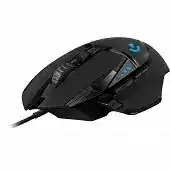
If the pointer works but profiles, DPI controls, lighting, or programmable buttons remain unavailable, the Logitech G502 LIGHTSPEED Wireless Gaming Mouse Driver gives G HUB access to the mouse and its LIGHTSPEED receiver. Windows may provide ordinary pointer movement without loading the controls required for gaming profiles, onboard memory, report rate, and button assignments.
This model uses a dedicated LIGHTSPEED USB receiver rather than Bluetooth, Bolt, or Unifying technology. Its package also includes a receiver extension adapter and a charging/data cable. Logitech recommends placing the receiver through the supplied cable and adapter for a shorter, clearer wireless path, although the receiver can plug directly into the computer.
Logitech G502 LIGHTSPEED Wireless Gaming Mouse Windows Driver Download
| Driver Name | Description | Supported OS | File Size | Download |
|---|---|---|---|---|
| Logitech G HUB Software | Customizes supported mouse controls, sensitivity settings, assignments, lighting, and gaming profiles. | Windows 11, Windows 10 32-bit/64-bit | 67.08 MB | |
| Onboard Memory Manager | Manages compatible settings and profiles stored directly in the mouse’s onboard memory. | Windows 11, Windows 10 32-bit/64-bit | 12.45 MB |
Logitech G502 LIGHTSPEED Wireless Gaming Mouse Mac OS Driver Download
| Driver Name | Description | Supported OS | File Size | Download |
|---|---|---|---|---|
| Logitech G HUB Software | Provides mouse configuration and gaming profile controls for the latest listed macOS releases. | macOS 26, macOS 15, macOS 14 | 11.36 MB | |
| Logitech G HUB Software | Adjusts compatible button assignments, sensitivity preferences, lighting, and profiles on macOS 13. | macOS 13 | 10.43 MB | |
| Logitech G HUB Software | Supports device recognition and personalized mouse settings for systems running macOS 11. | macOS 11 | 5.02 MB | |
| Logitech G HUB Software | Enables compatible control assignments and profile configuration on macOS 10.15. | macOS 10.15 | 5.04 MB |
G HUB opens but shows no G502 LIGHTSPEED
Begin with the physical connection before removing software. Switch the mouse on, unplug the receiver for about ten seconds, and connect it directly to another USB port. Avoid an unpowered hub while testing. Open G HUB again only after Windows finishes detecting the receiver, since launching it too early can leave the device page blank.
Update G HUB when the program detects other Logitech equipment but misses this mouse. Recent releases have corrected cases where device identification information disappeared and prevented hardware from appearing. After updating, close every G HUB process, restart the computer, and reconnect the receiver before opening the application.
G HUB stays on its loading screen
A damaged G HUB installation can leave the program spinning at startup while the mouse continues working through standard Windows input support. Close the application completely, including its background processes, and restart its services. When that fails, uninstall G HUB, reboot, and install a current package instead of placing another copy over the broken installation.
Keep saved profile information in mind before a full removal. Newer G HUB releases include local profile backup controls, but an older or damaged installation may not open long enough to export them. Profiles stored in onboard memory will remain on the mouse, while software-based game detection and desktop profiles may need rebuilding.
Build the Wireless and Charging Setup Around the Receiver
The Logitech G502 LIGHTSPEED Wireless Gaming Mouse Driver works best after the receiver has a dependable connection. Attach the receiver to the included extension adapter, then place it on the desk near the mouse. This arrangement also keeps the charging cable within reach, because the same cable can connect to the mouse when its rechargeable battery needs power.
Pointer movement freezes or jumps during play
Intermittent movement often comes from receiver position rather than sensor failure. A receiver hidden behind a metal computer case, beside several wireless dongles, or close to busy USB equipment has a harder radio path. Bring the extension adapter onto the desk and leave some space between it and other receivers. Then test the game before changing DPI or report rate.
If stuttering remains, try another direct USB port and temporarily disconnect nearby USB devices. Also inspect the sensor opening for loose dust and test the mouse on a plain, non-reflective surface. These checks separate wireless interruptions from surface tracking trouble without disturbing every profile in G HUB.
The receiver lost its pairing
A replacement receiver does not automatically communicate with the mouse, and LIGHTSPEED receivers are not interchangeable merely because their plugs look alike. Open G HUB, enter its support area, and use the Device Pairing Tool. Select the compatible receiver and G502 LIGHTSPEED when the utility presents them, then follow the power-cycle instruction shown on screen.
Install any firmware update requested by the pairing tool before trying again. The utility may refuse to complete pairing when the receiver or mouse firmware is behind. Do not use Unifying Software, the Bolt app, or a general Logitech connection utility for this model; G HUB handles its LIGHTSPEED pairing.
The mouse stops responding while charging
The supplied cable carries both charging power and data, so the mouse should remain usable while connected. Plug it directly into the computer for diagnosis rather than through a keyboard port or passive hub. If it charges but Windows does not detect a wired data connection, test another known data-capable cable and a different USB port.
A cable that powers another device may still lack working data lines. Check the connector for a firm fit and keep sharp bends away from the mouse end. When charging fails through every direct port and more than one suitable cable, the fault may involve the battery, connector, or charging circuit rather than the software package.
Logitech G502 LIGHTSPEED Software for DPI, Profiles, and Onboard Memory
G HUB controls the HERO sensor, adjustable DPI stages, report rate, LIGHTSYNC lighting, programmable buttons, and onboard profiles. The Logitech G502 LIGHTSPEED Wireless Gaming Mouse Driver should therefore come from the gaming software package, not from Options+, SetPoint, or Logitech Gaming Software intended for different product generations.
DPI changes unexpectedly after launching a game
G HUB can switch from the desktop profile to an application-specific profile as soon as it recognizes a game. That second profile may contain different DPI stages or a different default sensitivity. Open the game profile, compare its sensitivity page with the desktop profile, and remove unwanted stages that are easy to trigger accidentally.
Persistent profiles provide another approach when one sensitivity arrangement should remain active everywhere. Set the chosen profile as persistent, then confirm that the DPI-shift and DPI-cycle buttons use the intended commands. This prevents automatic game detection from replacing the active profile while troubleshooting.
Profiles work on one computer but not another
Software profiles belong to the G HUB installation and depend on the application path that activates them. Onboard memory stores selected assignments and sensitivity values inside the mouse, which makes them available without G HUB running. Enable onboard memory, choose a slot, and write a finished profile to that slot before moving the mouse to another computer.
Onboard mode does not reproduce every software-only action. Complex macros, automatic game switching, and some lighting behavior may require G HUB to remain active. Test the stored profile after closing G HUB. When a command disappears only after the program closes, use a simpler onboard-compatible assignment or keep software mode enabled.
A high report rate causes game or desktop lag
The G502 LIGHTSPEED can send frequent pointer updates, but a high report rate also creates more processing work. Some games, remote-control tools, overlays, or heavily loaded systems may stutter when pointer movement generates too many updates. Reduce the report rate in G HUB and test again before blaming the receiver or sensor.
Try a moderate value first rather than making several unrelated changes at once. When the frame hitch disappears at a lower rate, update the game, graphics software, overlays, and G HUB before raising it again. The highest setting is not automatically the best choice for every computer or application.
Fix Wheel Modes, Button Assignments, and Unwanted Clicks
The G502 LIGHTSPEED has eleven programmable controls, a dual-mode scroll wheel, wheel tilt functions, and a mechanical button that switches the wheel between ratcheted and free-spinning movement. Several apparent driver faults come from the active wheel mode or from a game profile replacing the desktop assignments.
The wheel scrolls too freely or continues moving
Press the wheel-mode button behind the scroll wheel before changing software. Free-spin mode lets the wheel rotate with little resistance and can carry a page much farther than expected. Ratchet mode adds distinct steps for controlled scrolling. G HUB does not repair an unwanted free-spin state because the mode changes through the physical mechanism.
When scrolling skips in both modes, close the affected application and test another program. Some games and utilities process wheel input differently. Remove loose debris around the wheel with gentle air and avoid pouring cleaner into the housing. Persistent missed steps across several computers point more strongly to mechanical wear.
Side buttons or wheel tilt perform the wrong action
Check the active G HUB profile while the affected game or program is open. A button may work correctly on the desktop and change as soon as automatic game detection selects another profile. Reassign the control inside that application profile, or copy the working desktop arrangement into it.
For horizontal scrolling, confirm that the current application accepts tilt-wheel input. Some programs ignore horizontal wheel commands even when G HUB shows the assignment correctly. Temporarily map the same tilt direction to a simple keystroke. A successful keystroke test confirms that the switch and software assignment still respond.
A single press registers twice
First rule out operating-system click behavior and profile macros. Restore the primary button to its standard click assignment, remove any repeated-click macro, and test on another computer with G HUB closed. If one physical press still produces two clicks across different systems, the problem is unlikely to come from the Logitech G502 LIGHTSPEED Wireless Gaming Mouse Driver.
Do not use scripts that hide repeated clicks as a permanent repair. Software filtering can delay legitimate rapid input and may behave unpredictably in games. Clean around the button edge without opening the case, document the fault with a click test, and use warranty or professional service when the switch continues to chatter.
Preserve a Working G502 Profile Before the Next Update
Once the receiver, firmware, DPI stages, report rate, and assignments behave normally, save a local copy of the profile through G HUB where that option is present. Also write the essential sensitivity and button layout to onboard memory. The Logitech G502 LIGHTSPEED Wireless Gaming Mouse Driver can then be updated without leaving every important control dependent on one software installation.
After an update, verify detection before editing profiles. Confirm the receiver connection, move the pointer, test both wheel modes, check several programmable controls, and open one game that uses automatic profile switching. This order catches connection or software-loading faults before new changes overwrite a configuration that was already working.