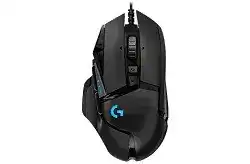
The pointer may move normally while profiles, lighting, DPI stages, and extra buttons remain unavailable. In that situation, the Logitech G502 Hero high performance Gaming Mouse Driver needs to restore the link between this wired USB mouse and G HUB. Windows supplies ordinary pointer input on its own, but the model’s eleven programmable controls, LIGHTSYNC RGB, HERO sensor adjustments, and onboard profiles depend on Logitech software.
Connect the cable directly to the computer before opening G HUB. Avoid a monitor socket, keyboard pass-through port, or unpowered hub during the first test. Windows should detect the mouse immediately. G HUB may take longer because it must start its updater, agent, and device services before displaying the configuration screen.
Logitech G502 HERO High Performance Gaming Mouse Windows Driver Download
| Driver Name | Description | Supported OS | File Size | Download |
|---|---|---|---|---|
| Logitech Gaming Software 64-bit | Full 64-bit package for configuring buttons, DPI levels, profiles, lighting, macros, and other gaming mouse settings offline. | Windows 11, Windows 10 64-bit | 119.96 MB | |
| Logitech G HUB | Customizes mouse buttons, pointer sensitivity, scrolling behavior, lighting effects, assignments, and game-specific profiles. | Windows 11, Windows 10 32-bit/64-bit | 67.08 MB | |
| Onboard Memory Manager | Manages profiles, button assignments, DPI settings, and other configurations stored in the mouse’s onboard memory. | Windows 11, Windows 10 32-bit/64-bit | 12.45 MB |
Logitech G502 HERO High Performance Gaming Mouse Mac OS Driver Download
| Driver Name | Description | Supported OS | File Size | Download |
|---|---|---|---|---|
| Logitech G HUB | Provides button assignments, pointer adjustments, scrolling controls, lighting customization, macros, and application profiles on newer Mac systems. | macOS 26, macOS 15, macOS 14 | 11.36 MB | |
| Logitech G HUB | Controls programmable buttons, cursor sensitivity, RGB lighting, profile switching, and game-related mouse commands on macOS 13. | macOS 13 | 10.43 MB | |
| Logitech G HUB | Adjusts DPI stages, button functions, scrolling options, lighting preferences, and saved application assignments on macOS 11. | macOS 11 | 5.02 MB | |
| Logitech Gaming Software | Offers detailed gaming profiles, macro commands, sensitivity controls, lighting settings, and programmable button configuration for older macOS releases. | macOS 10.15, macOS 10.14, macOS 10.13, macOS 10.12 | 204.99 MB | |
| Logitech G HUB | Sets mouse shortcuts, pointer response, scrolling preferences, button actions, lighting effects, and individual game profiles on macOS 10.15. | macOS 10.15 | 5.04 MB |
G HUB shows the mouse as inactive
Close G HUB from the system tray rather than only closing its window. Open Task Manager and end remaining G HUB processes, then start the program again. If the device still appears inactive, reconnect it through another USB port and restart Windows. This sequence refreshes USB detection without deleting working profiles too early.
A stalled updater service can leave the application on a loading screen or prevent hardware identification. Restart the Logitech updater service through Windows Services, then reopen G HUB. Use the application’s repair option when Windows offers one. A complete removal makes sense only after service restart, port testing, and repair have failed.
The mouse disappears after a G HUB update
An incomplete update may leave old and new program components running together. Restart the computer first. When recognition does not return, uninstall G HUB, reboot again, and install its current release with the G502 connected. Do not run Logitech Gaming Software beside G HUB during this test because both programs may try to manage the same device.
G HUB detects another G502 model
The wired G502 HERO, G502 LIGHTSPEED, and newer G502 X versions use different hardware. Select software and documentation for the wired HERO edition. Wireless receiver instructions, battery controls, POWERPLAY options, and LIGHTFORCE switch features do not belong to this model. A mismatched product assumption often sends troubleshooting in the wrong direction.
Profiles That Change Without Warning
The Logitech G502 Hero high performance Gaming Mouse Driver can switch configurations when a game launches. That feature becomes confusing when the application executable does not match the profile, a launcher opens a second process, or a persistent desktop profile overrides automatic switching. Check the active profile name inside G HUB while the affected program is running.
Button assignments work only while G HUB stays open
Software-controlled profiles rely on G HUB running in the background. To use assignments without the application, enable onboard memory mode and copy a completed profile into one of the available memory slots. Test it after fully exiting G HUB. Some complex actions and software-dependent commands may not transfer exactly like ordinary keys or simple button functions.
Build the profile in software mode before copying it. Set the DPI stages, report rate, and straightforward assignments there, then place that configuration into an onboard slot. Editing the wrong mode creates the impression that G HUB ignored the changes, even though it saved them in a different profile location.
A game loads the desktop button layout
Open the profile details and confirm that G HUB points to the game’s actual executable rather than only its launcher. Some titles start from a store client and then open another file. Add the running executable when necessary. Turn off persistent profile mode if it keeps forcing one layout across every application.
For a quick diagnosis, lock one known profile temporarily and test every control. If the buttons now behave consistently, the hardware is fine and automatic switching needs attention. Re-enable profile changes only after the correct program path appears in G HUB.
DPI changes after pressing a nearby button
The G502 HERO has dedicated sensitivity controls and a thumb-operated DPI Shift button. Accidental presses can make the pointer suddenly race or crawl. Remove unused DPI stages, spread the remaining values far enough apart to notice them, and reassign controls that your grip activates unintentionally.
DPI Shift normally changes sensitivity only while its button remains held. A different assignment or stored profile may make its behaviour seem permanent. Check both the active software profile and onboard slot. Give the button an ordinary command during testing to determine whether profile logic caused the sensitivity change.
Settings reset after a restart
Confirm that G HUB starts with Windows and that the intended profile is persistent or correctly linked to an application. When onboard memory is active, software-mode edits do not automatically replace the stored slot. Copy the revised profile again after changing sensitivity, report rate, or button functions.
Scroll Wheel Behaviour Is Not Always a Software Fault
The G502 HERO uses a dual-mode wheel. The button behind the wheel changes between precise ratcheted movement and free-spinning operation. This control is mechanical, not a G HUB command. A wheel that suddenly spins with little resistance may simply be in free-spin mode, while a firm press returns the notched feel.
The wheel flies through pages too quickly
Press the wheel-mode button once and rotate the wheel again. Ratcheted mode suits short menus and weapon selection, while free-spin mode moves rapidly through long pages. Changing Windows scroll-line values will not restore the physical detents because the wheel-mode button controls that mechanism inside the mouse.
Scrolling jumps upward and downward
First test ratcheted mode in a long document and a web page. If both programs show reversed steps, disconnect the mouse and use short bursts of dry air around the wheel openings while rotating it. Keep moisture and liquid cleaners away from the housing. Dirt near the encoder can interrupt the direction signal.
Try another computer before changing software again. Repeated reverse scrolling on two systems points toward encoder wear rather than a profile error. Avoid opening the shell while warranty service remains available, since the wheel assembly sits near other internal controls and careless repair can create additional faults.
Middle-click fails while scrolling still works
Reset the wheel click to its default function in G HUB and test it in several programs. Some games reserve middle-click or replace it with an in-game binding. If the click does not register anywhere, compare software mode with onboard mode and then test another USB port.
The wheel also supports left and right tilt input. Do not confuse a sideways tilt assignment with the centre press. Clear macros from all three wheel actions during diagnosis, then restore each command separately after the central click responds.
Clicks, Dragging, and Commands That Fire Twice
A single press produces a double-click
Remove macros and restore the affected button to its default action before judging the switch. Raise the Windows double-click speed slightly, then test with G HUB closed. That adjustment can correct an overly generous timing threshold, but it cannot repair a switch that electrically registers two presses.
Check the same button on another computer. Consistent duplicate input across two systems usually indicates switch wear. Do not strike the housing, blow moisture beneath the button, or use unofficial firmware tools. Warranty service or professional switch replacement is safer than temporary methods that can damage the circuit board.
Dragging releases before the button is lifted
Open a window or select text while holding the main button steadily. If the selection drops without finger movement, reset the profile and test another USB port. Persistent release-and-reconnect behaviour commonly accompanies a failing switch, especially when the button also double-clicks or cannot hold an automatic-fire action.
Windows ClickLock can change how dragging feels, so check that setting before blaming the hardware. Disable it for a direct hold test. When both left and right buttons fail only inside one game, inspect the game’s input bindings and overlays before arranging a repair.
Side commands trigger the wrong action
The thumb area contains several closely spaced controls, including forward, back, and DPI Shift. Reset them to simple keyboard keys one at a time. Test each assignment in the target game rather than relying only on desktop navigation, since games may ignore browser back and forward commands.
Macros that contain press and release events can leave a key logically held when an action was recorded incorrectly. Replace the macro with one plain keystroke. Once that works, rebuild the sequence carefully and confirm that every pressed key also has a release event.
Sensor Movement, USB Cable Position, and Report Rate
The HERO sensor can reach 25,600 DPI, although extremely high values magnify tiny hand movements and surface defects. Begin troubleshooting at a moderate sensitivity. Disable Windows Enhance pointer precision when you want direct movement, then alter one value at a time instead of changing DPI, acceleration, and in-game sensitivity together.
The pointer stutters during rapid turns
Connect the cable to another direct USB socket and remove unnecessary hubs. Inspect the cable where it enters the mouse and where it bends around the desk. If movement cuts out when the cable shifts, software changes will not correct the interrupted USB connection.
Clean the sensor opening with dry air and use a plain, opaque mouse pad. Reflective glass, glossy finishes, mixed textures, and debris can produce tracking breaks. Test with the removable weights taken out as well; they do not alter the sensor, but a lighter body may reveal that the original problem came from lifting or tilting during fast movement.
A 1,000 Hz report rate causes game hitching
Set the report rate to 500 Hz for comparison. Older games, overloaded processors, certain overlays, and heavily constrained USB systems may respond poorly to very frequent input. A lower rate can isolate that problem without changing DPI. Restore 1,000 Hz when the game remains stable and the computer processes it normally.
The RGB logo does not follow the selected effect
Make sure G HUB is using software mode and that another lighting application is not taking control. Game integrations can temporarily replace the desktop LIGHTSYNC effect. Disable the integration for the affected title, choose a fixed colour for testing, and confirm that brightness has not been set to zero.
Onboard lighting options may be simpler than effects generated while G HUB runs. If an animation disappears after closing the application, the stored profile may not contain that software-dependent effect. Use a basic onboard lighting choice or leave G HUB active when you need a more complex animation.
Build One Profile Around the Way the G502 HERO Is Held
After the USB connection and switches pass their tests, use the Logitech G502 Hero high performance Gaming Mouse Driver to match the physical controls to your grip. Remove sensitivity stages that cause accidental jumps, assign the thumb controls with enough separation to prevent mistakes, and decide whether the wheel should begin in ratcheted or free-spin mode.
Keep one uncomplicated onboard slot for troubleshooting. Give it moderate DPI, a standard report rate, default clicks, and plain keyboard assignments. When a game profile behaves strangely, switch to that stored configuration. A fault that remains there likely comes from the cable, wheel, sensor, or switches; a fault that disappears belongs to G HUB, a macro, or application switching.