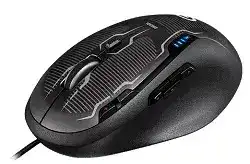
A game can launch normally while the programmed buttons, DPI stages, and report rate stay on their desktop values. The Logitech G500s Laser Gaming Mouse Driver works through Logitech Gaming Software, which manages this model in either Automatic Game Detection or On-Board Memory mode. Choosing the wrong mode often causes more trouble than the installation itself.
Automatic Game Detection keeps separate configurations on the computer and activates them when the matching program runs. On-Board Memory writes one hardware profile into the mouse. That stored profile travels with the G500s, but it cannot switch assignments for different games. Check the mode selector before rebuilding profiles that appear to have vanished.
Logitech G500s Laser Gaming Mouse Windows Driver Download
| Driver Name | Description | Supported OS | File Size | Download |
|---|---|---|---|---|
| Logitech Gaming Software 64-bit | Full 64-bit gaming software package for configuring mouse buttons, pointer sensitivity, profiles, macros, and device-specific settings. | Windows 11, Windows 10 64-bit | 119.96 MB | |
| Logitech Gaming Software 64-bit | Offline 64-bit installer for adjusting tracking speed, programmable controls, game profiles, and advanced mouse behavior. | Windows 10 64-bit, Windows 8 64-bit, Windows 7 64-bit | 120.04 MB | |
| Logitech Gaming Software 32-bit | Complete 32-bit setup for managing sensitivity levels, button assignments, onboard profiles, macros, and gaming mouse functions. | Windows 10 32-bit, Windows 8 32-bit, Windows 7 32-bit | 109.04 MB |
Logitech G500s Laser Gaming Mouse Mac OS Driver Download
| Driver Name | Description | Supported OS | File Size | Download |
|---|---|---|---|---|
| Logitech Gaming Software | Mac gaming software for changing mouse commands, tracking sensitivity, profile assignments, and programmable control settings. | macOS 10.15, macOS 10.14, macOS 10.13, macOS 10.12 | 204.99 MB | |
| Logitech Gaming Software | Legacy Mac package for programming buttons, tuning cursor response, creating game profiles, and controlling supported mouse features. | Mac OS X 10.11, Mac OS X 10.10, Mac OS X 10.9, Mac OS X 10.8 | 202.81 MB |
A game profile never becomes active
Open Logitech Gaming Software and confirm that Automatic Game Detection is selected. Then inspect the executable linked to the profile. Some launchers start a second executable after the opening screen, so a profile tied only to the launcher stops applying once the actual game takes control. Add the executable that remains open during play.
Run the game and the Logitech utility at the same permission level. A game started as administrator may ignore software commands from an ordinary background process. Either launch both normally or give the control software matching permission. Avoid linking several profiles to the same executable while testing because overlapping detection rules make the result difficult to trace.
Assignments disappear after changing modes
Switching to On-Board Memory does not copy every automatic game profile into the hardware slot. Select the onboard section, create the assignments again, and write them to the mouse. The G500s contains one hardware memory profile, so saving a new configuration replaces the previous stored arrangement rather than adding another game slot.
Return to Automatic Game Detection when you need different commands for separate programs. Keep one uncomplicated onboard layout for computers without Logitech Gaming Software. That division prevents a temporary hardware profile from overwriting the more detailed application profiles kept on the main computer.
Buttons work on the desktop but not in a game
Assign an ordinary keyboard key to the problem button and bind that same key inside the game. This test avoids browser commands or application actions that a game may not recognise. Check the active profile rather than editing the default layout repeatedly. The forward and back controls can hold different assignments in each detected application.
Some games capture input through their own control system and reject complex software macros. Replace the macro with a single keystroke, save the profile, and restart the game. When the simple command works, rebuild the action gradually instead of importing a long sequence with delays and repeated keys.
USB Detection and Cable Faults Come Before Software Repair
The G500s is a corded USB 2.0 mouse. It does not use Bluetooth, a wireless receiver, or rechargeable power. When Windows repeatedly plays the USB disconnect sound, loses every button, or restores movement after the cable shifts, investigate the physical connection before reinstalling the Logitech G500s Laser Gaming Mouse Driver.
Windows sees the mouse only in certain ports
Connect it directly to another USB port, preferably without a keyboard hub, monitor socket, dock, or extension cable in between. A low-power or unstable hub may accept basic movement and then drop the device during heavier activity. Restart the computer with the G500s attached after finding a port that holds the connection consistently.
Open Device Manager when the mouse is missing and look for an unknown USB device or repeated HID entry. Unplug the G500s, remove only the failed entry, restart Windows, and reconnect it. Do not delete unrelated keyboard or controller entries. Windows should rebuild the ordinary HID connection before Logitech Gaming Software adds profile control.
The pointer freezes when the cable moves
Place the cable loosely across the desk and move it near the mouse body and USB plug. A disconnect that follows cable movement suggests wear inside the lead or strain-relief area. Software cannot repair a broken conductor. Confirm the symptom on another computer before deciding whether the mouse needs replacement or qualified cable repair.
Remove tight bends, clips, and heavy objects that pull the braided lead sideways. A cable fault can appear only at a particular angle, which makes the problem look like random driver instability. If the device remains connected while stationary but drops during wide movements, the cable deserves more attention than the profile database.
Logitech Gaming Software opens without showing the G500s
First confirm that Windows can move the pointer and register both primary clicks. Close the Logitech utility completely, reconnect the mouse, and reopen the program. If detection still fails, remove the existing installation, restart Windows, and install the compatible Logitech Gaming Software package again. Do not install several generations of Logitech mouse utilities for this device.
The G500s originally used Logitech Gaming Software rather than modern productivity-mouse applications. A newer utility may ignore it even though Windows continues to provide basic input. Keep the package intended for this gaming generation, then check that the application recognises model M-U0010 before restoring custom profiles.
Control DPI and Report Rate Without Chasing False Sensor Problems
The laser sensor offers software-adjustable sensitivity from 200 to 8200 DPI, with up to five stages in Automatic Game Detection mode. The mouse also provides physical DPI increase and decrease controls plus DPI indicator lights. Unexpected speed changes often come from an active stage or profile rather than a failing laser.
The pointer becomes extremely fast during play
Remove sensitivity stages that you never use. With five values active, an accidental press can jump several thousand DPI and make the cursor appear uncontrollable. Keep two or three clearly separated stages, choose one default value, and check the button assignments for DPI Up, DPI Down, or DPI Shift commands.
Per-profile pointer settings can also load a different value as soon as a game opens. Temporarily give the desktop and game profiles the same DPI. If the jump stops, adjust the game profile rather than changing Windows sensitivity. The Logitech G500s Laser Gaming Mouse Driver should manage the hardware value while the operating system remains predictable.
Movement feels uneven at a high report rate
Logitech Gaming Software offers report rates from 125 to 1000 reports per second. Start at 500 when an older game, USB controller, or heavily loaded computer stutters at 1000. A lower rate is a diagnostic change, not an automatic downgrade. Test frame pacing and pointer response before choosing the highest number.
Disconnect other unnecessary USB devices during the comparison. Audio interfaces, external drives, and controllers can expose a weak hub or controller path under load. When the G500s behaves normally at 500 but fails at 1000 on every direct port, retain the stable value instead of repeatedly reinstalling software.
The laser tracks poorly on one desk surface
Clean the sensor opening with dry air and wipe the surface before changing sensitivity. The laser sensor may behave differently on glossy glass, reflective patterns, deep scratches, or uneven fabric. Test a plain, non-reflective mouse pad. A better surface often removes small jumps that software adjustments cannot correct.
Do not push a sharp object into the sensor opening. Also inspect the feet for trapped debris that tilts the mouse or makes it rock during fine movement. Compare low and moderate DPI on the same surface. If every value skips on several computers and pads, the sensor may have a hardware fault.
Wheel Modes, Tilt Input, and Click Failures Need Separate Tests
The wheel races through pages unexpectedly
The G500s has a hyper-fast wheel and a physical mode toggle. Press the toggle once and test the wheel again. Free-spinning mode can travel through long pages from a light flick, while the ratcheted mode gives distinct steps. Changing Windows scroll lines will not recreate the mechanical resistance of the ratcheted position.
If scrolling moves in both directions or reverses without a deliberate wheel movement, test several programs with all custom wheel assignments removed. Blow dry compressed air around the wheel gap while the mouse is unplugged. Persistent erratic input after cleaning usually points to the wheel encoder rather than a DPI or profile setting.
Horizontal tilt works in one program but not another
The wheel supports horizontal input, but each application decides how to use that signal. Test it in a wide spreadsheet or another program with a horizontal scroll bar. A game may ignore tilt scrolling unless you assign the left and right wheel directions to keyboard commands within its Logitech profile.
Check that the active profile has not replaced tilt input with another action. Restore the two wheel directions to their defaults, test ordinary horizontal movement, and then add custom commands individually. This reveals whether the application rejects horizontal scrolling or the physical tilt switch no longer responds.
One press creates two clicks
Open Windows folder options and confirm that items require a double-click rather than a single click. Then test the affected button in several programs with macros disabled. Adjusting the Windows double-click speed can help when two deliberate presses are not recognised, but it will not cure a worn switch that sends two signals from one press.
Double activation often appears alongside failed dragging. An icon may drop while the button remains held, or selected text may release halfway through a drag. Test on another computer without Logitech software. The same failure there strongly suggests switch wear, which requires service or hardware replacement rather than another profile reset.
A side button responds only after several presses
Assign a plain letter key and watch whether every press reaches a text field. This removes game detection, browser navigation, and macro timing from the test. If the key appears reliably, rebuild the original command. If presses remain missing in onboard and automatic modes, compare the control on another computer.
Do not spray liquid cleaner into the button gap. Remove surface dirt with the mouse unplugged and use dry air sparingly. A side switch that fails independently of profiles has crossed from software troubleshooting into a mechanical problem.
Separate Stored Configuration Errors From Age-Related Hardware Wear
Finish by giving the mouse one neutral profile: a moderate DPI value, a 500 report rate, default wheel directions, and simple keyboard commands on the extra controls. Save it through the Logitech G500s Laser Gaming Mouse Driver, restart the computer, and test before importing older configurations. A stable neutral profile proves that the USB connection and basic software path still work.
Profile switching, forgotten assignments, and sensitivity jumps usually remain inside Logitech Gaming Software. Disconnect sounds, cable-sensitive freezes, repeated double-clicks, failed dragging, and erratic wheel signals that follow the mouse to another computer point toward worn hardware. Keeping those two groups apart avoids spending hours rebuilding profiles for a fault no software package can remove.