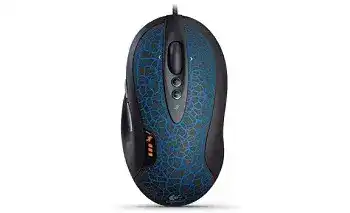
A working USB connection may move the pointer while advanced controls remain unavailable. The Logitech G5 Laser Mouse Driver adds the SetPoint functions used for sensitivity changes, button assignments, game detection, and separate horizontal and vertical tracking values. This wired gaming model does not use Bluetooth or a wireless receiver, so troubleshooting should begin with the USB path, software version, and mouse configuration.
The G5 connects directly through its USB cable and can operate with the standard mouse support built into Windows. SetPoint becomes useful when you need access to the model’s programmable controls or want to change its sensitivity behaviour. Install the package that matches the Windows architecture, restart the computer, and then open the Mouse and Keyboard Settings panel.
Logitech G5 Laser Mouse Windows Driver Download
| Driver Name | Description | Supported OS | File Size | Download |
|---|---|---|---|---|
| SetPoint Software 64-bit | Full 64-bit package for offline setup of mouse button assignments, tracking speed, and device-specific settings. | Windows 11, Windows 10 64-bit, Windows 8 64-bit, Windows 7 64-bit | 80.45 MB | |
| SetPoint Software 32-bit | Complete 32-bit offline installer for configuring hot-keys, pointer tracking, Caps Lock, and Num Lock indicators. | Windows 11, Windows 10 32-bit, Windows 8 32-bit, Windows 7 32-bit | 78.04 MB | |
| SetPoint Smart Installer | Small universal installer for mouse customization that requires an internet connection to download the required components. | Windows 11, Windows 10 32-bit/64-bit, Windows 8 32-bit/64-bit, Windows 7 32-bit/64-bit | 4.61 MB |
Windows sees a USB mouse but SetPoint does not
SetPoint may show a generic device or no configurable mouse even though normal pointing and clicking work. Disconnect the G5, close the installer, and remove an incomplete SetPoint installation through Windows Apps or Programs and Features. Restart before installing the full package, then reconnect the mouse only after the software has finished copying its components.
A damaged installer can produce missing tabs, blank configuration pages, or an installation that stops before completion. Download the package again rather than running the same cached copy. Use the 64-bit edition on 64-bit Windows and the 32-bit edition only on a 32-bit system. Avoid running two different SetPoint releases together.
The mouse disappears after a restart
Move the cable to another direct USB port when the pointer does not return after Windows starts. A front-panel socket, passive hub, keyboard USB socket, or monitor hub can introduce detection problems on an older wired device. A port on the computer itself gives the G5 a clearer power and data path.
Open Device Manager and inspect the mouse and Human Interface Device sections. A warning symbol or unknown USB item points to a port, controller, or enumeration problem rather than a sensitivity profile. Remove only the failed entry, restart Windows, and let the operating system detect the connected hardware again.
SetPoint Profiles, Buttons, and Sensitivity Changes
The Logitech G5 Laser Mouse Driver should expose more than ordinary left-click, right-click, and wheel behaviour. The original G5 design includes adjustable sensitivity controls, a clickable wheel, wheel tilt, and additional programmable input. Later G5 revisions also differ in their side-button layout, so the software view may not look identical for every physical version.
DPI buttons change nothing
The sensitivity buttons should alter tracking without requiring a game to remain open. When they stop responding, first close SetPoint and reconnect the USB cable. Open the utility again and check whether it recognises the G5 by name. A generic HID entry may provide pointer movement while leaving the hardware sensitivity controls outside the active profile.
Review the sensitivity levels stored in SetPoint. Two neighbouring stages can feel identical when their values sit too close together. Spread the levels farther apart, apply the change, and test them with Windows pointer acceleration disabled. This makes each hardware step easier to identify and separates a configuration problem from a faulty button.
Pointer speed changes when a game opens
Game detection can load different sensitivity values when an executable starts. This may feel like an unexplained speed jump when the desktop profile and gaming profile do not match. Open the game settings in SetPoint and either align the values or turn off the application-specific profile for that title.
Check the independent X-axis and Y-axis values as well. The G5 software can treat horizontal and vertical sensitivity separately, which may make diagonal movement feel uneven. Set both axes to the same value unless the game or specialised application genuinely benefits from different tracking rates.
A programmable control performs the wrong action
Reset the affected control to a normal function before creating a new command. Assign a simple action, apply it, and test outside the game. Once SetPoint sends that action consistently, return to the profile and select the intended keystroke or command. This avoids diagnosing a game profile while the global assignment remains unclear.
Some games read mouse input directly and may not accept every application-specific command generated by older software. Assign a keyboard key that the game already recognises, then bind that key inside the game. This route often works better than selecting a specialised command that depends on software integration.
Tracking Problems on a High-Resolution Laser Sensor
The G5 uses a laser tracking engine with hardware sensitivity adjustment. Its pointer can still behave badly on reflective glass, glossy coatings, patterned surfaces, or a pad contaminated with skin oil. Before changing software, wipe the sensor opening gently and test the device on a clean, plain mouse pad.
The pointer jumps or pauses during fast movement
Connect the G5 without a USB extension, switch box, or unpowered hub. Fast movement sends frequent position updates, and a poor USB path can expose brief interruptions that ordinary desktop movement does not reveal. Test another port and close applications that are heavily loading the computer before deciding that the sensor has failed.
Return Windows pointer speed to a moderate position and temporarily disable Enhance Pointer Precision. Then select one fixed sensitivity stage on the mouse. Changing hardware resolution, Windows acceleration, and in-game sensitivity at the same time makes the cause difficult to isolate. Adjust one layer, test it, and continue only after movement becomes predictable.
The cursor moves differently across the desk
Laser sensors may react strongly to changes in texture or reflected light. A surface that works for a basic optical mouse can still produce irregular movement with the G5. Test a uniform cloth pad with no shiny printed areas. Remove dust from the pad as well as the sensor window, since small fibres can interrupt tracking.
Inspect the large glide feet underneath the shell. Worn, dirty, or lifting feet can make the body drag and tilt slightly during a fast swipe. Clean their edges with a dry cloth. Do not apply liquid near the sensor opening, switches, cable entry, or weight-cartridge compartment.
Movement freezes when the cable bends
A freeze that follows cable movement usually points away from SetPoint. Keep the pointer moving slowly while flexing only the cable near the USB plug and then near the mouse body. If Windows repeatedly plays its USB disconnect sound, stop using the damaged connection rather than masking the symptom with repeated software installations.
Also inspect the cable where it rubs against the desk edge. A tightly folded lead can interrupt power or data while the outer covering still appears intact. Test the G5 on another computer through a direct port. The same disconnect pattern on both systems indicates a physical cable or internal connection fault.
Wheel, Tilt, and Click Behaviour
Scroll problems can come from debris, an unsuitable SetPoint assignment, an application preference, or wear inside the wheel mechanism. Begin with the software function because it requires no disassembly. Restore the wheel click and tilt directions to standard actions, apply the changes, and compare their behaviour in more than one program.
Vertical scrolling reverses or moves several lines
Open the Windows mouse page and reduce the number of lines scrolled per wheel notch. A high system value can make a healthy wheel look erratic. Then test a long document. When the page still moves in both directions from a single steady rotation, clean around the wheel with a soft brush or brief bursts of compressed air.
Do not flood the wheel opening with cleaner. Liquid can carry dirt farther into the encoder and switches. If erratic direction continues on another computer with SetPoint closed, the behaviour likely comes from mechanical wear rather than the Windows configuration.
Wheel tilt does not scroll sideways
Horizontal movement depends partly on the active program. First restore the left and right tilt actions in SetPoint, then test a wide spreadsheet or another window that displays a horizontal scrollbar. A narrow webpage may provide no visible response even when the tilt command works normally.
The Logitech G5 Laser Mouse Driver can also assign other actions to the tilt directions. Check that neither direction carries an old keystroke or game command. Apply a standard horizontal-scroll function before testing application-specific assignments again.
Middle click opens the wrong command
Set the wheel press to Middle Button and test it in a program that recognises middle clicking. Browser tabs and three-dimensional design tools often use this input differently, so compare at least two applications. When only one program behaves incorrectly, inspect that program’s shortcut or navigation preferences instead of changing the global assignment.
A single click becomes a double click
Lower or raise the Windows double-click speed and use the test area in Mouse Properties. A speed setting near one extreme can make normal clicking difficult to judge. Also test the left button on another computer. Repeated duplicate clicks across systems, with SetPoint closed, usually indicate switch wear inside an older mouse.
Compressed air around the button gap may remove loose debris, but avoid forceful impacts or liquid cleaning. Software cannot permanently repair a worn switch. Continued duplicate clicks, missed selections, or drag operations that release by themselves point to hardware service or replacement.
Weight Cartridge and Physical Control Checks
The removable cartridge changes the G5’s balance by holding different tuning weights. It does not change tracking resolution or USB detection. When the cartridge feels loose, remove it, check that each weight sits fully inside its slot, and slide the tray back until its latch holds it securely.
The cartridge will not release
Place the mouse on a stable surface and press the release control without pulling at an angle. The tray should move outward far enough to grasp. Dirt around the opening can make it bind, but sharp tools may damage the shell or latch. Use a dry brush around the edge and try again with light, even pressure.
The mouse feels slow after adding weights
Extra mass changes the effort required to start and stop a movement, even though the sensor value remains unchanged. Remove several weights before increasing sensitivity. This preserves controlled tracking without forcing an excessively fast pointer merely to compensate for a heavy cartridge.
Build the cartridge symmetrically when possible. A strongly uneven load can make the body feel unbalanced during lifting and repositioning. Test each arrangement for several minutes rather than filling every slot at once. The lightest workable combination often reduces fatigue during long sessions.
Match the Software to the G5’s Wired Hardware
The Logitech G5 Laser Mouse Driver belongs with SetPoint-era hardware, not receiver-pairing utilities or software intended only for newer wireless products. The G5 has no Bluetooth channel, Unifying receiver, Bolt receiver, rechargeable battery, or wireless pairing process. Installing those utilities will not repair a direct USB detection problem.
Keep the standard Windows mouse support active and use SetPoint only for the controls it exposes. After installation, confirm USB detection, choose sensible sensitivity stages, restore wheel and tilt functions, and then create game profiles. This order prevents a damaged cable, worn switch, unsuitable surface, or failing wheel mechanism from being mistaken for a missing software option.
When the same fault appears through different USB ports and on another computer, trust that comparison. Software changes can resolve missing configuration pages and incorrect assignments, but they cannot repair intermittent wiring or worn mechanical parts. A careful cross-check gives this long-serving wired G5 the best chance of returning to predictable control.