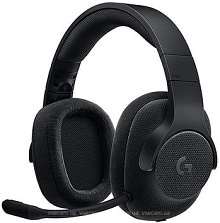
A G433 that plays sound normally through a 3.5 mm connection but loses microphone control, surround processing, or equalizer access on a PC usually needs attention on the USB audio side. The Logitech G433 Gaming Headset Driver works with the headset’s USB DAC for Logitech G HUB features. Because this wired headset can also run through an analog 3.5 mm connection, comparing the two connection paths is one of the quickest ways to separate software trouble from a cable, microphone, or headset problem.
Logitech G433 Gaming Headset Windows Driver Download
| Driver Name | Description | Supported OS | File Size | Download |
|---|---|---|---|---|
| Logitech Gaming Software 64-bit | Full 64-bit Logitech Gaming Software package for configuring compatible G433 headset gaming features and device settings. | Windows 11, Windows 10 64-bit | 119.96 MB | |
| Logitech G HUB | G HUB software for managing compatible Logitech G433 headset settings and supported gaming-device customization. | Windows 11, Windows 10 32-bit/64-bit | 67.75 MB |
Logitech G433 Gaming Headset Mac OS Driver Download
| Driver Name | Description | Supported OS | File Size | Download |
|---|---|---|---|---|
| Logitech G HUB | Current G HUB package for managing compatible Logitech G433 headset controls and supported gaming-device preferences on newer macOS releases. | macOS 26, macOS 15, macOS 14 | 12.43 MB | |
| Logitech G HUB | G HUB installer for configuring supported Logitech G433 headset functions and Logitech gaming peripherals on macOS 13. | macOS 13 | 10.43 MB | |
| Logitech G HUB | G HUB software package for accessing compatible G433 headset configuration options on macOS 11. | macOS 11 | 5.02 MB | |
| Logitech G HUB | G HUB installer designed to provide supported Logitech G433 headset management and gaming-device settings on macOS 10.15. | macOS 10.15 | 5.04 MB | |
| Logitech Gaming Software | Legacy Logitech Gaming Software package for configuring supported G433 headset features and compatible Logitech gaming hardware. | macOS 10.15, macOS 10.14, macOS 10.13, macOS 10.12 | 204.99 MB |
Logitech G433 Gaming Headset Driver When USB Audio Sounds Wrong
The G433 includes a USB DAC for PC use, and that connection is where its software-controlled DTS Headphone:X 7.1 surround and audio adjustments become relevant. If the headset sounds clean through 3.5 mm but becomes quiet, distorted, robotic, or crackly through USB, do not immediately blame the 40 mm Pro-G drivers. The difference between the two connection methods points toward the DAC, USB port, Windows audio configuration, or Logitech software.
Crackling starts after Logitech software loads
Crackling through the USB DAC has appeared in G433 troubleshooting even when ordinary analog playback remains clear. Change the DAC to another direct USB port first and replay the same audio. If the noise follows only the USB path, check G HUB and the Logitech audio device rather than disturbing unrelated motherboard audio drivers. Restart Windows after reconnecting the DAC so the operating system can enumerate the USB audio hardware again.
Also compare playback with surround processing disabled. If stereo remains clean but DTS processing introduces rough or broken audio, the headset speakers themselves are unlikely to be the immediate cause. Reinstalling G HUB becomes more reasonable at that point, particularly when the problem began after a software or audio-driver change.
USB volume is much lower than the analog connection
A sudden level drop can come from Windows processing rather than the physical volume control. Open the sound properties for the G433 USB playback device and check its output level, left-right balance, and enabled audio enhancements. Disable unnecessary Windows sound processing while testing, then compare the same recording at the same application volume. Avoid raising every gain control at once because that can replace low volume with clipping or background noise.
If normal volume returns when Windows enhancements are removed, leave those effects off and use the controls available through the Logitech software instead. The G433 USB DAC and Windows enhancements can alter the signal in different ways, so stacking several processing layers makes diagnosis harder.
Microphone Trouble Has More Than One Connection Point
The detachable boom microphone creates a different troubleshooting path from the headphone speakers. A headset that delivers game audio perfectly can still have no voice input because the boom plug is not fully seated, the inline mute control is active, Windows has selected another recording source, or an application has retained an older microphone choice. Test the microphone before changing surround or equalizer options.
The boom microphone is detected but barely audible
Push the detachable boom microphone firmly into its headset socket and confirm that the inline control has not muted it. Then open Windows microphone properties for the G433 USB audio device and inspect the input level. Speak at a normal distance while watching the Windows input meter. A meter that barely moves even at a high recording level calls for a comparison through another USB port and, where practical, another computer.
The Logitech G433 Gaming Headset Driver configuration can also affect this symptom when the USB DAC is in use. If microphone level became unusually low after a G HUB change, compare the result with the 3.5 mm path. A normal analog microphone result narrows the fault toward USB audio processing, while weak input through both paths gives more reason to inspect the boom microphone, cable seating, and microphone socket.
Voice becomes robotic after a restart
Robotic or heavily distorted microphone output is different from simple low gain. First record a short voice sample outside Discord, a game, or streaming software. If the distortion appears in the Windows recording too, change the USB port and restart the audio application. When every local recording sounds normal but one program does not, correct that program’s input device before reinstalling anything.
If the distorted voice returns whenever G HUB loads, remove and reinstall the current G HUB package and allow Windows to rediscover the G433 USB device. Keep the DAC disconnected during the removal stage if Windows repeatedly restores the problematic entry, then reconnect it after the software and computer restart.
Why G HUB May Not Show the G433 Correctly
A 3.5 mm plug carries analog audio and does not give G HUB the same USB device connection that the included DAC provides. That distinction explains a frequent complaint: the headset works for listening, yet G HUB does not expose the expected G433 controls. For software detection and digital surround functions, connect the PC cable through the supplied USB DAC and confirm that Windows recognizes the USB audio device.
G HUB shows no headset or incomplete controls
Reconnect the DAC to another USB port while G HUB is closed, then reopen the application after Windows finishes detecting the hardware. Make sure the detachable microphone is attached when diagnosing missing microphone controls. If G HUB still fails to identify the headset, inspect Device Manager for the G433 or Logitech USB audio hardware instead of repeatedly unplugging the 3.5 mm cable.
A damaged or stale USB audio entry can prevent the software from attaching to the hardware correctly. Remove the affected G433 audio device from Device Manager, disconnect the DAC, restart Windows, and reconnect it through a different USB port. Once Windows rebuilds the device entry, launch G HUB again. This approach targets the USB portion that G HUB actually needs.
Windows labels the USB headset as speakers
The word used by Windows does not always describe the physical shape of an audio product. More important questions are whether the G433 appears as an output device, whether its microphone appears as an input, and whether G HUB identifies the USB-connected hardware. If audio routes to the wrong place, select the G433 output explicitly in Windows and inside the game or communication application.
Surround Sound Can Fail While Stereo Still Works
The G433’s DTS Headphone:X 7.1 processing depends on its digital PC path rather than ordinary analog stereo alone. That means a successful left-right headphone test does not prove that surround processing is configured properly. When voices sound far away, positional effects collapse into two channels, or the G HUB surround demonstration behaves strangely, simplify the playback chain before changing in-game audio repeatedly.
Only left and right channels seem active
Confirm that the USB DAC is the active Windows playback device and enable surround processing in G HUB. Avoid simultaneously forcing a second virtual-surround system in Windows or another audio utility while testing. Two spatial processors can produce poor positioning instead of a stronger surround effect. Use one processing system, play familiar multichannel material, and then adjust the game’s own output mode.
If surround controls previously worked and disappeared after an update, reinstalling the Logitech USB audio component can be more useful than changing game settings. Remove the affected G433 entry, reboot, let the Logitech software rebuild its audio support, and then return to G HUB. The Logitech G433 Gaming Headset Driver needs the digital device path intact before its surround controls can operate as intended.
Dialogue sounds distant while effects remain loud
Oddly recessed voices can come from surround configuration, channel processing, or balance rather than damaged speakers. Switch surround off temporarily and listen in stereo. Check that Windows balance has not shifted toward one side, then test the same scene again. If dialogue becomes normal in stereo, re-enable surround only after clearing other spatial effects and confirming the game is using an appropriate headphone output mode.
Cables and Connections Can Imitate a Software Fault
The G433 has detachable cabling, so intermittent audio deserves a physical connection check before a lengthy software rebuild. Push the headset cable fully into the earcup socket and reconnect the source end. If turning or gently repositioning the plug makes one channel disappear, brings the microphone back, or changes the noise, compare the second compatible cable supplied for another connection use rather than repeatedly reinstalling G HUB.
Sound disappears from one ear
Start with Windows balance and a second audio source. If left and right balance are equal but the same ear remains silent on another device, inspect the detachable cable connection and reconnect it firmly. A channel that cuts in and out when the plug moves suggests a cable or socket problem more strongly than an EQ error. Stop using a cable if its plug or insulation has visible damage.
Desktop audio leaks into the microphone
When other people hear game sound through the microphone channel, confirm that Windows is using the G433 microphone rather than another recording source or loopback input. Then check the physical connection method. On a PC, using the USB DAC provides separate digital playback and microphone paths and also gives G HUB access to the headset. Recheck application input choices after switching connections because communication programs may retain the previous device.
High speaker volume can also create acoustic pickup through a boom microphone, especially when the microphone sits far from the mouth and input gain is raised to compensate. Position the boom closer to your voice, lower excessive microphone gain, and make another recording. This test separates genuine routing leakage from sound that is simply reaching the microphone through the earcups.
Match the G433 Connection to the Feature You Need
The most useful distinction with this headset is not simply whether sound comes out. The 3.5 mm connection is valuable for checking the analog headset path and for devices that accept standard headset audio, while the supplied USB DAC gives a PC the Logitech digital audio path used for G HUB processing and DTS Headphone:X 7.1. Testing both paths can reveal whether a fault follows the headset hardware or only the computer’s USB configuration.
When the Logitech G433 Gaming Headset Driver functions correctly through the DAC, Windows should have usable playback and recording paths and G HUB should be able to work with the supported headset controls. If a problem occurs only through USB, concentrate on the DAC, USB enumeration, G HUB, and Windows audio processing. If the same missing channel, microphone failure, or cable-sensitive fault remains through another source, software changes are unlikely to repair the underlying hardware problem.