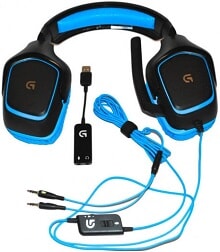
Surround sound disappearing, a microphone that suddenly goes silent, or Windows detecting the USB adapter without giving usable audio are the problems that make the Logitech G430 Gaming Headset Driver worth checking carefully. The G430 is a wired PC gaming headset with separate 3.5 mm headphone and microphone connections plus an included USB audio adapter. Its virtual 7.1 processing depends on that USB path and compatible Logitech Gaming Software rather than the analog plugs alone.
Logitech G430 Gaming Headset Windows Driver Download
| Driver Name | Description | Supported OS | File Size | Download |
|---|---|---|---|---|
| Logitech Gaming Software 64-bit | Full 64-bit Logitech Gaming Software package for configuring supported gaming headset features and device-specific settings, suitable for offline installation. | Windows 11, Windows 10 64-bit | 119.96 MB |
Logitech G430 Gaming Headset Mac OS Driver Download
| Driver Name | Description | Supported OS | File Size | Download |
|---|---|---|---|---|
| Logitech Gaming Software | Mac version of Logitech Gaming Software for managing compatible gaming headset functions and available device configuration options. | macOS 10.15, macOS 10.14, macOS 10.13, macOS 10.12 | 204.99 MB |
Logitech G430 Gaming Headset Driver When Surround Sound Disappears
The G430 has two physical audio channels in the headset, while its surround effect comes from software processing through the supplied USB adapter. That difference explains why the headset may still play ordinary stereo sound even when 7.1 processing has stopped. If left and right audio work but positional channels do not, first confirm that the headset is running through its USB adapter rather than directly from the computer’s analog output.
Only left and right channels play
Open the Windows playback devices and make sure the G430 USB audio device has become the active output. Then check the surround option in the compatible Logitech Gaming Software. Some applications can change the active audio path or introduce their own virtual audio devices, leaving the headset with stereo playback even though Windows still recognizes the adapter.
If surround vanished after installing streaming, recording, voice-chat, or virtual-audio software, close that software and test the headset again. Remove an unused virtual playback device from the active path rather than stacking several surround processors together. G430 positional audio already relies on software processing, so another layer of spatial or virtual sound can produce missing channels, unusual direction cues, or an apparently disabled surround mode.
Surround returns after changing the USB port
A different USB socket sometimes restores the adapter when Windows has retained a bad audio-device state. Disconnect the G430 adapter, restart the computer, and connect it directly to another USB port after Windows loads. Once the headset appears again, select it for both playback and recording before opening the Logitech utility. This is more useful than changing equalizer values while the underlying USB audio device is not initializing properly.
Microphone Faults Can Come From Three Different Places
The G430 uses a rotating boom microphone with hardware noise cancellation, and the cable also carries a microphone mute control. Because the headset can connect through either its analog plugs or the USB adapter, a silent microphone does not immediately identify the faulty part. Check the physical mute control first, then separate Windows input selection from adapter trouble.
The microphone appears in Windows but records nothing
Choose the G430 microphone explicitly as the recording input in Windows and in the program where the problem occurs. A game, chat program, or recording application can retain another microphone even after the headset becomes the Windows default. Watch the Windows input-level meter while speaking. If that meter moves, the headset is supplying audio and the remaining fault lies in the application’s input choice or permission.
If the meter stays completely still, unplug the USB adapter and test the headset’s separate microphone and headphone plugs with compatible analog sockets. The G430 officially supports analog 3.5 mm stereo as well as its USB adapter. A microphone that works through analog but fails through USB points toward the adapter, USB audio configuration, or software path rather than the boom microphone itself.
Logitech Gaming Software stops detecting the headset
A less obvious problem occurs when the recording side of the G430 has been disabled in Windows. The headset can continue producing sound while Logitech Gaming Software no longer recognizes the complete USB device as expected. Re-enable the G430 recording input, disconnect the adapter, reconnect it, and reopen the software. Check this before removing every audio component from the computer.
The Logitech G430 Gaming Headset Driver also belongs to an older software generation. Logitech listed Logitech Gaming Software 8.45 as the supported software at the product’s release, while its current G430 support page no longer provides a product download. Treat modern utility suggestions carefully; software intended for newer Logitech hardware does not automatically replace the legacy G430 audio processing package.
Your voice is extremely quiet
Low microphone output has appeared even when the recording device is present and unmuted. Raise the G430 recording level in Windows gradually and compare the result in the Windows microphone test before adding application-specific gain. Also position the rotating boom close enough to capture speech without placing it directly against the mouth. Excessive software gain can turn a quiet microphone into a noisy one rather than solving the original input problem.
Crackling, Low Volume, and One-Sided Audio Need Separate Tests
USB audio sounds much quieter than the analog connection
The USB adapter and analog connectors follow different audio paths. If playback through USB seems abnormally quiet, confirm the Windows output level, application volume, and the G430’s inline volume control before blaming the headset speakers. Then compare the same audio through the analog headphone plug. A large difference between the two modes gives a useful clue that the USB adapter or its audio processing deserves attention.
Do not compare analog and USB surround as though they provide identical functions. The supplied USB adapter is part of the G430’s virtual 7.1 system. Direct analog connection can provide ordinary headset audio, but it bypasses that specific USB surround processing. Use the analog test to isolate a fault, not as proof that the Logitech surround system is working.
Sound distorts or crackles near maximum volume
Crackling that starts only at very high volume should first be tested at a moderate level. Reduce the Windows master output and the inline wheel, then replay the same material. If distortion disappears, avoid running every gain stage at maximum. If it remains through USB but the analog connection sounds clean, test another USB socket and another computer before deciding that an earcup driver has failed.
A crackle that reacts when the cable, plug, or inline controller moves deserves a different diagnosis. Slowly move only one part at a time while ordinary audio plays. If the fault consistently follows a certain cable position, physical wear becomes more likely. Software cannot repair a damaged conductor, loose plug, or worn volume control.
One ear stops producing sound
One-sided audio can come from balance configuration, the plug not being fully inserted, cable damage, or internal headset hardware. Check left and right balance first and reseat both 3.5 mm connections in the supplied adapter. Then try the analog headphone connector without the USB adapter. If the same ear remains silent on a second audio source, the fault has moved away from Windows configuration and toward the headset itself.
USB Adapter Detection Matters More Than Repeated Reinstallation
Windows identifies the supplied G430 adapter as a USB audio device. If neither playback nor microphone entries appear after connection, concentrate on that detection stage. Connect the adapter directly rather than through a questionable hub, test another port, and inspect Device Manager. A headset software reinstall has little value while Windows cannot establish a working USB audio connection in the first place.
Audio and microphone cut out together
When both directions fail at exactly the same moment, the shared USB path deserves attention before either the microphone or earcups. Try another direct port and temporarily disconnect unnecessary USB audio hardware. A quick analog test can narrow the problem further. If the headset remains stable through its 3.5 mm connections while the USB mode repeatedly disappears, investigate the adapter and computer USB handling.
The headset returns after every unplug and reconnect
Repeated recovery after reconnecting suggests that the operating system is losing the USB audio session rather than the headset staying completely dead. Restart Windows with the adapter removed, then attach it after login and let audio detection finish before launching games or chat software. Also check whether another application immediately takes exclusive control of the playback or recording device.
For a Logitech G430 Gaming Headset Driver reinstall, remove only the relevant G430 or Logitech USB audio components when a damaged software installation is genuinely suspected. Restart before putting the compatible package back. Removing unrelated motherboard audio, graphics-card HDMI audio, webcams, and other working sound devices at the same time makes the fault harder to isolate.
Keep the G430 Audio Path Appropriate for the Job
The most useful way to diagnose this headset is to take advantage of its two connection paths. USB is the path for the supplied adapter and Logitech virtual surround processing. The separate analog headphone and microphone plugs provide a comparison when sound, microphone input, or the adapter behaves strangely. Testing both paths often reveals more than cycling through several unrelated audio applications.
Keep the inline mute control and volume wheel in mind as well. A physical mute can make a perfectly detected microphone look broken, while an inline volume setting can imitate a Windows output problem. Likewise, a microphone that works through analog but not USB tells a different story from one that fails everywhere. Those distinctions prevent unnecessary software changes.
The Logitech G430 Gaming Headset Driver is most relevant when the USB adapter must provide the headset’s software-based surround functions and Windows audio integration. Once ordinary stereo, microphone input, USB detection, and virtual 7.1 are tested separately, the remaining cause is usually much clearer. That approach also distinguishes an aging cable, adapter, wheel, or microphone from a software problem without masking the original symptom with unrelated audio utilities.