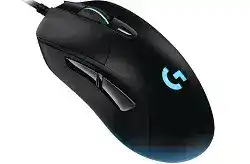
A working pointer with missing DPI, lighting, or profile controls usually means Windows has loaded only standard mouse support. The Logitech G403 Prodigy Wireless Gaming Mouse Driver adds access to the model’s programmable buttons, PMW3366 sensor range, onboard profile, report rate, and RGB lighting. The wireless edition uses its dedicated USB receiver and can also communicate through the supplied charging cable.
This older Prodigy model originally worked with Logitech Gaming Software, while later software releases also brought supported Logitech gaming hardware into G HUB. Do not confuse it with the wired G403 Prodigy, the later G403 HERO, or the G703. Their similar shells and names can lead to the wrong firmware package, product page, or receiver-pairing choice.
Logitech G403 Prodigy Wireless Gaming Mouse Windows Driver Download
| Driver Name | Description | Supported OS | File Size | Download |
|---|---|---|---|---|
| Logitech G HUB | Customizes mouse buttons, pointer behavior, sensitivity levels, lighting, shortcuts, and game profiles. | Windows 11, Windows 10 32-bit/64-bit | 67.08 MB | |
| Logitech Gaming Software 64-bit | Provides a full 64-bit package for configuring DPI settings, programmable buttons, lighting, and onboard profiles. | Windows 11, Windows 10 64-bit | 119.96 MB | |
| Onboard Memory Manager | Manages button assignments, sensitivity stages, and profiles stored directly in the mouse memory. | Windows 11, Windows 10 32-bit/64-bit | 12.45 MB |
Logitech G403 Prodigy Wireless Gaming Mouse Mac OS Driver Download
| Driver Name | Description | Supported OS | File Size | Download |
|---|---|---|---|---|
| Logitech G HUB | Controls mouse button functions, pointer sensitivity, scrolling behavior, lighting effects, and application shortcuts. | macOS 26, macOS 15, macOS 14 | 11.36 MB | |
| Logitech G HUB | Adjusts DPI levels, programmable controls, lighting patterns, and profiles for games and desktop applications. | macOS 13 | 10.43 MB | |
| Logitech G HUB | Configures pointer response, mouse assignments, custom shortcuts, lighting zones, and stored device settings. | macOS 11 | 5.02 MB | |
| Logitech G HUB | Supports personalized button commands, tracking sensitivity, scrolling preferences, lighting, and game-specific configurations. | macOS 10.15 | 5.04 MB | |
| Logitech Gaming Software | Offers legacy mouse customization for sensitivity, button commands, illumination, macros, and gaming profiles. | macOS 10.15, macOS 10.14, macOS 10.13, macOS 10.12 | 204.99 MB |
G HUB displays a different G403 version
Check the label under the mouse and confirm that it says G403 Prodigy Wireless. If the software presents a HERO version or another gaming mouse, disconnect every extra Logitech receiver and restart the application with only the G403 receiver attached. A shared computer with several Logitech gaming products can make identification harder during installation.
Connect the mouse by cable if the wireless entry remains unclear. The wired connection gives the utility another way to read the device while the receiver stays attached. Once the correct product tile appears, open its device page and review the firmware information before changing profiles.
Logitech Gaming Software detects it, but G HUB does not
Running both control programs can create competing background services and duplicate virtual mouse entries. Decide which application will manage the G403, export any settings you need, and remove the other program. Restart Windows before installing the chosen package again. Avoid launching an old portable installer immediately after G HUB finishes its first device scan.
If Logitech Gaming Software still manages every feature you need, there is no benefit in forcing a migration during an active troubleshooting session. First confirm receiver operation, charging, buttons, and wheel response. Move to G HUB later when you can rebuild the profile without mixing a software problem with a hardware symptom.
The application remains on a spinning logo
Close the program from the system tray, then stop its remaining updater and agent processes through Task Manager. Restart the computer and open the application once. When the loading screen returns, uninstall the package and remove its damaged local configuration before installing a newly downloaded copy.
Do not restore every old profile at once. Start with the default device page and confirm that the mouse remains visible after a reboot. Importing a corrupted lighting or macro configuration can bring the same loading failure back even after a successful reinstallation.
Separate Profile Errors from Sensor Problems
The G403 Prodigy Wireless stores one onboard profile and provides six programmable controls. It also supports adjustable DPI and a fast USB report rate. These features can make a profile mistake feel like failing hardware because sensitivity, clicks, or commands may change as soon as a game launches.
DPI becomes faster when a game opens
Look at the active profile name while the game runs. Automatic game detection may switch away from the desktop configuration and load a different DPI stage. Copy the preferred sensitivity into the game profile, or use one persistent profile when you want the same response in every program.
The top DPI control can also cycle through several saved values. Remove stages you never use and keep only a small set around your normal sensitivity. This prevents an accidental press from jumping directly to an extreme value during play.
The DPI button changes lighting but not sensitivity
Open the button assignment page and restore the top control to DPI cycling or DPI shift, depending on the behavior you want. A previous macro may have replaced its original function. Save the change to the active software profile, then test again before writing anything into onboard memory.
The Logitech G403 Prodigy Wireless Gaming Mouse Driver should expose the sensor and assignment pages for the identified wireless model. If those pages remain missing, remove the device from the application, reconnect it by cable, and allow the software to identify it again.
Stored settings vanish on another computer
Software-controlled profiles do not automatically travel with the mouse. Switch to onboard memory mode and save the required DPI, report rate, lighting, and straightforward button commands into the hardware profile. Close the control application afterward and verify that the intended behavior remains.
Complex macros may depend on the software running and may not translate fully into onboard storage. Test each command after saving it. When an onboard slot behaves strangely, reset it to default and rebuild it instead of copying the same damaged profile repeatedly.
Games ignore programmed thumb-button commands
The two side controls can use browser navigation, keyboard keys, or game actions. Confirm that the game profile assigns the intended command and that the application has selected the correct executable. Launchers and game binaries often use different files, so automatic profile switching may attach to the launcher rather than the game itself.
Permission levels also matter. A control utility running normally may fail to send simulated keystrokes into a game launched as administrator. Run both at matching permission levels, or save a basic keyboard assignment to onboard memory for comparison.
Recover Wireless Operation Without Treating It as Bluetooth
The G403 Prodigy Wireless does not use Bluetooth, a Unifying receiver, or a Logi Bolt receiver. Its dedicated gaming receiver handles the wireless connection. General Logitech office-mouse pairing utilities will not create the required link, even when Windows recognizes the USB device.
The receiver appears, but the pointer does not move
Charge the mouse first, switch it off, and connect both the receiver and charging cable directly to the computer. Open the supported Logitech gaming utility and use its receiver-pairing function for the G403 Prodigy Wireless. Follow the requested power cycle, then remove the cable only after the utility confirms the link.
Select the exact wireless model during pairing. A G403 wired entry cannot pair, while a G703 selection may represent different firmware or receiver expectations. The receiver supplied with another Logitech product is not automatically interchangeable just because it has the same USB shape.
Wireless movement cuts out during fast turns
Use the included extension arrangement to place the receiver on the desk near the mouse. A receiver hidden behind a computer chassis may struggle when metal, cables, and other 2.4 GHz equipment sit between it and the mouse. Keep it away from wireless headset transmitters, routers, and busy external-drive connections during testing.
Bypass monitor ports, docking stations, keyboard passthrough sockets, and unpowered hubs. Connect the receiver to a direct computer port and compare several locations. If one port produces clean movement while another causes pauses, leave the receiver on the better USB controller rather than reinstalling the software again.
The pointer stutters only at a 1000 Hz report rate
Lower the report rate temporarily and retest the same game. A reduced rate can lessen load on an older USB controller or reveal that a background process is struggling. It should not be necessary on a healthy modern system, but it provides a useful comparison before blaming the optical sensor.
Close hardware-monitoring overlays, RGB controllers, and other peripheral suites for one test session. Several programs polling USB devices can produce brief interruptions. Restore them one by one after the G403 runs normally.
Wireless mode fails after sleep
Turn the mouse off for several seconds, reconnect the receiver, and power it on again. If the problem follows every sleep cycle, test a different direct USB port and review Windows power management for that USB hub. Preventing the system from suspending the receiver may stop repeated wake failures.
Test cable mode after the computer wakes. Immediate wired operation confirms that the mouse still has power and narrows the fault to the receiver path or USB wake state.
Wheel and Click Faults That Profiles Can Imitate
Scroll reversal, missed clicks, and repeated clicks can come from damaged assignments, debris, firmware trouble, or worn mechanical parts. Reset the active profile before judging the hardware. Then compare cable and wireless modes, because a physical switch fault normally follows the mouse across both connections.
Scrolling jumps in the opposite direction
Install any firmware update offered for the identified G403 and test with the gaming software fully closed. Blow short bursts of compressed air around the wheel while rotating it gently. Do not apply liquid cleaner through the wheel opening, since it may reach the encoder or internal circuit board.
Try several pages and another computer. Reverse movement that continues under default controls usually points to the wheel encoder rather than a Windows scroll option. Software cannot permanently correct an encoder that sends alternating direction signals.
Middle click works only occasionally
Restore the wheel press to its standard middle-button action and test it in a browser tab or another program that accepts middle click. A game-specific profile may replace it with a macro. If the press fails with default settings and on a second computer, the wheel switch may need professional service.
Single presses register twice
Return the left and right buttons to their default commands, close the Logitech utility, and inspect the operating system’s double-click speed. Test slow, deliberate presses rather than rapid gaming input. Repeated double registration across computers indicates switch wear more strongly than a profile problem.
Avoid delay scripts or unofficial debounce patches. They may suppress legitimate rapid clicks and can interfere with games. If the hardware remains covered, record the fault under default settings and use the warranty path rather than opening the housing.
A thumb button works in one program but not another
Applications do not all interpret back, forward, or simulated keyboard commands in the same way. Assign a plain keyboard key to the button and test it in the affected program. If that succeeds, the original application action was incompatible rather than the physical button being defective.
Charging Results Can Reveal the Real Failure
The wireless G403 contains an internal rechargeable battery and uses its cable for charging and USB communication. Cable mode is therefore more than a backup connection. It can show whether a fault belongs to the battery, receiver link, software layer, or mouse hardware.
The battery percentage stays frozen
Connect the cable directly to the computer, turn the mouse on, and reopen the control application after a minute. A stale reading may update only after the device reconnects. Compare the software value with the charging indicator rather than relying on one unchanged percentage.
When the Logitech G403 Prodigy Wireless Gaming Mouse Driver continues to show the same value through several sessions, reinstall the chosen control package and test another USB data cable. A charge-only cable may supply power without giving the utility a fresh device reading.
The mouse charges but dies soon after unplugging
Disable RGB lighting, charge it fully, and measure how long it remains powered. Fast discharge with lighting off and no receiver interruptions suggests an aged internal battery. Instant loss of pointer movement while the lights stay on instead points back to receiver pairing or wireless communication.
No charging light appears
Check that the plug reaches the recessed port completely. Lint or a damaged connector can stop proper contact. Try another compatible data-and-charging cable and a direct powered USB port. Leave a deeply discharged mouse connected before deciding that it has no response.
Do not dismantle the shell as the first remedy. Battery replacement and connector repair require internal work that can damage the cable socket, switches, or warranty seals. A second computer provides a safer final comparison.
Use cable mode as the final dividing test
Finish with default assignments, lighting reduced, and only one Logitech gaming utility installed. Test every control through the cable, then reconnect the dedicated receiver and repeat the same actions. A fault that appears only wirelessly belongs to the receiver path; one that remains in both modes is more likely tied to the profile, switch, wheel, sensor, cable socket, or internal battery.