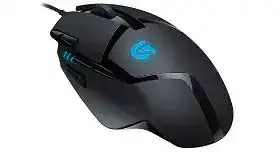
A working pointer can hide missing gaming controls, so the Logitech G402 Hyperion Fury Ultra-Fast FPS Gaming Mouse Driver becomes necessary when DPI switching, programmable buttons, profiles, or onboard commands disappear. Windows may identify the wired device as a standard HID mouse while leaving its gaming functions unavailable inside Logitech software.
The G402 is a wired gaming mouse with eight programmable buttons, four selectable DPI levels, a DPI-shift control, onboard memory, and a one-millisecond report rate. Its Fusion Engine combines an optical sensor with onboard processing for high-speed tracking. It does not use Bluetooth, a wireless receiver, rechargeable power, or receiver-pairing software.
Logitech G402 Hyperion Fury Ultra-Fast FPS Gaming Mouse Windows Driver Download
| Driver Name | Description | Supported OS | File Size | Download |
|---|---|---|---|---|
| Logitech G HUB Software | Customizes programmable buttons, DPI levels, pointer behavior, lighting, assignments, and game-specific profiles. | Windows 11, Windows 10 32-bit/64-bit | 67.08 MB | |
| Logitech Gaming Software 64-bit | Provides a full 64-bit package for configuring mouse commands, sensitivity stages, polling rate, profiles, and onboard settings. | Windows 11, Windows 10 64-bit | 119.96 MB | |
| Onboard Memory Manager | Edits profiles, button assignments, and DPI settings stored directly in the mouse onboard memory. | Windows 11, Windows 10 32-bit/64-bit | 12.45 MB |
Logitech G402 Hyperion Fury Ultra-Fast FPS Gaming Mouse Mac OS Driver Download
| Driver Name | Description | Supported OS | File Size | Download |
|---|---|---|---|---|
| Logitech G HUB Software | Manages mouse button assignments, DPI adjustments, shortcuts, profiles, and other supported gaming settings. | macOS 26, macOS 15, macOS 14 | 11.36 MB | |
| Logitech G HUB Software | Controls pointer sensitivity, programmable commands, application profiles, and compatible device preferences on macOS 13. | macOS 13 | 10.43 MB | |
| Logitech G HUB Software | Configures gaming profiles, mouse buttons, tracking sensitivity, shortcuts, and supported device functions on macOS 11. | macOS 11 | 5.02 MB | |
| Logitech G HUB Software | Adjusts button functions, DPI behavior, profile assignments, and mouse preferences for macOS 10.15. | macOS 10.15 | 5.04 MB | |
| Logitech Gaming Software | Supports detailed configuration of sensitivity levels, programmable controls, polling settings, and game profiles on older macOS releases. | macOS 10.15, macOS 10.14, macOS 10.13, macOS 10.12 | 204.99 MB |
The DPI indicators change but pointer speed does not
Open the active mouse profile and inspect every sensitivity stage. A profile can contain several DPI values that sit close together, making the buttons appear ineffective. Spread the stages farther apart for testing, assign the DPI-up and DPI-down commands again, and confirm that the temporary DPI-shift control has not replaced one of them.
A game-specific profile may take control as soon as the application launches. Change the sensitivity inside that profile rather than editing only the desktop configuration. When one speed should remain active everywhere, use a persistent profile or store a finished configuration in onboard memory.
The DPI-shift button remains at the wrong speed
The thumb control normally changes sensitivity only while it is held, then returns to the previous level after release. Check its assignment when the lower speed continues after you let go. Restore the standard DPI-shift command and set a clearly different shift value so its press-and-release action is easy to verify.
Some players remap this control to a keyboard command and later forget that the original function was removed. Review both the desktop and game profiles. Resetting the whole device is unnecessary when only one profile contains the altered assignment.
Recover Software Detection Without Disturbing Every Profile
The Logitech G402 Hyperion Fury Ultra-Fast FPS Gaming Mouse Driver should recognize the device through its direct USB connection. When Logitech software stays blank, first unplug the cable, wait several seconds, and connect it to another port on the computer. Avoid a monitor, keyboard, docking station, or unpowered hub during this test.
G HUB shows no device while Windows still moves the pointer
Quit G HUB completely rather than closing only its window. End its remaining background processes, reconnect the mouse, and reopen the program after Windows finishes detecting the USB hardware. An older software build may also miss the device, so update G HUB before attempting a deeper removal.
If detection still fails, open Device Manager and locate the entries associated with the mouse. Remove the affected device entry, disconnect the cable, and restart Windows. Plug the G402 into a different port after startup so the operating system creates a new USB and HID record.
G HUB hangs at startup or loses saved assignments
A damaged local settings database can prevent the program from loading its device page. Close G HUB and back up its settings file before resetting local data. Let the application create a new database, then check whether the G402 appears. Restore the backup only when the fresh database loads normally.
Do not delete profile files without a copy. Software-based game detection, macros, and application assignments may depend on them. Profiles already written to onboard memory remain useful for testing because the mouse can run those stored commands without loading the full desktop configuration.
Logitech Gaming Software and G HUB conflict
The product originally used Logitech Gaming Software, while newer systems may use G HUB. Running both control programs can create confusing profile changes or competing background services. Choose one application for configuration, remove the unused package, restart the computer, and then reconnect the mouse.
Logitech Options+, SetPoint, Unifying Software, and the Bolt app do not manage this wired gaming model. Installing those utilities will not restore its DPI controls or programmable gaming buttons. Use software intended for Logitech G hardware and confirm that the G402 appears by its product name.
Separate Sensor Trouble from USB and Surface Problems
The G402 uses an optical sensor with Fusion Engine processing for fast movement. Sudden cursor loss, unwanted acceleration, or rough tracking does not always indicate a failed sensor. The surface, USB connection, cable condition, polling load, and software profile can each produce a similar symptom.
The cursor stops moving on one computer
Connect the mouse to another computer before removing more software. Normal tracking elsewhere points toward the first computer’s USB records, power management, or control application. Failure on both systems makes the cable, connector, or internal hardware more suspect.
Try a direct motherboard port and inspect the cable where it enters the shell and USB plug. Movement that repeatedly connects and disconnects when the cable bends suggests physical wear. Avoid twisting or cutting the cable; warranty service or a qualified repair is safer than an improvised splice.
Fast swipes produce skips or strange direction changes
Start with a plain cloth gaming surface and clean the sensor opening with dry air. Reflective desks, glass, deep patterns, and loose fibres can disrupt optical tracking. Remove any protective film from a new mouse pad and wipe away dust that may pass beneath the sensor during rapid movements.
Then return the report rate and DPI to moderate values. Test without overlays, recording tools, or unusually heavy background programs. If the symptom vanishes at a lower report rate, update the affected game and Logitech software before increasing it again.
The pointer moves after lifting the mouse
Lift-off behaviour can feel excessive when the surface reflects light unevenly or the selected sensitivity is very high. Test another non-glossy pad before searching for a calibration option. The G402 does not need wireless tuning, receiver placement, or Bluetooth changes because its data travels through the USB cable.
Lower the active DPI temporarily and compare the result in a blank desktop area. A high value makes small hand movements more visible, including movement made while repositioning the mouse. Persistent tracking far above several suitable surfaces may indicate sensor or lens trouble.
Button and Wheel Faults Need Different Tests
The mouse provides eight programmable controls, including thumb buttons and dedicated DPI functions. A wrong command usually comes from the selected profile, while repeated clicks or missed wheel steps may point to wear. Testing the controls without macros helps distinguish software behaviour from a physical switch problem.
Side controls work on the desktop but fail inside a game
Open the profile that becomes active with the game and assign the controls there. The desktop profile does not automatically override every application profile. Also check the executable path used for detection, since a launcher and the actual game may run from different files.
Map one affected control to a normal keyboard key and test it in the game’s input menu. When the key appears, the button and Logitech assignment are functioning, but the original game command may not accept the selected mouse input. Change the in-game binding instead of reinstalling the software.
A programmed command repeats or plays too slowly
Inspect the macro type, delay values, and repeat mode. A command configured to repeat while held will continue until the button is released, while a toggle can remain active after one press. Replace it temporarily with a single keystroke to confirm that the physical button releases normally.
Onboard profiles cannot reproduce every software-dependent macro in the same way. Compare software mode with onboard memory mode before assuming that a saved command is corrupt. Complex sequences may require the desktop application to remain open.
One click becomes two clicks
Restore the left and right buttons to their standard assignments and close Logitech software. Test each switch with slow, deliberate presses on another computer. Double input across both systems usually indicates switch chatter rather than a profile or Logitech G402 Hyperion Fury Ultra-Fast FPS Gaming Mouse Driver fault.
Changing Windows double-click speed can alter how quickly two intentional presses open a file, but it cannot repair a switch that sends two electrical signals from one press. Avoid unofficial scripts that suppress rapid clicks, especially for games. Use warranty support or professional switch service when the fault persists.
The middle click misses presses or scrolling reverses
Test scrolling in several programs because one application may process wheel input badly. When upward movement occasionally goes down, or several wheel steps produce no response, remove surface dust around the wheel using gentle dry air. Do not pour alcohol, lubricant, or household cleaner through the opening.
A middle button that responds only under heavy pressure may have mechanical wear beneath the wheel. Reinstalling G HUB will not repair that switch. Confirm the symptom on a second computer, then consider warranty replacement or qualified repair rather than repeatedly changing profiles.
Store a Match Profile for Use Without Background Software
Once the Logitech G402 Hyperion Fury Ultra-Fast FPS Gaming Mouse Driver detects the device, build one profile around the game that matters most. Set the required DPI stages, report rate, and button commands, then write the finished arrangement to onboard memory. This gives the mouse a usable hardware profile when G HUB or Logitech Gaming Software is closed.
Onboard commands differ from the software profile
Switching to onboard mode does not automatically copy the configuration currently active in software mode. Select an onboard slot and write the intended profile into it. Close the control application afterward and test every button, since this reveals which commands truly reside in the mouse.
Simple keystrokes, sensitivity stages, and standard button actions make better onboard choices than complicated application-specific macros. Keep elaborate sequences in software mode when they rely on game detection, repeating logic, or background processing.
A profile changes whenever another program opens
Review the application list attached to each profile and remove incorrect executable paths. A utility, launcher, or game overlay can accidentally trigger a profile meant for another program. Persistent mode can hold one configuration during diagnosis, but automatic switching may be restored after the wrong association is removed.
Finish by testing the cable connection, four DPI stages, DPI-shift control, primary clicks, wheel, thumb controls, and one stored onboard profile. These checks cover the G402 functions most likely to expose a USB, profile, switch, or software fault without repeating a full installation after every small change.