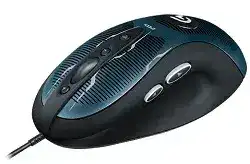
The pointer may respond as soon as Windows detects the USB plug, yet DPI levels and programmable commands can remain unavailable. The Logitech G400s Optical Gaming Mouse Driver adds the control layer needed for sensitivity changes, button assignments, and game profiles. Because this is a wired optical model, detection starts with its cable and USB connection rather than receiver pairing or Bluetooth menus.
The G400s originally uses Logitech Gaming Software for its advanced controls. Windows can still load standard human-interface support without that utility, which explains why movement and normal clicks may work while profile features do not. Install the gaming software with the mouse connected directly to the computer, then restart Windows before creating assignments.
Logitech G400s Optical Gaming Mouse Windows Driver Download
| Driver Name | Description | Supported OS | File Size | Download |
|---|---|---|---|---|
| Logitech Gaming Software 64-bit | Full 64-bit package for configuring mouse buttons, pointer tracking, profiles, sensitivity levels, and device-specific gaming settings offline. | Windows 11, Windows 10 64-bit | 119.96 MB | |
| Logitech Gaming Software 64-bit | Complete 64-bit installer for managing programmable controls, tracking speed, game profiles, DPI assignments, and onboard mouse preferences. | Windows 10 64-bit, Windows 8 64-bit, Windows 7 64-bit | 120.04 MB | |
| Logitech Gaming Software 32-bit | Offline 32-bit software package for assigning mouse functions, adjusting cursor response, creating profiles, and changing supported gaming controls. | Windows 10 32-bit, Windows 8 32-bit, Windows 7 32-bit | 109.04 MB |
Logitech G400s Optical Gaming Mouse Mac OS Driver Download
| Driver Name | Description | Supported OS | File Size | Download |
|---|---|---|---|---|
| Logitech Gaming Software | Mac software for setting mouse button commands, tracking behavior, gaming profiles, sensitivity options, and compatible device preferences. | macOS 10.15, macOS 10.14, macOS 10.13, macOS 10.12 | 204.99 MB | |
| Logitech Gaming Software | Legacy Mac package for programming controls, refining pointer movement, storing game configurations, and managing supported mouse functions. | Mac OS X 10.11, Mac OS X 10.10, Mac OS X 10.9, Mac OS X 10.8 | 202.81 MB |
Logitech Gaming Software opens without showing the G400s
Move the USB plug to another direct port and reopen the utility. Avoid a monitor socket, keyboard pass-through, docking station, or unpowered hub during this check. Older Logitech gaming devices sometimes appear to Windows before the control service finishes identifying the exact model. A restart with the G400s already attached often completes that process.
If the software still displays no mouse, close it and remove the G400s entry from Device Manager under mice and human-interface devices. Disconnect the cable, restart Windows, and reconnect it after the desktop appears. Windows will rebuild its normal USB entry. Reinstall Logitech Gaming Software only when the device continues working as a plain mouse without appearing in the control panel.
A newer Logitech application asks to replace the older utility
Do not assume that every modern Logitech application includes full control for this older model. The G400s setup guide specifically directs owners to Logitech Gaming Software for personalized sensitivity levels. Keep the utility that actually recognizes the device instead of replacing it simply because another installer describes itself as newer.
Running two Logitech control packages at the same time can also create confusing profile behavior. Close the unused application and disable its automatic launch while testing. Once Logitech Gaming Software detects the mouse consistently, create a temporary profile with one altered button. That quick change confirms that the utility can communicate with the device.
Build Sensitivity Levels Around the G400s DPI Buttons
The G400s provides in-play sensitivity controls above and below the wheel. Its default hardware choices include 400, 800, 2000, and 4000 dpi, with 800 dpi used as the starting level. Logitech Gaming Software can replace these with as many as four personalized levels between 400 and 4000 dpi.
DPI jumps farther than expected
Open the pointer or sensitivity page and inspect every enabled stage. A large jump usually means the profile contains widely separated values rather than a sensor fault. Remove stages that you never use, then arrange the remaining values from low to high. Two or three practical choices are often easier to manage than four values that feel nearly identical or dramatically different.
Test the DPI increase and decrease buttons on the Windows desktop before opening a game. If both controls work there but not during play, the active game profile probably contains another assignment. Select that profile and restore the two sensitivity commands. Do not compensate by repeatedly changing Windows pointer speed, because that makes comparisons between profiles harder.
The mouse returns to 800 dpi after startup
A profile may not load when Logitech Gaming Software fails to start with Windows or when the intended executable has not become active. Open the utility and confirm which profile name appears before changing sensitivity. Keep one desktop profile with your preferred starting value so the mouse does not remain at its out-of-box 800 dpi setting between games.
The Logitech G400s Optical Gaming Mouse Driver also depends on the software service remaining available for profile-based changes. If customized levels vanish after an update, restart the utility and save the profile again. Confirm the result after a full Windows restart rather than merely closing and reopening the game.
Pointer speed changes when a game window gains focus
Automatic profile switching can select a different DPI set as soon as the game executable takes control. Compare the desktop and game profiles side by side. Use matching sensitivity stages when you want identical movement everywhere, or keep separate values intentionally for games that need slower aiming or faster camera turns.
Some launchers start one executable and hand control to another. When the profile never activates, associate it with the program that remains open while gameplay is visible. A shortcut or launcher file may close before the game begins, leaving Logitech Gaming Software on the desktop profile.
When Buttons Respond in Windows but Fail Inside a Game
Thumb buttons perform no action
Assign each side control a plain keyboard key first. Choose a key that already works inside the game, then bind that key to the desired action in the game menu. This approach avoids applications that ignore generic browser back and forward commands. It also reveals whether the problem sits in the physical button, the Logitech profile, or the game binding.
If the assignment works in ordinary programs but not in one title, compare application permissions. A game launched with administrator rights may not accept software-generated input from a control utility running normally. Launch both at the same privilege level, then test again. Avoid elevated access unless the game actually requires it.
The selected profile never activates
Use the profile properties to check the linked executable. Select the file that handles active gameplay, not an installer, updater, or desktop shortcut. Games installed through a launcher may store the working executable several folders below the library directory. Watch the active profile name while moving between the desktop, launcher, and game window.
Automatic scanning can also miss titles when their installation details are absent or stored differently from the expected launcher record. Create the profile manually and browse to the executable yourself. Save one obvious test assignment, such as a keyboard letter on a side button, before spending time on a complete command layout.
A button repeats or triggers the wrong command
Inspect the assignment for macros, key repeats, delays, or multi-key sequences. Replace it temporarily with a single keystroke. When the simple command works, rebuild the original action with fewer events. The game may also have the same physical button bound directly, causing it to process both its native mouse input and the software-generated command.
Switch to the desktop profile and test the control in a text field. One character from one press indicates that the switch and basic assignment are behaving normally. Several characters suggest a repeating command or a worn switch. Remove the software assignment before judging the hardware.
USB Interruptions, Sensor Tracking, and Cable Movement
The pointer freezes when the cable shifts
A brief disconnect sound or a disappearing device entry points to the USB path rather than a sensitivity profile. Try another port and gently move the cable near the plug and where it enters the mouse. Do not bend it sharply. Repeated cutouts at the same cable position usually indicate physical wear that software cannot repair.
Check whether the computer also loses other USB devices at that moment. Several devices dropping together suggest a hub, dock, or controller problem. Only the G400s disconnecting makes its cable or plug the stronger suspect. Test it on another computer before reinstalling the Logitech package again.
The optical sensor skips on part of the desk
Place the mouse on an even, non-reflective surface and remove dust from the sensor opening with dry air. Glossy glass, mirrored finishes, deep printed patterns, and damaged mouse pads can produce uneven tracking. Compare several areas of a plain pad while keeping the same DPI level, Windows speed, and game profile.
Very high sensitivity makes small surface defects and hand movement more visible. Drop to 800 or 400 dpi for the test. If low and high levels both fail in the same physical area, the surface is the likely cause. If movement breaks everywhere, compare another USB port and another computer.
Movement feels accelerated even with one DPI value
Disable enhanced pointer precision in Windows when you want movement based more directly on physical distance. Then leave the Windows speed slider at a consistent position while adjusting DPI through Logitech Gaming Software. Changing both controls together makes it difficult to identify why aiming feels different.
Games may apply their own sensitivity, acceleration, or raw-input option. Test one layer at a time. Begin with a known G400s DPI stage, then adjust the in-game value. Avoid copying another player’s number without matching their resolution, field of view, Windows configuration, and chosen sensitivity level.
Clicks and Wheel Problems That Software Cannot Hide
A single press sometimes becomes a double-click
Remove custom commands from the affected button and test it in several applications. Adjust the Windows double-click speed slightly to rule out an overly sensitive timing setting. If one press still opens two items or selects and releases unexpectedly on another computer, the internal switch is probably wearing out.
Turn the mouse off by disconnecting it, then clear loose dust around the button gap with short bursts of clean compressed air. Do not spray liquid cleaner into the shell. A persistent double-click normally requires switch replacement by someone equipped for electronic repair or replacement of the mouse itself.
The wheel misses steps or scrolls backward
Test scrolling in several programs with all wheel-related assignments returned to their defaults. One application behaving differently may have its own scrolling rule. Erratic movement everywhere points more strongly to debris around the wheel encoder or mechanical wear. Rotate the wheel while applying dry air around both sides of the opening.
The middle click should also be tested separately from wheel rotation. If scrolling remains accurate but pressing the wheel fails, treat it as a middle-button problem rather than an encoder fault. Assign another command to middle click in Logitech Gaming Software and check whether the utility recognizes the press.
Primary clicks stop only while dragging
Drag a window slowly across the desktop without releasing the button. If the window repeatedly drops, the switch may be losing electrical contact while held. Remove any macro from that primary control and repeat the test on another computer. Windows click-speed changes will not repair a button that releases physically during a continuous hold.
Make One G400s Profile Prove Every Control
Finish the Logitech G400s Optical Gaming Mouse Driver setup with a temporary diagnostic profile rather than a full game layout. Keep one familiar DPI value, assign distinct keyboard keys to the programmable controls, and leave the wheel on its normal commands. This compact profile makes missing clicks, wrong assignments, and failed profile switching easy to identify.
After every control passes, copy those known assignments into the profiles you actually use. Keep the direct USB connection, chosen mouse-pad surface, Windows pointer options, and game executable unchanged while testing. The Logitech G400s Optical Gaming Mouse Driver can manage sensitivity and commands, but it cannot correct a worn cable, failing switch, damaged wheel encoder, or unsuitable tracking surface.